
Bubuka sareng Langkungview
The Trueque KM22 Ultra Wireless Keyboard and Mouse Combo offers a full-size, backlit typing experience with a comfortable wrist rest and convenient phone holder. Designed for versatility, it connects wirelessly via a 2.4G USB-A/Type-C receiver, making it compatible with various devices including PCs, laptops, Windows, and Chrome OS. Its quiet keys and long-lasting rechargeable battery ensure an efficient and undisturbed work or gaming environment.

Image: Trueque KM22 Ultra Wireless Keyboard and Mouse Combo, showcasing its full-size design and integrated wrist rest.
Eusi pakét
Pastikeun yén sadaya item aya dina pakét anjeun:
- Trueque KM22 Ultra Wireless Keyboard
- Trueque Wireless Mouse
- 2-in-1 USB-A/Type-C Receiver
- Kabel Ngecas USB
- Manual pamaké
Video: Unboxing the Trueque Wireless Keyboard and Mouse Combo, showing all included components.
Disetél
- Manggihan USB Receiver: The 2-in-1 USB-A/Type-C receiver is stored in a compartment on the underside of the mouse. Gently remove it.
- Sambungkeun panarima: Plug the USB receiver into an available USB-A or USB-C port on your computer or laptop. The system should automatically detect the devices.
- Daya Hurung: Ensure both the keyboard and mouse are switched to the 'ON' position. The power switch for the mouse is located on its underside. The keyboard has a power switch near the top right.
- Muatan Awal: For optimal performance, it is recommended to fully charge both the keyboard and mouse before first use. Use the provided USB charging cable.
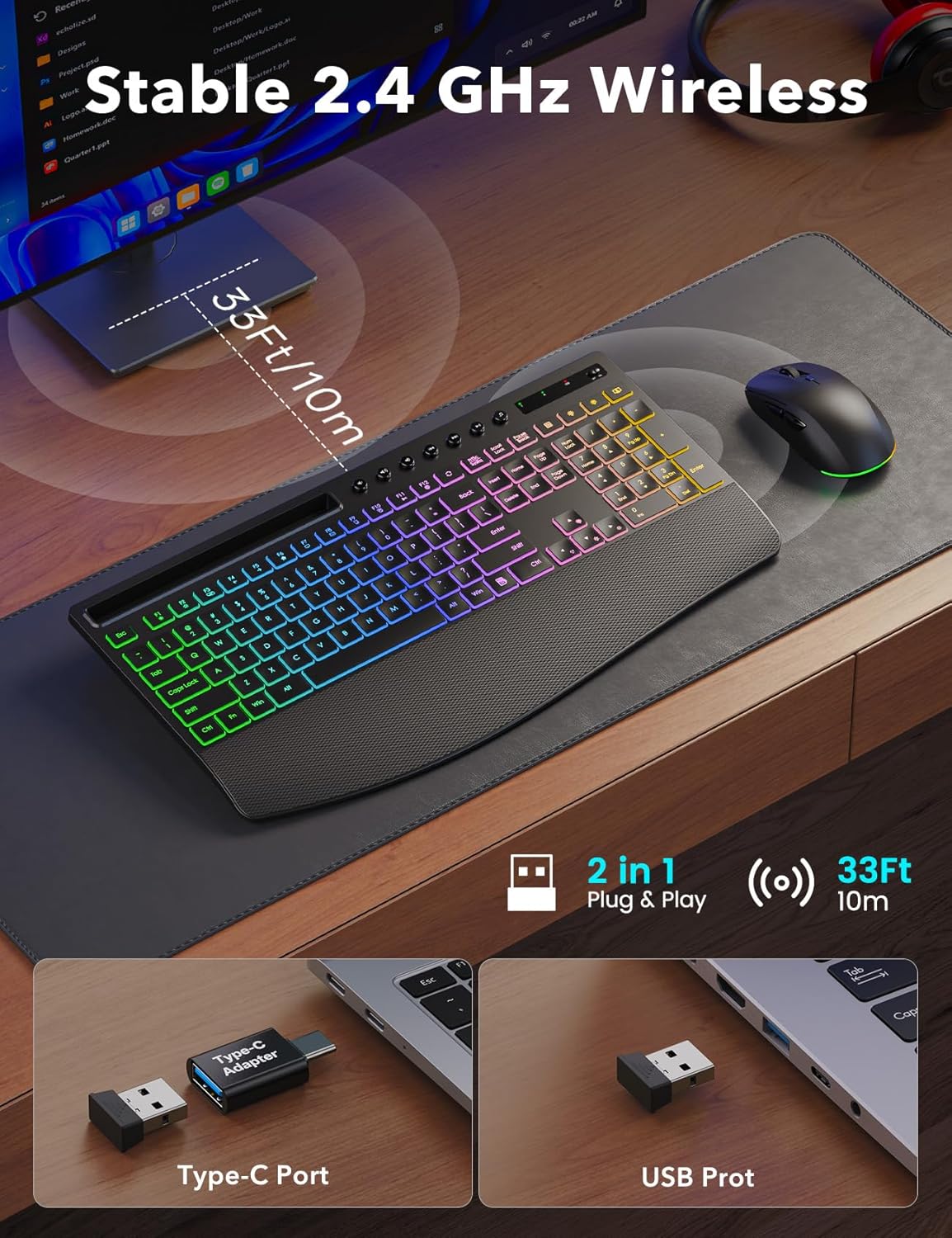
Image: The 2.4G wireless receiver with both USB-A and Type-C adapter options for versatile connectivity.
Parentah Operasi
Fungsi keyboard
- Kontrol lampu latar: The keyboard features 5 lighting effects and 10 backlight colors. Use the dedicated backlight keys (often marked with a lightbulb icon) to cycle through modes and colors. Adjust brightness levels using the Fn key combined with specific arrow keys (refer to the keyboard's keycap legends for exact combinations).
- Tombol Multimedia: Dedicated multimedia keys are located at the top of the keyboard for quick access to volume control, play/pause, and other media functions.
- Wrist Rest & Tilt: The integrated wide wrist support is designed for comfort during long typing sessions. Foldable 7° tilt legs on the underside of the keyboard can be extended for a more ergonomic typing angle.
- Phone Holder Slot: A built-in slot at the top of the keyboard accommodates mobile devices, allowing for easy viewing during multitasking or video calls.
Video: Demonstration of keyboard backlight control, showing various modes and brightness adjustments.
Fungsi Mouse
- Penyesuaian DPI: The mouse supports multiple DPI settings (800, 1200, 1600 DPI) for adjustable cursor sensitivity. Use the dedicated DPI button, usually located near the scroll wheel, to cycle through settings.
- Kancing samping: The mouse includes side buttons for convenient forward and backward navigation in web browsers or other applications.
- Kontrol lampu latar: To turn the mouse backlight on or off, press and hold the scroll wheel for approximately 5 seconds.

Image: The Trueque wireless mouse, highlighting its backlit feature, DPI settings, and quiet click design.
Pangropéa
- beberesih: Anggo lawon anu lemes sareng garing pikeun ngabersihkeun permukaan kibor sareng beurit. Pikeun beberesih anu langkung jero, rada diusapamp lawon jeung sabun hampang bisa dipaké, mastikeun euweuh cairan asup ka alat.
- Perawatan batré: To prolong battery life, avoid fully discharging the devices frequently. Recharge when the low battery indicator appears. Store in a cool, dry place when not in use for extended periods.
- Panyimpenan: When transporting or storing, ensure the USB receiver is securely placed in its compartment within the mouse to prevent loss.
Pamérésan masalah
- Henteu aya sambungan: Ensure the USB receiver is firmly plugged into a working USB port. Check that both the keyboard and mouse are powered on. Try plugging the receiver into a different USB port.
- Lampu tukang teu jalan: Verify that the backlight is enabled using the dedicated keys. Adjust brightness levels. Ensure the device has sufficient battery charge.
- Beurit Teu Ngabales: Check the mouse's power switch. Ensure the USB receiver is connected. If the mouse has a backlight, check if it's on, indicating power.
- Mouse Scrolling Issues: If the mouse scroll wheel is unresponsive, try turning the mouse off and on again. Ensure the mouse is fully charged.
- Lag atanapi Intermittent Connection: Move the keyboard and mouse closer to the USB receiver. Avoid placing the receiver near other wireless devices that might cause interference.
spésifikasi
| Dimensi produk | 16.8 x 9 x 0.9 inci |
| Item Beurat | 2.59 pon |
| Kapasitas Batré Kibor | 4000mAh (bisa dicas deui) |
| Kamampuh Batré Mouse | 800mAh (bisa dicas deui) |
| Téhnologi konektipitas | 2.4Ghz Wireless Connection |
| Range nirkabel | Nepi ka 33 ft (10 méter) |
| Lampu tukang | 5 Lighting Effects, 10 Backlight Colors, 5 Brightness Levels |
| Mouse DPI | Nepi ka 1600 DPI (Adjustable) |
| Fitur husus | Backlit, Light Up Keys, Ergonomic, Rechargeable, Spillproof, Wrist Rest, Phone Holder |
| Alat nu cocog | Chromebook, Laptop, Notebook, MacBook Air, MacBook Pro, iMac, Tablet, Smartphone, Personal Computer, Television (Some shortcut keys may have limited function on macOS) |

Image: Detailed dimensions of the Trueque KM22 Ultra Keyboard and Mouse.
Garansi sareng Rojongan
Trueque offers a 12-month warranty and 360 days of brand care for this product. For any inquiries, technical support, or warranty claims, please contact our customer service team.
Email Dukungan Palanggan: truequeservice@outlook.com

Image: Trueque customer support details, including contact information and warranty period.