
Bubuka
Thank you for choosing the Trueque Wireless Mouse. This manual provides detailed instructions to help you set up, operate, and maintain your new ergonomic wireless mouse. Designed for comfort and efficiency, this mouse features a stable 2.4GHz wireless connection, adjustable DPI levels, and six responsive buttons for enhanced productivity.
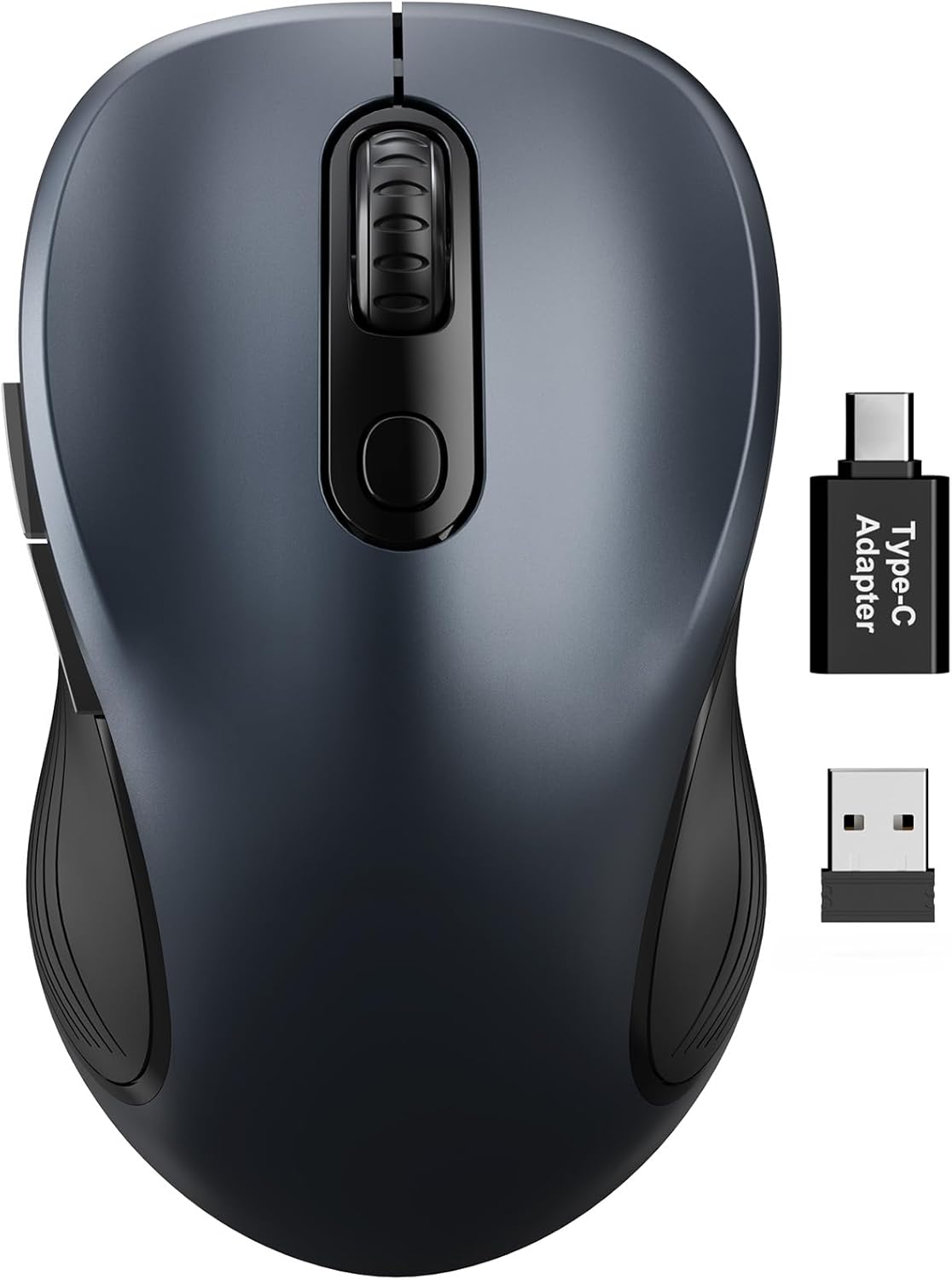
Figure 1: Trueque Wireless Mouse. Jendral view of the Trueque Wireless Mouse in Space Gray.
Produk Leuwihview
Familiarize yourself with the components and design features of your Trueque Wireless Mouse.
Komponén Mouse
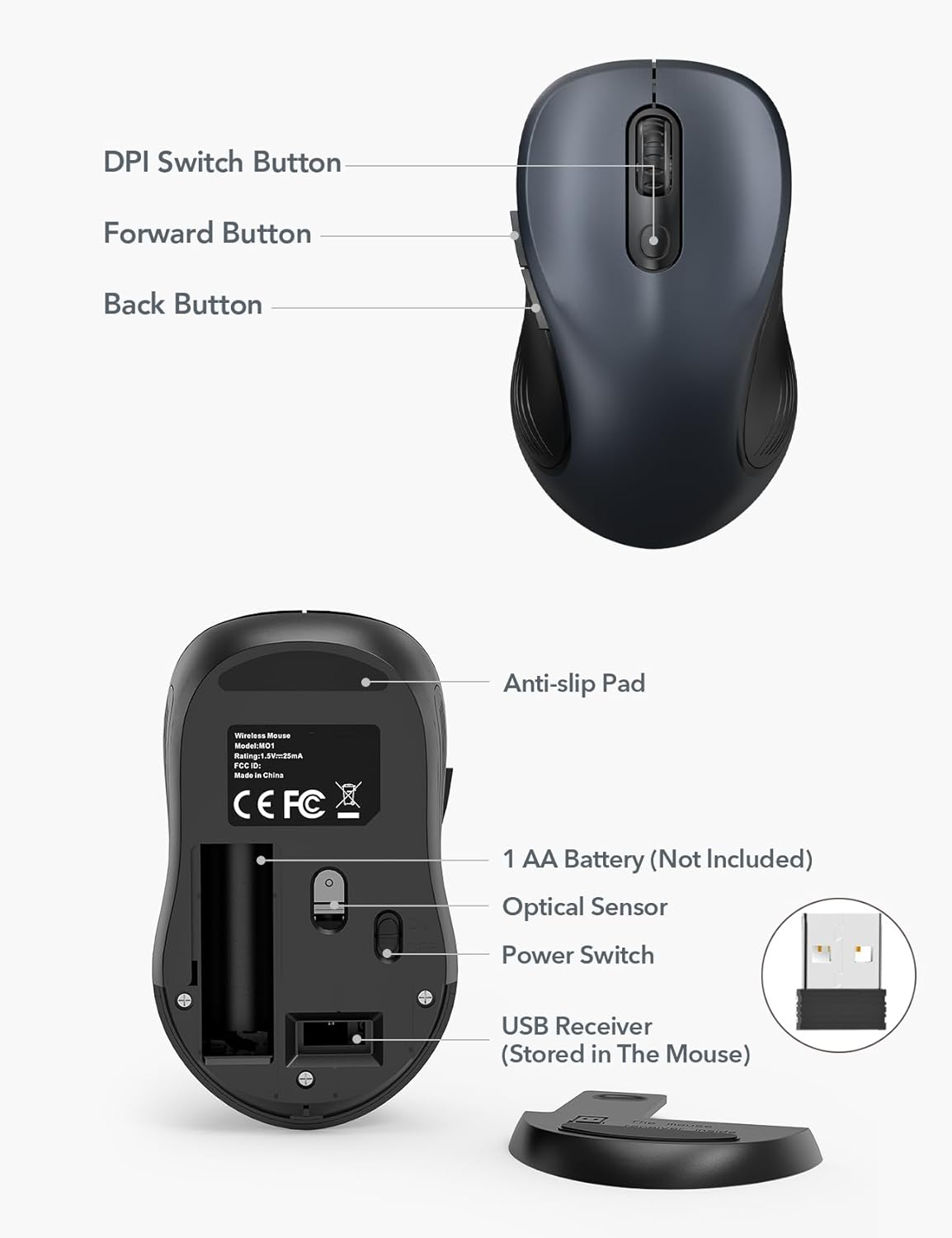
Figure 2: Mouse Components. This image shows the top and bottom views of the Trueque Wireless Mouse, highlighting key components such as the DPI Switch Button, Forward Button, Back Button, Anti-slip Pad, AA Battery compartment, Optical Sensor, Power Switch, and the USB Receiver storage slot.
- Tombol Pindah DPI: Nyaluyukeun sensitivitas kursor.
- Tombol Maju: Navigates ka hareup web browser atawa file penjelajah.
- Tombol Balik: Navigates ka tukang web browser atawa file penjelajah.
- Bantalan Anti-selip: Nyadiakeun stabilitas salila pamakéan.
- 1 AA Battery (Not Included): Power source for the mouse.
- Sénsor optik: Ngalacak gerakan beurit.
- Saklar kakuatan: Ngahurungkeun atanapi mareuman beurit.
- USB Receiver (Stored In The Mouse): Connects the mouse wirelessly to your computer.
Desain ergonomis
The mouse features a natural curved shape and a skin-friendly silicone grip to minimize thumb and wrist strain, ensuring comfort during extended use.

Figure 3: Ergonomic Comfort. This image shows a hand comfortably resting on the Trueque Wireless Mouse, highlighting its ergonomic design for all-day use.
The mouse is designed to fit small to medium hands. Refer to the hand size guide below to determine if this mouse is suitable for your palm length and width.

Figure 4: Hand Size Guide. This image provides a guide for palm length and width to determine the ideal fit for the mouse, suggesting it's suitable for palms under 7.5 inches.
Desain Ringan
Weighing less than 60 grams, the mouse is lightweight and portable, ideal for everyday carry and travel.

Figure 5: Lightweight and Portable. This image shows the mouse being easily stored in a bag, emphasizing its lightweight design for portability.
Parentah Setup
Follow these steps to set up your Trueque Wireless Mouse for first-time use.
1. Pasang Batré
The mouse requires one AA battery (not included).
- Open the battery compartment cover located on the underside of the mouse.
- Selapkeun hiji batré AA, mastikeun polaritasna bener (+/-).
- Tutup panutup kompartemen batré.
Figure 6: Battery and USB Receiver Location. This image illustrates the battery compartment and the storage slot for the USB receiver on the underside of the mouse.
2. Connect USB Receiver
The USB receiver is stored within the mouse for convenience.
- Gently remove the USB receiver from its storage slot on the bottom of the mouse.
- Colokkeun panarima USB kana port USB-A anu sayogi dina komputer anjeun.
- If your device only has USB-C ports, use the included USB-A to USB-C adapter. Connect the USB receiver to the adapter, then plug the adapter into your device's USB-C port.
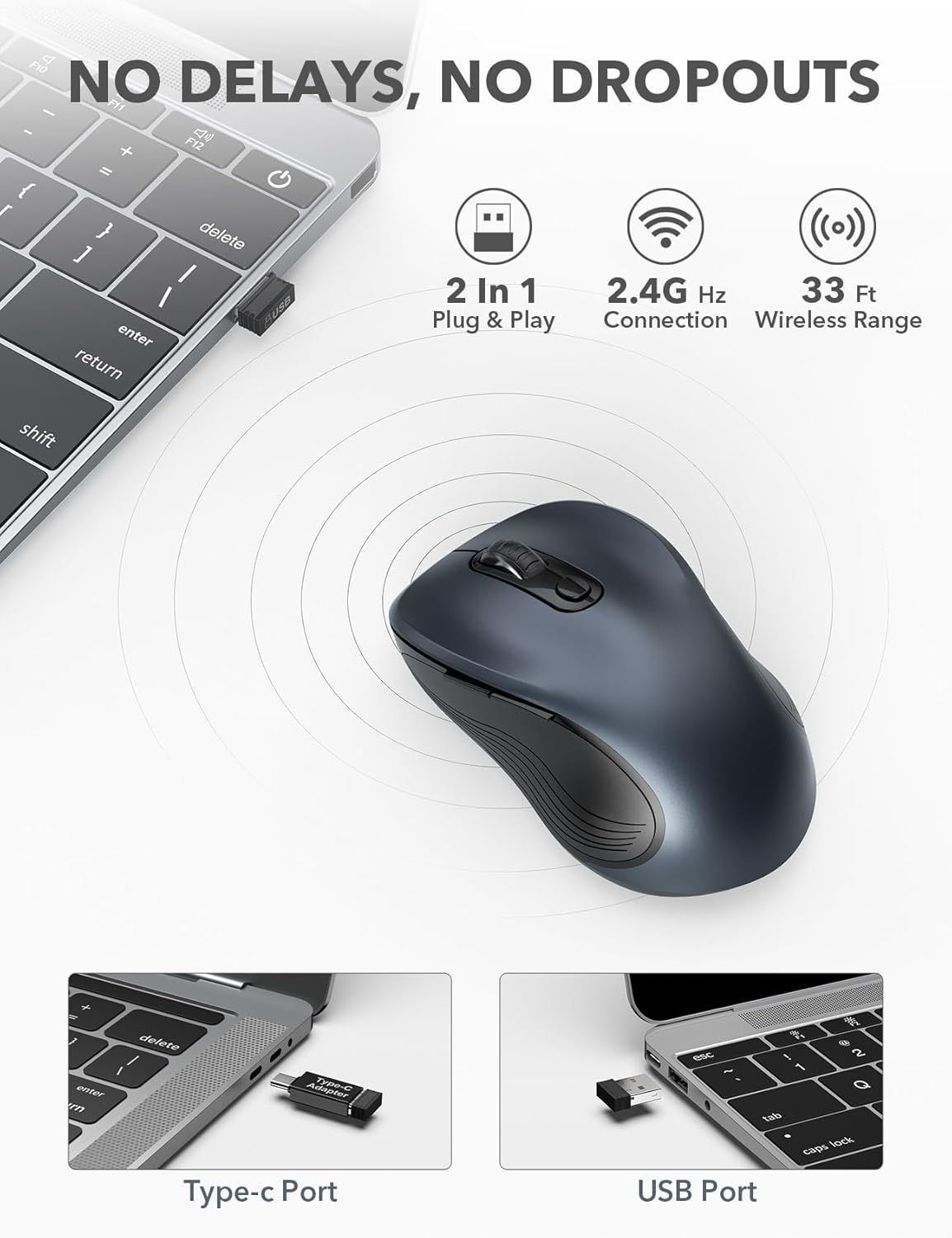
Figure 7: USB Receiver Connection. This image demonstrates how to connect the 2.4GHz USB receiver to both a standard USB-A port and a USB-C port using the provided adapter.
3. Daya Hurungkeun
Slide the power switch on the underside of the mouse to the "ON" position. The mouse will automatically connect to the receiver.
4. Kasaluyuan
The Trueque Wireless Mouse is compatible with various operating systems, including Windows, Mac OS, Linux, and Chrome OS.

Figure 8: Operating System Compatibility. This image shows the Trueque Wireless Mouse is compatible with Windows, Chrome OS, Mac OS, and Linux.
Parentah Operasi
Daya Hurung/Pareuman
Use the power switch on the bottom of the mouse to turn it on or off. Turning the mouse off when not in use helps conserve battery life.
Adjustment DPI
The mouse features 3 adjustable DPI (Dots Per Inch) levels to control cursor sensitivity.
- Press the DPI Switch Button (located behind the scroll wheel) to cycle through the available DPI settings: 800, 1200, and 1600 DPI.
- Select the DPI level that best suits your preference for speed and precision.
Figure 9: DPI Levels. This image illustrates the three adjustable DPI settings (800, 1200, 1600) available on the mouse.
Tombol Mundur sareng Maju
The side buttons provide quick navigation:
- The Tombol Maju (top side button) allows you to navigate forward in web browser atawa file penjelajah.
- The Tombol Balik (bottom side button) allows you to navigate backward in web browser atawa file penjelajah.
Modeu Sare-otomatis
To conserve battery, the mouse enters an auto-sleep mode after 1 minute of inactivity.
- To wake the mouse, double-click any button.
- A single AA battery can last up to 16 months thanks to this smart feature.

Figure 10: Battery Life and Auto-Sleep. This image highlights the mouse's long battery life (up to 16 months) and its power-saving auto-sleep mode.
Fitur Klik Jempe
The mouse is designed with silent click buttons to minimize noise, making it suitable for quiet environments.

Figure 11: Silent Click Comparison. This image visually compares the low sound level of the Trueque mouse (20dB) to other common sounds like breathing (10dB), office noise (50dB), and an alarm (70dB).
Pangropéa
Ngagantian batré
When the mouse performance degrades or it stops responding, it's time to replace the AA battery.
- Turn off the mouse using the power switch.
- Buka panutup kompartemen batré.
- Cabut batré AA anu lami.
- Insert a new AA battery, observing correct polarity.
- Close the battery compartment cover and turn the mouse on.
beberesih
Pikeun ngajaga kinerja sareng kabersihan anu optimal:
- Disconnect the mouse from your computer and turn it off.
- Anggo kaén anu lemes sareng teu aya serat anu hampang dampdikumbah ku cai atawa larutan pembersih anu hampang pikeun ngusap bagian luar beurit.
- Ulah meunang Uap kana sagala bukaan.
- Entong nganggo bahan kimia kasar atanapi beberesih kasar.
Pamérésan masalah
| Masalah | Solusi |
|---|---|
| Beurit teu ngabales |
|
| Gerakan kursor teu teratur atanapi luncat-luncat |
|
| Back/Forward buttons not working |
|
spésifikasi
| Fitur | Rincian |
|---|---|
| merek | Barter |
| Modél | M01_19 |
| Téhnologi konektipitas | Nirkabel 2.4GHz (Panyambut USB) |
| Detéksi Gerakan | Optik |
| Tingkat DPI | 800 / 1200 / 1600 |
| Jumlah Kancing | 6 (Left, Right, Scroll Wheel, DPI, Forward, Back) |
| Orientasi leungeun | Ambidextrous |
| Sumber Daya | 1 x Batré AA (Teu Kaasup) |
| Kahirupan batré | Up to 16 months (with auto-sleep) |
| Range nirkabel | Nepi ka 33 suku (10 méter) |
| Dimensi produk | 10.41 x 6.1 x 0.25 cm |
| Item Beurat | 68.04 g |
| Fitur husus | Ergonomic Design, Silent Click, Auto-Sleep Mode, USB-A to USB-C Adapter Included |
Garansi sareng Rojongan
The Trueque Wireless Mouse is backed by a 12-month warranty from the date of purchase. This warranty covers manufacturing defects under normal use.
For technical support, warranty claims, or any questions regarding your product, please contact Trueque customer service. Please have your purchase information ready when contacting support.
Catetan: The warranty does not cover damage caused by misuse, accident, unauthorized modification, or improper installation.