
Bubuka
This manual provides detailed instructions for the Philips SPK7858 Wireless Optical Mouse. Designed for ergonomic comfort and versatile performance, this mouse features multi-connection options, adjustable DPI settings, and a rechargeable battery, making it suitable for everyday use, office tasks, and gaming. Please read this manual thoroughly to ensure proper setup and operation.
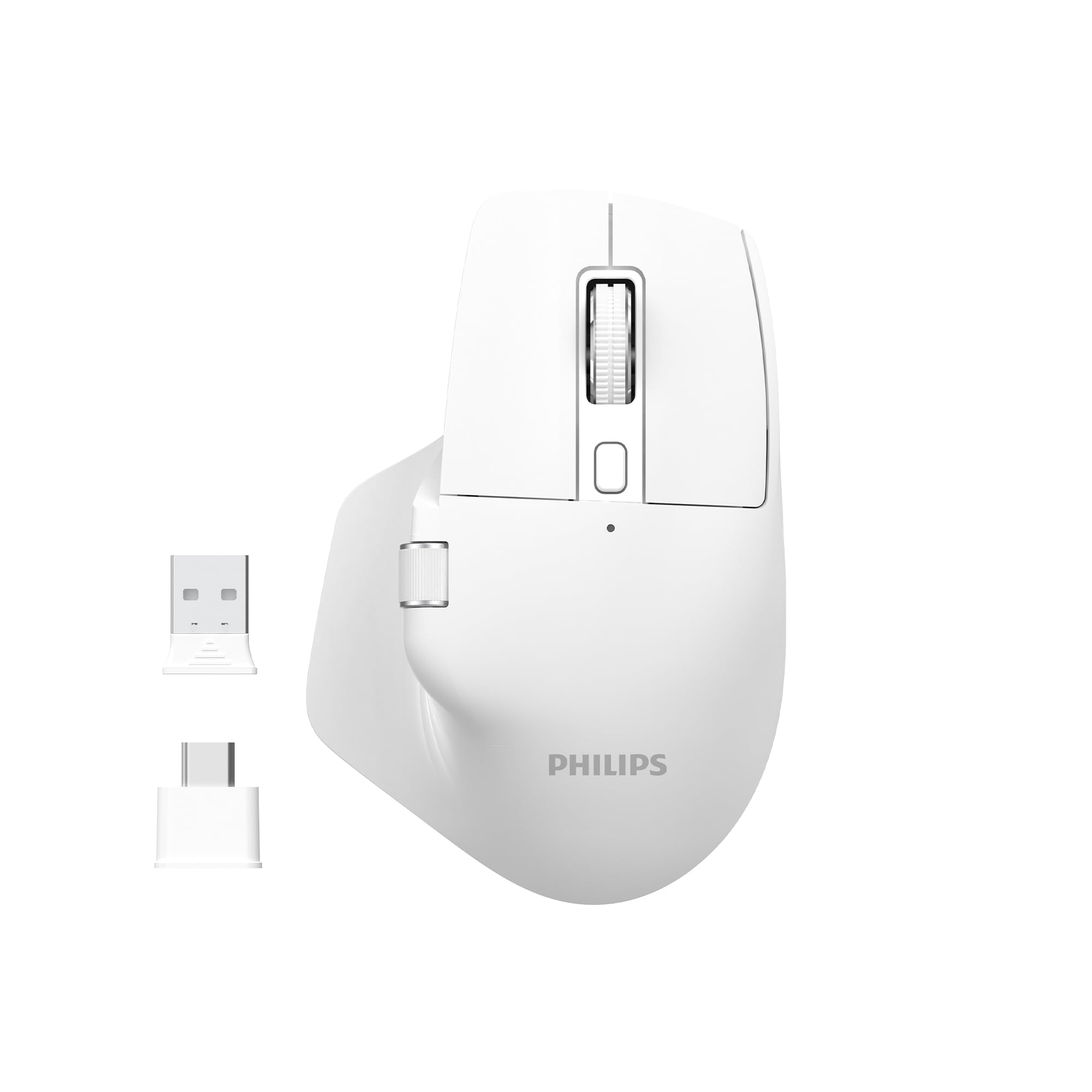
Image: The Philips SPK7858 Wireless Optical Mouse in white, shown with its USB receiver and Type-C adapter.
Disetél
1. Eusi Paket
Sateuacan anjeun ngawitan, pastikeun sadaya item aya dina pakét:
- Philips SPK7858 Wireless Optical Mouse
- Panarima USB
- USB Tipe-C Adaptor
- Kabel Ngecas (Tipe-C)
- Manual pangguna (dokumén ieu)
2. Ngecas Mouse
The mouse comes with a built-in rechargeable battery. For first-time use, it is recommended to fully charge the mouse.
- Panggihan port ngecas Tipe-C di hareup beurit.
- Sambungkeun kabel ngecas anu disayogikeun kana beurit sareng sumber daya USB (contona, port USB komputer, adaptor témbok USB).
- Lampu indikator ngecas bakal hurung. Saatos dicas pinuh, lampu tiasa robih warna atanapi pareum.

Gambar: Sisi view of the Philips SPK7858 mouse, highlighting the Type-C charging port.
3. Nyambungkeun Mouse
The mouse connects wirelessly via a 2.4GHz USB receiver.
- Remove the USB receiver from its storage compartment on the underside of the mouse.
- Plug the USB receiver directly into an available USB-A port on your computer. If your computer only has Type-C ports, use the provided Type-C adapter.
- Hurungkeun beurit nganggo saklar kakuatan anu aya di handapeun.
- Komputer anjeun kedahna sacara otomatis ngadeteksi sareng masang driver anu diperyogikeun. Mouse na parantos siap dianggo.

Image: Underside of the Philips SPK7858 mouse, illustrating the USB dongle storage area and the optical sensor.
Ngoperasikeun Mouse
Fungsi Tombol
The Philips SPK7858 mouse features 7 programmable buttons for enhanced control and efficiency.
- Tombol Klik Kénca: Fungsi klik primér standar.
- Tombol Klik katuhu: Fungsi klik sekundér standar.
- Gulung kabayang: Scrolls vertically. Can also be pressed for middle-click functionality.
- Tombol Penyesuaian DPI: Ngarobah setélan sensitivitas DPI.
- Tombol Maju: Navigates ka hareup web browser atawa file penjelajah.
- Tombol Mundur: Navigates ka tukang web browser atawa file penjelajah.
- Side Scroll Wheel: Provides horizontal scrolling functionality.

Gambar: Hareupeun view of the Philips SPK7858 mouse, detailing the main scroll wheel, DPI button, and side buttons.
Adjustment DPI
Adjust the mouse sensitivity (DPI) to match your preference or task requirements. The SPK7858 offers 5 adjustable DPI levels.
- Press the DPI adjustment button (located behind the main scroll wheel) to cycle through the available DPI settings.
- Each press will switch to the next DPI level: 800, 1600, 2400, 3200, and 4000 DPI.
- Select the DPI setting that provides the most comfortable and precise cursor movement for your current activity.

Image: A visual representation of the five adjustable DPI levels (800, 1600, 2400, 3200, 4000) available on the Philips SPK7858 mouse.
Kasaluyuan universal
The Philips SPK7858 mouse is designed for broad compatibility across various operating systems, ensuring seamless integration with your devices.

Image: Icons representing universal compatibility with Windows, Apple (macOS), Chrome OS, Linux, and Android operating systems.
Pangropéa
beberesih
To maintain optimal performance and appearance, clean your mouse regularly.
- Paké lawon lemes, garing, lint-haratis pikeun ngusap beungeut beurit.
- Keur kokotor bandel, rada dampen lawon ku cai atawa solusi beberesih hampang. Hindarkeun bahan kimia anu kasar.
- Ulah ngantep cairan asup kana awak beurit.
- Ngabersihan sensor optik dina underside périodik ku swab katun pikeun mastikeun tracking akurat.
Perawatan batré
The mouse features a rechargeable battery designed for long service life.
- Cas beurit nalika indikator batréna nunjukkeun daya lemah.
- Hindarkeun sering-sering ngecas batré pikeun manjangkeun umurna.
- Upami nyimpen beurit kanggo waktos anu lami, eusian batréna dugi ka sakitar 50% sateuacan disimpen sareng eusian deui unggal sababaraha bulan.
Pamérésan masalah
Beurit Teu Ngabales
- Pariksa kakuatan: Pastikeun beurit dihurungkeun sareng gaduh batré anu cekap. Ngecas deui lamun perlu.
- Pariksa sambungan: Pariksa heula yén panarima USB parantos dipasang kalayan pageuh kana port USB anu tiasa dianggo dina komputer anjeun. Cobi nganggo port USB anu sanés.
- pasangan deui: Turn off the mouse, unplug the receiver, then plug the receiver back in and turn on the mouse.
- gangguan: Move the mouse closer to the receiver or away from other wireless devices that might cause interference.
Inaccurate Tracking or Cursor Jumps
- Sensor beresih: Ngabersihan sensor optik dina underside beurit.
- Beungeut: Ensure you are using the mouse on a suitable surface. Highly reflective, transparent, or uneven surfaces may affect tracking performance. A mouse pad is recommended.
- Setélan DPI: Saluyukeun setelan DPI ka nilai handap lamun kursor sensitip teuing.
Tombol Teu Gawé
- Pariksa batré: Low battery can sometimes affect button responsiveness.
- Konflik parangkat lunak: If using custom button assignments, check your operating system's mouse settings or any third-party software for conflicts.
spésifikasi
| Fitur | Rincian |
|---|---|
| merek | Philips |
| Ngaran modél | SPK7858 |
| Téhnologi konektipitas | Nirkabel (Receiver USB) |
| Téhnologi Deteksi Gerakan | Optik |
| Tingkat DPI | 800, 1600, 2400, 3200, 4000 |
| Jumlah Kancing | 7 |
| Fitur husus | Ergonomic Design, Rechargeable Battery |
| Warna | Bodas |
| Item Beurat | Kira-kira. 99g (kaasup batré) |
| Batré | 1 Batré Non-Standar (kalebet, tiasa dicas deui) |
| Eusi Kotak | Beurit |

Image: Diagram illustrating the dimensions of the Philips SPK7858 mouse: Height 12.3cm, Width 8.27cm, Depth 4.48cm, and approximate weight of 99g (including battery).
Émbaran jaminan
Philips products are manufactured to the highest standards and undergo rigorous quality checks. For detailed warranty information, including terms, conditions, and duration, please refer to the warranty card included with your product or visit the official Philips websitus. Simpen resi pameseran anjeun salaku bukti pameseran.
Rojongan Palanggan
If you encounter any issues or have questions not covered in this manual, please contact Philips customer support. You can find contact details, FAQs, and additional resources on the official Philips support websitus.
Dukungan Online: Nganjang www.philips.com/support