
1. Bubuka
Thank you for choosing the ELECROW 5-inch IPS Touch Screen Monitor. This compact display offers a high-definition visual experience with responsive touch functionality, designed for a wide range of applications including single-board computers and mini PCs. This manual provides essential information for the proper installation, operation, and care of your device.

The ELECROW 5-inch IPS Touch Screen Monitor, a versatile display solution.
fitur konci ngawengku:
- HD Display Experience: 5-inch IPS capacitive touchscreen with a 1024 x 600 resolution, 178° viewing angle, and support for up to 1080P signal input.
- Sentuhan Responsif: Supports 5-point multi-touch on Windows and single-touch on Raspberry Pi/Jetson Nano.
- Gampang Plug-and-Play: No additional drivers required for most compatible systems.
- Fungsi profésional: Features a headphone jack for audio output and a built-in OSD menu for display adjustments.
2. Naon dina Box
Punten parios yén sadaya barang anu didaptarkeun di handap kalebet kana pakét anjeun:
- 1x 5-inch Touch Screen Monitor
- 1x HD Cable (1m)
- 1x USB-A to USB-C Cable (1m)
- 1x Micro-HD Adapter (for Raspberry Pi 4B & 5)
- 4x Hexagonal Copper Standoff Kit (M2.5)
- 2x Pro Stand
- 1 x Obeng
- 1x User Manual (Quick Start Guide)
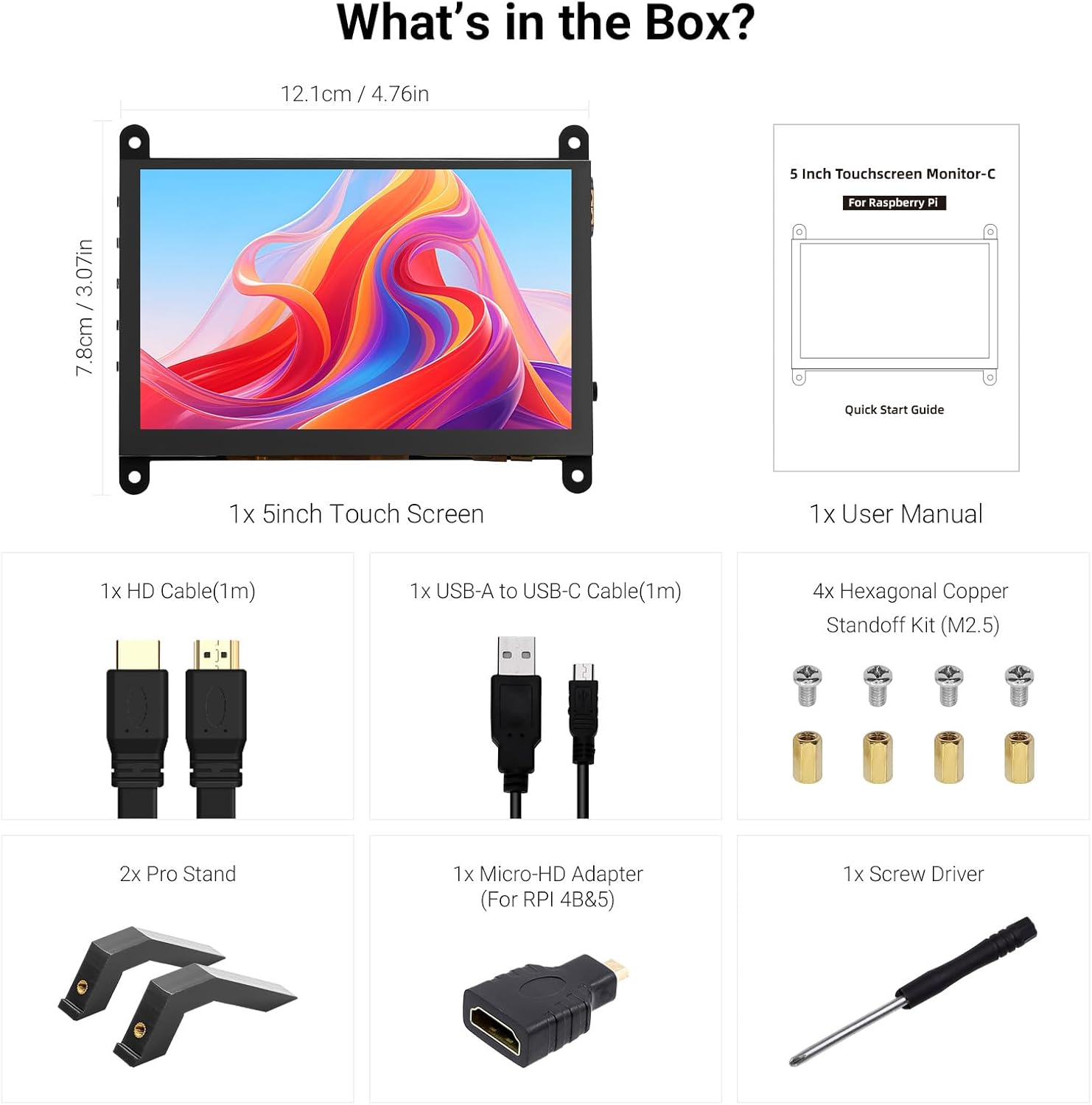
All components included in the product package.
3. Produk Langkungview
Familiarize yourself with the ports and buttons on your ELECROW 5-inch Touch Screen Monitor:

Diwincik view of the monitor's ports and control buttons.
- HD Input Port: For video signal input.
- Palabuhan USB-C: For power supply and touch signal transmission.
- Jack Headphone 3.5mm: Pikeun kaluaran audio.
- Tombol Menu: Ngaksés menu Tampilan Dina Layar (OSD).
- Left/Up Button: Navigates left or up in the OSD menu.
- Right/Down Button: Navigates right or down in the OSD menu.
- Tombol mulang: Exits a menu or returns to the previous option.
- Tombol Daya: Hurungkeun tampilan atanapi pareuman.
- 20P-FPC-0.5mm Display Port: For flexible cable expansion in embedded systems.
4. Parentah Setup
Follow these steps to connect your ELECROW 5-inch Touch Screen Monitor to a compatible device:
4.1 Nyambungkeun ka Raspberry Pi
- Sambungkeun Kabel HD: Use the provided HD cable to connect the monitor's HD Input Port to the HDMI port on your Raspberry Pi. If using Raspberry Pi 4B or 5, use the included Micro-HD adapter.
- Sambungkeun kabel USB: Connect the USB-C port on the monitor to a USB-A port on your Raspberry Pi using the provided USB-A to USB-C cable. This supplies power to the monitor and enables touch functionality.
- Daya Hurung: Power up your Raspberry Pi. The display should automatically detect the signal and power on.
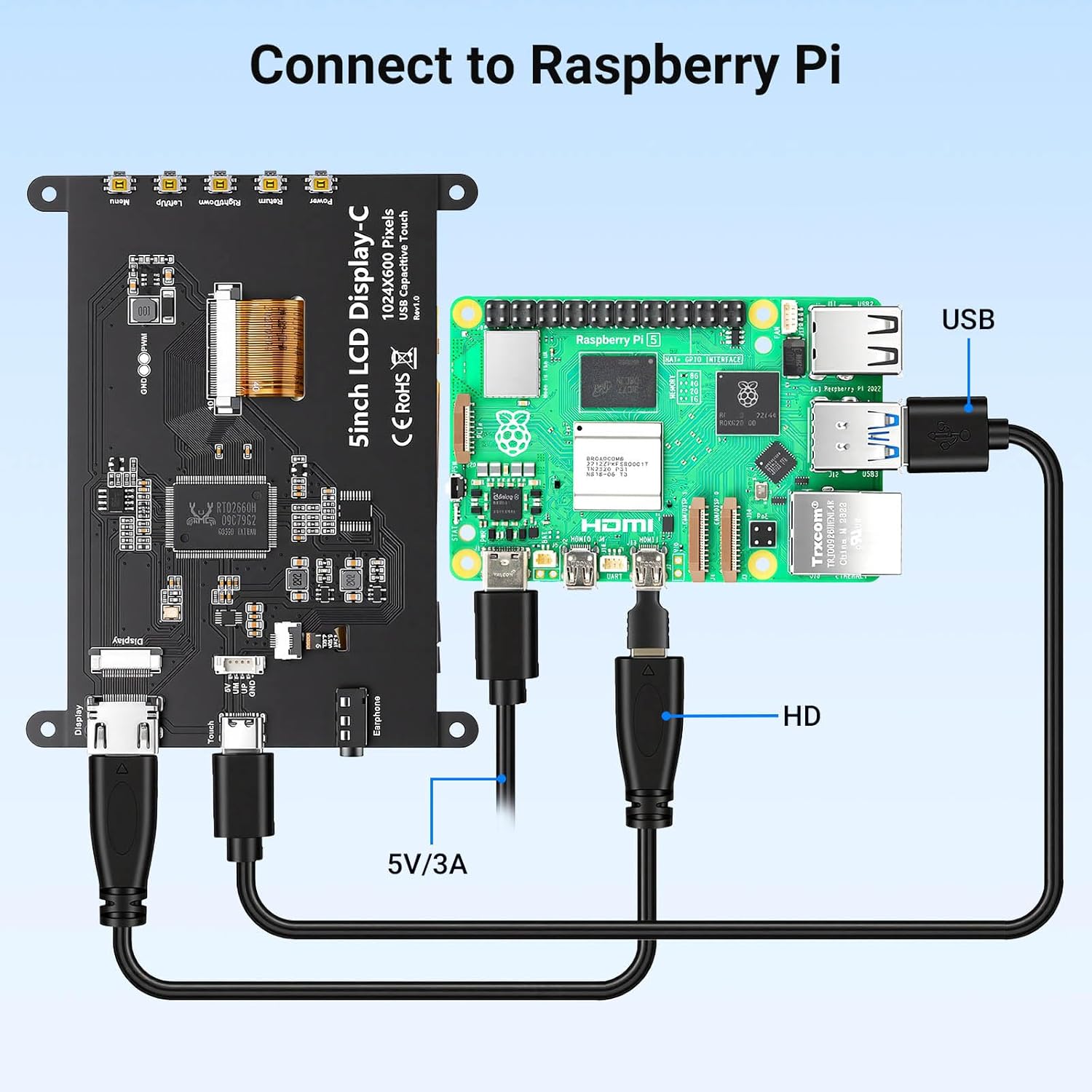
Connection diagram for Raspberry Pi.
4.2 Connecting to Windows PC/Laptop
- Sambungkeun Kabel HD: Use the provided HD cable to connect the monitor's HD Input Port to the HDMI port on your PC/laptop.
- Sambungkeun kabel USB: Connect the USB-C port on the monitor to a USB-A port on your PC/laptop using the provided USB-A to USB-C cable. This provides power and enables touch functionality.
- Daya Hurung: Power on your PC/laptop. The display should be recognized automatically. No additional drivers are typically required for Windows 7/8/10/11.
5. Parentah Operasi
5.1 Operasi Dasar
- Hurungkeun/Pareuman: Press the Power Button (8) to turn the display on or off.
- Fungsi Toél: The monitor features a capacitive touchscreen. On Windows systems, it supports 5-point multi-touch. On Raspberry Pi (Raspbian, Ubuntu, Kali, Retropie) and Jetson Nano, it supports single-touch operation.

Responsive touch experience for various devices.
5.2 Napigasi Menu OSD
The On-Screen Display (OSD) menu allows you to adjust various display settings:
- Pencét éta Menu Button (4) pikeun muka menu OSD.
- Ngagunakeun éta Left/Up Button (5) jeung Right/Down Button (6) pikeun nganapigasi pilihan menu.
- Pencét éta Menu Button (4) deui pikeun milih hiji pilihan atawa mastikeun setelan.
- Pencét éta Tombol Balikkeun (7) to exit the current menu or return to the previous level.
Common adjustable settings include Brightness, Contrast, and other display parameters.
5.3 Kaluaran Audio
Connect headphones or external speakers to the 3.5mm Headphone Jack (3) for audio output from the connected device.
6. Kasaluyuan
The ELECROW 5-inch Touch Screen Monitor offers broad compatibility with various operating systems and hardware platforms:
- Sistem Operasi: Raspbian, Ubuntu, Kali, Retropie, Windows 7/8/10/11, Windows 10 IoT.
- Alat anu cocog: Raspberry Pi 5, Raspberry Pi 4, Raspberry Pi 3 B+, BB Black, Banana Pi, Jetson Nano, PS4, Xbox.

Broad compatibility with popular operating systems and devices.
7. Spésifikasi
| Fitur | Rincian |
|---|---|
| merek | ELEKTRIK |
| Nomer modél | DLH04950B |
| Ukuran layar | 5 inci |
| Resolusi | 1024 x 600 piksel |
| Tipe tampilan | IPS |
| Viewdina Angle | 178 darajat |
| Caang | 410 cd/m² |
| Refresh Laju | 60 Hz |
| Waktu Tanggapan | 2 Milidetik |
| Konektipitas | HDMI, USB Type C |
| Voltage | 5 volt |
| Ukuran (W x H) | 12.1 cm x 7.8 cm (4.76 inci x 3.07 inci) |
| Fitur tambahan | Portable, Touchscreen, Headphone Jack, OSD Menu |

Visual representation of key display specifications.
8. Pangropéa
Perawatan sareng pangropéa anu leres bakal mastikeun umur panjang sareng kinerja monitor anjeun anu optimal:
- Ngabersihan layar: Make kaen nu lemes, teu aya lint rada dampened with water or a screen-cleaning solution. Avoid harsh chemicals, abrasive materials, or excessive moisture.
- beberesih umum: Wipe the exterior of the monitor with a dry, soft cloth.
- Panyimpenan: Lamun teu dipaké pikeun période nambahan, nyimpen monitor dina tiis, tempat garing jauh ti sinar panonpoé langsung jeung hawa ekstrim.
- Penanganan: Avoid dropping the monitor or subjecting it to strong impacts. Do not apply excessive pressure to the screen.
- Ventilasi: Ensure the monitor has adequate ventilation to prevent overheating. Do not block any vents.
9. Cara ngungkulan
If you encounter issues with your ELECROW 5-inch Touch Screen Monitor, refer to the following common problems and solutions:
9.1 Teu Aya Tampilan / Layar Hideung
- Pariksa sambungan: Ensure the HD cable is securely connected to both the monitor and the source device.
- Sasayogian tanaga: Verify that the USB-C cable is properly connected and providing sufficient power (5V). Try a different USB port or power adapter if available.
- Alat Sumber: Confirm that your source device (e.g., Raspberry Pi, PC) is powered on and outputting a video signal.
- Setélan Resolusi: Ensure the output resolution of your source device is compatible with the monitor (1024x600 or a resolution that can be scaled).
9.2 Touch Function Not Working
- Sambungan USB: The USB-C cable is essential for touch functionality. Ensure it is connected to both the monitor and the source device.
- Rojongan Sistem Operasi: Verify that your operating system supports touch input and that necessary drivers (if any, though usually plug-and-play) are installed. For Raspberry Pi, ensure the OS is configured for touch.
- Kalibrasi ulang: Some operating systems may require touch screen calibration. Refer to your OS documentation for instructions.
9.3 Image Quality Issues (Flickering, Distorted Colors)
- Integritas kabel: Try a different HD cable to rule out a faulty cable.
- Source Signal: Test the monitor with a different source device to determine if the issue is with the monitor or the source.
- Setélan OSD: Adjust brightness, contrast, and other color settings via the OSD menu.
10. Jaminan & Dukungan
10.1 Émbaran jaminan
This ELECROW 5-inch Touch Screen Monitor comes with a 1 Taun Produsén Garansi. This warranty covers defects in materials and workmanship under normal use. It does not cover damage caused by misuse, accident, modification, or unauthorized repair.
10.2 Rojongan Téknis
For technical assistance, troubleshooting beyond this manual, or warranty claims, please contact ELECROW customer support through their official website or the platform where you purchased the product. Please have your model number (DLH04950B) and purchase details ready when contacting support.