
1. Bubuka
This manual provides essential instructions for the safe and efficient operation, setup, and maintenance of your Procolored F13 Panda DTF Printer. Please read this manual thoroughly before using the printer to ensure optimal performance and longevity.
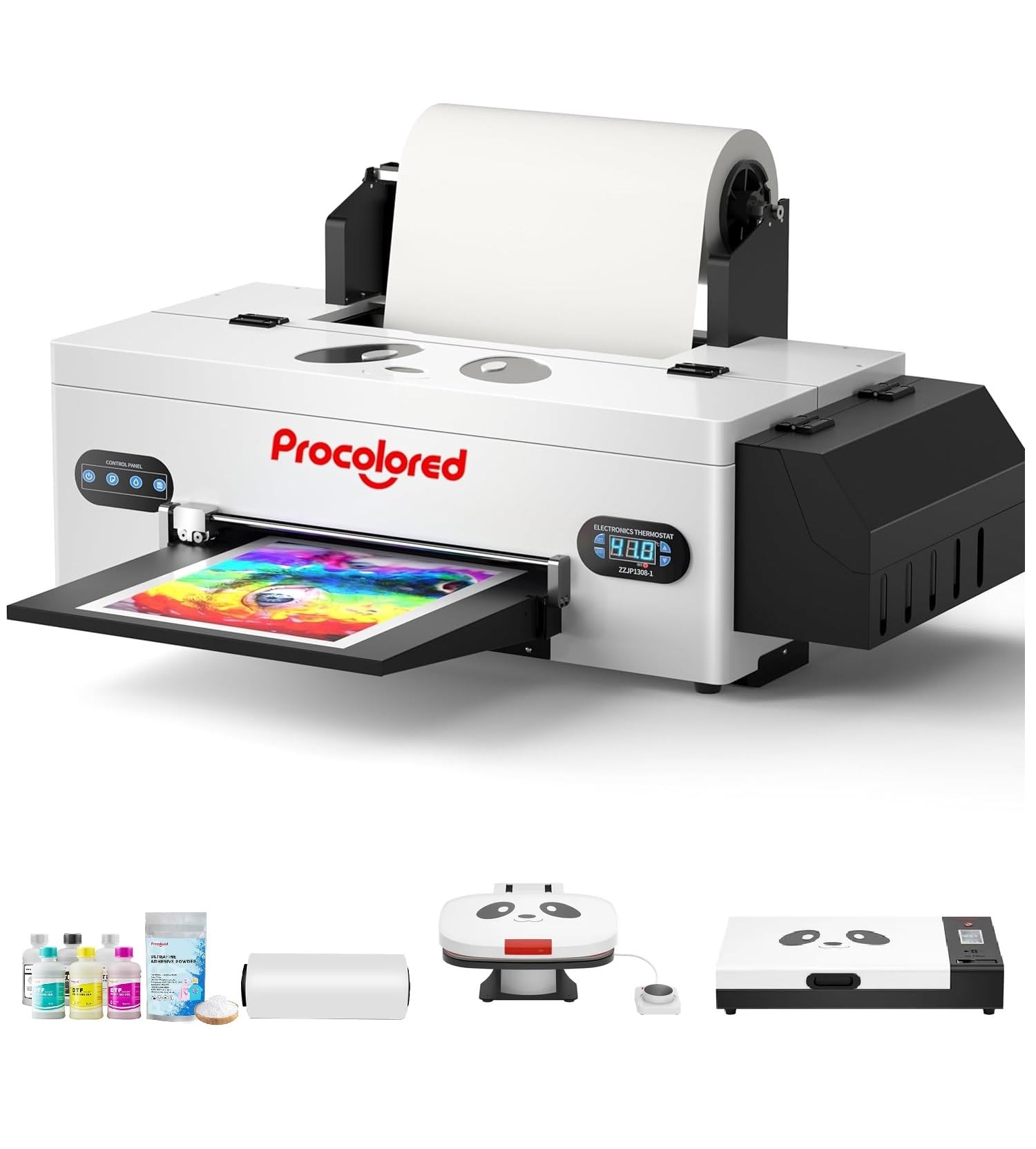
Figure 1: Procolored F13 Panda DTF Printer.
2. Émbaran Kasalametan
Salawasna perhatikeun tindakan pencegahan kaamanan ieu pikeun nyegah cilaka atanapi karusakan kana printer:
- Pastikeun panyitak disimpen dina permukaan datar anu stabil.
- Connect the printer to a grounded power outlet with the correct voltage (AC 100-230V).
- Ulah ngalaan printer ka cai atawa kalembaban anu kaleuleuwihan.
- Tetep leungeun bersih tina bagian nu pindah salila operasi.
- Use only recommended inks and cleaning solutions.
- Jauhkeun tina jangkauan barudak.
3. Eusi Paket
Pastikeun yén sadaya item aya dina bungkusan:
- Procolored F13 DTF Printer
- Roll Film 13"
- DTF Ink Set (CMYK+WW)
- Nozzle Protection Fluid
- DTF Powder
- Rojongan palastik
- Data Cable (USB)
- Kabel Daya
- Moisturizing Device
- Botol Runtah
- Kartrid
- Spare Ink Tube
- Roller bracket
- Tinta Pad
- Wiper
- Cutter agul
- USB Dongle
- Jarum suntik
- Obeng
- Roller Bar
- Extension Tube
- Needle Hub
- Cinyusu
- Ngusap

Figure 2: Included accessories for the Procolored F13 DTF Printer.
4. Setup Guide
4.1 Unboxing sareng Penempatan Awal
Carefully remove the printer and all components from the packaging. Place the printer on a sturdy, level surface in a well-ventilated area.
Video 1: Procolored F13 DTF Printer Unboxing. This video demonstrates the unboxing process and initial setup steps for the printer.
4.2 Pamasangan Roll Film
Install the 13-inch DTF film roll onto the designated holder at the rear of the printer. Ensure the film feeds smoothly into the printer mechanism.
4.3 Ink System Setup
Fill the ink tanks with the corresponding DTF pigment inks (Cyan, Magenta, Yellow, Black, White, Light Cyan). Ensure the white ink circulation system is properly connected and functioning to prevent clogging.

Figure 3: Illustration of the advanced white ink system, showing circulation, siphon effect, and automatic cleaning.
4.4 Sambungan Daya sareng Pamasangan Parangkat Lunak
Connect the power cable to the printer and a suitable power outlet. Install the Procolored RIP software (compatible with Windows 7/10/11) on your computer. Follow the on-screen instructions for software installation and driver setup.
Gambar 4: Leuwihview of the Procolored RIP software interface and available tutorials.
5. Parentah Operasi
5.1 Preparing for Print
- Power on the printer using the main switch.
- Ensure the DTF film is correctly loaded and aligned.
- Open the Procolored RIP software on your computer.
- Import your design and adjust settings such as size, resolution (up to 1440x1440dpi), and color profile.
5.2 Prosés percetakan
Initiate the print job from the software. The printer will feed the film and apply ink. The built-in cutter will automatically trim the film after printing, optimizing material usage.
Video 2: Procolored F13 DTF Printer in operation. This video demonstrates the printing process, including film feeding and ink application.
5.3 Post-Printing
After printing, apply DTF powder to the wet ink and cure it using a DTF oven or heat press. Once cured, the design is ready for transfer to textiles.

Gambar 5: Kelamples of versatile applications for DTF prints, including shirts, flags, tote bags, and caps.
6. Pangropéa
6.1 Sistim beberesih otomatis
The F13 Panda DTF Printer features an automatic cleaning system that operates even when the printer is powered on. This system helps prevent print head clogs and ensures consistent print quality. Regular use of this feature is recommended.
6.2 White Ink Circulation
The printer includes a white ink circulation system with a siphon filtration diaphragm pump. This system minimizes blockages and maintains the quality of white ink. Ensure the system is always active during operation.
Video 3: F13 L1800 DTF Apparel Printer features. This video highlights the white ink circulation and automatic cleaning functions.
6.3 beberesih umum
périodik ngabersihan jaba printer ku lemes, damp cloth. Refer to the software's maintenance section for specific print head cleaning procedures if needed.
7. Cara ngungkulan
Upami anjeun ngalaman masalah sareng printer anjeun, pertimbangkeun solusi umum ieu:
- Masalah Kualitas Cetakan: Perform a nozzle check and head cleaning through the software. Ensure ink levels are sufficient.
- Film Feeding Problems: Check for obstructions in the film path and ensure the film roll is correctly installed and aligned.
- Kasalahan parangkat lunak: Restart the software and the printer. Ensure your software and drivers are up to date.
- Masalah konektipitas: Verify USB cable connection and ensure the printer is powered on.
For persistent issues, contact Procolored customer service.
8. Spésifikasi
| Fitur | Spésifikasi |
|---|---|
| merek | Procolored |
| Ngaran modél | F13-XMJZ |
| Téhnologi konektipitas | USB |
| Téhnologi percetakan | Inkjet |
| Fitur husus | Portabel |
| Kaluaran printer | Warna |
| Laju Nyitak Maksimum (Warna) | 1 ppm |
| Max Printspeed Monokrom | 1 ppm |
| Ukuran produk (D x W x H) | 16.53 "D x 34.25" W x 16.4" H |
| Warna Tinta | Cyan, Magenta, Yellow, Black, White, Light Cyan |
| Resolusi | 1440 x 1440 dpi |
| Ukuran Média Maksimum | A3 (13 Inches) |
| Rojongan Software | Windows 7/10/11 |
| Mangpaat husus Pikeun Produk | Textile Printing |
9. Garansi jeung Rojongan
Your Procolored F13 Panda DTF Printer comes with a comprehensive warranty:
- Print Head and Related Components: Six-month warranty.
- Asesoris séjén: Garansi sataun.
Our dedicated customer service team is available 24/6 to address any queries or technical issues you may encounter. Please refer to your purchase documentation for specific contact details.