1. Bubuka
This manual provides detailed instructions for the setup, operation, and maintenance of your Logitech MX700 Cordless Optical Mouse. Please read this manual thoroughly to ensure proper use and to maximize the performance of your device.
The Logitech MX700 features advanced optical tracking, wireless connectivity, and a unique Cruise Control scrolling system for enhanced navigation. It includes a rechargeable base station to keep your mouse powered and ready for use.
2. Eusi Paket
- Logitech MX700 Cordless Optical Mouse
- USB Rechargeable Base Station
- Adaptor Daya AC
- USB Receiver Cable
- AA Rechargeable Battery (pre-installed or included)
- Dokuméntasi pamaké
3. Setup Guide
3.1. Nyambungkeun Base Station
- Connect the USB receiver cable from the base station to an available USB port on your computer.
- Connect the AC power adapter to the base station and then plug it into a wall outlet. This provides power for charging the mouse.

Image 1: Logitech MX700 Cordless Optical Mouse docked in its USB rechargeable base station, connected via a USB cable.
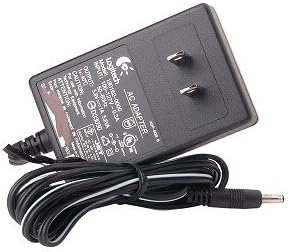
Image 2: The AC power adapter for the Logitech MX700 base station, showing the plug and cable.
3.2. Initial Mouse Charging
Place the MX700 mouse onto the base station. Ensure it is seated correctly for charging. The mouse uses a rechargeable AA battery. Allow the mouse to charge for several hours before first use, or until the charging indicator (if present) shows a full charge.
3.3. Pamasangan Parangkat Lunak (Opsional)
For full functionality, including customization of buttons and the Quick Switch Program Selector, it is recommended to install the Logitech SetPoint software. This software is typically available on the Logitech website or was included on a CD with your product.
- Nganjang ka resmi Rojongan Logitech Websitus to download the latest drivers and software for the MX700.
4. Parentah Operasi
4.1. Fungsi Mouse Dasar
- Klik Kénca: Seleksi sareng aktivasi primér.
- Klik katuhu: Aksés ménu kontekstual.
4.2. Cruise Control Scrolling System
The MX700 features a unique Cruise Control scroll wheel designed for efficient navigation through documents and web kaca.
- Scroll Up/Down: Rotate the scroll wheel forward or backward to scroll vertically.
- Scroll Line-by-Line: The scroll wheel provides precise, line-by-line scrolling in either direction.
- Cruise Control Activation: Specific buttons (often located near the scroll wheel) can activate "Cruise Control" mode for continuous, high-speed scrolling. Refer to the SetPoint software for customization.
4.3. Additional Buttons
- Quick Switch Program Selector: This button allows you to quickly switch between active programs and documents. Its functionality can be customized via the Logitech SetPoint software.
- Tombol Maju: Typically located on the side of the mouse, this button navigates forward in web browser atawa file penjelajah.
- Tombol Mundur: Also on the side, this button navigates backward in web browser atawa file penjelajah.
5. Pangropéa
5.1. Ngabersihkeun Beurit Anjeun
To maintain optimal performance, periodically clean your mouse and base station.
- Make kaen nu lemes, teu aya lint rada dampdikumbah ku cai atawa solusi beberesih hampang.
- Hindarkeun bahan kimia anu kasar atanapi bahan abrasive.
- Gently wipe the optical sensor area on the underside of the mouse to ensure accurate tracking.
5.2. Kaperawatan batré
The MX700 uses a rechargeable AA battery. For best battery life:
- Always return the mouse to its base station when not in use to ensure it remains charged.
- Hindarkeun sering-sering ngeusi batre.
- If the mouse is stored for an extended period, ensure it is fully charged before storage and recharge periodically.
6. Cara ngungkulan
6.1. Beurit Teu Ngabales
- Pariksa batré: Ensure the mouse battery is charged. Place it on the base station for a few minutes.
- Pariksa sambungan: Verify that the USB receiver cable is securely plugged into your computer's USB port and the AC adapter is plugged into the base station and a power outlet.
- Ngadegkeun deui Sambungan: Press the "Connect" button on the base station and then the "Connect" button (if present) on the underside of the mouse.
- Coba Port USB Anu Béda: Plug the USB receiver into a different USB port on your computer.
6.2. Gerakan Kursor Anu Henteu Teratur
- Sénsor optik bersih: Pastikeun sénsor optik di handapeun beurit bersih sareng bébas tina kokotor.
- Beungeut: Anggo beurit dina permukaan anu bersih, henteu mantul, sareng rata. Hindarkeun permukaan anu mantul pisan atanapi transparan.
- gangguan: Move the base station closer to the mouse and away from other wireless devices or large metal objects that might cause interference.
6.3. Masalah Ngecas
- Verifikasi kakuatan: Ensure the AC adapter is correctly connected to the base station and a working power outlet.
- Seating ditangtoskeun: Make sure the mouse is correctly seated on the base station's charging contacts.
- Kaayaan batré: If the battery is very old, it may no longer hold a charge effectively and might need replacement.
7. Spésifikasi
| Fitur | Rincian |
|---|---|
| merek | Logitech |
| Modél | MX700 |
| Téhnologi konektipitas | Frékuénsi Radio, USB, Nirkabel |
| Téhnologi Deteksi Gerakan | Optik |
| Jumlah Kancing | 7 |
| Fitur husus | Nirkabel |
| Batré | 1 AA rechargeable battery (included) |
| Produsén | Logitech |
| Tanggal Kahiji Sadia | 1 Nopémber 2007 |
8. Garansi jeung Rojongan
Logitech products are typically covered by a limited hardware warranty. For specific warranty terms and conditions applicable to your MX700 mouse, please refer to the warranty documentation included with your product or visit the official Logitech support websitus.
For technical assistance, driver downloads, or further support, please visit:


