1. Bubuka
The ASUS USB-N10 Wireless-N USB Adapter provides a convenient solution for adding or upgrading wireless connectivity to your computer. This compact adapter supports IEEE 802.11b/g/n standards, offering wireless data rates of up to 150Mbps for both transmit and receive functions. It features a fast USB 2.0 interface and includes software-based WPS (Wi-Fi Protected Setup) button support for easy and secure network connections.
2. Fitur konci
- Excellent Connection: Strong and convenient USB connection for fast downloads, rapid file transfers, and low-latency media streaming.
- PSP Xlink Kai Support: Play system games with PSP users worldwide via the internet.
- EZ WPS: Improve Wi-Fi security with easy WPS Wizard.
- Rojongan Sistem Operasi: Compatible with Windows 7 and Mac 10.6 Operating Systems (and newer versions).
- Standar: IEEE 802.11b, IEEE 802.11g, IEEE 802.11n.
- Antarmuka Host: USB 2.0.
- Frékuénsi operasi: 2.4 - 2.5 GHz.
- anteneu: 2x Internal Antenna (MIFA antenna on USB connector).
- Modeu Operasi: 11 for N. America, 14 Japan, 13 Europe (ETSI).
- Modulasi: OFDM - BPSK, QPSK, 16-QAM, 64-QAM, DBPSK, DQPSK, CCK.
- rentang: Nepi ka 150m.
- Laju Data: 802.11n: Tx - 150Mbps (Max); Rx - 150Mbps (Max), 802.11g: 6, 9, 12, 18, 24, 36, 48, 54Mbps, 802.11b: 1, 2, 5.5, 11Mbps.
- Wireless Setting: Diagnose and configure your wireless network settings with on-line troubleshooting feature.
- WPS Wizard: High-speed wireless network is just a few clicks away.
- Sensitipitas panarima: -84 dBm @11 Mbps, -70 dBm @54 Mbps, -67 dBm @64-QAM, 20MHz channel spacing, -64 dBm @64-QAM, 40MHz channel spacing.
3. Eusi Paket
The ASUS USB-N10 Wireless-N USB Adapter package typically includes:
- ASUS USB-N10 Wireless-N USB Adapter
- Pituduh Mimitian Gancang / Manual Instruksi
- Driver CD or USB Drive (containing necessary software)
4. Setup jeung Instalasi
Follow these steps to install your ASUS USB-N10 Wireless-N USB Adapter:
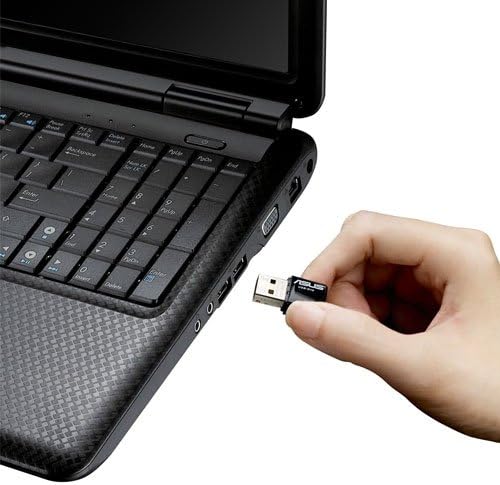
- Selapkeun adaptor: Carefully plug the ASUS USB-N10 adapter into an available USB 2.0 port on your computer. For optimal performance, especially if your computer has USB 3.0 ports, consider using one of those, though the adapter itself is USB 2.0.
- Pasang Supir:
- Insert the provided driver CD or USB drive into your computer.
- Locate and double-click the 'Setup.exe' file.
- Follow the on-screen instructions to complete the Wi-Fi driver installation. It is recommended to use the manufacturer's drivers for best compatibility and performance.
- Connect to a Wi-Fi Network:
- Once the drivers are installed, click on the network icon in your system tray (usually in the bottom-right corner of your screen on Windows, or top-right on Mac).
- Pilih jaringan Wi-Fi nu Anjeun hoyongkeun tina daptar jaringan nu sadia.
- Lebetkeun konci kaamanan jaringan (sandi) upami dipenta.
- Click 'Connect'. Your computer should now be connected to the Wi-Fi network.

5. Ngoperasikeun Adaptor
Once installed and connected, the ASUS USB-N10 adapter operates seamlessly in the background, providing wireless internet access. You can manage your wireless connection through your operating system's network settings.
5.1. Ngagunakeun WPS (Wi-Fi Protected Setup)
The adapter supports WPS for quick and secure connection to compatible routers. If your router has a WPS button:
- Pencét tombol WPS dina router nirkabel anjeun.
- Within two minutes, activate the WPS function on your computer. This is typically done through the ASUS utility software installed with the drivers, or via your operating system's network settings.
- The adapter will automatically connect to the router securely.
6. Pangropéa sarta perawatan
- Tetep Bersih: Gently wipe the adapter with a soft, dry cloth to remove dust. Avoid using liquid cleaners.
- Hindarkeun Karusakan Fisik: Handle the adapter with care. Avoid dropping it or exposing it to excessive force, which could damage the USB connector or internal components.
- Penempatan optimal: For best signal strength, ensure the adapter is not obstructed by other objects or placed in an area with high electromagnetic interference.
- Pembaruan supir: Pariksa dukungan ASUS sacara berkala websitus pikeun supir anu diénggalan pikeun mastikeun kinerja sareng kompatibilitas anu optimal sareng vérsi sistem operasi pangénggalna.
7. Cara ngungkulan
7.1. No Wireless Connection
- Pariksa sambungan fisik: Ensure the USB-N10 adapter is securely plugged into a functioning USB port.
- Pamasangan supir: Verify that the drivers were installed correctly. You can check this in your computer's Device Manager (Windows) or System Information (Mac). Reinstall drivers if necessary.
- Aktipkeun Wi-Fi: Pastikeun Wi-Fi komputer anjeun diaktipkeun.
- Status router: Pastikeun router nirkabel anjeun dihurungkeun sareng nyiarkeun sinyal Wi-Fi.
7.2. Laju Koneksi Leungit
- Kakuatan sinyal: Check the signal strength of your Wi-Fi network. Move closer to your wireless router or access point if the signal is weak.
- gangguan: Other electronic devices (microwaves, cordless phones) can cause interference. Try to minimize these or move the adapter away from them.
- Port USB: Ensure the adapter is connected to a USB 2.0 port. While compatible with USB 1.1, performance will be significantly reduced.
- Setélan Router: Ensure your router is configured for 802.11n mode for maximum speed.
7.3. Adapter Not Recognized
- Coba Port USB séjén: Test the adapter in a different USB port on your computer.
- Balikan deui Komputer: Balikan deui saderhana sering tiasa ngabéréskeun masalah pangakuan.
- Pasang deui Supir: Uninstall any existing drivers for the adapter, restart your computer, and then perform a clean installation of the drivers.
8. Spésifikasi
| Atribut | Nilai |
|---|---|
| Dimensi produk | 0.67 x 1.18 x 0.35 inci |
| Item Beurat | 2.4 ons |
| Nomer Modél Item | USB-N10 |
| Tanggal Kahiji Sadia | 26 Maret 2010 |
| Produsén | Asus |


9. Garansi jeung Rojongan
9.1. Bantahan Hukum
Actual data throughput and Wi-Fi coverage will vary from network conditions and environmental factors, including the volume of network traffic, building material and construction, and network overhead, resulting in lower actual data throughput and wireless coverage.
9.2. Rojongan Palanggan
Kanggo dukungan téknis, klaim garansi, atanapi bantosan salajengna, mangga buka dukungan resmi ASUS. website or contact their customer service. Refer to the product packaging or the ASUS websitus pikeun inpormasi kontak sareng detil jaminan anu paling ayeuna.