1. Bubuka
Welcome to the user manual for your HP EliteBook 2560p laptop. This document provides essential information for setting up, operating, maintaining, and troubleshooting your device. Please read this manual thoroughly to ensure proper use and to maximize the lifespan of your laptop.
2. Émbaran Kasalametan
To prevent injury, damage to the product, or loss of data, observe the following safety precautions:
- Use only the power adapter supplied with your laptop.
- Ulah ngantepkeun laptop ka suhu anu ekstrim, kalembaban, atanapi sinar panonpoé langsung.
- Ulah neundeun barang beurat dina laptop.
- Jauhkeun cairan tina alat.
- Ulah nyobian ngabongkar atanapi ngalereskeun laptop nyalira. Hubungi petugas servis anu mumpuni.
- Pastikeun ventilasi ditangtoskeun pikeun nyegah overheating.
3. Eusi Paket
Pastikeun yén sadaya item aya dina pakét anjeun:
- HP EliteBook 2560p Laptop
- Adaptor Daya AC sareng Kabel Daya
- Pek batré
- Dokuméntasi (manual ieu, inpormasi garansi)
4. Produk Langkungview
Familiarize yourself with the components of your HP EliteBook 2560p.
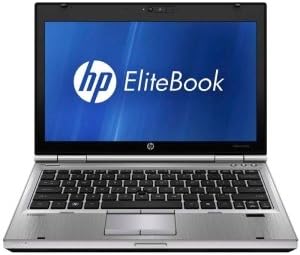
Gambar 4.1: Hareupeun view of the HP EliteBook 2560p laptop. This image shows the laptop open, revealing the 12.5-inch display, keyboard, and touchpad. The screen displays the "HP EliteBook" logo.
4.1. Front and Top Components
- 12.5-inch HD Anti-Glare LED Display: For visual output.
- kibor: Standard QWERTY layout for text input.
- Touchpad: For cursor control and navigation.
- Webkaméra: Integrated for video conferencing and imaging.
- Fingerprint Reader (FPR): For enhanced security.
4.2. Side and Rear Components
- Port USB 2.0: For connecting peripheral devices.
- DVD+/-RW Optical Drive: Pikeun maca sareng nyerat CD/DVD.
- Panyambung Daya: Pikeun nyambungkeun adaptor AC.
- Port Ethernet: Pikeun sambungan jaringan kabel.
- Port tampilan: For connecting external monitors.
- Jacks audio: Pikeun headphone sareng mikropon.
5. Setélan
5.1. Nyambungkeun Adaptor Daya
- Sambungkeun kabel kakuatan AC ka adaptor AC.
- Colokkeun adaptor AC kana stop kontak listrik anu di-ground.
- Connect the DC output plug of the AC adapter to the power connector on your laptop.
- Allow the battery to charge fully before initial use, or use the laptop while connected to power.
5.2. Initial Boot-Up and Operating System Setup
- Buka tutup léptop.
- Press the power button, typically located above the keyboard.
- Follow the on-screen instructions to complete the Windows 7 Professional setup, including language selection, user account creation, and network configuration.
6. Parentah Operasi
6.1. Powering on na Pareum
- Pikeun Ngahurungkeun: Pencét tombol daya.
- Pikeun mareuman: Click the Start button, then select "Shut Down."
- Pikeun ngamimitian deui: Click the Start button, then select "Restart."
- Pikeun Saré: Close the lid or click the Start button and select "Sleep."
6.2. Ngagunakeun Touchpad
The touchpad allows you to control the cursor on the screen.
- Ketok: Single tap to click, double tap to double-click.
- Séréd: Tap and hold, then drag your finger across the touchpad.
- Gulung: Use two fingers to scroll vertically or horizontally.
6.3. Connecting to a Wireless Network (Wi-Fi)
- Klik ikon jaringan dina baki sistem (pojok katuhu handap layar).
- Pilih jaringan Wi-Fi anu dipikahoyong tina daptar.
- Klik "Connect" teras lebetkeun konci kaamanan jaringan (sandi) upami dipenta.
6.4. Using the Optical Drive
The integrated DVD+/-RW drive allows you to read and write CDs and DVDs.
- Pencét tombol ngaluarkeun dina drive pikeun muka baki.
- Place a disc gently onto the tray, label side up.
- Dorong deui baki kana laptop nepi ka nutup.
7. Pangropéa
7.1. Ngabersihan Laptop Anjeun
- Salawasna pareum sareng cabut colokan laptop sateuacan beberesih.
- Make kaen nu lemes, teu aya lint rada dampened with water or a specialized screen cleaner for the display.
- Pikeun kibor sareng rangka, anggo lawon anu lemes. Hindarkeun bahan kimia anu keras.
- Anggo hawa anu dikomprés pikeun ngabersihan lebu tina ventilasi sareng sela-sela kibor.
7.2. Kaperawatan batré
- Hindarkeun sering-sering ngeusi batre.
- Simpen laptop di tempat anu tiis sareng garing upami henteu dianggo kanggo waktos anu lami.
- If the battery is removable, ensure it is securely seated.
7.3. Apdet parangkat lunak
Pariksa sareng pasang apdet sistem operasi (Windows Update) sareng apdet supir sacara rutin ti dukungan HP websitus pikeun mastikeun kinerja optimal sarta kaamanan.
8. Cara ngungkulan
| Masalah | Solusi anu mungkin |
|---|---|
| Laptop teu hurung. | Ensure the AC adapter is securely connected and the power outlet is functional. Check battery charge. |
| Teu aya sambungan Wi-Fi. | Verify Wi-Fi is enabled (check physical switch or function key). Restart router and laptop. Re-enter Wi-Fi password. |
| Layar kosong. | Connect an external monitor to check if the display is faulty. Adjust brightness settings. Restart the laptop. |
| Sistem slow atanapi unresponsive. | Close unnecessary applications. Check for malware. Ensure sufficient free disk space. Restart the laptop. |
Pikeun masalah anu langkung rumit, tingali dukungan HP websitus atanapi ngahubungan layanan palanggan.
9. Spésifikasi
| Fitur | Rincian |
|---|---|
| Modél | HP EliteBook 2560p (LJ467UT#ABA) |
| Prosesor | Intel Core i5-2520M |
| tampilan | 12.5-inch HD Anti-Glare LED (1366 x 768 pixels) |
| Ram | 4 GB DDR3 (1333 MHz) |
| Panyimpenan | 320 GB HDD |
| Girang optik | DVD+/-RW |
| Grafika | Integrated Intel Grafika |
| Nirkabel | 802.11a/b/g/n, Bluetooth |
| Palabuhan | USB 2.0 (x1), DisplayPort, VGA, Ethernet, Audio Jacks |
| Sistem operasi | Windows 7 Profésional 64-bit |
| Webkaméra | terpadu Webkaméra |
| Kaamanan | Pamaca sidik ramo |
| Kahirupan batré | Nepi ka 8.5 jam (rata-rata) |
| Ukuran (L x W x H) | 16.5 x 13.5 x 4.5 inci |
| Beurat | 6.8 pon |
10. Garansi jeung Rojongan
For information regarding your product's warranty, please refer to the warranty document included with your purchase or visit the official HP support websitus.
HP provides various support resources, including online documentation, driver downloads, and customer service contact options.
- Rojongan HP Websitus: www.hp.com/support
- Kontak Rojongan: Rujuk kana HP websitus pikeun nomer kontak régional sareng pilihan obrolan.


