1. Bubuka
This manual provides detailed instructions for the installation, operation, and maintenance of your Azurewave AW-NB041 WiFi and Bluetooth PCIe Mini-Card. This highly integrated wireless local area network (WLAN) solution allows users to enjoy digital content through the latest wireless technology without the need for extra cables. It combines Bluetooth 3.0 HS class II and provides a complete 2.4GHz Bluetooth system, fully compliant with Bluetooth 3.0 HS and v2.1, supporting EDR of 2Mbps and 3Mbps for data and audio communications.
The AW-NB041H module is designed for high performance, cost-effectiveness, and low power consumption, fitting easily into a PCI Express and USB Combo Half Mini Card slot.
2. Fitur Produk
- Compliant with IEEE 802.11n standard for reliable wireless connectivity.
- Supports 1 (Transmit) x 1 (Receive) technology for WiFi.
- Antenna configuration: Main antenna for WiFi 1T x 1R and Bluetooth TX/RX; Auxiliary antenna for Bluetooth TX/RX and WiFi TX/RX.
- High-speed wireless connection up to 150Mbps.
- Low power consumption and high performance design.
- Enhanced wireless security features.
- Fully qualified Bluetooth v3.0+HS.
- Full-speed operation with Piconet and Scatternet support.
- Electrical compliance to USB1.1 & 2.0 through a proprietary 10-Pin Connector.
- Utilizes Direct Sequence Spread Spectrum (DSSS), Orthogonal Frequency Division Multiplexing (OFDM), BPSK, QPSK, CCK, and QAM baseband modulation technologies.
- Integrated Ralink RT3090 with CSR BC04 solution.
3. Émbaran Kasalametan
- penting: The Vcc (supply voltage) for this module is 3.3V. Applying 5V is not allowed and will damage the device.
- Always handle electronic components with care to avoid electrostatic discharge (ESD). Use an anti-static wrist strap if available.
- Pastikeun komputer anjeun pareum sareng dicabut tina stop kontak sateuacan dipasang.
- Refer to your computer's manufacturer manual for specific instructions on opening the chassis and accessing internal components.
- Jauhkeun modul ieu tina kalembaban sareng suhu anu ekstrim.
4. Eusi Paket
The package should contain the following item:
- 1 x Azurewave AW-NB041 WiFi and Bluetooth PCIe Mini-Card
Note: Drivers and installation software are typically provided by your operating system or can be downloaded from the manufacturer's websitus.
5. Setup jeung Instalasi
Follow these steps to install the AW-NB041 PCIe Mini-Card into your compatible device:
- Nyiapkeun Sistim anjeun: Power off your computer completely and disconnect the power cord. If it's a laptop, remove the battery.
- Casis Kabuka: Carefully open your computer's chassis or access panel to expose the internal components. Refer to your computer's manual for specific instructions.
- Locate PCIe Mini-Card Slot: Identify an available half-size PCIe Mini-Card slot on your motherboard.
- Pasang Kartu: Gently insert the AW-NB041 card into the PCIe Mini-Card slot at an angle. Once seated, push down the card until it clicks into place or secure it with the retaining screw (if applicable).
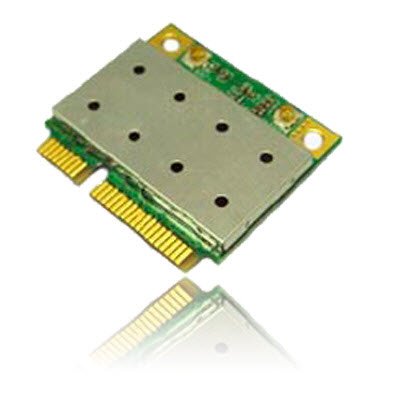
Image of the Azurewave AW-NB041 PCIe Mini-Card, showing its compact form factor and connectors.
- Sambungkeun Antenna: If your system has internal antennas, carefully connect them to the appropriate connectors on the AW-NB041 card (Main for WiFi/BT, Aux for BT/WiFi).
- Tutup Chassis: Reassemble your computer's chassis and reconnect the power cord/battery.
- Pasang Supir: Power on your computer. Your operating system may automatically detect and install the necessary drivers. If not, download the latest drivers for the Ralink RT3090 (for WiFi) and CSR BC04 (for Bluetooth) chipsets from the Azurewave support website or your computer manufacturer's websitus.
6. Parentah Operasi
6.1. Connecting to a WiFi Network
- Ensure the WiFi function is enabled in your operating system settings.
- Click on the WiFi icon in your system tray (Windows) or menu bar (macOS/Linux).
- Pilih jaringan WiFi anu dipikahoyong tina daptar jaringan anu sayogi.
- Lebetkeun konci kaamanan jaringan (sandi) upami dipenta.
- Click 'Connect'. Your device should now be connected to the WiFi network.
6.2. Masangkeun Alat Bluetooth
- Pastikeun Bluetooth diaktipkeun dina setélan sistem operasi anjeun.
- Pasang alat Bluetooth anjeun (contona, headphone, mouse, keyboard) kana mode papasangan. Tingal manual alat Anjeun pikeun parentah husus.
- On your computer, go to Bluetooth settings (e.g., 'Bluetooth & other devices' in Windows, 'Bluetooth' in macOS).
- Click 'Add Bluetooth or other device' or similar option.
- Select your Bluetooth device from the list and follow the on-screen prompts to complete the pairing process.
7. Pangropéa
The AW-NB041 module is designed for long-term reliability with minimal maintenance. However, consider the following general guidelines:
- Tetep Bersih: Periodically clean the interior of your computer to prevent dust buildup, which can affect performance and cooling.
- Pembaruan supir: Ensure your WiFi and Bluetooth drivers are kept up-to-date. Check the Azurewave support website or your computer manufacturer's websitus pikeun versi panganyarna.
- Kaayaan Lingkungan: Operate the device within recommended temperature and humidity ranges to ensure optimal performance and longevity.
8. Cara ngungkulan
8.1. No WiFi or Bluetooth Connection
- Pariksa Instalasi Fisik: Ensure the card is properly seated in its slot and any antennas are securely connected.
- Pariksa Supir: Confirm that the correct WiFi (Ralink RT3090) and Bluetooth (CSR BC04) drivers are installed and up-to-date in your operating system's Device Manager.
- Enable Wireless: Make sure WiFi and Bluetooth are enabled in your operating system settings and any physical switches on your computer.
- Uihan deui: Reboot komputer Anjeun.
8.2. Lambat WiFi Speed
- Kakuatan sinyal: Ensure you are within good range of your WiFi router.
- gangguan: Ngaleutikan gangguan ti alat éléktronik lianna (misalna gelombang mikro, telepon tanpa kabel).
- Setélan Router: Check your router's settings for optimal channel selection and 802.11n mode.
- Pembaruan supir: Update your WiFi drivers to the latest version.
8.3. Masalah Nyapasangkeun Bluetooth
- Device in Pairing Mode: Confirm your Bluetooth device is in discoverable/pairing mode.
- rentang: Ensure the Bluetooth device is close to your computer.
- Hapus pasangan anu aya: If the device was previously paired, remove it from your computer's Bluetooth settings and try pairing again.
- Pembaruan supir: Update your Bluetooth drivers to the latest version.
9. Spésifikasi
| Fitur | Spésifikasi |
|---|---|
| Nomer modél | AW-NB041 |
| Produsén | Azurewave |
| Faktor Bentuk | PCIe MiniCard (HalfSize) |
| Panganteur Hardware | PCI-Express, USB (via 10-Pin Connector) |
| Alat nu cocog | Desktop (with compatible PCIe Mini-Card slot) |
| WiFi Standar | IEEE 802.11b/g/n |
| Standar Bluetooth | Bluetooth v3.0+HS, v2.1+EDR |
| Data Transfer Rate (WiFi) | Nepi ka 150 Mbps |
| Data Transfer Rate (Bluetooth) | 2Mbps (EDR), 3Mbps (EDR) |
| Chipset | Ralink RT3090 (WiFi), CSR BC04 (Bluetooth) |
| Antenna Support | 1T1R (WiFi), TX/RX (Bluetooth) |
| Pasokan Voltage (Vcc) | 3.3V (Do not use 5V) |
10. Garansi jeung Rojongan
For warranty information and technical support, please refer to the documentation provided with your purchase or visit the official Azurewave websitus. Anjeun oge bisa langsung ngahubungan seller pikeun pitulung.
Please have your product model number (AW-NB041) and purchase details ready when contacting support.


