Bubuka
The Korg nanoKONTROL Studio is a compact and versatile Bluetooth/USB MIDI control surface designed for intuitive control of Digital Audio Workstations (DAWs) and DJ software. It features 8 faders, 8 rotary knobs, and a variety of backlit switches and transport controls, offering a hands-on experience for music production and performance. This manual provides essential information for setting up, operating, maintaining, and troubleshooting your nanoKONTROL Studio.
Produk Leuwihview
The nanoKONTROL Studio is engineered for portability and seamless integration into various setups, supporting both USB and wireless Bluetooth connectivity. Its refined design ensures ease of use in mobile or desktop environments.

Gambar 1: Top view of the Korg nanoKONTROL Studio, showing faders, knobs, and control buttons.
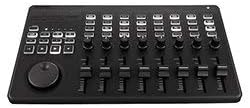
Gambar 2: Angled view of the Korg nanoKONTROL Studio, highlighting its compact form factor.
Disetél
1. Powering Alat
The nanoKONTROL Studio can be powered via USB or with batteries.
- Pamasangan batré: Requires 2 AA batteries (included). Open the battery compartment on the underside of the unit, insert the batteries according to the polarity indicators, and close the compartment.
- USB Power: Connect the nanoKONTROL Studio to your computer using a standard USB cable. The unit will draw power directly from the USB port.
2. Konektipitas
- Sambungan Bluetooth: To connect wirelessly, ensure the power switch is set to the 'Bluetooth' position. On your computer or iOS device, enable Bluetooth and search for available devices. Select 'nanoKONTROL Studio' to pair.
- Sambungan USB: To connect via USB, ensure the power switch is set to the 'USB' position. Connect the unit to your computer using a USB cable.
3. Pamasangan sareng Konfigurasi Parangkat Lunak
For optimal performance and customization, download and install the Korg KONTROL Editor software from the official Korg website. This software allows you to assign MIDI messages to the controls and save custom scenes.
- Pamasangan supir: For Windows users, a dedicated USB MIDI driver may be required. Mac and iOS devices typically operate class-compliant, meaning no additional driver installation is necessary. Refer to the Korg website for the latest driver information.
- Kompatibilitas DAW: The nanoKONTROL Studio is compatible with various DAWs, including Ableton Live, Avid Pro Tools, and FL Studio. Refer to your DAW's documentation for instructions on setting up external MIDI controllers.
Parentah Operasi
1. Control Layout and Functions
The nanoKONTROL Studio features a comprehensive set of controls:
- Faders (8): Control volume, send levels, or other continuous parameters.
- Rotary Knobs (8): Control pan, EQ, effects, or other continuous parameters.
- Mute Buttons (8): Mute individual tracks or channels.
- Solo Buttons (8): Solo individual tracks or channels.
- Rec Buttons (8): Arm tracks for recording.
- Select Buttons (8): Select tracks or other elements within your software.
- Kadali Angkutan: Dedicated buttons for Play, Stop, Record, Fast Forward, Rewind, Cycle, Set, and Marker functions.
- Jog Wheel: Navigate timelines, scrub audio, or control other parameters.
- Tombol Adegan: Cycle through up to five user-defined scenes, allowing for quick changes in control assignments.
2. Modeu Operasi
The nanoKONTROL Studio can operate in different modes, which define how its controls interact with your software:
- DAW Mixer Control Mode: Optimized for controlling mixer functions (volume, pan, mute, solo, record arm) in compatible DAWs.
- Generic MIDI Controller Mode: Allows for custom MIDI mapping of all controls to any parameter in your software. This mode is highly customizable using the Korg KONTROL Editor.
3. Using with Software
After connecting and configuring your nanoKONTROL Studio, open your preferred DAW or music software. Most software will detect the controller automatically. If not, manually select it as a MIDI input device in your software's preferences or settings. Use the Korg KONTROL Editor to create and load custom control maps (scenes) tailored to your workflow.
Pangropéa
To ensure the longevity and optimal performance of your nanoKONTROL Studio, follow these maintenance guidelines:
- beberesih: Use a soft, dry cloth to wipe the surface of the unit. Avoid abrasive cleaners, solvents, or waxes.
- Panyimpenan: Simpen unit dina tempat anu tiis sareng garing jauh tina sinar panonpoé langsung, suhu anu ekstrim, sareng kalembaban anu luhur.
- Perawatan batré: Cabut batré upami unit moal dianggo kanggo waktos anu panjang pikeun nyegah bocor.
- Penanganan: Avoid dropping the unit or subjecting it to strong impacts. Do not apply excessive force to faders, knobs, or buttons.
Pamérésan masalah
If you encounter issues with your nanoKONTROL Studio, refer to the following common solutions:
- Unit teu diaktipkeun: Check battery installation and charge level, or ensure the USB cable is securely connected and providing power.
- No MIDI Signal/Not Recognized by Software:
- Ensure the power switch is in the correct position (USB or Bluetooth) for your connection type.
- Verify that the USB cable is functional and properly connected.
- For Bluetooth, ensure the device is paired correctly and within range.
- Check your DAW's MIDI settings to ensure the nanoKONTROL Studio is enabled as an input device.
- Install the latest drivers (if applicable for your operating system) from the Korg websitus.
- Controls Not Responding Correctly:
- Verify that the correct control map (scene) is selected on the nanoKONTROL Studio and within your software.
- Use the Korg KONTROL Editor to check and re-assign MIDI messages to controls.
- Pabrik Reset: If the unit behaves unexpectedly, a factory reset can restore default settings. To perform a factory reset, hold down the SIKLUS button and the two lacak buttons (left and right arrow buttons in the Track section) while powering on the unit via USB.
Spésifikasi teknis
| Item Beurat | 1.46 pon |
| Dimensi produk | 13.5 x 6.81 x 1.65 inci |
| Nomer modél | NANOKONST |
| Batré | 2 batré AA diperlukeun (kaasup) |
| Alat nu cocog | Smartphone, Tablet, PC/Mac |
| Tipe Panyambung | USB |
| Panganteur Hardware | USB |
| Software Dirojong | Ableton Live, Avid Pro Tools, FL Studio |
| Mixer Channel Kuantitas | 8 |
| Téhnologi konektipitas | Bluetooth, USB |
| Fitur husus | Kompak, Ringan |
Garansi sareng Rojongan
For detailed warranty information, product registration, and technical support, please visit the official Korg websitus. The website provides access to the latest drivers, software updates, and comprehensive support resources for your nanoKONTROL Studio.
You can also refer to the 'What's in the Box' section of your product packaging, which confirms the inclusion of a user manual for further guidance.
For additional assistance, contact Korg customer support through their official channels.


