1. Bubuka
The Hikvision DS-7104HGHI-F1 is a 4-channel Turbo HD Digital Video Recorder (DVR) designed for surveillance systems. This DVR supports 720P (1MP) resolution and offers versatile connectivity for both HD-TVI/analog and AHD cameras with adaptive access. It features H.264 video compression and dual-stream capabilities, ensuring efficient storage and transmission.
This manual provides essential information for the proper installation, operation, and maintenance of your Hikvision DS-7104HGHI-F1 DVR. Please read it thoroughly before using the device.
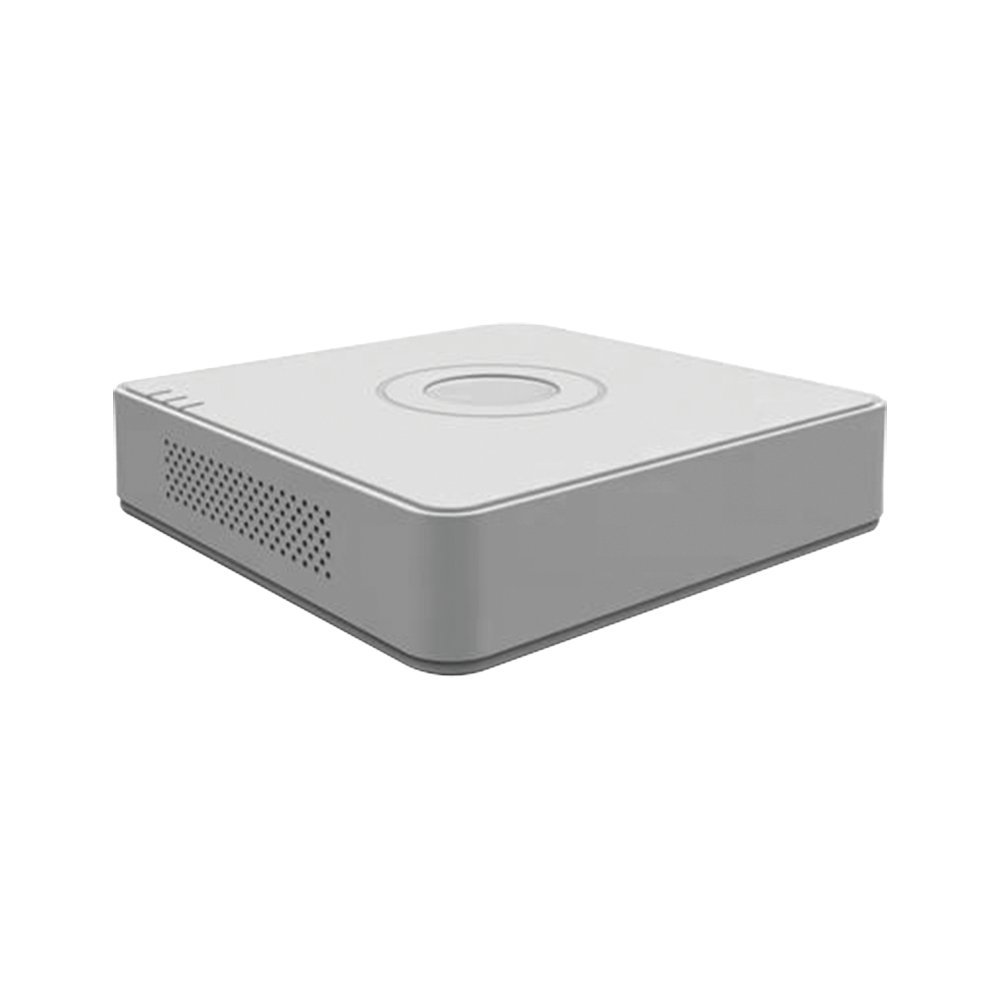
Figure 1: Hikvision DS-7104HGHI-F1 Turbo HD DVR
Fitur konci:
- 4-channel 720P (1MP) Turbo HD DVR.
- Full channel@720P resolution non-real-time recording.
- HDMI and VGA output at up to 1920x1080P resolution.
- H.264 & Dual-stream video compression.
- Support for HD-TVI /analog and AHD cameras with adaptive access.
- Long transmission distance over coax cable.
- Support for 4-ch synchronous playback at 720P resolution.
- RJ45 Ethernet port and 2 USB ports.
- Supports up to 4TB HDD (Hard Disk Drive not included).
- In-built Free DDNS for mobile viewing (Android and Windows Phone compatible).
2. Setup jeung Instalasi
2.1 Eusi pakét
Sateuacan neraskeun pamasangan, pariksa yén sadaya barang aya dina bungkusan:
- Hikvision DS-7104HGHI-F1 DVR Unit
- Adaptor kakuatan
- Mouse USB
- Screws pikeun instalasi HDD
- Gancang Mimitian Guide
Note: Hard Disk Drive (HDD) and cameras are not included and must be purchased separately.
2.2 Pamasangan parangkat keras
- Pasang Hard Disk Drive (HDD):
- Cabut sareng cabut panutup luhur DVR.
- Sambungkeun kabel SATA sareng kabel data tina DVR ka HDD.
- Ngamankeun HDD ka chassis DVR ngagunakeun screws disadiakeun.
- Ganti panutup luhur sareng amankeun ku sekrup.
- Sambungkeun kaméra:
- Connect your HD-TVI, AHD, or analog cameras to the BNC video input ports on the rear panel of the DVR.
- Sambungkeun Monitor:
- Connect a monitor to the HDMI or VGA output port on the DVR using an appropriate cable.
- Sambungkeun Mouse:
- Colokkeun beurit USB kana salah sahiji port USB dina DVR.
- Sambungkeun Jaringan (Opsional):
- Pikeun jauh viewing and network access, connect an Ethernet cable from the RJ45 port on the DVR to your router or network switch.
- Sambungkeun Kakuatan:
- Sambungkeun adaptor daya kana input daya DVR teras colokkeun kana stop kontak. DVR bakal otomatis hurung.
2.3 Konfigurasi Awal
Saatos boot munggaran, DVR bakal nungtun anjeun ngalangkungan wizard pangaturan awal. Turutan pituduh dina layar pikeun:
- Jieun kecap akses anu kuat pikeun akun administrator.
- Konpigurasikeun setélan tanggal sareng waktos.
- Format the installed HDD for recording.
- Configure network settings (DHCP recommended for most home users).
3. Parentah Operasi
3.1 Hirup View
Saatos setelan awal, DVR bakal nampilkeun siaran langsung view tina kaméra anu nyambung dina monitor. Anjeun tiasa ngalih antara kaméra tunggal view jeung multi-kaméra grid view ngagunakeun kadali dina layar atawa beurit.
3.2 Ngarékam
The DVR is typically configured for continuous recording by default after HDD formatting. You can access the recording schedule settings via the main menu to configure motion-detection recording, scheduled recording, or alarm-triggered recording for individual channels.
3.3 Playback
Pikeun ulangview dirékam footage:
- Klik-katuhu dina live view screen to open the main menu.
- Pilih "Playback".
- Choose the desired camera channel(s) and date/time range.
- Anggo kadali playback (ulin, reureuhan, maju gancang, mundur) pikeun nganapigasi ngaliwatan footage.

Figure 2: Video Resolution Comparison
3.4 Mobile Viewing (Hik-Connect / DDNS)
DVR ngadukung jarak jauh viewing via Hik-Connect P2P service or DDNS.
- Pastikeun DVR nyambung ka internét.
- Enable the Hik-Connect service or configure DDNS settings in the DVR's network menu.
- Download the Hik-Connect app on your Android or Windows Phone device.
- Ngadaptarkeun akun sareng tambahkeun DVR anjeun ku nyeken kodeu QR atanapi ngalebetkeun nomer séri.
- Anjeun tiasa ayeuna view hirup footage jeung rekaman playback ti jarak jauh.

Figure 3: Hik-Connect P2P Service
4. Pangropéa
4.1 Ngabersihan Biasa
- Keep the DVR unit clean and free from dust. Use a soft, dry cloth for cleaning.
- Pastikeun bukaan ventilasi teu diblokir pikeun nyegah overheating.
- Do not use liquid or aerosol cleaners directly on the unit.
4.2 Apdet firmware
Periodically check the official Hikvision website for firmware updates. Firmware updates can improve performance, add new features, and address security vulnerabilities. Follow the instructions provided by Hikvision carefully when performing firmware updates.
4.3 Nyadangkeun Data
Jieun cadangan sacara rutin pikeun file penting anu direkamtage to an external USB drive or network storage. This ensures data retention in case of HDD failure or other unforeseen issues.
5. Cara ngungkulan
| Masalah | Mungkin Cukang lantaranana | Solusi |
|---|---|---|
| Taya kaluaran video dina monitor |
|
|
| Taya gambar kaméra |
|
|
| Teu bisa ngakses DVR jarak jauh |
|
|
| Teu aya rékaman |
|
|
6. Spésifikasi
| Fitur | Rincian |
|---|---|
| Nomer modél | DS-7104HGHI-F1 |
| Komprési Video | H.264 |
| Input Video | 4-ch BNC (HD-TVI, AHD, Analog adaptive access) |
| Input Audio | RCA 1-ch |
| HDMI / Kaluaran VGA | 1-ch, 1920 × 1080P/60Hz, 1280 × 1024/60Hz, 1280 × 720/60Hz, 1024 × 768/60Hz |
| Résolusi ngarékam | 720P (1MP) non-real-time |
| Puterkeun Sinkronisasi | 4-ch at 720P |
| Rojongan HDD | 1 antarmuka SATA, kapasitas dugi ka 4 TB |
| Panganteur Jaringan | 1 RJ45 10M / 100M timer adaptif panganteur Ethernet |
| Panganteur USB | 2 panganteur USB 2.0 |
| Ukuran (L x W x H) | 12 x 3.5 x 10 cm |
| Beurat | 1.06 kg (kira-kira 2.34 lbs) |

Figure 4: Turbo HD Technology Support
7. Émbaran jaminan
This Hikvision DS-7104HGHI-F1 DVR typically comes with a garansi 2 taun ti tanggal beuli.
Please note that the warranty generally covers manufacturing defects. It does not cover physical damage or damage caused by burning. For specific terms and conditions, please refer to the warranty card included with your product or contact Hikvision customer support.
8. Rojongan jeung Kontak
For technical assistance, product inquiries, or warranty claims, please contact Hikvision customer support.
- Resmi Websitus: Visit the official Hikvision websitus pikeun sumber rojongan, FAQs, sarta informasi kontak.
- Sumberdaya Online: Check for updated manuals, firmware, and software tools on the Hikvision support portal.
Always refer to the latest documentation available from the manufacturer for the most accurate and up-to-date information.


