1. Bubuka
The DIGITNOW! M125 Film and Slide Scanner is designed to convert your old 35mm/135 film negatives and mounted slides into digital JPEG images. This standalone device features a 2.4-inch LCD screen, allowing you to preview and adjust images without the need for a computer. Digital files can be saved directly to an SD card for easy transfer and archiving.

Image: The DIGITNOW! M125 Film and Slide Scanner converting film, with a vintage camera and film rolls in the background.
2. Émbaran Kasalametan
- Ulah ngalaan alat ka beueus atawa suhu ekstrim.
- Avoid disassembling the unit; refer servicing to qualified personnel.
- Use only the provided power adapter to prevent damage.
- Jauhkeun tina jangkauan barudak.
- Bersihkeun alatna nganggo lawon anu lemes sareng garing. Ulah nganggo pembersih cair.
3. Eusi Paket
Pastikeun yén sadaya item aya dina bungkusan:
- DIGITNOW! M125 Film and Slide Scanner
- 35mm Holder Pilem
- Panyekel Geser
- Kabel USB
- Adaptor kakuatan
- Sikat beberesih
- Manual pamaké

Image: The complete package contents of the DIGITNOW! M125 Film and Slide Scanner.
4. Produk Langkungview
The M125 scanner features a compact design with intuitive controls and a built-in LCD screen for easy operation.

Gambar: Hareupeun view of the DIGITNOW! M125 Film and Slide Scanner, highlighting the LCD screen and control panel.
4.1. Panel Hareup
- Layar LCD: 2.4-inch TFT LCD for previewdina gambar sareng nganapigasi ménu.
- Tombol kontrol: Power, Menu, Capture, Up/Down/Left/Right navigation.
- Lampu Indikator: SD (SD card status), Power (power status), PC (PC connection status).

Gambar: A lengkep view of the scanner's screen and buttons, showing the 'FILM SCANNER' label.
4.2. Panél Pungkur
- Slot Kartu SD: For inserting an SD/MMC card (up to 8GB SDHC, not included) to save scanned images.
- Kaluaran USB: Connects to a computer for data transfer or power.
- Input TV: Connects to a TV for viewing images on a larger screen (NTSC/PAL compatible).

Image: The back of the scanner, clearly labeling the SD card slot, USB output, and TV input ports.
5. Setélan
- Sambungkeun Kakuatan: Plug the power adapter into the scanner's USB port and then into a power outlet.
- Selapkeun Kartu SD: Insert an SD or SDHC memory card (up to 8GB, not included) into the SD card slot on the rear of the scanner. The SD indicator light will illuminate.
- Daya Hurung: Press the Power button on the front panel to turn on the scanner.
- Connect to TV (Optional): If desired, connect the scanner to a TV using the provided video cable to view images on a larger screen.

Image: An SD card being inserted into the scanner, with a message on the screen indicating to insert a memory card.
6. Parentah Operasi
6.1. Ngamuat Pilem sareng Slide
- For 35mm Film Strips: Open the 35mm film holder, insert the film strip into the designated grooves, and close the holder. Slide the loaded holder into the scanner's film slot.
- Pikeun Slide anu Dipasang: Open the slide holder, place a mounted slide into the opening, and close the holder. Slide the loaded holder into the scanner's film slot.

Image: A mounted slide being pushed into the slide holder, which is then inserted into the scanner.
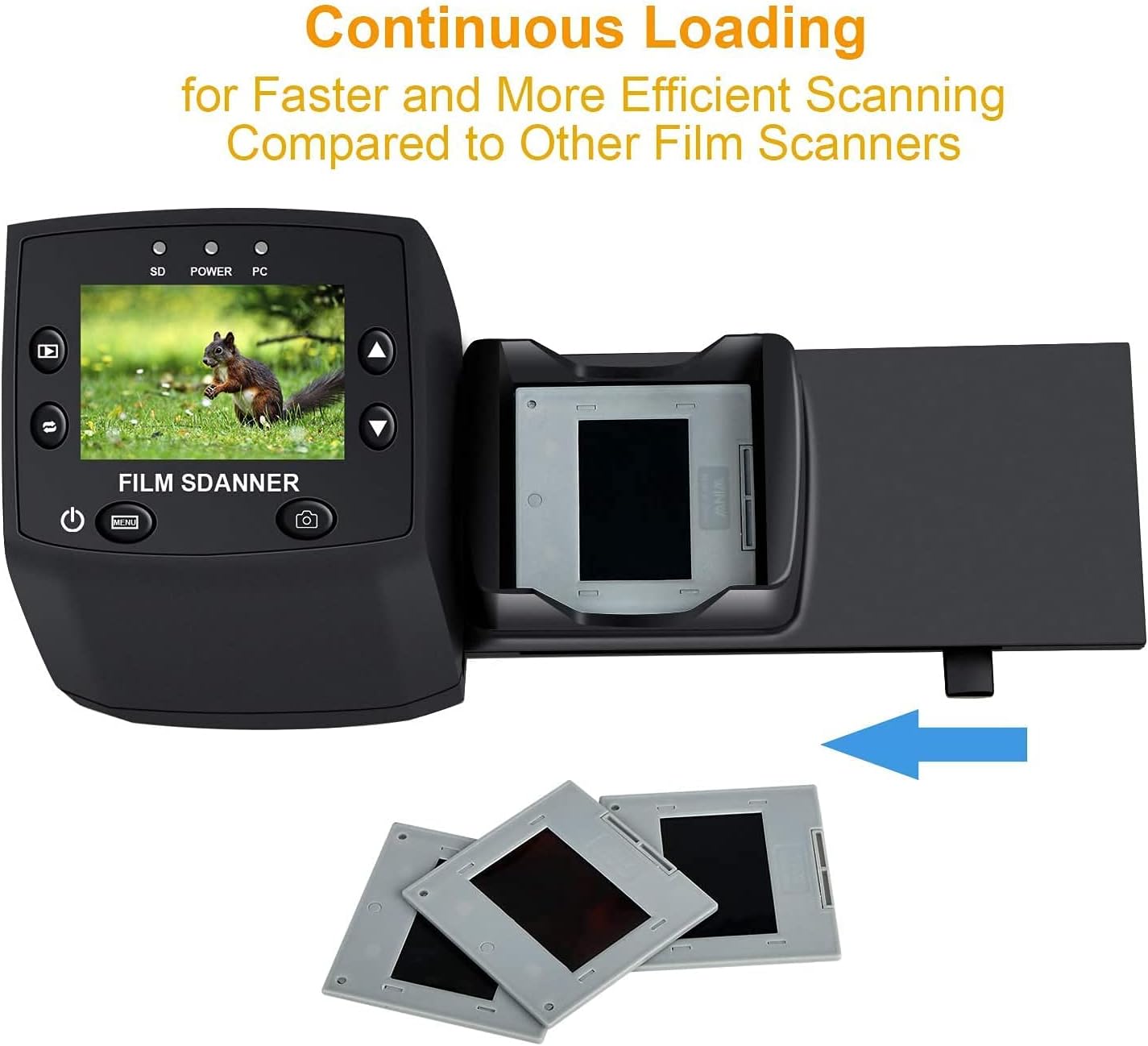
Image: The continuous loading tray for slides, designed for faster scanning.
6.2. Prosés nyeken
- Praview: Once the film or slide is loaded, the image will appear on the LCD screen.
- Saluyukeun Setélan (Opsional):
- Pencét éta ménu tombol pikeun ngakses setélan.
- Ngagunakeun éta Luhur/Turun buttons to navigate through options like Paparan EV, Resolusi, jeung Basa.
- Pencét OK pikeun milih hiji pilihan.
- Paké Luhur/Turun to adjust values (e.g., exposure compensation from -2 to +2, resolution between 5M and 10M).
- Pencét OK to confirm changes or KALUAR pikeun mulang ka praview layar.
- Candak Gambar: When satisfied with the preview, pencét tombol Nangkep button (camera icon) to scan and save the image to the SD card.
Video: A demonstration of the DIGITNOW! M125 Film and Slide Scanner's setup and operation, including connecting cables, inserting an SD card, loading film, adjusting settings like exposure and resolution, and capturing images.
6.3. Nyambungkeun ka PC
To transfer images to your computer:
- Sambungkeun pamindai ka PC anjeun nganggo kabel USB.
- On the scanner's menu, select USB MSDC (Mass Storage Device Class) and press OK.
- Your computer will recognize the scanner as a removable disk. You can then access the saved JPEG images on the SD card.

Image: The scanner connected to a laptop, demonstrating the USB connection for data transfer.
6.4. Changing Language
To change the menu language:
- Pencét éta ménu kancing.
- Arahkeun ka Basa option using the Luhur/Turun tombol teras pencét OK.
- Select your desired language (e.g., English, Français, Deutsch, Italiano) and press OK pikeun mastikeun.
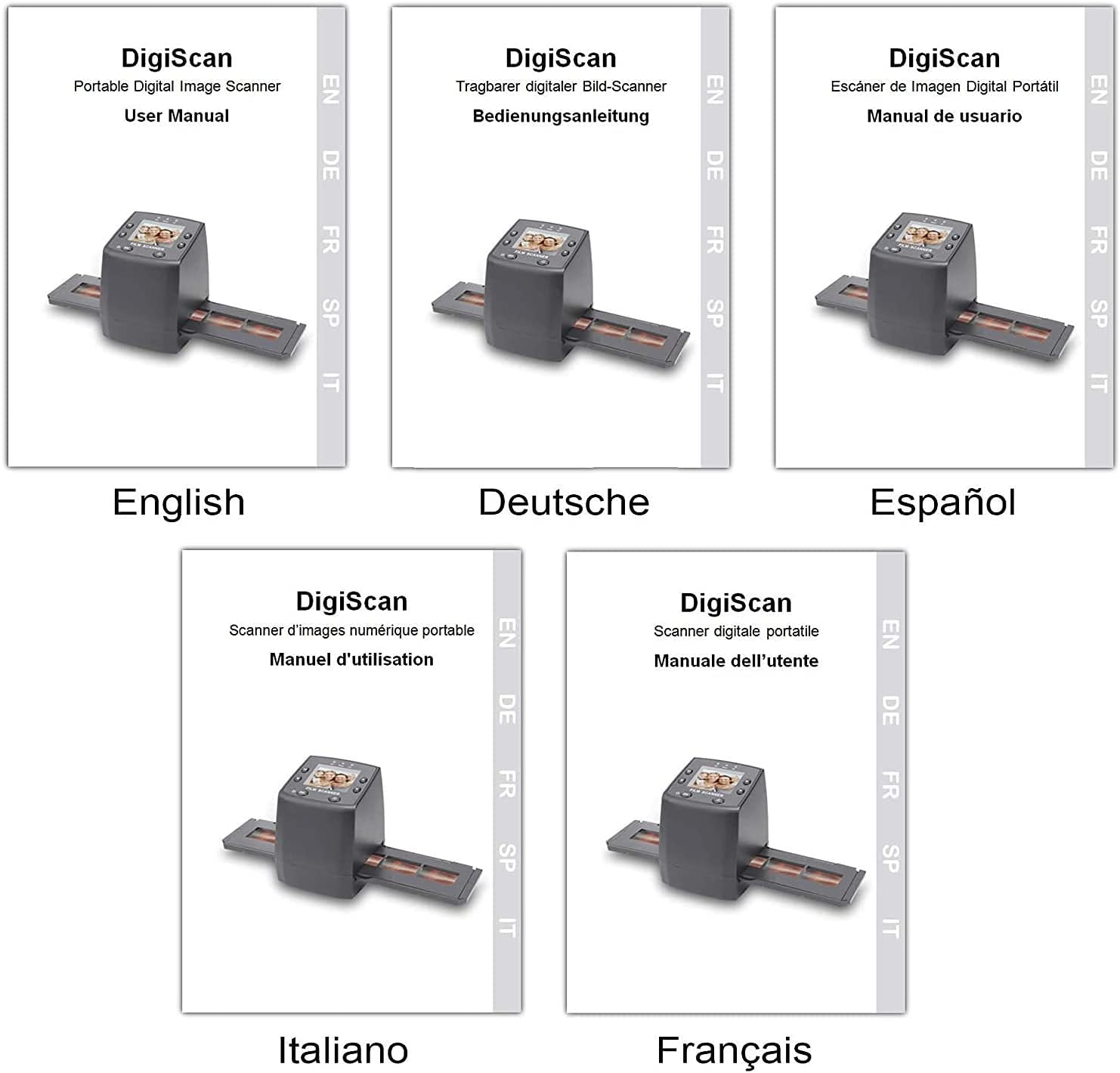
Image: Covers of user manuals in various languages, indicating multi-language support.
7. Pangropéa
- Cleaning the Film/Slide Holders: Regularly inspect and clean the film and slide holders to ensure no dust or debris interferes with scanning.
- Cleaning the Scanner Lens: Use the provided cleaning brush to gently remove dust from the scanner's lens and light source. Avoid touching the lens directly with your fingers.
- Panyimpenan: Store the scanner in a dry, dust-free environment when not in use.
8. Cara ngungkulan
- Henteu aya kakuatan: Pastikeun adaptor daya disambungkeun pageuh kana pamindai sareng stop kontak anu tiasa dianggo.
- Image Quality Issues (Blurry/Dusty): Clean the film/slides and the scanner lens using the provided brush. Adjust the focus if available (not explicitly mentioned for this model, but a general tip).
- Kartu SD Teu Dipikawanoh: Ensure the SD card is inserted correctly and is not damaged. Try formatting the card (this will erase all data) or using a different SD card.
- Teu Bisa Mindahkeun Files kana PC: Ensure the USB cable is properly connected and the scanner is in "USB MSDC" mode. Check your computer's device manager to see if the scanner is recognized.
- Image Color Issues: Adjust the EV Exposure settings in the scanner's menu.
9. Spésifikasi
| Fitur | Spésifikasi |
|---|---|
| Nomer modél | M125 |
| merek | DIGITNOW |
| Jinis Pilem Dirojong | 35mm Film Negatives, 135 Mounted Slides |
| Layar LCD | 2.4-inch TFT LCD (480 * 234) |
| Resolusi | 5/10 Megapixel (interpolated to 10M) |
| DPI | 3600 DPI |
| Format Kaluaran | JPEG |
| Panyimpenan | SD/MMC Card (up to 8GB SDHC, not included) |
| Panganteur | USB 2.0, Video Out (NTSC/PAL) |
| Diménsi | 8.6 x 8.6 x 11.2 cm |
| Beurat | 270 g |
| Kakuatan | 5 Watt |
| Rojongan System Operasi | Windows XP, Vista, 7, 8; Mac OS |

Image: Diagram illustrating the dimensions of the DIGITNOW! M125 Film and Slide Scanner.
10. Garansi jeung Rojongan
This product comes with a standard manufacturer's warranty. For specific warranty details, please refer to the warranty card included in your package or contact DIGITNOW! customer support. For technical assistance or further inquiries, please visit the official DIGITNOW! website or contact their support team through the contact information provided with your purchase.


