1. Bubuka
This manual provides essential information for the setup, operation, and maintenance of your SMART Board Interactive Whiteboard System SBM685IX3. Please read this manual thoroughly before using the product to ensure proper functionality and to maximize your experience.
2. Produk Langkungview
The SMART Board Interactive Whiteboard System SBM685IX3 is an advanced interactive display solution designed for collaborative environments such as classrooms and meeting rooms. It combines an 87-inch interactive whiteboard with an ultra-short-throw projector to deliver a large, dynamic display surface.
Komponén konci kalebet:
- Papan tulis Interaktif: An 87-inch (7.25 feet diagonal viewing angle) touch-sensitive surface for direct interaction.
- Ultra-Short-Throw Projector: Projects large images from a very short distance, minimizing shadows and glare. Features a 16:10 widescreen (WXGA) aspect ratio and a built-in 16W speaker.
- Pen Tray: For storing interactive pens.

Figure 2.1: The SMART Board Interactive Whiteboard System with an ultra-short-throw projector mounted above, displaying a presentation slide.
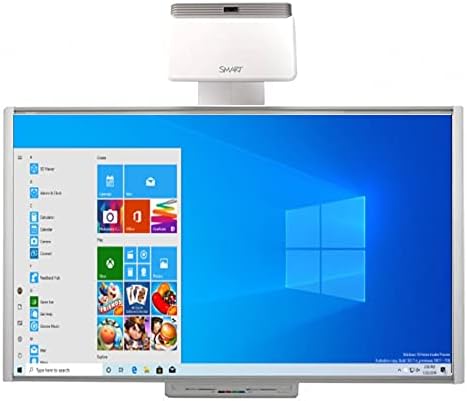
Figure 2.2: The SMART Board interactive whiteboard displaying a Windows 10 desktop interface, highlighting its functionality as a large interactive display.
3. Naon dina Box
Saatos ngabongkar, pariksa yén sadaya komponén ieu aya:
- SMART Board M685 (87’’)
- Wall mount for SMART Board
- Dulang pulpén
- 2 Pén
- pamupus
- Ultra-Short-Throw Projector
- Proyektor dipasang
- USB cable (for SMART Board connectivity)
- HDMI cable (for projector video input)
- Power cables (for projector and SMART Board)
- Pituduh ngamimitian gancang
4. Parentah Setup
Turutan léngkah-léngkah ieu pikeun nyetél Sistem Papan Tulis Interaktif SMART Board anjeun:
4.1 Mounting the Whiteboard and Projector
- Install Whiteboard Wall Mount: Securely attach the provided wall mount hardware for the SMART Board to a sturdy wall surface according to the quick start guide.
- Mount Whiteboard: Carefully lift and attach the SMART Board M685 to the installed wall mount.
- Install Projector Mount: Attach the projector mount to the wall or ceiling, ensuring it is positioned correctly above the whiteboard. The ultra-short-throw projector is designed to project a 100-inch image from approximately 12 inches away from the edge of the projector to the screen.
- Mount Projector: Secure the ultra-short-throw projector onto its mount.

Figure 4.1: An installed SMART Board interactive whiteboard system in a room, showing the projector mounted on the wall above the board, displaying a blue Windows background.
4.2 Nyambungkeun Sistim
- Connect SMART Board to Computer: Use the provided USB cable to connect the SMART Board to your computer. This enables touch and pen interaction.
- Connect Projector to Computer: Use the provided HDMI cable to connect the projector to your computer's video output.
- Sambungan Kakuatan: Connect the power cables to the SMART Board and the projector, then plug them into appropriate power outlets.
- Daya Hurung: Turn on the projector and the SMART Board. Your computer's display should now be projected onto the whiteboard.
5. Parentah Operasi
The SMART Board SBM685IX3 offers intuitive interaction for various applications.
5.1 Interaksi Dasar
- Touch and Pen: Use your finger or the provided pens to interact with the projected content. The system supports dual-touch controls, allowing multiple users to interact simultaneously.
- Fungsi Mouse: Perform standard mouse functions (click, right-click, drag) directly on the board.
- Sapuan Toél: Utilize natural touch gestures such as flicking, rotating, and zooming to manipulate content.
5.2 SMART Ink Functionality
SMART Ink allows you to write and draw directly over various applications and content:
- annotate: Write over websites, videos, PDF documents, and Microsoft Office files.
- Save Notes: Save your annotations and notes in almost any file type for later reference or sharing.

Figure 5.1: The SMART Board interactive whiteboard displaying a world map with annotations, illustrating interactive teaching or presentation capabilities.

Figure 5.2: Two children interacting with the SMART Board interactive whiteboard, which displays a dinosaur skeleton image, demonstrating its use in educational settings.
5.3 Kasaluyuan Sistim
The SMART Board SBM685IX3 is compatible with both Windows and Mac OS operating systems, allowing for flexible integration into existing IT infrastructures.

Figure 5.3: The SMART Board interactive whiteboard displaying the Windows Start menu with various applications, emphasizing its computer-like functionality.
6. Fitur
The SMART Board Interactive Whiteboard System SBM685IX3 offers several features to enhance collaboration and presentation:
- Natural Touch Experience: Write, erase, and perform mouse functions using a finger or pen with intuitive touch gestures like flick, rotate, and zoom.
- Simultaneous Touch: Supports multiple simultaneous touches, facilitating collaborative work among students or team members.
- SMART Ink Integration: Allows users to write directly over various digital content, including websites, videos, PDFs, and Microsoft Office files, and save notes in multiple file format.
- Enhanced Presentations: Provides a large, dynamic surface for delivering engaging content, enabling audience interaction with on-screen elements.
- Aplikasi serbaguna: Suitable for diverse uses such as capturing project notes, incorporating client feedback in design processes, and creating training simulators.
7. Pangropéa
Pikeun mastikeun umur panjang sareng kinerja optimal sistem SMART Board anjeun, turutan pedoman pangropéa ieu:
- Cleaning the Whiteboard: Anggo kaén anu lemes sareng teu aya serat anu hampang dampened with water or a mild, non-abrasive cleaner specifically designed for interactive whiteboards. Avoid harsh chemicals or abrasive materials.
- Projector Lens Care: Bersihkeun lénsa proyéktor sacara lalaunan nganggo lawon pembersih lénsa atanapi kipas angin pikeun miceun lebu. Ulah langsung nyabak lénsa ku ramo anjeun.
- beberesih umum: Keep the surrounding area clean and free of dust. Regularly wipe down the projector casing and pen tray.
- Manajemén Kabel: Ensure all cables are securely connected and not under strain. Avoid bending or kinking cables sharply.
8. Cara ngungkulan
If you encounter issues with your SMART Board system, refer to the following common troubleshooting steps:
8.1 No Display on Whiteboard
- Pariksa kakuatan: Ensure both the projector and the SMART Board are powered on and their power cables are securely connected.
- Verify HDMI Connection: Confirm the HDMI cable is firmly connected between the computer and the projector.
- Setélan tampilan komputer: Check your computer's display settings to ensure it is configured to extend or duplicate the display to the projector.
- Projector Input: Ensure the projector's input source is set to the correct HDMI port.
8.2 No Touch or Pen Interaction
- Pariksa sambungan USB: Ensure the USB cable connecting the SMART Board to your computer is securely plugged in.
- Pamasangan supir: Verify that the necessary SMART Board drivers are installed on your computer. Refer to the SMART Technologies websitus pikeun drivers panganyarna.
- Kalibrasi: If interaction is inaccurate, perform a calibration of the SMART Board. Instructions for calibration are typically found in the SMART software settings.
8.3 Masalah Audio
- Tingkat volume: Check the volume settings on your computer and the projector.
- Kaluaran Audio: Ensure your computer's audio output is directed to the HDMI port connected to the projector.
For further assistance, consult the detailed troubleshooting guides available on the SMART Technologies support websitus.
9. Spésifikasi
The following are the technical specifications for the SMART Board Interactive Whiteboard System SBM685IX3:
| Fitur | Spésifikasi |
|---|---|
| merek | Pinter |
| Modél | SBM685IX3 |
| Produsén | NETCNA |
| Item Beurat | 63 pon |
| Dimensi produk | 77.5 x 49.5 x 2 inci |
| Whiteboard Size | 87 inches (7.25 feet diagonal viewsudut) |
| Tipe Projector | Ultra-Short-Throw |
| Rasio Aspek Proyéktor | 16:10 Widescreen (WXGA) |
| Audio Proyéktor | Diwangun-di spiker 16W |
| Konektipitas | USB (for board), HDMI (for projector) |
| Warna | Bodas |
| Jenis Bahan | Low friction aluminum |
| Tipe Pamasangan | Tembok Gunung |
| Dianjurkeun Mangpaat | School, office, presentation, education, training, classroom, remote learning, workshops, meetings, project management, business presentations |
| ASIN | B01LB9GFKM |
| Tanggal Kahiji Sadia | 31 Agustus 2016 |
10. Garansi jeung Rojongan
For information regarding warranty coverage, technical support, and service, please refer to the documentation included with your product or visit the official SMART Technologies website. Specific warranty terms may vary based on region and purchase date.
For driver downloads, software updates, and additional support resources, please visit the manufacturer's support portal.


