1. Bubuka
This manual provides detailed instructions for the setup, operation, and maintenance of your Symcode Omnidirectional Hands-Free USB Barcode Scanner (Model MJ-8200-W). This device is designed for efficient and accurate scanning of both 1D and 2D barcodes from various sources, including paper labels and digital screens. Its plug-and-play USB interface ensures broad compatibility with Windows, Linux, and other operating systems, making it ideal for mobile payment, point-of-sale, and inventory management applications.
2. Produk Langkungview
The Symcode MJ-8200-W barcode scanner is a compact and robust device built for daily use. Below are the key components and their functions:

Gambar 2.1: Pahareup-hareup view of the Symcode MJ-8200-W Barcode Scanner, showcasing its compact design and scanning window.

Gambar 2.2: The scanner actively reading a barcode displayed on a mobile phone screen, demonstrating its screen scanning capability.

Gambar 2.3: Detailed analysis diagram highlighting key components: LED lights, Scan window, Buzzer, and the Switch button/Indicator light on top.
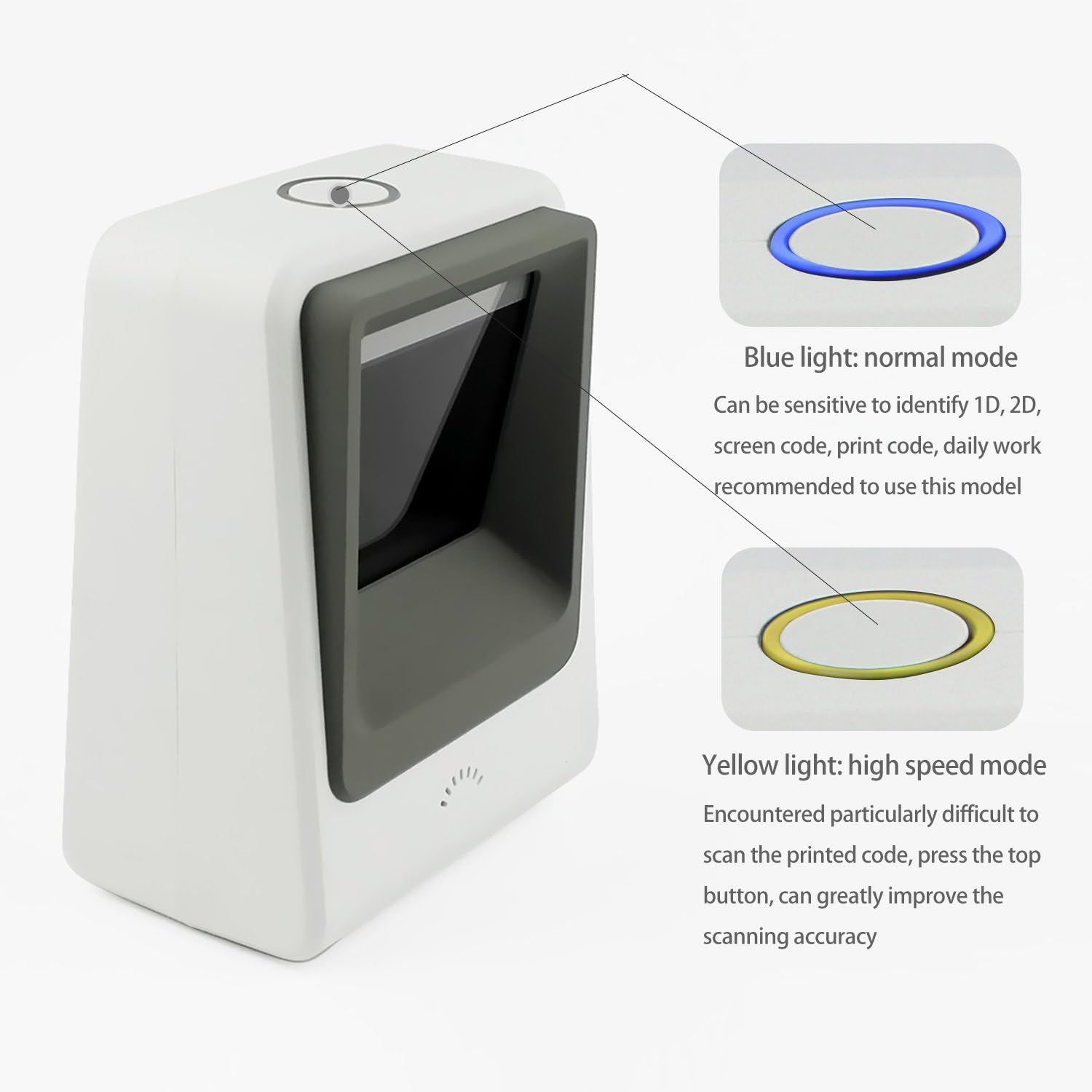
Gambar 2.4: Illustration of the two scanning modes: Blue light for normal mode (sensitive to 1D, 2D, screen code, print code) and Yellow light for high-speed mode (for difficult printed codes).
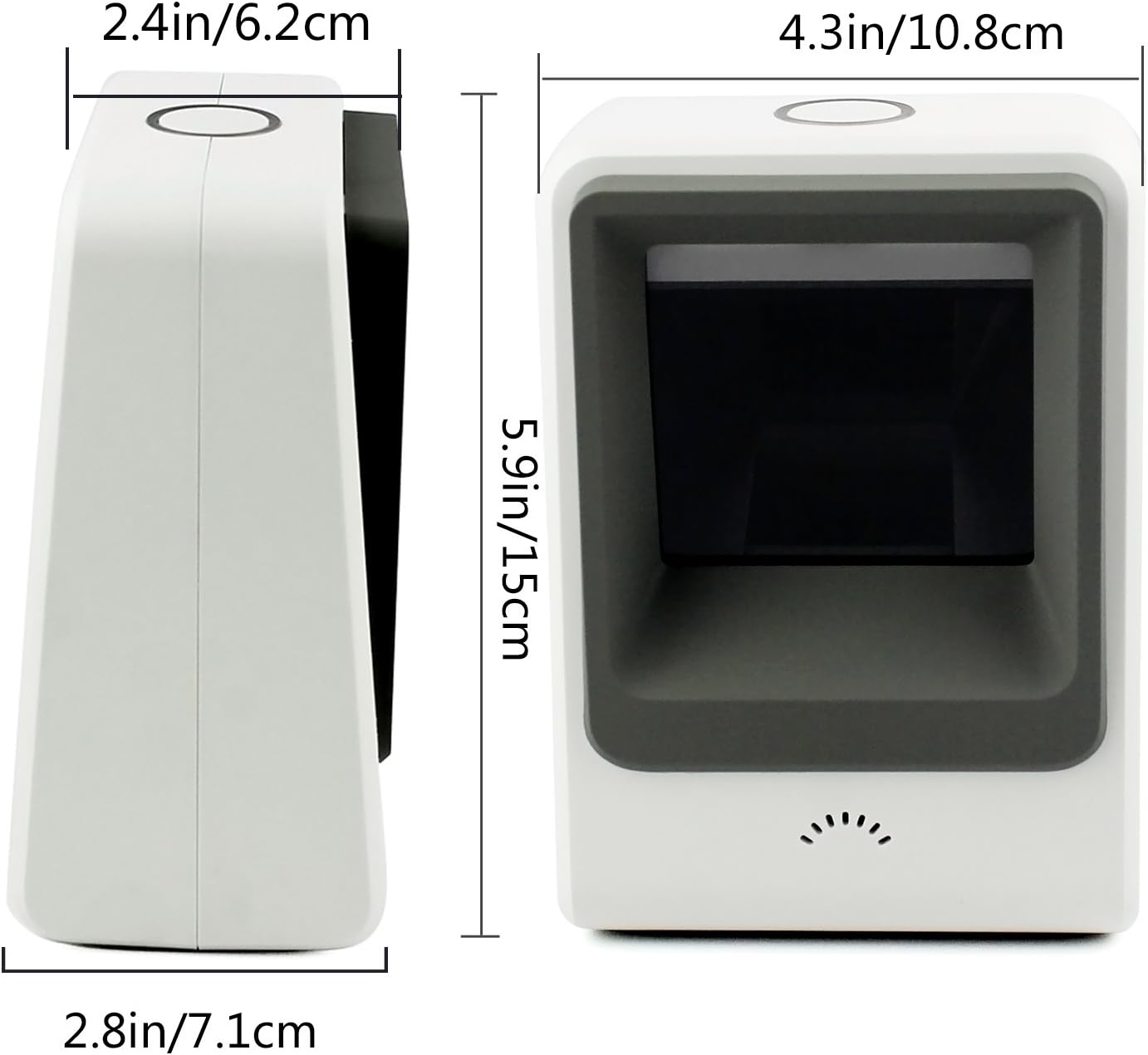
Gambar 2.5: Diménsi leuwihview of the scanner, showing its height (5.9in/15cm), width (4.3in/10.8cm), and depth (2.8in/7.1cm).

Gambar 2.6: Package contents including the barcode scanner unit, USB cable, and user manual.
3. Setélan
The Symcode MJ-8200-W barcode scanner is designed for simple plug-and-play operation. No driver installation is typically required for most operating systems.
- Sambungkeun kabel USB: Locate the USB port on the back of the scanner. Insert the provided USB cable into this port.
- Nyambung ka Komputer: Plug the other end of the USB cable into an available USB port on your computer (Desktop, Laptop, or POS system).
- Pangenal Sistim: Your operating system (Windows, Linux, etc.) should automatically detect and install the necessary drivers. This process usually takes a few seconds.
- Siap dianggo: Once the scanner is recognized, it is ready to begin scanning. The scanner will automatically activate when a barcode is presented to its scanning window.
4. Parentah Operasi
The Symcode MJ-8200-W offers hands-free operation and intelligent scanning modes.
4.1 Modeu nyeken
The scanner features two primary scanning modes, indicated by the color of the top indicator light, which can be switched using the button on top of the unit:
- Normal Scanning Mode (Blue Light): This is the default mode, sensitive to identifying 1D and 2D barcodes from various sources, including computer screens, mobile phone displays, and standard printed codes. This mode is recommended for daily general use.
- 1D Fast Scanning Mode (Yellow Light): When encountering particularly difficult-to-scan printed barcodes, press the top button to switch to this mode. This mode is optimized for faster and more accurate reading of challenging 1D printed codes, significantly improving scanning accuracy.
4.2 Hands-Free and Auto-Sense Operation
The scanner is designed for hands-free use, allowing users to handle items with both hands. It features an auto-sense design:
- The scanner automatically activates its scanning beam when a barcode is presented within its field of view.
- When no barcode is detected for a period, the scanner will enter a power-saving mode, turning off its illumination light. It will reactivate instantly upon detection of a barcode.
4.3 Tipe Barcode Dirojong
The Symcode MJ-8200-W supports a wide range of 1D and 2D barcode symbologies:
- Kodeu 1D: EAN-8, EAN-13, Codabar, CODE 39, CODE 93, CODE 128, China Post, GS1-128, UPC-A, UPC-E, ISBN/ISSN, ISBT, Interleaved 2 of 5, Standard 2 of 5, Matrix 2 of 5, Industrial 2 of 5, MSI, RSS, ITF14, Telepen, etc.
- Kodeu 2D: QR Code, Micro QR Code, Data Matrix, PDF417, Micro PDF417, Maxicode, Aztec, Hanxin, etc.
4.4 Screen Scanning Technology
Utilizing CCD Optical Imaging Scanning Technology, this scanner can effectively identify barcodes from digital screens, including those that are incomplete or fuzzy. This technology compensates for common issues encountered when scanning from displays, ensuring reliable performance.
5. Pangropéa
Pangropéa anu leres mastikeun umur panjang sareng kinerja anu optimal tina pamindai barkod anjeun.
- Ngabersihkeun Jandéla Scan: Regularly clean the scan window with a soft, lint-free cloth. For stubborn smudges, slightly dampen the cloth with water or a mild, non-abrasive cleaner. Avoid using harsh chemicals or abrasive materials that could scratch the window.
- beberesih umum: Wipe the exterior of the scanner with a dry or slightly damp lawon pikeun ngaleungitkeun lebu sareng kokotor.
- Perawatan kabel: Ensure the USB cable is not kinked, pinched, or subjected to excessive strain. Damaged cables can affect performance.
- Penanganan: While the scanner is designed to be robust and can survive falls from up to 5ft/1.5m, avoid unnecessary drops or impacts to prevent potential damage.
- Panyimpenan: When not in use for extended periods, store the scanner in a clean, dry environment away from extreme temperatures.
6. Cara ngungkulan
If you encounter issues with your Symcode barcode scanner, refer to the following common troubleshooting steps:
- Scanner Not Responding/No Light:
- Pastikeun kabel USB disambungkeun sacara aman ka alat panyeken sareng komputer.
- Coba colokkeun kabel USB kana port USB anu béda dina komputer anjeun.
- Verify that your computer is powered on and functioning correctly.
- Scanner Teu Maca Barcode:
- Ensure the barcode is clean, clear, and not excessively damaged.
- Check the distance and angle at which you are presenting the barcode to the scanner. Try adjusting the position.
- Bersihkeun jandela optik scanner sapertos anu dijelaskeun dina bagian Pangropéa.
- If scanning a barcode from a screen, ensure the screen brightness is adequate and there is no glare.
- Try switching between Normal (Blue Light) and 1D Fast (Yellow Light) scanning modes using the top button.
- Kaluaran Data Lepat:
- Ensure your computer's keyboard layout matches the expected output.
- Verify that the application you are scanning into is active and ready to receive input.
- Scanner Remains On (No Off Switch):
- This model does not feature a physical on/off switch. It enters a power-saving mode when idle. To completely power off the device, disconnect the USB cable from the computer.
If these steps do not resolve the issue, please contact Symcode customer support for further assistance.
7. Spésifikasi
Detailed technical specifications for the Symcode MJ-8200-W Barcode Scanner:
| Fitur | Spésifikasi |
|---|---|
| Nomer modél | MJ-8200-W |
| Tipe | 2D CMOS Wired Barcode Scanner |
| Ukuran (L x W x H) | 6.34 x 4.41 x 4.02 inci (71.5mm x 108mm x 150mm) |
| Item Beurat | 11.9 ons (480g) |
| Bahan | ABS |
| Warna | Bodas |
| Panganteur | Kabel USB |
| Sumber Cahaya | 617nm LED (aimer); 6500K LEDs (illumination) |
| Sénsor Gambar | 640*480 CMOS |
| Prosesor | ARM32-bit |
| Laju Scan | 200 kali / kadua |
| Kakuatan | DC 5V |
| ayeuna | 400mA±5% |
| Alat nu cocog | Desktop, Laptop, POS |
| Sistem Operasi | Windows, Linux, and other systems |
| Résistansi serelek | Designed to survive from fall height of 5ft/1.5m |
8. Garansi jeung Rojongan
Inpormasi Garansi: Specific warranty details for your Symcode MJ-8200-W barcode scanner are typically provided with your purchase documentation or can be found on the official Symcode websitus. Punten tahan bukti pameseran anjeun pikeun klaim garansi.
Rojongan Palanggan: For technical assistance, troubleshooting beyond this manual, or warranty inquiries, please contact Symcode customer support. You can usually find contact information on the product packaging, the Symcode official websitus, atawa ngaliwatan pangecér dimana anjeun dibeuli produk.


