1. Bubuka jeung Leuwihview
The AT&T Air 4920 Airties Smart Wi-Fi Extender is designed to expand the coverage and improve the signal strength of your existing Wi-Fi network. It creates a seamless mesh network, allowing your devices to automatically connect to the strongest Wi-Fi signal as you move around your home or office. This manual provides detailed instructions for setting up, operating, maintaining, and troubleshooting your Wi-Fi extender.

Gambar 1: Hareupeun view of the AT&T Air 4920 Airties Smart Wi-Fi Extender.
2. Eusi Paket
Punten parios yén sadaya barang aya dina pakét anjeun:
- AT&T Air 4920 Airties Smart Wi-Fi Extender Unit
- Adaptor kakuatan
- Pituduh Mimiti Gancang (manual ieu janten pituduh anu komprehensif)
3. Fitur produk jeung komponén
Familiarize yourself with the various ports, buttons, and indicator lights on your Wi-Fi Extender.

Gambar 2: Hareup jeung pungkur view of the Wi-Fi Extender with labeled components.
- 5 GHz Wi-Fi Indicator: Shows the status of the 5 GHz Wi-Fi band.
- 2.4 GHz Wi-Fi Indicator: Shows the status of the 2.4 GHz Wi-Fi band.
- Power Indicator / On/Off Button: Indicates power status. Can also be used to turn the device on/off.
- Tombol WPS: Used for Wi-Fi Protected Setup to quickly connect to your router.
- Gigabit Ethernet Ports (1 & 2): For wired connections to devices like computers, gaming consoles, or smart TVs.
- Saklar Hurung/Pareuman: A physical switch to turn the device completely off or on.
- Input Daya DC (12V): Sambungkeun adaptor kakuatan anu disayogikeun di dieu.
- Tombol Reset: Used to restore the device to factory default settings. (Requires a paperclip or similar pointed object).
4. Setup Guide
Follow these steps to set up your AT&T Air 4920 Wi-Fi Extender:
4.1 Panempatan Awal
For initial setup, place the Wi-Fi Extender near your AT&T gateway (router). Once paired, you can move it to a more central location in your home where Wi-Fi signal is weak.
4.2 Sambungan Daya
- Connect the provided power adapter to the DC Power Input (7) on the back of the extender.
- Colokkeun adaptor kakuatan kana stop kontak témbok.
- Ensure the Power On/Off Switch (6) is in the 'On' position. The Power Indicator (3) should light up.
4.3 Pairing with Your AT&T Gateway (Router)
There are two primary methods for pairing:
Method A: Using WPS (Wi-Fi Protected Setup) - Recommended
- Pencét jeung tahan tombol WPS Button (4) on the front of the Wi-Fi Extender for 2-3 seconds until the indicator lights start blinking.
- Dina dua menit, pencét éta Tombol WPS on your AT&T gateway (router). Refer to your gateway's manual for the exact location of its WPS button.
- Wait for the indicator lights on the extender (1, 2, and 3) to turn solid green, indicating a successful connection. This may take a few minutes as the extender updates its firmware and synchronizes with your gateway.
Method B: Using an Ethernet Cable (If WPS fails or is not preferred)
- Connect one end of an Ethernet cable (not included) to one of the Gigabit Ethernet Ports (5) on the back of the extender.
- Connect the other end of the Ethernet cable to an available LAN port on your AT&T gateway (router).
- The extender will automatically detect the connection and begin pairing. Wait for the indicator lights (1, 2, and 3) to turn solid green.
- Once paired, you can disconnect the Ethernet cable if you wish to use the extender wirelessly.
4.4 Panempatan optimal
After successful pairing, unplug the extender and move it to a location roughly halfway between your AT&T gateway and the area where you need improved Wi-Fi coverage. Ensure the extender is placed in an open area, away from large metal objects, concrete walls, or other electronic devices that might cause interference. Plug it back into a power outlet. The indicator lights should turn solid green again, confirming a good connection.

Figure 3: The Wi-Fi Extender connected to its power adapter.
5. Operating Your Wi-Fi Extender
Once set up, the AT&T Air 4920 operates automatically to extend your Wi-Fi network. Your devices will seamlessly connect to the strongest signal, whether from your gateway or the extender, using your existing Wi-Fi network name (SSID) and password.
Status Lampu Indikator:
- Héjo padet: Excellent connection and operation.
- Solid Amber/Orange: Fair connection. Consider repositioning the extender closer to your gateway.
- Beureum padet: No connection or poor signal. Reposition the extender or check connections.
- Kiceup: During WPS pairing or firmware update.
- Pareum: Alat pareum atanapi teu nampi daya.
Sambungan kabel:
You can connect wired devices (e.g., desktop computers, smart TVs, gaming consoles) to the Gigabit Ethernet Ports (5) on the back of the extender for a stable, high-speed connection.
6. Pangropéa
To ensure optimal performance and longevity of your Wi-Fi Extender:
- beberesih: Gently wipe the exterior with a soft, dry cloth. Do not use liquid cleaners or aerosols.
- Ventilasi: Pastikeun liang ventilasi henteu katutup pikeun nyegah panas teuing.
- Pembaruan firmware: The extender typically receives automatic firmware updates from AT&T. Ensure it remains connected to power and your network for these updates to occur.
- Siklus kakuatan: If you experience minor issues, try unplugging the extender from the power outlet for 10 seconds and then plugging it back in.
7. Cara ngungkulan
If you encounter issues with your Wi-Fi Extender, refer to the following common problems and solutions:
| Masalah | Mungkin Cukang lantaranana | Solusi |
|---|---|---|
| Extender lights are off. | Taya kakuatan. | Ensure the power adapter is securely connected and plugged into a working outlet. Check the Power On/Off Switch (6). |
| Indicator lights are red or amber. | Poor or no connection to the gateway. |
|
| Wi-Fi signal is still weak in extended areas. | Suboptimal placement. | Move the extender to a more central location between your gateway and the weak signal area. Avoid placing it in corners or behind furniture. |
| Devices not connecting to the extender. | Extender not properly paired or network issues. |
|
| Need to reset to factory settings. | Configuration issues or preparing for new setup. | With the extender powered on, use a paperclip or similar pointed object to press and hold the Tombol Reset (8) for about 10 seconds until the lights flash. The extender will restart with factory defaults. |
8. Spésifikasi
| Fitur | Rincian |
|---|---|
| Nomer modél | AIR-4920 |
| Ukuran produk (L x W x H) | 3.94 x 4.27 x 1.63 inci (kira-kira) |
| Item Beurat | 15 ons |
| Standar Komunikasi Nirkabel | 802.11ac |
| Laju Mindahkeun Data | Nepi ka 1000 Megabit Per Detik |
| Tipe Panyambung | RJ45 (Ethernet) |
| Warna | Bodas |
| Produsén | AirTies |
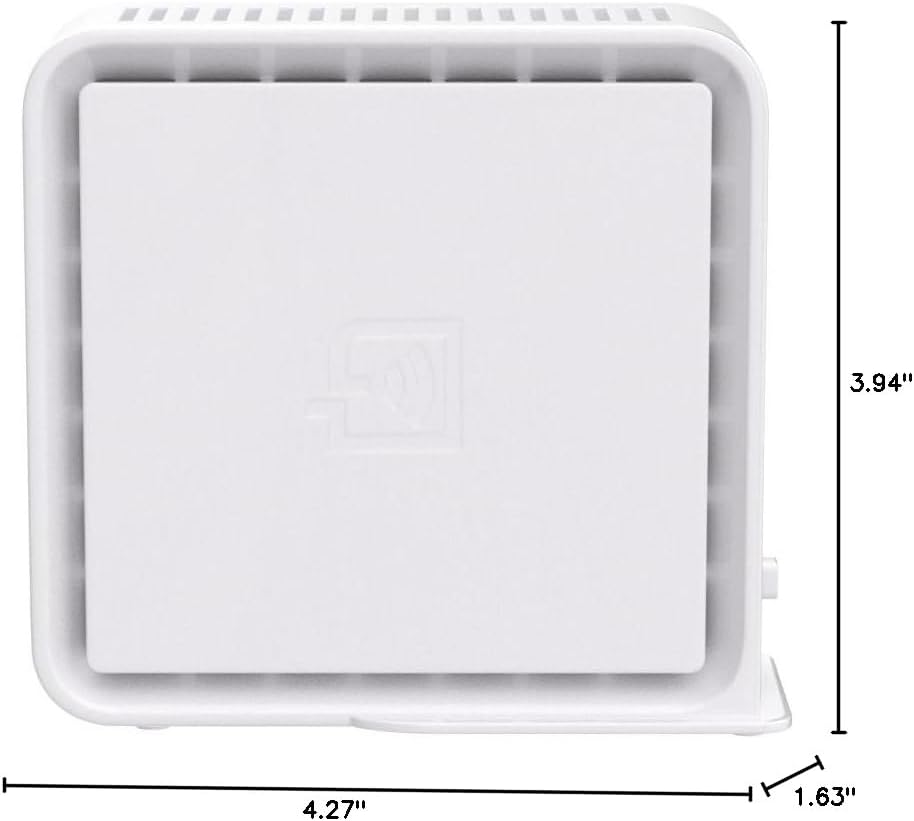
Figure 4: Approximate dimensions of the Wi-Fi Extender.


