Produk Leuwihview
The Seagate Barracuda ST2000DM008 is a 2 TB 3.5-inch internal hard drive designed for desktop computers. It features a SATA 6.0Gb/s interface and a rotational speed of 7200 RPM, providing reliable storage and performance for various computing needs. This drive is suitable for general-purpose storage, gaming, and other applications requiring significant data capacity.

Gambar: luhur-handap view of the Seagate Barracuda ST2000DM008 2TB internal hard drive. The drive features a metallic silver casing with a prominent green and black label. The label displays the Seagate logo, "Barracuda Compute" branding, "2TB Barracuda ST2000DM008", and various certification marks. This view highlights the overall form factor and the primary identification label of the hard drive.
Setup sareng Instalasi
This section provides instructions for physically installing the Seagate Barracuda ST2000DM008 internal hard drive into a compatible desktop computer system. Ensure your computer is powered off and unplugged before beginning installation.
1. Persiapan
- Gather necessary tools: Phillips head screwdriver, SATA data cable, SATA power cable (usually from PSU).
- Pastikeun casing komputer anjeun gaduh tempat drive 3.5 inci anu sayogi.
- Ground yourself to prevent electrostatic discharge (ESD) by touching a metal part of the computer chassis.
2. Instalasi fisik
- Open your computer case. Refer to your computer's manual for specific instructions on opening the case and accessing drive bays.
- Slide the Seagate Barracuda hard drive into an available 3.5-inch drive bay. Secure it with screws on both sides of the drive bay, if applicable, to prevent vibration.
- Connect one end of the SATA data cable to the data port on the hard drive. Connect the other end to an available SATA data port on your motherboard.
- Connect a SATA power cable from your power supply unit (PSU) to the power port on the hard drive.
- Tutupkeun casing komputer anjeun teras sambungkeun deui sadaya kabel éksternal.
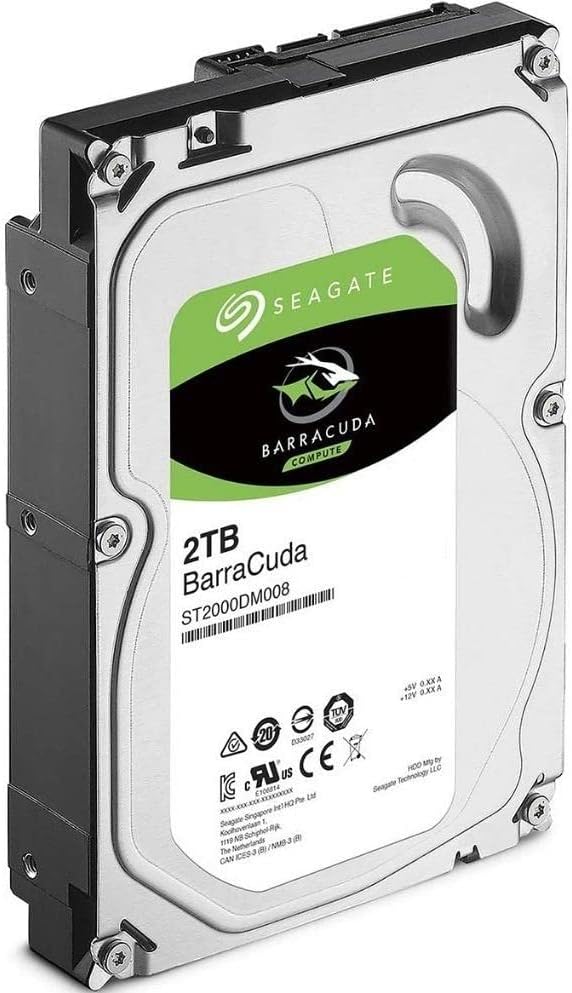
Gambar: Angled view of the Seagate Barracuda ST2000DM008 2TB internal hard drive. This perspective highlights the side profile and the rear connectors, including the SATA data and power ports. The drive's metallic casing and the green and black label are visible. This image is useful for identifying the connection points during installation.
3. Initializing and Formatting (Operating System Specific)
After physical installation, the drive must be initialized and formatted by your operating system before it can be used for storage. The process varies slightly depending on your OS (Windows, macOS, Linux).
Pikeun Windows:
- Hurungkeun komputer anjeun.
- Klik katuhu dina tombol Mimitian tur pilih "Manajemén Disk".
- You will likely be prompted to initialize the new disk. Choose MBR (Master Boot Record) for drives up to 2TB or GPT (GUID Partition Table) for drives larger than 2TB. For this 2TB drive, MBR is suitable, but GPT is also compatible and recommended for modern systems.
- Once initialized, right-click on the unallocated space of the new disk and select "New Simple Volume".
- Follow the wizard to assign a drive letter and format the drive (NTFS is recommended for Windows).
Pikeun macOS:
- Hurungkeun komputer anjeun.
- Open "Disk Utility" (Applications > Utilities > Disk Utility).
- Select the new Seagate drive from the sidebar.
- Click "Erase". Choose a name, format (e.g., APFS or Mac OS Extended (Journaled)), and scheme (GUID Partition Map).
- Click "Erase" again to confirm.
Pikeun Linux:
- Hurungkeun komputer anjeun.
- Anggo utilitas disk sapertos GParted atanapi
fdisk/partedcommand-line tools to partition and format the drive. Common file systems include ext4. - Mount the formatted partition to a desired directory.
Ngoperasikeun Hard Drive
Once installed, initialized, and formatted, the Seagate Barracuda ST2000DM008 operates as a standard storage device within your computer system. It will appear as a new drive letter (Windows) or mounted volume (macOS/Linux).
Data Storage and Access
- Anjeun tiasa nyimpen files, install applications, and store media directly onto the drive.
- Aksés drive ngalangkungan sistem operasi anjeun file explorer (e.g., File Explorer in Windows, Finder in macOS).
- The drive's 7200 RPM rotational speed and 256MB cache contribute to faster data access and transfer speeds compared to slower drives.
Manajemén kakuatan
The drive's power management features allow it to enter various low-power states to conserve energy when not actively in use. These states are typically managed by your operating system's power settings.
- Modeu dianggurkeun: The drive spins, but heads are parked, consuming less power.
- Modeu Siaga: The drive spins down, consuming minimal power.
- Modeu Bobo: The lowest power state, where the drive is almost entirely powered off.
Transitioning out of standby or sleep mode may introduce a slight delay as the drive spins up to full operational speed.
Pangropéa
Proper maintenance can extend the lifespan and ensure optimal performance of your hard drive.
- Nyadangkeun biasa: Always back up important data to another drive or cloud storage. Hard drives are mechanical devices and can fail.
- Defragmentasi Disk (pikeun HDD): For Windows users, regularly defragmenting the drive can improve performance. SSDs do not require defragmentation.
- Pariksa Kasalahan Disk: Periodically run disk error checking tools (e.g.,
chkdskon Windows) to identify and fix file kasalahan sistem. - Manajemén Suhu: Ensure adequate airflow within your computer case to prevent the drive from overheating. High temperatures can degrade performance and lifespan.
- Hindarkeun Guncangan Fisik: Hard drives are sensitive to physical impact. Avoid moving or bumping your computer while it is operating.
Pamérésan masalah
Bagian ieu alamat masalah umum Anjeun bisa sapatemon jeung hard drive Anjeun.
Drive Teu Dideteksi
- Pariksa Kabel: Pastikeun duanana data SATA sareng kabel kakuatan disambungkeun sacara aman ka drive sareng motherboard/PSU.
- Setélan BIOS/UEFI: Pariksa yén port SATA anu disambungkeun ka drive parantos diaktipkeun dina setélan BIOS/UEFI sistem anjeun.
- Manajemén Disk (Windows): Check Disk Management to see if the drive is detected but uninitialized or unallocated. Follow the initialization and formatting steps if necessary.
- Coba Port / Kabel anu béda: Test with a different SATA data cable, power cable, or motherboard SATA port to rule out faulty components.
Performance Lalaunan
- Defragmentasi: If using Windows, perform a disk defragmentation.
- Ruang Disk: Pastikeun drive teu ampir pinuh. Kinerja tiasa ngirangan sacara signifikan nalika drive caket kana kapasitas.
- Prosés Latar: Check for background applications or antivirus scans that might be heavily utilizing the drive.
- Status SMART: Use a disk utility to check the drive's S.M.A.R.T. (Self-Monitoring, Analysis and Reporting Technology) status. Warnings indicate potential drive failure.
Noises mahiwal
- Clicking, grinding, or loud whirring noises are often indicators of mechanical failure. Immediately back up any critical data and consider replacing the drive.
- Ensure the drive is securely mounted in its bay to prevent vibrations.
spésifikasi
| Fitur | Spésifikasi |
|---|---|
| Nomer modél | ST2000DM008 |
| Kapasitas | 2 TB (2000 GB) |
| Faktor Bentuk | 3.5 inci |
| Panganteur | SATA 6.0 Gb/s |
| Laju rotasi | 7200 rpm |
| Cache | 256 MB |
| Max Sustained Data Rate (OD Read) | 220 MB/s |
| Shock Operasi | 80 (Read) / 70 (Write) Gs @ 2ms |
| Shock Non-Operasi | 350 Gs @ 2ms |
| Akustika dianggurkeun | 2.8 bel (biasa) |
| Neangan Akustik | 2.9 bel (biasa) |
| Kakuatan ngamimitian | 2.0 A |
| Operating Power (Typical) | 5.1 W |
| Idle Power (Average) | 3.9 W |
| Standby Power (Typical) | 0.3 W |
| Sleep Power (Typical) | 0.3 W |
| Ukuran (WxDxH) | 101.85 x 146.99 x 20.20 mm (4.010 x 5.787 x 0.795 inci) |
| Beurat | 490.0 g (1.08 lbs) |
| Alat nu cocog | PC desktop |
Garansi sareng Rojongan
For detailed warranty information and technical support, please refer to the official Seagate website or contact Seagate customer service. Warranty terms and conditions may vary by region and purchase date.
You can typically find support resources, drivers, and firmware updates on the Rojongan Seagate Websitus.


