Bubuka
This manual provides comprehensive instructions for the setup, operation, maintenance, and troubleshooting of your Autoscript EVO-IP On-Camera Package with 15'' Prompt Monitor. Please read this manual thoroughly before using the equipment to ensure proper functionality and safety.
The Autoscript EVO-IP system is designed for professional teleprompting applications, offering advanced IP connectivity and high-quality display for clear script delivery.
Émbaran Kasalametan
Salawasna perhatikeun pancegahan kaamanan di handap ieu:
- Ulah ngalaan unit ka hujan atawa Uap.
- Ulah muka casing; ngarujuk sadaya jasa ka tanaga anu mumpuni.
- Pastikeun ventilasi ditangtoskeun sabudeureun monitor.
- Use only the power supply specified for this device.
- Handle the monitor and glass carefully to prevent damage.
Eusi pakét
Pastikeun yén sadaya komponén aya dina pakét anjeun:
- 15'' Prompt Monitor
- EVO-IP Prompting Hood
- Mounting Hardware (riser, camera plate, rods)
- Unit catu daya
- Kabel Ethernet
- Manual pangguna (dokumén ieu)
Disetél
1. Attaching the Prompt Monitor and Hood
- Secure the 15'' Prompt Monitor to the mounting plate using the provided screws.
- Attach the EVO-IP prompting hood to the monitor, ensuring it is firmly seated and light-tight.
- Carefully insert the beamsplitter glass into the hood's designated slot. Ensure the reflective side faces the camera lens.
2. Mounting to Camera System
- Attach the entire prompt assembly (monitor, hood, glass) to your camera's support system (e.g., tripod head, camera plate). The system is designed to balance with various camera setups.
- Adjust the height and position of the prompt assembly to align the camera lens correctly with the beamsplitter glass.
3. Daya sareng Sambungan Jaringan
- Connect the power supply unit to the 15'' Prompt Monitor's power input. Plug the power supply into a suitable AC outlet.
- Connect an Ethernet cable from the monitor's IP port to your network switch or directly to a computer running Autoscript WinPlus-IP software.
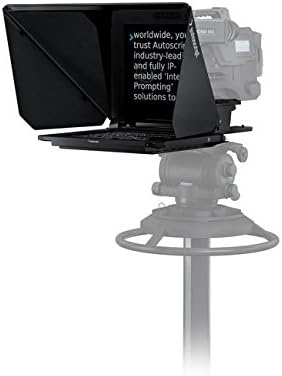
Image: The Autoscript EVO-IP On-Camera Package with 15'' Prompt Monitor fully assembled and mounted on a camera tripod, showing the monitor displaying text through the hood.
Parentah Operasi
1. Powering On and Initializing
- Pastikeun sadaya sambungan aman.
- Power on the monitor. The monitor will display a boot-up sequence.
- Launch the Autoscript WinPlus-IP software on your control computer.
- The software should automatically detect the EVO-IP monitor on the network. If not, refer to the WinPlus-IP software manual for network configuration.
2. Loading and Displaying Scripts
- Within WinPlus-IP, load your desired script file.
- Select the EVO-IP monitor as the output display.
- The script will appear on the 15'' prompt monitor, mirrored for readability through the beamsplitter glass.
3. Controlling Prompt Speed and Flow
Control of the script scroll speed and direction is typically managed via a foot pedal or hand controller connected to the WinPlus-IP system. Refer to your WinPlus-IP software manual for specific controller setup and operation.
- Kontrol laju: Adjust the scroll speed to match the presenter's reading pace.
- arah: Scroll forward or backward through the script.
- Titik-titik Isyarat: Utilize cue points within the script for quick navigation to specific sections.
Pangropéa
1. Cleaning the Beamsplitter Glass
The beamsplitter glass is crucial for clear prompting. Clean it regularly to remove dust and fingerprints.
- Gently remove the glass from the hood.
- Use a soft, lint-free microfiber cloth specifically designed for optics.
- For stubborn smudges, use a small amount of optical cleaning solution applied to the cloth, not directly to the glass.
- Wipe in one direction to avoid streaks.
- Do not use abrasive cleaners or paper towels.
2. Cleaning the Monitor Screen and Casing
Wipe the monitor screen and external casing kalawan lemes, damp cloth. Avoid excessive moisture and harsh chemicals.
3. Panyimpenan
When not in use, store the prompt package in a clean, dry environment, preferably in a padded case to protect the monitor and glass from impact.
Pamérésan masalah
| Masalah | Mungkin Cukang lantaranana | Solusi |
|---|---|---|
| Monitor not powering on. | No power, faulty power supply, loose connection. | Check power cable connection to monitor and outlet. Test power supply if possible. |
| No script displayed on monitor. | Network issue, WinPlus-IP not connected, monitor not selected as output. | Verify Ethernet cable connection. Check WinPlus-IP software for monitor detection and output selection. Ensure IP settings are correct. |
| Script appears blurry or distorted. | Dirty beamsplitter glass, incorrect monitor resolution, physical damage. | Clean the beamsplitter glass. Check monitor display settings in WinPlus-IP. Inspect for physical damage. |
| Script scrolling is erratic. | Controller issue, software glitch, network latency. | Check controller connection and battery (if wireless). Restart WinPlus-IP software. Verify network stability. |
spésifikasi
- Ukuran Monitor: 15 inci
- Konektipitas: IP (Ethernet)
- Kasaluyuan: Autoscript WinPlus-IP software
- beurat: Approximately 28 pounds (total package, as per product data)
- Input kakuatan: AC (specific voltage/amperage details typically on power supply unit)
- ASIN: B079TWKRCQ
- Titimangsa munggaran sadia: 6 Agustus 2024
Garansi sareng Rojongan
Autoscript products typically come with a limited manufacturer's warranty covering defects in materials and workmanship. The specific duration and terms of your warranty may vary by region and purchase date. Please retain your proof of purchase for warranty claims.
For technical support, service, or warranty inquiries, please contact Autoscript customer service or your authorized dealer. You may find contact information on the official Autoscript websitus atanapi dokuméntasi pameseran Anjeun.
Sumberdaya Online: For additional resources, software updates, and FAQs, visit the official Autoscript websitus: www.autoscript.tv


