1. Bubuka
This manual provides detailed instructions for the setup, operation, and maintenance of your LMP USB Wired Keyboard with Numeric Keypad, Model 17203. This keyboard is designed for use with Mac computers and features a German (QWERTZ) layout.
Eusi pakét:
- LMP USB Wired Keyboard (Model 17203)
- Kabel USB terpadu

2. Setélan
Follow these steps to connect your LMP USB Wired Keyboard to your Mac computer.
- Sambungkeun kibor: Locate an available USB port on your Mac computer. Insert the USB connector of the keyboard's integrated cable into the USB port.
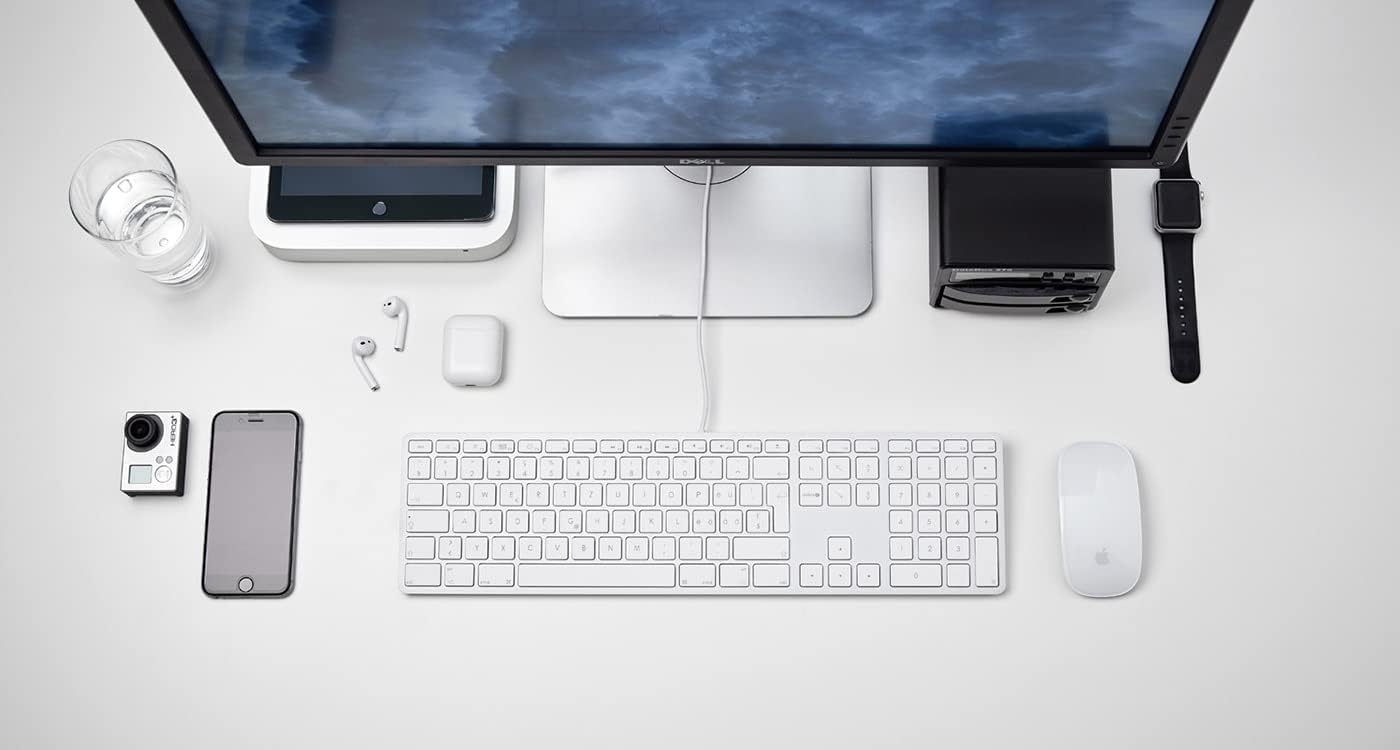
Gambar 2.1: The LMP USB Wired Keyboard integrated into a typical Mac desktop setup, demonstrating its connection via USB. - Pangenal Sistim: Your Mac operating system (macOS 10.5 or higher is required) should automatically detect and configure the keyboard. No additional drivers are typically needed.
- Tés awal: Open a text editor or any application where you can type to confirm the keyboard is functioning correctly.
3. Parentah Operasi
This section details the primary functions and features of your LMP USB Wired Keyboard.
3.1 Standard Typing
The keyboard features a full German (QWERTZ) layout with 110 laser-engraved keys, providing a familiar typing experience. All standard alphanumeric, symbol, and modifier keys function as expected on macOS.
3.2 Konci Fungsi (F1-F12)
The top row of keys includes dedicated function keys (F1-F12) that control various macOS features:
- Kontrol kacaangan: F1 (decrease), F2 (increase)
- Mission Control/App Exposé: F3
- Launchpad: F4
- Keyboard Backlight (if applicable): F5 (decrease), F6 (increase) - Note: This keyboard does not feature backlighting.
- Kadali Media: F7 (previous track), F8 (play/pause), F9 (next track)
- Kontrol volume: F10 (mute), F11 (decrease), F12 (increase)
To use F-keys as standard function keys (e.g., F5 for refresh in a browser), you may need to hold the Fn key simultaneously or adjust settings in System Preferences > Keyboard.
3.3 Keypad numerik
The integrated numeric keypad on the right side of the keyboard allows for efficient data entry and calculations. It includes standard number keys, arithmetic operators, and navigation keys.
3.4 Integrated USB Hubs
The keyboard features two USB 2.0 hubs, one on each side, allowing you to connect low-power USB devices directly to your keyboard. These are suitable for devices such as USB mice, flash drives, or other peripherals that do not require significant power.

penting: High-power devices (e.g., external hard drives, some webcams) may not function correctly when connected to the keyboard's USB hubs due to power limitations. Connect such devices directly to your Mac's USB ports.
4. Desain sarta Fitur
The LMP USB Wired Keyboard is crafted with a focus on functionality and aesthetic integration with Mac environments.
- Aluminum Top Cover: The keyboard features a durable aluminum top cover, contributing to its robust construction and sleek appearance.
- Laser-Engraved Keys: All keycaps are laser-engraved, ensuring long-lasting legibility and resistance to wear.
- German (QWERTZ) Layout: Specifically designed for users requiring a German keyboard layout, including special characters and key placements.
- Desain Ukuran pinuh: Includes a full complement of 110 keys, including a dedicated numeric keypad and a full set of function keys.


5. Pangropéa
Proper care will extend the lifespan of your keyboard.
- Ngabersihan Permukaan: Make kaen nu lemes, teu aya lint rada dampened with water or a mild, non-abrasive cleaning solution. Avoid spraying liquids directly onto the keyboard.
- Cleaning Between Keys: Use compressed air to remove dust and debris from between the keys. A soft brush can also be used.
- Hindarkeun Tumpahan: Jauhkeun cairan tina keyboard pikeun nyegah karuksakan komponén internal.
- Panyimpenan: Upami teu dianggo salami lami, simpen kibor dina lingkungan anu bersih sareng garing.
6. Cara ngungkulan
Upami anjeun ngalaman masalah sareng kibor anjeun, tingali solusi umum ieu:
| Masalah | Mungkin Cukang lantaranana / Solusi |
|---|---|
| Keyboard teu ngabales. |
|
| Keys are not typing correctly or are sticky. |
|
| Devices connected to the keyboard's USB hubs are not working. |
|
| Function keys (F1-F12) are not performing expected macOS actions. |
|
7. Spésifikasi
| Fitur | Rincian |
|---|---|
| merek | LMP |
| Ngaran modél | KB-1243 |
| Nomer modél | 17203 |
| Téhnologi konektipitas | USB (Kabel) |
| Katerangan kibor | QWERTZ (German Layout) |
| Jumlah konci | 110 (ISO) |
| Fitur husus | Integrated Numeric Keypad, 2x USB 2.0 Hubs, Laser-engraved keys |
| Alat nu cocog | Mac computers with USB port (macOS 10.5 or higher) |
| Bahan | Aluminum (top cover) |
| Warna | pérak |
| Komponén Kaasup | Kabel USB |
8. Garansi jeung Rojongan
For warranty information and technical support, please refer to the documentation provided with your purchase or visit the official LMP websitus. Simpen bukti pameseran anjeun pikeun klaim garansi.


