1. Produk Langkungview
The Symcode Bluetooth Barcode Scanner (Model MJ-6709CB-AT) is a versatile handheld device designed for efficient 1D barcode scanning. It offers multiple connectivity options including Bluetooth, 2.4G wireless via USB receiver, and wired USB connection, providing flexibility for various environments such as retail, inventory management, and office applications. Its robust design ensures durability, and the integrated battery offers extended operational time.

Figure 1.1: Symcode Bluetooth Barcode Scanner with included USB cable and 2.4G wireless dongle.
2. Eusi Paket
Punten parios eusi bungkusan nalika unboxing pikeun mastikeun yén sadaya barang aya:
- 1 x Symcode Bluetooth Wireless Laser Scanner
- 1 x Kabel Ngecas USB
- 1 x USB Receiver (2.4G Wireless Dongle)
- 1 x Manual Pamaké
3. Fitur konci
- Multiple Connectivity: Supports Bluetooth, 2.4G Wireless (via USB receiver), and Wired USB connection for versatile use.
- Nyolok sareng Puter: USB receiver automatically pairs, requiring no software or driver installation for basic operation.
- Hirup batré anu panjang: Equipped with an integrated 1800mAh Li-Ion rechargeable battery for extended scanning sessions.
- Fungsi Saré Otomatis: Scanner enters auto-sleep mode to conserve power and can be easily woken by pulling the trigger.
- Desain mantap: Engineered to withstand free falls from a height of 1.50 meters, ensuring durability in demanding environments.
- Rich Decoding Types: Compatible with a wide range of 1D barcodes including Codabar, Code 11, Code 93, MSI, Code 128, UCC/EAN-128, Code 39, EAN-8, EAN-13, UPC-A, Industrial 25, Interleaved 25, Standard 25, 2/5 Matrix.
- Kasaluyuan lega: Works with Windows XP / Vista / 7 / 8 / 8.1 / 10 / Wince / Mobile / Android devices. Note: For Android devices without standard USB interface (e.g., Samsung Galaxy i9300 S3, S4, S5, Nexus 4, Nexus 5, Nexus 6, Nexus 10), an extra OTG Adapter is needed.
- Multi-language Keyboard Support: Supports English, French, German, Spanish, and Italian keyboard layouts.
- Tambahkeun Awalan jeung Akhiran: Allows adding characters before and after each scanned barcode.

Figure 3.1: The scanner supports various operating systems and can connect via Bluetooth to mobile devices.
4. Setup jeung Connection
The Symcode barcode scanner offers three primary connection methods:
4.1 Sambungan kabel
Connect the scanner directly to your computer using the provided USB charging cable. The cable can be used for both charging and data transmission simultaneously. This mode is ideal for stationary setups or when wireless connectivity is not preferred.
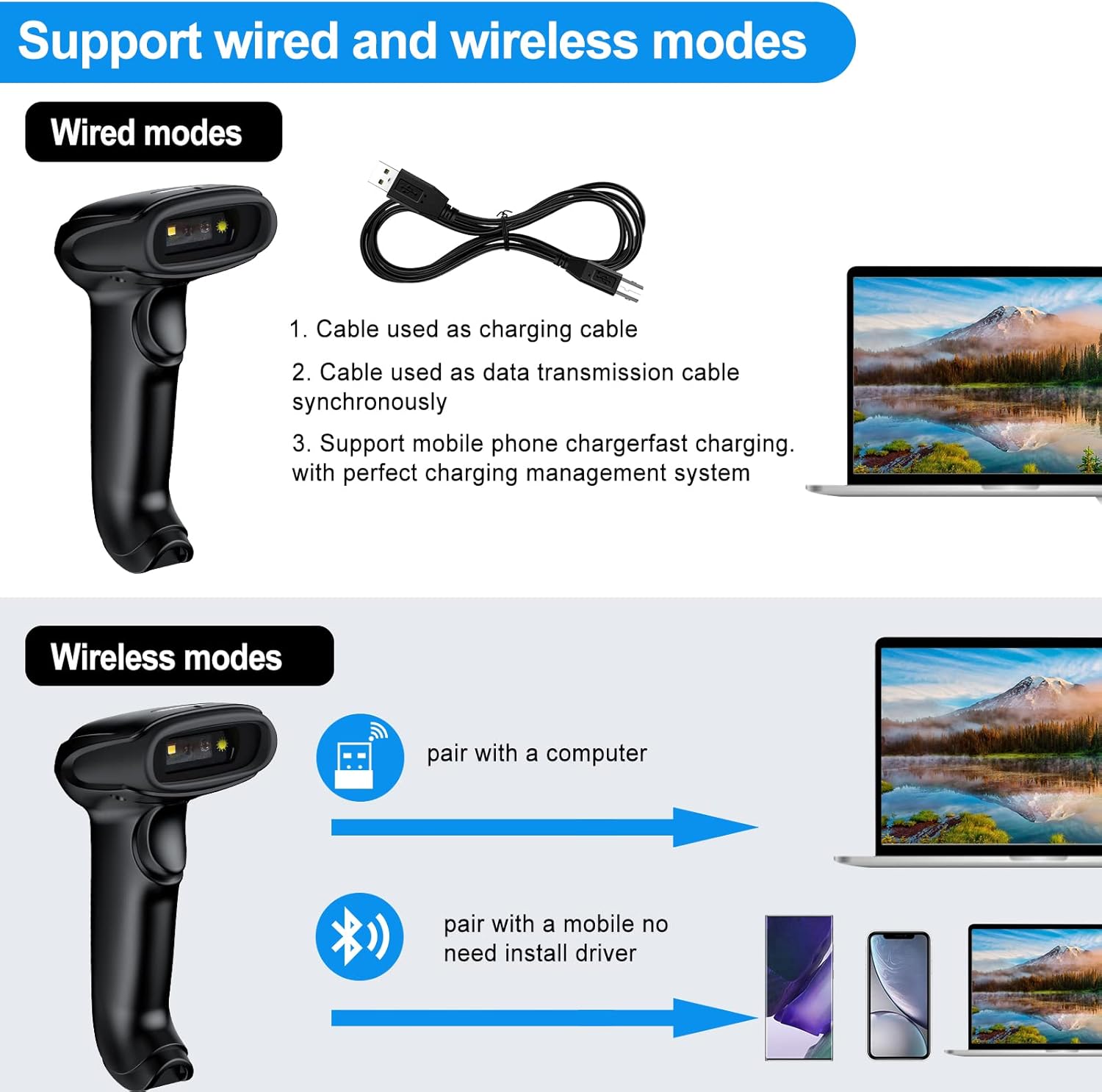
Figure 4.1: The scanner supports both wired and wireless modes. The USB cable functions as both a charging and data transmission cable.
4.2 2.4G Wireless Connection
For wireless operation with a computer, use the 2.4G USB receiver (dongle). Simply plug the dongle into an available USB port on your laptop, PC, or POS system. The scanner and receiver will automatically pair, allowing for immediate use without driver installation.

Figure 4.2: The scanner connects easily to laptops via the 2.4G wireless dongle.
The 2.4G wireless mode offers a long transmission distance of up to 200 meters in open areas, providing significant mobility.

Figure 4.3: Long transmission distance in 2.4G wireless mode.
4.3 Sambungan Bluetooth
To connect via Bluetooth, ensure your device (smartphone, tablet, or computer) has Bluetooth enabled. The scanner can be paired directly with your device without needing a USB receiver. This mode is ideal for mobile applications and devices without available USB ports.
Léngkah pasangan:
- Hurungkeun scanner.
- Activate Bluetooth on your host device.
- Milarian pikeun available Bluetooth devices. The scanner should appear as "Symcode" or a similar identifier.
- Select the scanner to pair. The blue indicator light on the scanner will confirm successful pairing.
Figure 4.4: The scanner can be easily connected to cellphones and pads via Bluetooth.
5. Modeu Operasi
The Symcode scanner supports two primary data upload modes:
5.1 Modeu Unggah Instan
In this mode, scanned barcode data is immediately transmitted to your connected device (computer, smartphone, etc.). This is suitable for real-time data entry into applications like Excel, Word, or POS systems.
5.2 Offline Storage Mode (Inventory Mode)
When operating out of range or without a connected device, the scanner can store up to 5,000 codes (or up to 100,000 barcodes) internally. Once reconnected, the stored data can be uploaded to your device. This is ideal for inventory taking in large warehouses or areas without constant connectivity.

Figure 5.1: The scanner supports both instant data upload and offline storage for later transmission.

Figure 5.2: The Symcode scanner is suitable for diverse applications, from mobile inventory to point-of-sale.
6. Lampu Indikator
The scanner features an indicator light that changes color to communicate its status:
- Lampu héjo: Indicates scanning status (active scan).
- Lampu Beureum: Indicates charging status (illuminates when charging).
- Cahaya Biru: Indicates pairing status (illuminates during Bluetooth pairing or when successfully paired).
Video 6.1: This video demonstrates the Symcode barcode scanner's features, including its indicator lights for scanning, charging, and pairing status, and its various connectivity options.
7. Spésifikasi Téknis
| Spésifikasi | Nilai |
|---|---|
| Nomer modél | MJ-6709CB-AT |
| Dimensi produk | 6.5 x 3.94 x 3.07 inci |
| Item Beurat | 10.4 ons |
| Batré | 1800mAh Lithium Ion (kaasup) |
| Sumber Daya | Battery Powered, Corded Electric, Power Adapter |
| Téhnologi konektipitas | Bluetooth, Nirkabel 2.4G, Kabel USB |
| Sistem Operasi cocog | Windows, Mac, Android, ios |
| Kodeu anu Dirojong | Codabar, Code 11, Code 93, MSI, Code 128, UCC/EAN-128, Code 39, EAN-8, EAN-13, UPC-A, Industrial 25, Interleaved 25, Standard 25, 2/5 Matrix |
| Scanning Angles | Fanning: 30º; Horizontal: 75º; Vertical: 65º |
| Scanning Depth of Field | 0~350mm (0.43mm, PCS 98%) |
| Jarak Gawé Nominal | 6 ~ 30 cm |
| Lebar Scan | 30 mm |
| Light Source (CCD) | Visible LED 650+/-20nm |
| Modeu nyeken | Auto off mode / Manual mode, Bi-directional single line scanning |
| Résistansi serelek | Designed to survive free fall height of 1.50 m |
8. Pangropéa
- beberesih: Use a soft, dry cloth to clean the scanner's exterior. For the scanning window, use a lint-free cloth and a mild glass cleaner if necessary. Avoid abrasive cleaners or solvents.
- Ngecas: Charge the scanner using the provided USB cable and a compatible power adapter. Do not use unapproved chargers.
- Panyimpenan: Simpen scanner di tempat anu tiis sareng garing, jauh tina sinar panonpoé langsung, suhu anu ekstrim, sareng bahan korosif.
- Perawatan batré: Pikeun manjangkeun umur batré, ulah sering ngosongkeun batréna. Upami disimpen kanggo waktos anu lami, eusian batréna dugi ka sakitar 50% sareng eusian deui unggal sababaraha bulan.
9. Cara ngungkulan
| Masalah | Mungkin Cukang lantaranana | Solusi |
|---|---|---|
| Scanner teu hurung. | batré lemah atawa euweuh muatan. | Connect the scanner to a power source using the USB charging cable and allow it to charge. |
| Scanner not connecting wirelessly (2.4G). | USB receiver not properly plugged in or not paired. | Ensure the USB receiver is securely plugged into a working USB port. If issues persist, refer to the manual for re-pairing instructions (usually involves scanning a specific barcode). |
| Scanner teu nyambung via Bluetooth. | Bluetooth not enabled on host device, scanner not in pairing mode, or already paired to another device. | Ensure Bluetooth is enabled on your device. Put the scanner into pairing mode (refer to manual for specific barcode scan). Unpair from previous devices if necessary. |
| Scanner henteu maca barkod. | Barcode damaged, scanner too far/close, incorrect symbology enabled, or scanner window dirty. | Ensure the barcode is clear and undamaged. Adjust scanning distance. Clean the scanning window. Check the user manual for enabling/disabling specific barcode symbologies. Note: This scanner is designed for 1D barcodes; it does not read 2D QR codes. |
| Data not appearing in application (e.g., Excel). | Application not in focus, or scanner in offline storage mode. | Click into the desired text field in your application to ensure it is active. If in offline storage mode, scan the "Upload Data" barcode from the manual to transmit stored data. |
| Scanner appears "stuck" (light on, beeps, but no data transmission). | Internal software issue or temporary malfunction. | Attempt a soft reset by holding the trigger for an extended period (e.g., 10-15 seconds) or by scanning a "Factory Reset" barcode if available in the manual. If the issue persists, allow the battery to fully drain and then recharge. |
| Does not work with Mac as advertised. | Specific Mac OS version incompatibility or configuration issue. | While the product is generally compatible with Mac, specific configurations or newer OS versions might require additional setup. Ensure the scanner is in keyboard emulation mode. If problems persist, contact Symcode customer support for Mac-specific drivers or troubleshooting steps. |
10. Garansi jeung Rojongan
Symcode products are designed for reliability and performance. For warranty information, technical support, or any inquiries regarding your barcode scanner, please refer to the contact details provided on the product packaging or visit the official Symcode websitus. Simpen resi pameseran anjeun pikeun klaim jaminan.
Sumberdaya Online:
- Visit the official Symcode Store on Amazon: Symcode Store


