Bubuka
The HyperX QuadCast is an all-inclusive standalone microphone designed for streamers, podcasters, and gamers seeking impressive sound quality. It features an anti-vibration shock mount to reduce handling noise, a built-in pop filter for clearer voice, and an LED indicator for mic status. With four selectable polar patterns and a gain control knob, it offers versatile audio capture. Compatible with PC, PS4, PS5, and Mac, the QuadCast delivers clear audio for various broadcasting needs.

Figure 1: HyperX QuadCast Microphone Overview
Naon dina Box
Pastikeun yén sadaya komponén aya dina bungkusan:
- Microphone with Stand
- Mini USB to USB Cable (3M)
- Mic Arm Adapter

angka 2: komponén kaasup
Disetél
The HyperX QuadCast is designed for easy plug-and-play setup across multiple platforms.
- Sambungkeun Mikropon: Plug the Mini USB end of the provided 3-meter cable into the microphone's port.
- Nyambung ka Alat: Plug the standard USB end of the cable into an available USB port on your PC (Windows 10, 8.1, 8, 7), PS4, PS5, or Mac.
- Pangenal otomatis: Your operating system should automatically detect and install the necessary drivers for the microphone.
- Pariksa sambungan: The microphone's red LED lighting will illuminate upon successful connection, indicating it is active.

Figure 3: USB Connection
Parentah Operasi
Pola Polar
The QuadCast offers four selectable polar patterns to optimize your audio capture for different scenarios:
- Stereo: Ideal for vocals and instruments, capturing a wide soundstage.
- Omnidirectional: Picks up sound equally from all directions, suitable for multi-person podcasts or conference calls.
- Cardioid: Focuses on sound directly in front of the microphone, best for podcasts, streaming, and voiceovers.
- dua arah: Captures sound from the front and rear, perfect for face-to-face interviews.

Figure 4: Understanding Polar Patterns
Adjust the polar pattern using the dial located on the back of the microphone.

Figure 5: Polar Pattern Dial
Meunang Kontrol
The gain control knob at the bottom of the QuadCast allows you to easily adjust the microphone's sensitivity. Turn the dial to increase or decrease the input level to suit your environment and voice volume.

Figure 6: Gain Control Knob
Tap-to-Mute Sensor with LED Indicator
Quickly mute or unmute the microphone by tapping the top of the unit. The integrated LED indicator provides instant visual confirmation of your mic status: red light indicates active, no light indicates muted.

Figure 7: Tap-to-Mute Feature
Anti-Vibration Shock Mount & Pop Filter
The built-in anti-vibration shock mount isolates the microphone and suppresses the sound of unintentional rumbles and bumps. An internal pop filter further reduces plosive sounds for clearer audio quality.
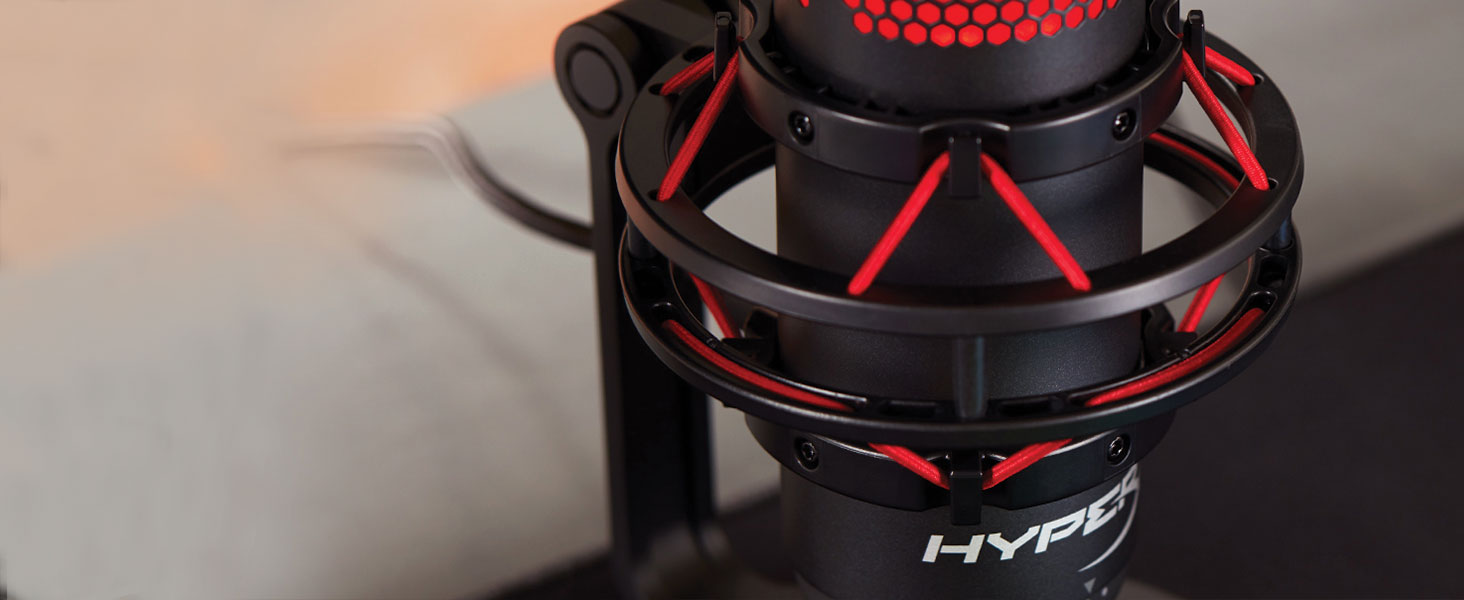
Figure 8: Shock Mount Detail
Pangropéa
To ensure the longevity and optimal performance of your HyperX QuadCast microphone, follow these simple maintenance guidelines:
- beberesih: Use a soft, dry cloth to gently wipe the exterior of the microphone. Avoid using harsh chemicals, solvents, or abrasive cleaners, as these can damage the finish or internal components.
- Panyimpenan: When not in use, store the microphone in a clean, dry place away from extreme temperatures, humidity, and direct sunlight.
- Penanganan: Handle the microphone with care. Avoid dropping it or subjecting it to strong impacts, which can damage the internal components or the shock mount.
- Perawatan kabel: Do not excessively bend or pull the USB cable. Store it neatly to prevent tangles and damage.
Pamérésan masalah
If you encounter issues with your HyperX QuadCast, try the following troubleshooting steps:
- Teu Aya Sora/Mikropon Teu Dideteksi:
- Pastikeun kabel USB disambungkeun sacara aman ka mikropon sareng alat anjeun.
- Try plugging the microphone into a different USB port on your computer or console.
- Verify that the microphone is not muted (check the LED indicator on top).
- Check your device's sound settings to ensure the HyperX QuadCast is selected as the default input device.
- Low Volume/Distorted Audio:
- Adjust the gain control knob at the bottom of the microphone.
- Check your device's sound settings for microphone input levels and adjust as needed.
- Ensure you are speaking directly into the front of the microphone, especially when using Cardioid polar pattern.
- Experiment with different polar patterns to find the best setting for your environment.
- Noise Latar kaleuleuwihan:
- Ensure the anti-vibration shock mount is properly installed.
- Use the Cardioid polar pattern to minimize sound pickup from the sides and rear.
- Reduce ambient noise in your recording environment.
spésifikasi
Detailed technical specifications for the HyperX QuadCast microphone:
| Fitur | Rincian |
|---|---|
| Unsur Mikropon | Mikropon kondensor éléktronik |
| Jenis Kondensor | Tilu 14mm condensers |
| Pola Polar | Stereo, Omnidirectional, Cardioid, Bidirectional |
| Réspon Frékuénsi | 20Hz - 20kHz |
| Sensitipitas | -36dB (1V/Pa dina 1kHz) |
| Sample / Bit Laju | 48Hz/16-bit |
| Panjang kabel | 3m |
| Beurat Mikropon | 254g (0.56 lbs) |
| Total Weight (with stand & cable) | 710g (1.56 lbs) |
| Headphone Kaluaran Impedansi | 32 ohm |
| Headphone Output Max Power | 7mW |
| Kasaluyuan | PC (Windows 10, 8.1, 8, 7), PS4, PS5, Mac |

Gambar 9: Dimensi Produk sareng Beurat
Garansi sareng Rojongan
For detailed warranty information and further technical support, please refer to the official HyperX website or the full user manual available at: HyperX QuadCast User Manual (PDF).
Punten tahan bukti pameseran anjeun pikeun klaim garansi.


