1. Bubuka
This manual provides detailed instructions for the setup, operation, and maintenance of your Tera Wireless Barcode Scanner, Model 8541733886. Please read this manual thoroughly before using the device to ensure proper functionality and to prevent damage.
The Tera Wireless Barcode Scanner offers versatile connectivity and efficient scanning capabilities for various barcode types, both printed and digital.
2. Produk Langkungview
2.1 Komponén
Paket biasana kalebet:
- Tera Wireless Barcode Scanner
- Hands-Free Stand
- Dongle USB Nirkabel 2.4GHz
- USB Ngecas / Kabel Data
- Manual Pitunjuk (dokumén ieu)

Image: Tera Wireless Barcode Scanner, showing the scanner unit, flexible stand, 2.4GHz USB dongle, and USB cable.
2.2 Fitur konci
- 3 Modeu Konéksi: Supports Bluetooth, 2.4GHz wireless, and USB 2.0 wired connections.
- Kasaluyuan lega: Works with POS systems, iOS, Android, Windows, Mac OS, and Linux. Supports Bluetooth HID, SPP, and BLE protocols.
- Nyeken gancang sareng akurat: Equipped with an ARM32Bit Cortex CPU and a Japan-manufactured scanner head, achieving decoding speeds up to 500 scans per second.
- Modeu Unggah Ganda:
- Modeu Unggah Instan: Barcodes are transmitted to your device immediately upon scanning.
- Modeu Panyimpenan Offline: Stores up to 50,000 barcodes internally when out of range, allowing for later upload.
- Multi-Language Barcode Support: Capable of scanning barcodes in English, Spanish, German, French, Italian, and Japanese. Ensure your keyboard language matches the selected language for correct input.
- Versatile Barcode Symbologies:
- 1D: UPC-A, UPC-E, EAN-8, EAN-13, Code 128, Code 39, Code 93, Code 11, Interleaved 2 of 5, Matrix 2 of 5, Standard 2 of 5, Coda bar, MSI Plessey, RSS, etc.
- 2D: QR Code, Data Matrix, PDF417, Aztec code, Maxicode, etc.
- Daya tahan: Designed to withstand impacts from drops of up to 1.5 meters (5 feet) onto concrete.
- Hirup batré anu panjang: Built-in 2200mAh battery supports approximately 57,000 scans on a full charge, with up to 15 days of standby time.
3. Setélan
3.1 Ngecas Scanner
Sateuacan dianggo anu munggaran, eusian heula scanner sacara pinuh. Sambungkeun kabel ngecas USB kana port ngecas scanner sareng kana sumber daya USB (contona, port USB komputer, adaptor témbok USB). Lampu indikator bakal nunjukkeun status ngecas.

Image: Illustration showing the scanner's 2200mAh battery capacity and its ability to withstand a 1.5-meter drop.
3.2 Modeu sambungan
Paminda ieu ngadukung tilu metode sambungan:

Image: Visual representation of the three connection modes: Bluetooth, 2.4G Wireless via USB dongle, and USB Wired connection.
3.2.1 USB Wired Mode (Plug & Play)
- Connect the scanner directly to your computer using the provided USB cable.
- The computer will typically recognize the device automatically without requiring driver installation.
- Scanner tos siap dianggo.

Image: The scanner connected to a laptop, illustrating its plug-and-play functionality and compatibility with various operating systems including Windows, Mac OS, Linux, and Android.
3.2.2 Modeu Nirkabel 2.4GHz
- Insert the 2.4GHz USB dongle into an available USB port on your computer or device.
- Turn on the barcode scanner. It should automatically pair with the dongle.
- A successful connection is usually indicated by a specific sound or light on the scanner.
3.2.3 Modeu Bluetooth
- Ensure your device (smartphone, tablet, computer) has Bluetooth enabled.
- Put the scanner into Bluetooth pairing mode (refer to the scanner's quick start guide for specific instructions, usually by scanning a special barcode).
- On your device, search for available Bluetooth devices and select "Tera Barcode Scanner" (or similar name).
- Konfirmasi papasangan upami dipenta.
Catetan: Wireless range varies. Indoors with obstacles, Bluetooth range is approximately 33ft, and 2.4GHz wireless is approximately 98ft. Outdoors in barrier-free environments, Bluetooth range is approximately 65ft, and 2.4GHz wireless is approximately 328ft.
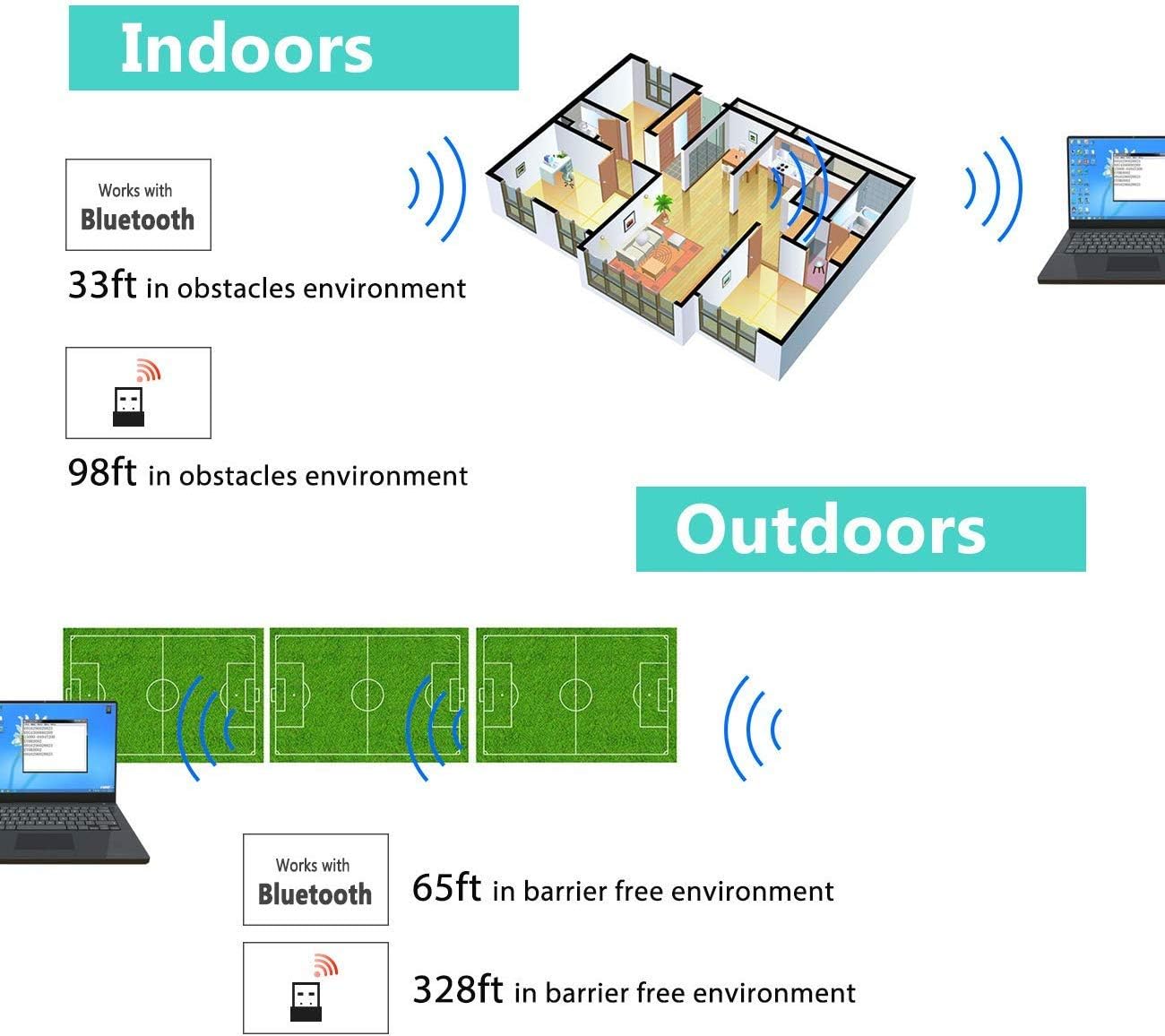
Image: Diagram illustrating the effective wireless range of the scanner in both indoor (with obstacles) and outdoor (barrier-free) environments for Bluetooth and 2.4GHz connections.
4. Parentah Operasi
4.1 Nyeken barkod
The scanner can read both 1D and 2D barcodes, including QR codes, from printed materials and digital screens.
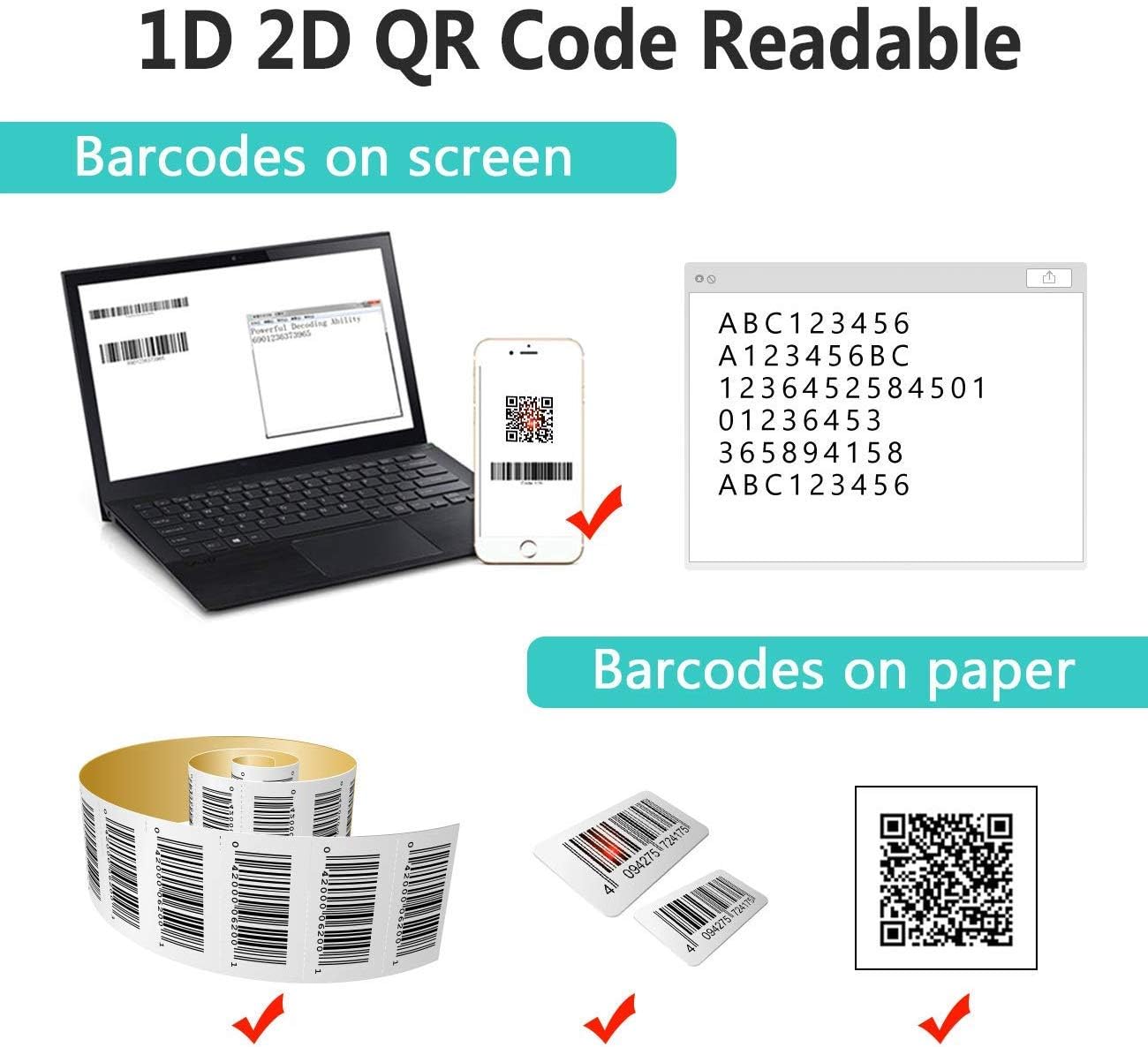
Image: The scanner demonstrating its ability to read 1D and 2D barcodes from both digital screens (laptop, smartphone) and physical printed labels.
Pikeun nyeken barkod:
- Point the scanner's window at the barcode.
- Press the trigger button (or allow the sensor to activate in automatic modes).
- A successful scan is indicated by a beep and/or a green light.
4.2 Modeu nyeken
Pamindai ieu ngadukung tilu modeu pamindaian utama:

Image: The barcode scanner mounted on its stand, highlighting its 360-degree rotation capability and the three available scanning modes: Key Trigger Mode, Sensor Activated Mode, and Continuous Scan Mode.
- Modeu pemicu konci: Scan by manually pressing the trigger button for each barcode.
- Sensor Activated Mode: Pamindai otomatis bakal aktip nalika aya barkod anu kadeteksi dina widangna view.
- Modeu Scan Terus: The scanner continuously emits a scan beam, reading any barcode that passes through it.
Refer to the quick start guide or programming barcodes for instructions on how to switch between these modes.
4.3 Modeu Unggah Data
The scanner offers two methods for uploading scanned data:
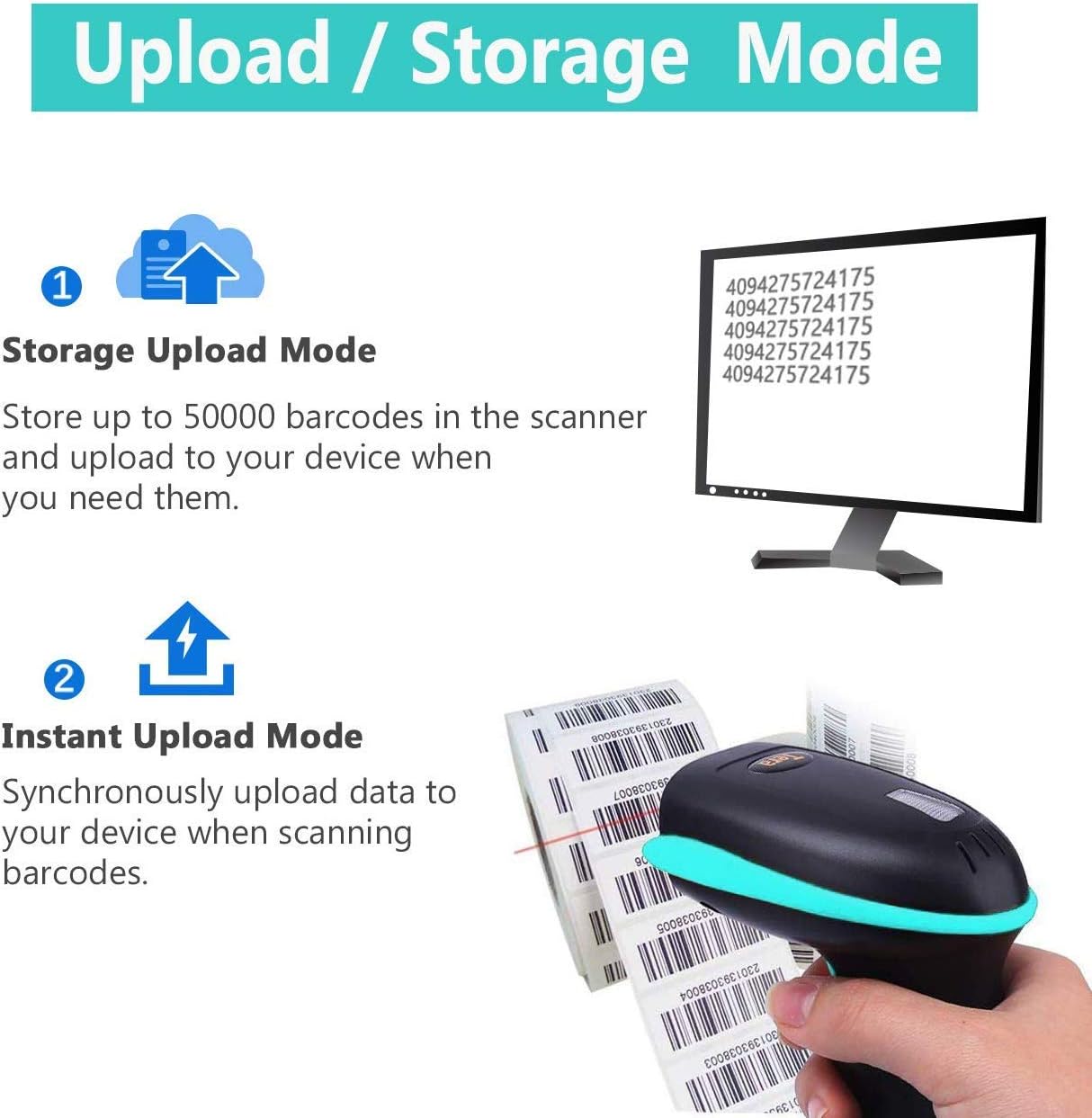
Image: Illustration of the two data upload modes: Storage Upload Mode, where barcodes are stored internally and uploaded later, and Instant Upload Mode, where data is transmitted immediately.
- Modeu Unggah Instan: Barcodes are sent to your connected device immediately after scanning. This is suitable for real-time data entry.
- Modeu Panyimpenan Offline: If the scanner is out of range or not connected, it will store scanned barcodes internally. Up to 50,000 barcodes can be stored. Once reconnected, you can upload the stored data to your device.
To switch between upload modes, scan the appropriate programming barcode found in the quick start guide.
5. Pangropéa
5.1 beberesih
- Make kaen nu lemes, beresih rada dampened with water or a mild cleaning solution to wipe the scanner's exterior.
- Do not use abrasive cleaners, solvents, or excessive liquid, as these can damage the device.
- Keep the scanning window clean and free of dust or smudges to ensure optimal reading performance.
5.2 Perawatan Batré
- Ngeusi batre panyeken sacara rutin, khususna upami bakal disimpen kanggo waktos anu panjang.
- Hindarkeun sering-sering ngecas batré, sabab ieu tiasa ngirangan umur batre.
- Simpen scanner di tempat anu tiis sareng garing nalika henteu dianggo.
5.3 Panyimpenan
When not in use, store the scanner in a safe place to prevent physical damage. The included stand can be used for convenient storage and hands-free operation.
6. Cara ngungkulan
| Masalah | Mungkin Cukang lantaranana | Solusi |
|---|---|---|
| Scanner teu hurung. | batré lemah. | Ngecas scanner sahenteuna 2-3 jam. |
| Scanner henteu maca barkod. |
|
|
| No data transmitted to device. |
|
|
| Scanner beeps continuously or behaves erratically. | Configuration error or internal issue. | Perform a factory reset (refer to the quick start guide for the reset barcode). If the issue persists, contact support. |
7. Spésifikasi
- Jumlah modél: 8541733886
- Ukuran produk: 6.1 x 2.55 x 3.54 inci
- Beurat barang: 1.05 pon
- Batré: 1 Lithium Ion battery (2200mAh)
- Konektipitas: Bluetooth, 2.4GHz Wireless, USB 2.0 Wired
- Alat anu cocog: Desktop, Laptop, Smartphone (POS, iOS, Android, Windows, Mac OS, Linux)
- Sumber Daya: Listrik Kabel (pikeun ngecas)
- Pabrikan: Tera
- Sadia munggaran: 7 Méi 2019
8. Garansi jeung Rojongan
8.1 Émbaran jaminan
For specific warranty details, please refer to the warranty card included with your product or visit the official Tera websitus. Simpen resi pameseran anjeun salaku bukti pameseran pikeun klaim garansi.
8.2 Rojongan Palanggan
If you encounter any issues not covered in this manual or require further assistance, please contact Tera customer support. Contact information can typically be found on the product packaging, the official Tera websitus, atawa ngaliwatan pangecér Anjeun.
Nalika ngahubungi dukungan, punten gaduh nomer modél produk anjeun (8541733886) sareng detil pameseran siap.


Image: Illustrations representing customer service and technical support teams available to assist users.


