1. Bubuka
This manual provides essential instructions for setting up, operating, and maintaining your Epson EcoTank L3156 Wi-Fi All-in-One Printer. This compact 3-in-1 device offers printing, scanning, and copying functionalities, along with Wi-Fi Direct connectivity for convenient mobile printing. The EcoTank system utilizes high-capacity ink tanks designed for efficient and mess-free refilling.
2. Produk Langkungview
The Epson EcoTank L3156 is designed for home and small office use, featuring an integrated ink tank system that eliminates the need for traditional cartridges. Its compact design and front-facing ink tanks allow for easy monitoring of ink levels and simplified refilling.
Fitur konci:
- Fungsi 3-in-1: Print, Scan, and Copy.
- Wi-Fi and Wi-Fi Direct: Enables wireless printing from computers and mobile devices.
- Percetakan Gratis Cartridge: Utilizes high-capacity ink tanks for reduced running costs.
- Enhanced Ink Filling System: Designed to minimize spills and ensure correct color filling.
- Nyetak Poto Tanpa Tepi: Supports 10x15cm borderless photo prints.
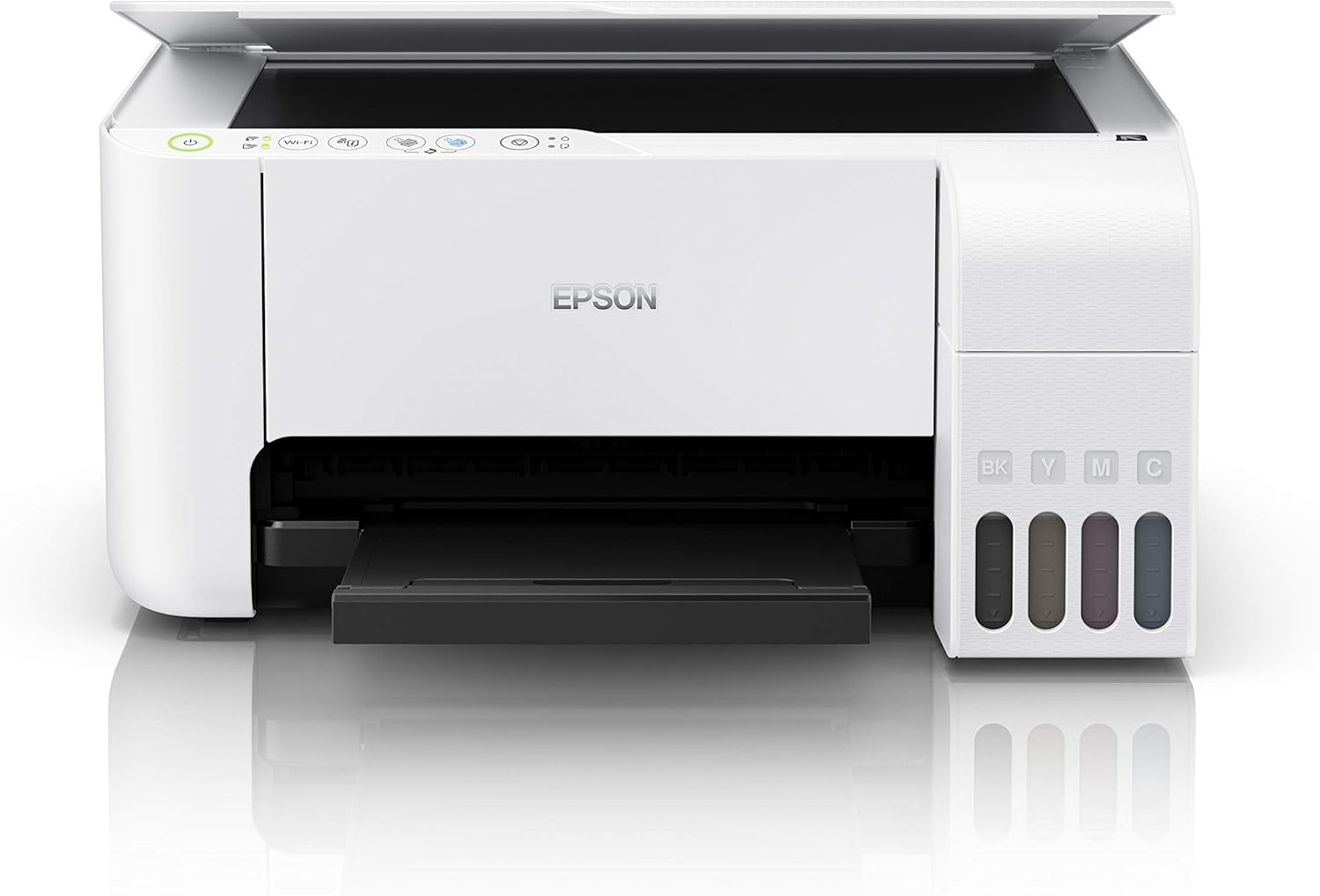
Gambar 2.1: Hareupeun view of the Epson EcoTank L3156 printer, showing the control panel and output tray.

Gambar 2.2: Angled view of the printer, highlighting the paper input tray and ink tanks.
3. Parentah Setup
3.1 Ngabongkar bungkusan Printer
- Cabut printer tina bungkusan na.
- Cabut sadaya kasét pelindung sareng bahan bungkusan tina luar sareng jero printer.
- Tempatkeun printer dina permukaan anu rata sareng stabil.
3.2 Ngeusian Tangki Tinta
The EcoTank L3156 features an innovative ink filling system designed to prevent incorrect color filling and spills.
- Buka panutup unit tanki tinta di sisi printer.
- Buka tutup tangki tinta hideung (BK).
- Uncap the black ink bottle and insert it into the filling port. The ink will automatically start filling. Do not squeeze the bottle.
- Sakali tangki pinuh, aliran tinta bakal eureun. Kaluarkeun botol teras tutup deui tangki tinta.
- Balikan deui prosés ieu pikeun tangki tinta Cyan (C), Magenta (M), sareng Konéng (Y).
- Tutup panutup unit tanki tinta.
3.3 Sambungan Daya
- Sambungkeun kabel daya ka printer teras ka stop kontak.
- Pencét tombol daya pikeun ngaktipkeun printer.
3.4 Pamasangan parangkat lunak
- Insert the provided software CD into your computer's CD/DVD drive. If your computer does not have a CD/DVD drive, download the latest drivers and software from the official Epson support websitus.
- Turutan pitunjuk dina layar pikeun masang panggerak printer sareng parangkat lunak utiliti.
3.5 Setup Wi-Fi
The printer supports both Wi-Fi and Wi-Fi Direct connectivity.
3.5.1 Standard Wi-Fi Connection (via Router)
- Ensure your wireless router is turned on.
- On the printer's control panel, press and hold the Wi-Fi button until the Wi-Fi indicator starts flashing.
- Follow the instructions in the printer's software utility on your computer to connect the printer to your wireless network. You may need to enter your network password (SSID).
3.5.2 Wi-Fi Direct Connection (Direct to Device)
- On the printer's control panel, press the Wi-Fi Direct button. The Wi-Fi Direct indicator will light up.
- On your mobile device or computer, go to your Wi-Fi settings and select the printer's Wi-Fi Direct network (e.g., DIRECT-xx-EpsonL3156).
- Enter the password displayed on the printer's control panel or in the network status sheet.
4. Parentah Operasi
4.1 Loading Paper
- Buka kertas pangrojong teras tarik kaluar ekstensi na.
- Geser pituduh ujung ka posisi pangluarna.
- Load paper print-side up against the right edge guide.
- Slide the left edge guide against the paper, but not too tightly.
4.2 Nyitak tina Komputer
- Buka dokumén atanapi gambar anu anjeun hoyong nyitak dina komputer anjeun.
- Pilih Nyitak tina menu aplikasi (contona, File > Citak).
- Choose your Epson EcoTank L3156 printer.
- Adjust print settings such as paper size, type, orientation, and quality as needed.
- Pencét Nyitak.

Gambar 4.1: The Epson EcoTank L3156 printer in operation, delivering a printed document.
4.3 Printing from a Mobile Device (Epson iPrint App)
- Download and install the Epson iPrint app from your device's app store.
- Ensure your mobile device is connected to the same Wi-Fi network as the printer, or directly to the printer via Wi-Fi Direct.
- Open the Epson iPrint app and select your printer.
- Choose the document or photo you want to print from within the app.
- Adjust settings and tap Nyitak.
4.4 Nyeken Dokumén
- Angkat tutup scanner.
- Simpen dokumen ngadep ka handap dina kaca pamindai, sajajarkeun sareng tanda juru.
- Tutup tutup panyeken lalaunan.
- On your computer, open the Epson Scan utility or use the Epson iPrint app on your mobile device.
- Select scan settings (e.g., document type, resolution, destination).
- Pencét Nyeken.
4.5 Nyalin Dokumén
- Teundeun dokumén nyanghareupan handap dina kaca scanner.
- Tutup panutup scanner.
- On the printer's control panel, press the Black & White copy button for a monochrome copy, or the Color copy button for a color copy.
- Pikeun ngadamel sababaraha salinan, pencét tombol salin masing-masing sababaraha kali pikeun nangtukeun jumlah salinan anu dipikahoyong.
5. Pangropéa
5.1 ngeusian Tinta
When an ink tank level is low, refill it using genuine Epson ink bottles. Refer to section 3.2 for detailed ink filling instructions.
5.2 Print Kepala beberesih
If print quality declines (e.g., missing lines, faded prints), perform a print head cleaning using the printer utility software on your computer. This process clears clogged nozzles.
5.3 Print Head Alignment
If prints appear blurry or misaligned, perform a print head alignment using the printer utility software. This adjusts the print head position for optimal quality.
5.4 Ngabersihkeun Kaca Scanner
To ensure clear scans, regularly clean the scanner glass with a soft, lint-free cloth moistened with a mild glass cleaner. Avoid abrasive materials.
6. Cara ngungkulan
6.1 Printer Teu Ngabales
- Check if the printer is powered on and connected to the computer or network.
- Ensure there are no error messages on the printer's control panel.
- Balikan deui printer sareng komputer / alat sélulér anjeun.
- Pariksa yén printer anu leres parantos dipilih dina dialog citak aplikasi anjeun.
6.2 Kualitas Print Miskin
- Pariksa tingkat tinta jeung ngeusian sagala tank low.
- Perform a print head cleaning (refer to section 5.2).
- Perform a print head alignment (refer to section 5.3).
- Pastikeun anjeun nganggo setélan kertas anu pas pikeun padamelan citak anjeun.
6.3 Masalah Sambungan Wi-Fi
- Ensure your router is functioning correctly and within range.
- Re-enter your Wi-Fi network password if prompted.
- Restart your router, printer, and connecting device.
- If using Wi-Fi Direct, ensure the printer's Wi-Fi Direct mode is active.
7. Spésifikasi
| Fitur | Spésifikasi |
|---|---|
| Ngaran modél | L3156 |
| Fungsi | Print, Scan, Copy |
| Téhnologi percetakan | Inkjet (Micro Piezo printhead) |
| Konektipitas | Wi-Fi, Wi-Fi Direct, USB 2.0 |
| Ukuran Média Maksimum | 4 x 6 inch (Photo), A4 (Document) |
| Max Input Lambaran Kamampuh | 200 lembar |
| Jenis scanner | Ranjang datar |
| Resolusi Print Warna maksimum | 600 x 600 dpi |
| Percetakan dua sisi | Manual |
| Diménsi Produk (W x D x H) | 34.7 x 34.7 x 17.9 cm |
| Item Beurat | 3.9 kg |
| Sumber Daya | AC 100-240V, 50/60Hz |
8. Garansi jeung Rojongan
A one-year limited warranty is provided as standard with your Epson EcoTank L3156 printer. Promotional warranties may offer extended coverage; please refer to your purchase documentation or the official Epson website for the latest warranty offers and terms and conditions.
Kanggo pangrojong téknis, undeuran supir, sareng sumber daya tambahan, mangga buka pangrojong Epson resmi websitus atanapi ngahubungan layanan palanggan Epson.


