1. Produk Langkungview
The FEELWORLD F6 Plus V2 is a 6-inch field monitor designed for DSLR cameras, featuring a 3D LUT touch screen with a 1920x1080 IPS display. It supports 4K HDMI input and output, and includes a tilt arm for flexible mounting. This manual provides instructions for setup, operation, and maintenance of your F6 Plus V2 monitor.

Image 1.1: FEELWORLD F6 Plus V2 6-inch field monitor.
2. Eusi Paket
Pastikeun yén sadaya item anu didaptarkeun di handap kalebet kana pakét anjeun:
- FEELWORLD F6 Plus V2 Monitor
- Mikro HDMI Cable
- Panonpoé Panonpoé
- Dengdekkeun Panangan
- Manual Operasi

Image 2.1: Included accessories with the FEELWORLD F6 Plus V2 monitor.
3. Setup Guide
3.1 Fisik Leuwihview
Familiarize yourself with the ports and controls of the F6 Plus V2 monitor.
- Sisi luhur: Power/Touch button, 3/4-inch screw mount, Menu rocker wheel.
- Sisi kénca: HDMI In, HDMI Out (4K pass-through up to 24Hz), DC Out 8V.
- Sisi handap: SD Card slot (for 3D LUT upload and firmware upgrade), DC In 12V, 1/4-inch screw mount, Headphone monitor jack.
- Sisi tukang: Standard F970 battery slot.

Gambar 3.1: Luhur view of the monitor with power/touch button and menu wheel.

Gambar 3.2: Sisi view of the monitor displaying various input/output ports.
3.2 Powering Monitor
The F6 Plus V2 can be powered via the F970 battery slot on the back or through the DC In 12V port. Ensure the battery is charged or the power adapter is connected before use.
3.3 Masang Monitor
The monitor can be mounted using the included tilt arm via the hot shoe mount or 1/4"-20 thread. This allows for flexible positioning, such as on top of your camera or on a gimbal.
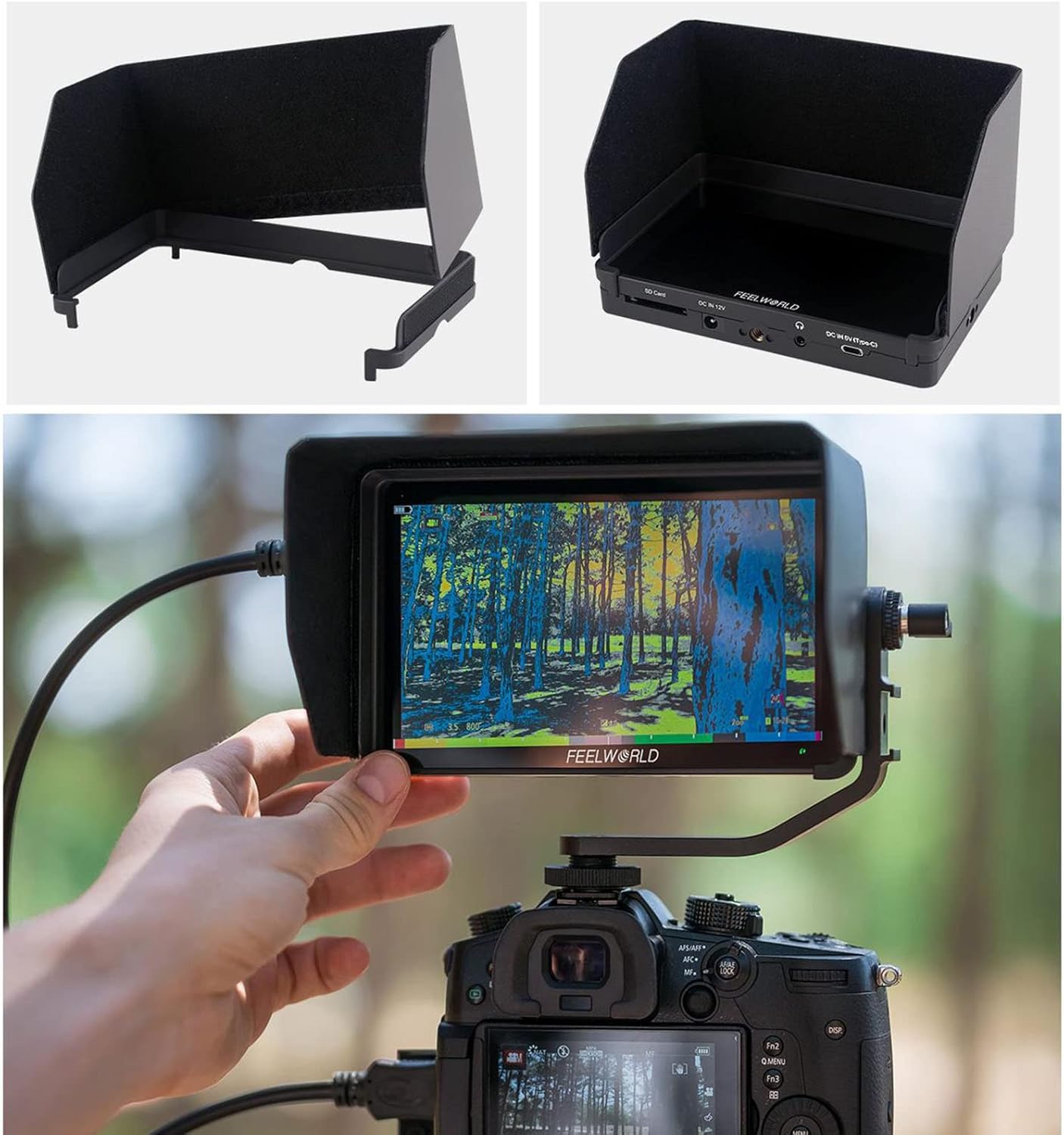
Image 3.3: Monitor mounted on a camera with the tilt arm and sunshade.
4. Parentah Operasi
4.1 Operasi Dasar
Press the Power/Touch button to turn the monitor on or off. The touch screen allows for intuitive control of all parameters.
4.2 Navigasi Menu
Tap twice on the screen to enter the menu system. The menu rocker wheel can also be used to navigate and select options. The menu is organized into several categories:
- Setélan Gambar: Adjust display parameters.
- Setélan Fitur: Access monitoring tools.
- Setélan Sistim: Configure general monitor options.
4.3 Monitoring Tools and Features
The F6 Plus V2 includes a variety of professional monitoring tools to assist with your video production:
- Waveform Monitoring: Choose from RGB Parade, Y Parade, vectorscope, histogram, and audio phase/level displays for broadcast-accurate signal monitoring.
- Focus Assist (Peaking): Highlights in-focus areas to aid in sharp focusing.
- Warna Palsu: Displays exposure levels using color overlays.
- Histogram: Répréséntasi grafis tina distribusi tonal.
- Méter Audio: Monitors audio input levels.
- Monokrom: Displays the image in black and white.
- Tanda kaamanan: Provides frame guides for various aspect ratios (e.g., 4:3, 16:9, 2.35:1).
- Pananda Pusat: Displays a crosshair in the center of the screen.
- Modeu Anamorfik: Ngaleupaskeun foo anamorfiktage (1.33x, 2.0x).
- Flip Gambar: Ngabalikeun gambar sacara horizontal atanapi vertikal.
- Zum: Magnifies a portion of the screen for detailed inspection.
- beku: Holds the current frame on the screen.
- Piksel-ka-Piksel: Displays the image at its native resolution without scaling.
- Screenshot & Video Overlay: Capture screenshots and compare them with real-time video using semi-transparent overlay. (Requires SD card)

Image 4.1: Waveform monitoring and other analysis tools on the F6 Plus V2.
Image 4.2: Screenshot and video overlay function for composition comparison.
4.4 3D LUT Color Calibration
The monitor supports 3D LUT (Look Up Table) import via SD card, allowing you to preview your desired color grades in real-time. It comes with pre-loaded LUTs for various log profiles like S-Log2/3, V-Log, and Log-C.
- To import custom LUTs, save your .cube LUT files onto an SD card.
- Insert the SD card into the monitor's SD card slot.
- Navigate to the LUT Import section in the menu and select "Initialize" to load the LUTs.
- Once imported, you can select your desired LUT from the list for live preview.

Image 4.3: Real-time 3D LUT preview for color calibration.
4.5 Display Adjustments
You can adjust various display parameters to suit your viewing preferences and shooting environment:
- Color Temperature (e.g., 6500K)
- Lampu tukang
- Caang
- Kontras
- jenuh
- Hue
- Seukeutna
5. Pangropéa
To ensure the longevity and optimal performance of your FEELWORLD F6 Plus V2 monitor, follow these maintenance guidelines:
- beberesih: Anggo lawon anu lemes sareng garing pikeun ngabersihkeun layar sareng awak monitor. Pikeun kokotor anu bandel, usap sakedikamp cloth with a mild, non-abrasive cleaner can be used, ensuring no liquid enters the ports.
- Panyimpenan: Store the monitor in a cool, dry place away from direct sunlight and extreme temperatures. Use the provided sunshade or a protective case when not in use to prevent scratches and dust accumulation.
- Perawatan batré: If using rechargeable batteries, follow the manufacturer's instructions for charging and storage. Remove batteries if the monitor will not be used for an extended period.
- Pembaruan firmware: Periodically check the FEELWORLD official website for firmware updates to ensure your monitor has the latest features and bug fixes. Follow the provided instructions for safe updating via the SD card slot.
6. Cara ngungkulan
If you encounter issues with your FEELWORLD F6 Plus V2 monitor, refer to the following common troubleshooting steps:
- Henteu aya kakuatan: Ensure the battery is fully charged or the power adapter is securely connected. Check the power button operation.
- Henteu aya sinyal: Verify that the HDMI cable is correctly connected to both the camera and the monitor. Check the camera's HDMI output settings. Ensure the correct input source is selected on the monitor.
- Distorsi Gambar/Warna Anu Salah: Check the HDMI cable for damage. Reset display settings to default in the monitor menu. Ensure no incorrect LUTs are applied.
- Layar rampa teu ngaréspon: Try restarting the monitor. Ensure the touch function is enabled via the Power/Touch button.
- Kagagalan Update Firmware: Ensure the SD card is properly formatted and the firmware file is correctly placed. Follow the update instructions precisely.
For persistent issues, contact FEELWORLD customer support or refer to the official websitus pikeun bantuan salajengna.
7. Spésifikasi
| Fitur | Spésifikasi |
|---|---|
| Nomer modél | F6 PLUS V2 |
| Ukuran layar | 6 inci |
| Resolusi | Resolusi Full HD 1080p (1920x1080) |
| Tipe tampilan | Layar Toél IPS |
| Rasio Aspék | 16:9 |
| Babandingan Kontras | 1000:1 |
| Caang | 500 nits |
| HDMI Input / Kaluaran | 4K HDMI Input & Loop Output |
| Rojongan LUT | 3D LUT Cube Import (up to 50) via SD Card |
| Input kakuatan | DC In 12V, 5V Type-C, F970/LP-E6 Battery Plate |
| Kaluaran kakuatan | DC Out 8V |
| Item Beurat | 2.2 pon |
| Ukuran Paket | 7.5 x 5.1 x 3.4 inci |
8. Video Produk Resmi
Video 8.1: FEELWORLD F6 Plus 4K DSLR Camera Field Monitor Overview by INSTACINE. This video demonstrates the monitor's features, physical layout, and menu options, including touch screen functionality and LUT loading. Note: This video is for the FEELWORLD F6 Plus model, and some features or specifications may vary slightly for the F6 Plus V2.
9. Garansi jeung Rojongan
For warranty information, technical support, or service inquiries, please refer to the official FEELWORLD websitus atanapi ngahubungan layanan palanggan maranéhanana langsung. Simpen resi pameseran anjeun salaku bukti pameseran pikeun klaim garansi.


