Bubuka
The Razer Tartarus Pro is a gaming keypad designed for enhanced control and customization. It features Analog-Optical Key Switches, Rapid Trigger functionality, Adjustable Actuation, 32 programmable keys, customizable macros, and Chroma RGB Lighting. This manual provides essential information for setting up, operating, and maintaining your device.
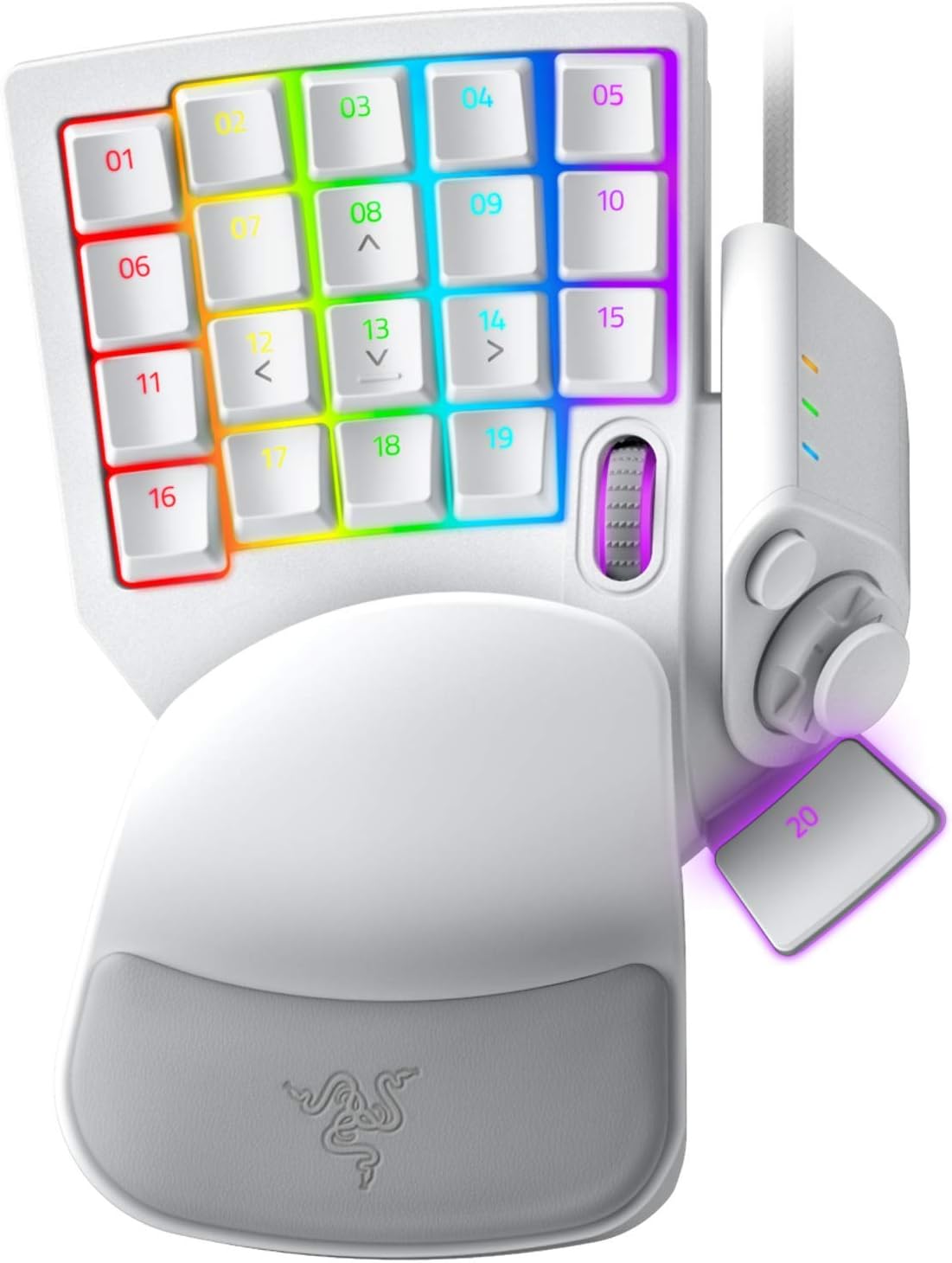
Figure 1: Razer Tartarus Pro Gaming Keypad (Mercury White)
Fitur konci
- Analog-Optical Key Switches: Utilizes light to register keystrokes for precise and rapid input.
- Rapid pemicu: Keys reset instantly with an upward motion as low as 0.1 mm, enabling faster repeated keystrokes.
- Aktuasi anu tiasa disaluyukeun: Customize actuation points from 1.5 to 3.6 mm for personalized keypress sensitivity.
- 32 Konci Anu Tiasa Diprogram: Offers an extensive range of commands for gaming or creative workflows.
- Thumbpad for Improved Movement Controls: An 8-way directional thumbpad provides natural controls and ergonomic experience.
- Macro anu tiasa diprogram lengkep: Razer Hypershift allows remapping of all keys and keypress combinations for complex commands.
- Pencahayaan Chroma RGB: Ultimate personalization with 16.8 million colors on individually backlit keys, syncing with popular games and hardware.
Guide Setup
- Connect the Keypad: Plug the USB cable from the Razer Tartarus Pro into an available USB port on your PC.
- Pasang Razer Synapse: Download and install the latest version of Razer Synapse software from the official Razer website. This software is required to customize key bindings, macros, actuation points, and RGB lighting.
- Pamasangan supir: Allow your operating system to automatically install any necessary drivers. This usually happens upon initial connection.
- Konfigurasi Parangkat Lunak: Launch Razer Synapse. The software should automatically detect your Tartarus Pro. You can then begin customizing your keypad settings.
Parentah Operasi
Key Customization and Macros
The Razer Tartarus Pro features 32 fully programmable keys. Use Razer Synapse to assign functions, macros, or even launch applications with a single keypress. The 8-way directional thumbpad can also be customized for movement or additional commands.

Gambar 2: Leuwihview of 32 programmable keys.
Adjustable Actuation and Rapid Trigger
Leverage the Analog-Optical Key Switches to fine-tune the actuation point of each key. This allows you to set how far a key needs to be pressed to register an input. The Rapid Trigger feature further enhances responsiveness by resetting keys almost instantly upon release, enabling faster consecutive presses.

Figure 3: Adjustable Actuation settings in Razer Synapse.
Cahaya RGB Chroma
Personalize your keypad with Razer Chroma RGB lighting. Through Razer Synapse, you can choose from 16.8 million colors and various lighting effects. Create custom lighting profiles pikeun kaulinan béda atawa aplikasi.
Profile Manajemén
The Tartarus Pro supports multiple profiles, allowing you to switch between different key layouts and lighting effects on the fly. This is useful for optimizing your setup for various games or tasks.

Figure 4: Quick-toggle profiles for instant switching.
spésifikasi
| Fitur | Rincian |
|---|---|
| merek | Razer |
| Nomer modél | RZ07-03110200-R3M1 |
| Tombol Saklar | Razer Analog-Optical |
| Tombol Programmable | 32 |
| Rentang Aktuasi | 1.5 nepi ka 3.6 mm |
| Pad jempol | 8-way directional |
| Macros | Unlimited length, fully programmable |
| cahayaan | Razer Chroma RGB (16.8 million colors) |
| Konektipitas | Kabel USB |
| Platform hardware | PC |
| Sistem operasi | Windows |
| Item Beurat | 13 ons |
| Dimensi produk | 5.95 x 7.96 x 2.5 inci |
Pangropéa
- beberesih: Ngagunakeun lemes, damp cloth to clean the surface of the keypad. Avoid harsh chemicals or abrasive materials.
- Ngahapus Keycap: If necessary, keycaps can be carefully removed for deeper cleaning using a keycap puller.
- Perawatan kabel: Hindarkeun tikungan seukeut atawa tarik kaleuleuwihan dina kabel USB pikeun nyegah karuksakan.
Pamérésan masalah
- Keypad Not Detected: Try plugging the keypad into a different USB port. Ensure Razer Synapse is installed and up to date. Restart your computer.
- Masalah Pencahayaan: Check Razer Synapse for lighting settings. Ensure the keypad is properly connected and recognized by the software.
- Konci Teu Ngabales: Verify key bindings in Razer Synapse. Test the keypad on another computer if possible to rule out a hardware issue.
Video produk
Razer Tartarus Pro Gaming Keypad Review
Video 1: A gamer's perspective on the Razer Tartarus Pro, highlighting its features and performance.
Review of the Razer Tartarus Pro Gaming Keypad
Video 2: rinci ulangview of the Razer Tartarus Pro, covering various aspects of its design and functionality.
Razer One-Handed Keyboards Side-by-Side Comparison
Video 3: A comparison between Razer's one-handed keyboards, including the Tartarus Pro, showcasing differences and similarities.
Razer Tartarus Pro Product Showcase
Video 4: A brief showcase of the Razer Tartarus Pro, highlighting its design and lighting.
Garansi sareng Rojongan
Kanggo inpormasi garansi sareng dukungan téknis, mangga buka dukungan resmi Razer website. You can find detailed information regarding product registration, troubleshooting guides, and contact options for customer service.
Optional protection plans are available for purchase, offering extended coverage beyond the standard manufacturer's warranty. These plans include:
- Plan Protection 3 Taun
- Plan Protection 4 Taun
- Lengkep Nangtayungan (rencana bulanan anu nyertakeun pameseran baheula sareng anu bakal datang)


