1. Bubuka
This manual provides detailed instructions for the setup, operation, and maintenance of your Rapoo E9500M Wireless Keyboard. The E9500M is a versatile, ultra-slim keyboard designed for seamless connectivity across multiple devices.
Fitur konci:
- Multi-device compatibility with Windows and Mac operating systems.
- German QWERTZ keyboard layout.
- Advanced energy-saving technology for up to 12 months of battery life.
- Automatic pairing and seamless switching between connected devices.
- Ultra-slim 4.5 mm anodised aluminium design.
2. Eusi Paket
Punten pastikeun sadaya barang aya dina pakét anjeun:
- Rapoo E9500M Wireless Keyboard
- USB Receiver (if applicable for 2.4GHz connection)
- 2 x AA Batteries (pre-installed or included)
- Pituduh Mimiti Gancang (manual ieu)
3. Setélan
3.1 Pamasangan batré
The keyboard requires 2 AA batteries for operation. These are typically included. Locate the battery compartment on the underside of the keyboard, open the cover, insert the batteries according to the polarity indicators, and close the cover.
3.2 Nyambungkeun kibor
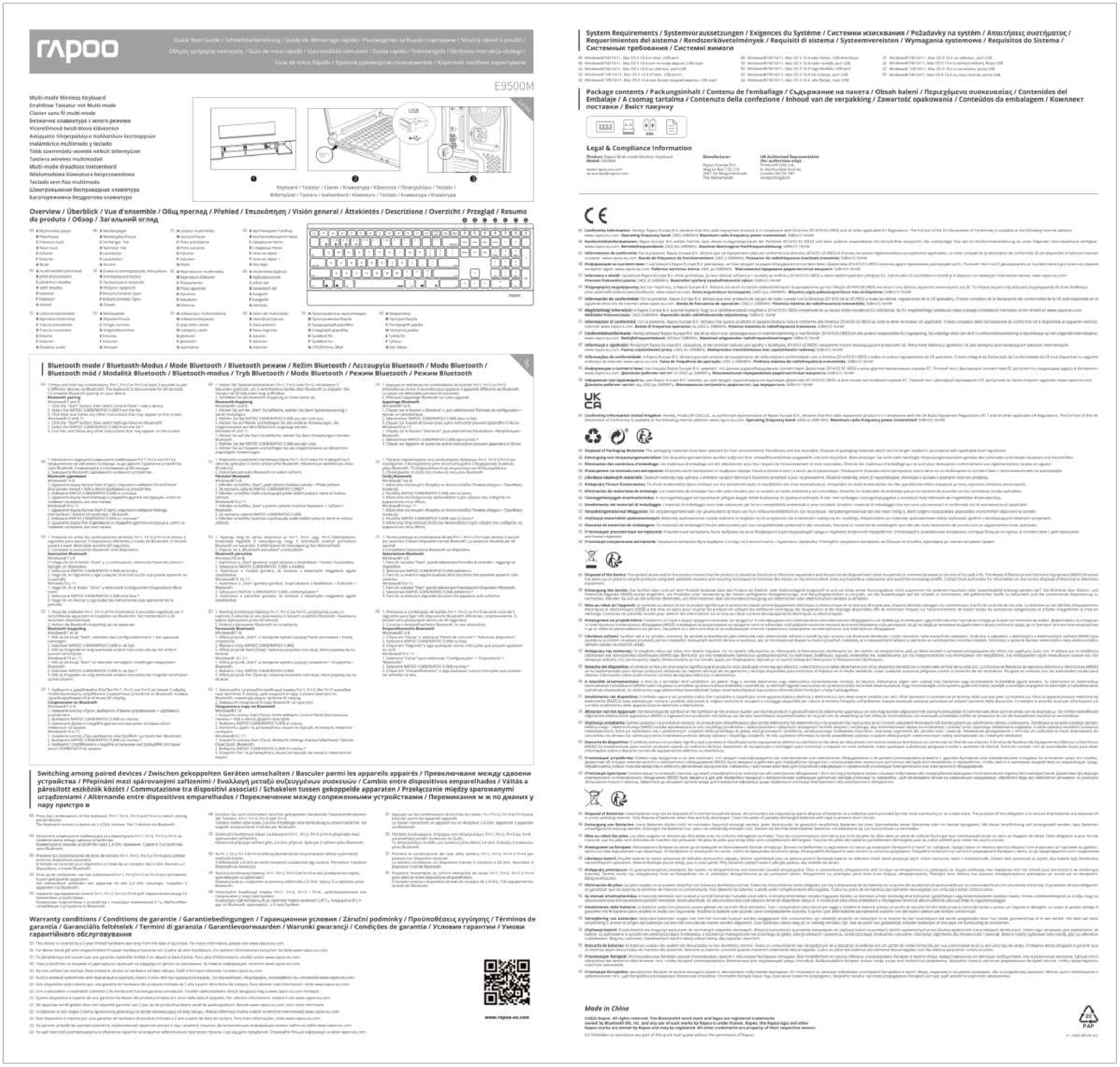
The Rapoo E9500M supports multi-mode connection (2.4GHz wireless and Bluetooth). You can connect up to 4 devices simultaneously (1 via 2.4GHz, 3 via Bluetooth).
3.2.1 2.4GHz Sambungan Wireless
- Colokkeun panarima USB ka port USB nu sadia dina komputer Anjeun.
- Hurungkeun keyboard. Kibor kedah otomatis nyambung ka panarima.
- If connection is not established, press Fn + 2.4G (or the corresponding key indicated for 2.4G) to switch to 2.4G mode.
3.2.2 Sambungan Bluetooth (BT1, BT2, BT3)
- Hurungkeun kibor.
- Pencét jeung tahan fn+1 (pikeun BT1), fn+2 (pikeun BT2), atawa fn+3 (for BT3) for 3 seconds until the indicator light flashes slowly. This puts the keyboard into pairing mode.
- Dina alat anjeun (PC, Mac, Tablet), buka setélan Bluetooth teras milarian alat énggal.
- Select "Rapoo E9500M" from the list of available devices.
- Turutan ajakan dina layar pikeun ngarengsekeun prosés papasangan. Lampu indikator bakal eureun kedip-kedip sakali disambungkeun.

Gambar 1: Top-handap view of the Rapoo E9500M keyboard, showing the German QWERTZ layout and function keys for multi-device switching (01, 02, 03, 2.4G).
4. Ngoperasikeun kibor
4.1 Ngalihkeun Antara Alat nu Nyambung
Once multiple devices are paired, you can easily switch between them by pressing the corresponding function key:
- Pencét fn+1 pikeun pindah ka Alat Bluetooth 1.
- Pencét fn+2 pikeun pindah ka Alat Bluetooth 2.
- Pencét fn+3 pikeun pindah ka Alat Bluetooth 3.
- Pencét Fn + 2.4G (or the corresponding key) to switch to the 2.4GHz wireless connection.
4.2 Konci Fungsi
The top row of keys (F1-F12) also serves as multimedia and shortcut keys when used in combination with the Fn key. Refer to the keycap legends for specific functions such as volume control, media playback, and more.

Gambar 2: Hareupeun view of the Rapoo E9500M wireless keyboard, illustrating its slim design and full QWERTZ layout.
5. Pangropéa
5.1 Ngagantian batré
The keyboard is designed for long battery life (up to 12 months). When the battery indicator light (if present) signals low power, or if the keyboard becomes unresponsive, replace the 2 AA batteries. Follow the battery installation steps in Section 3.1.
5.2 beberesih
Pikeun ngabersihkeun kibor anjeun, usap permukaanana lalaunan nganggo lawon anu lemes, garing, sareng henteu ngaganggu. Pikeun kokotor anu bandel, usap sakedikampen the cloth with water or a mild, non-abrasive cleaning solution. Avoid excessive moisture and do not spray liquids directly onto the keyboard.
6. Cara ngungkulan
| Masalah | Solusi anu mungkin |
|---|---|
| Keyboard not connecting/responding. |
|
| Konci caket atanapi henteu ngaréspon. |
|
| Teu bisa pindah antara alat. |
|

Gambar 3: Angled view of the Rapoo E9500M keyboard, highlighting its ultra-slim profile and full numeric keypad.
7. Spésifikasi
| Fitur | Rincian |
|---|---|
| Modél | E9500M |
| Konektipitas | Bluetooth, 2.4GHz Wireless |
| Tata perenah kibor | German QWERTZ |
| Sistem Operasi cocog | Windows 8, Windows 10, Mac OS 9, Mac OS X 10.2 Jaguar, Windows Vista |
| Platform hardware | Laptop, PC, Tablet |
| Sumber Daya | Batré Powered |
| Batré | 2 x aki aki (kalebet) |
| Kahirupan batré | Nepi ka 12 bulan |
| Ukuran (L x W x H) | 16.8 x 43.3 x 2.3 cm |
| Item Beurat | 650 g |
| Warna | Hideung |
| Desain | Ultra-slim 4.5 mm anodised aluminium |
8. Garansi jeung Rojongan
8.1 Émbaran jaminan
Rapoo products are covered by a limited warranty. For specific warranty terms and conditions, please refer to the warranty card included with your product or visit the official Rapoo websitus. Simpen resi pameseran anjeun salaku bukti pameseran pikeun klaim garansi.
8.2 Rojongan Palanggan
For technical assistance, troubleshooting, or product inquiries, please visit the official Rapoo support website or contact their customer service. Contact details can typically be found on the Rapoo websitus atanapi dina bungkusan produk.
Official Rapoo Websitus: www.rapoo.com