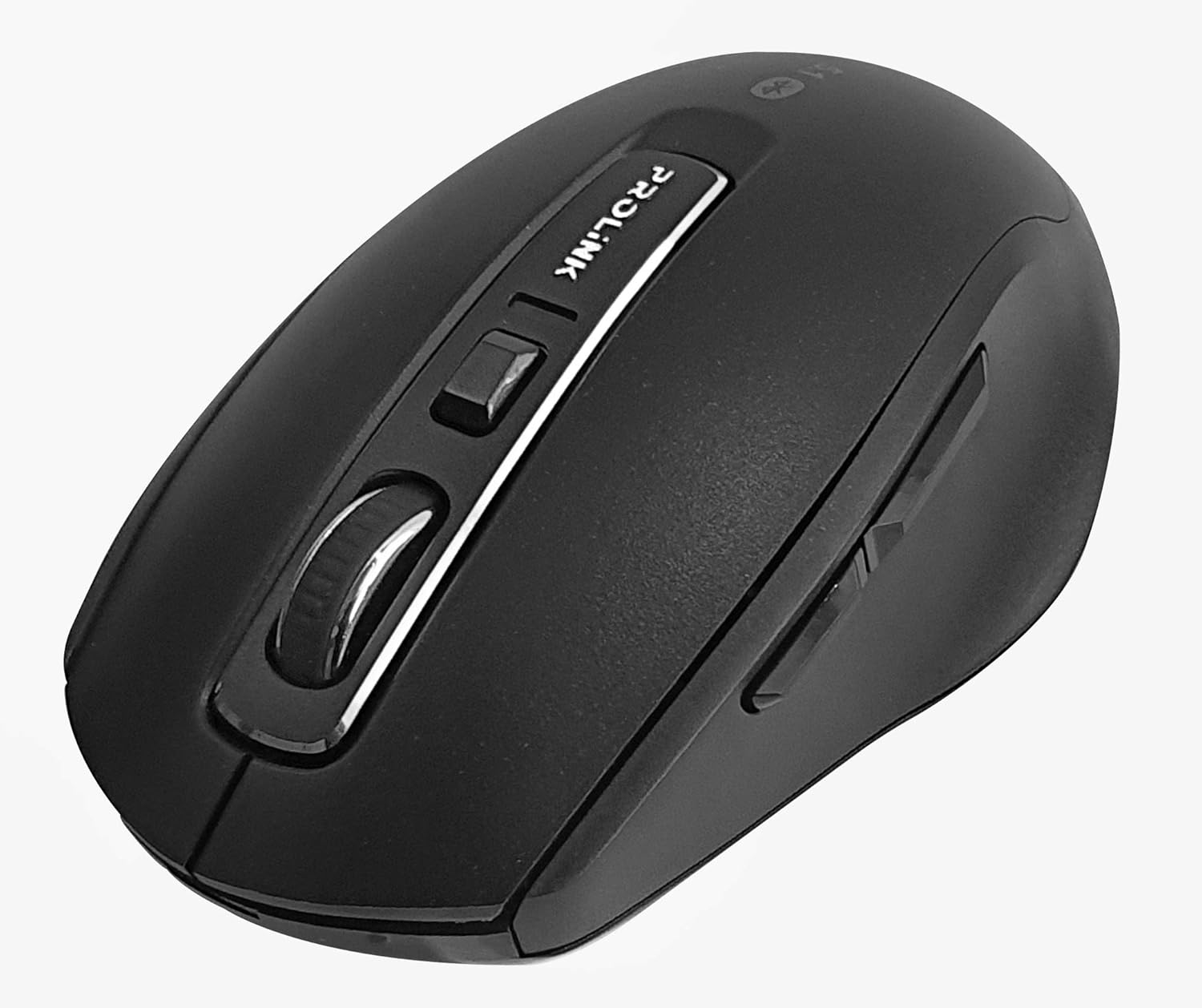
Gambar: luhur-handap view of the Prolink PMB8502 Bluetooth Wireless Optical Mouse.
1. Bubuka jeung Leuwihview
The Prolink PMB8502 Bluetooth Mouse is designed for seamless wireless control of your desktop, laptop, or tablet. It features Bluetooth 5.2 connectivity, an ergonomic design, and adjustable DPI settings for personalized comfort and precision. This manual provides detailed instructions for setup, operation, maintenance, and troubleshooting.
Fitur konci:
- Bluetooth 5.2 connectivity (backward compatible with 5.1/5.0/4.2/4.1/4.0)
- Up to 27 months battery life (based on supplied batteries)
- DPI anu tiasa diatur: 800/1200/1600
- 6-button design including back and forward buttons
- Desain ergonomis pikeun pamakéan nyaman
- Operating range of up to 10 meters

Image: Prolink PMB8502 mouse highlighting its Bluetooth 5.2, battery life, DPI, and range features.
2. Eusi Paket
- Prolink PMB8502 Bluetooth Wireless Optical Mouse
- 1 x Batré AA (tos dipasang atanapi kalebet misah)
- Manual pangguna (dokumén ieu)
3. Parentah Setup
3.1. Pamasangan batré
- Teangan tempat panutup kompartemen batré dina underside beurit.
- Geser lalaunan atawa angkat panutup pikeun muka kompartemen.
- Insert one AA battery, ensuring the positive (+) and negative (-) terminals align correctly with the markings inside the compartment.
- Ganti panutup kompartemen batré nepi ka ngaklik aman kana tempatna.
3.2. Papasangan Bluetooth
Before pairing, ensure your device (computer, laptop, tablet) has Bluetooth enabled.
- Turn on the mouse using the On/Off switch located on the underside.
- Press and hold the Bluetooth 'Connect' button (usually located near the On/Off switch or within the battery compartment) for 3-5 seconds until the LED indicator on the mouse begins to flash, indicating it is in pairing mode.
- Dina alat Anjeun, arahkeun ka setelan Bluetooth.
- Milarian pikeun new devices. The mouse should appear as "Prolink PMB8502" or similar.
- Select the mouse from the list to complete the pairing process. The LED indicator on the mouse will stop flashing and remain solid for a few seconds, then turn off, indicating a successful connection.

Gambar: Hareupeun view of the Prolink PMB8502 mouse, showing its ergonomic shape.
4. Parentah Operasi
4.1. Fungsi Tombol
- Tombol Klik Kénca: Pilihan standar sareng aktivasina.
- Tombol Klik katuhu: Aksés ménu kontekstual.
- Gulung kabayang: Dokumén gulungan sareng web pages vertically. Can also be pressed for middle-click functionality.
- Tombol Penyesuaian DPI: Located below the scroll wheel. Press to cycle through DPI settings (800/1200/1600).
- Tombol Maju: Navigates ka hareup web browser atawa file penjelajah.
- Tombol Balik: Navigates ka tukang web browser atawa file penjelajah.

Gambar: Sisi view of the Prolink PMB8502 mouse, illustrating the placement of the back and forward navigation buttons.
4.2. Adjustment DPI
The mouse offers three DPI (Dots Per Inch) settings: 800, 1200, and 1600. Press the DPI button located below the scroll wheel to switch between these sensitivities. A higher DPI setting results in faster cursor movement across the screen.
4.3. Manajemén kakuatan
- Saklar on/off: To conserve battery life, turn off the mouse using the switch on its underside when not in use for extended periods.
- Mode Saré Otomatis: The mouse automatically enters a sleep mode after more than 10 minutes of inactivity. To wake it up, simply move the mouse or click any button.
5. Pangropéa
5.1. beberesih
To clean the mouse, use a soft, dry, lint-free cloth. For stubborn dirt, slightly dampen the cloth with water or a mild cleaning solution. Avoid using harsh chemicals, abrasive cleaners, or spraying liquids directly onto the mouse.
5.2. Ngagantian batré
When the mouse performance degrades or the LED indicator suggests low battery, replace the AA battery following the steps in Section 3.1. Dispose of used batteries responsibly according to local regulations.
6. Cara ngungkulan
- Mouse not connecting or erratic movement:
- Pastikeun beurit dihurungkeun.
- Pariksa tingkat batré jeung ngaganti lamun perlu.
- Pastikeun Bluetooth diaktipkeun dina alat Anjeun.
- Try re-pairing the mouse with your device (refer to Section 3.2).
- Pindahkeun beurit leuwih deukeut ka alat anjeun pikeun nyingkahan masalah jarak.
- Pastikeun teu aya sinyal nirkabel kuat lianna anu ngaganggu sambungan Bluetooth.
- Cursor not moving smoothly:
- Ngabersihan sensor optik dina underside beurit.
- Anggo beurit dina permukaan anu bersih sareng henteu reflektif.
- Adjust the DPI setting to a level that suits your preference.
- Tombol teu ngabales:
- Pariksa tingkat batré.
- Ensure the mouse is properly connected via Bluetooth.
- Balikan deui komputer atanapi alat anjeun.
7. Spésifikasi
| Fitur | Rincian |
|---|---|
| Kancing | 6 |
| Sénsor | Optik |
| Resolusi DPI | 800 / 1200 / 1600 DPI |
| Panganteur | Bluetooth 5.2 (backward compatible with Bluetooth 5.1/5.0/4.2/4.1/4.0) |
| Laju Laporan USB | 125Hz |
| FPS | 2400 kali/detik |
| Kalembaban Operasi | 30%RH - 95%RH |
| Suhu Operasi | -20°C - +60°C |
| Sistem operasi | Windows 7 / 10 / 11, Mac OS 10.2 above |
| Ukuran (L x W x H) | 108 mm x 66.7 mm x 40.2 mm |
| Beurat | 69.2g (product only) |
| Jenis Batré | 1 x Batré AA |

Image: Graphic displaying the technical specifications of the Prolink PMB8502 mouse.
8. Garansi jeung Rojongan
The Prolink PMB8502 Bluetooth Wireless Optical Mouse typically comes with a garansi 3 taun from the date of purchase. Please refer to your purchase receipt or the official Prolink website for specific warranty terms and conditions applicable in your region.
For technical support, troubleshooting assistance, or warranty claims, please visit the official Prolink website or contact their customer service department. Contact information can usually be found on the product packaging or the Prolink official websitus.
Sumberdaya Online:

Image: Prolink PMB8502 mouse with a "3 Year Warranty" label, indicating product assurance.


