Bubuka
This manual provides essential information for setting up, operating, maintaining, and troubleshooting your SYSTEMTREFF PC AMD Ryzen 7 5700G. Please read this manual thoroughly before using your new computer to ensure proper functionality and longevity.

Gambar: Sisi hareup view of the SYSTEMTREFF PC, showcasing its transparent side panel and illuminated internal components.
Guide Setup
Follow these steps to set up your SYSTEMTREFF PC.
1. Unboxing jeung panempatan
- Carefully remove the PC from its packaging. Retain all packaging materials for future transport or service.
- Place the PC on a stable, flat surface with adequate ventilation. Ensure there is sufficient space around the computer for airflow, especially at the front, rear, and top vents.
- Avoid placing the PC near heat sources, in direct sunlight, or in areas with excessive dust or humidity.

Gambar: Rupa-rupa views of the PC case illustrating its physical dimensions for proper placement.
2. Nyambungkeun périferal
Connect your monitor, keyboard, mouse, and other devices to the appropriate ports.
- Monitor: Connect your monitor to the HDMI or DVI-D port on the rear of the PC. Ensure the cable is securely fastened.
- Keyboard sareng Mouse: Connect your USB keyboard and mouse to any available USB ports (USB 2.0 or USB 3.0/3.2). PS/2 ports are also available for compatible devices.
- Audio: Connect speakers or headphones to the audio output jack (green) and a microphone to the microphone input jack (pink) on the rear or front panel.
- Jaringan: For a wired connection, connect an Ethernet cable from your router to the RJ45 LAN port on the rear. For wireless connectivity, ensure the included USB Wi-Fi stick is connected.
- kakuatan: Connect the power cable to the power supply unit (PSU) at the rear of the PC, then plug the other end into a grounded electrical outlet.

Gambar: Detil view of the available front and rear ports for connecting various peripherals.
Parentah Operasi
1. Boot Mimiti sareng Setelan Mimiti
- After connecting all peripherals, press the power button located on the top front of the PC.
- The system will boot into Windows 10 Pro. Follow the on-screen instructions to complete the initial Windows setup, including region, language, and user account creation.
- Drivers for all components are pre-installed, ensuring a plug-and-play experience.
2. Pamakéan Dasar
- Hurungkeun/Pareuman: Pencét tombol daya pikeun ngahurungkeun. Pikeun mareuman, klik tombol Start dina Windows, teras pilih Power > Shut down.
- Uihan deui: Pikeun ngabalikan deui sistem, klik tombol Mimitian, teras pilih Daya > Mimitian Deui.
- Modeu Bobo: To put the system into sleep mode, click the Start button, then select Power > Sleep.
- Konektipitas: The PC supports Wi-Fi and Bluetooth for wireless connections. Use the Windows settings to connect to wireless networks or pair Bluetooth devices.

Gambar: Examples of typical usage scenarios for the PC, including productivity, entertainment, and gaming.
Pangropéa
Regular maintenance helps ensure the optimal performance and longevity of your PC.
1. beberesih
- Luar: Ngagunakeun lemes, damp cloth to clean the exterior of the case. Avoid abrasive cleaners.
- Lebu: Periodically clean dust from the vents and fans using compressed air. Ensure the PC is powered off and unplugged before cleaning. The case features a mesh front and side panel for improved airflow and dust filtration.

Image: Features of the PC case designed for efficient cooling and maintenance access.
2. Apdet parangkat lunak
- Rutin pariksa sareng pasang apdet Windows pikeun mastikeun stabilitas sareng kaamanan sistem.
- Keep your graphics drivers updated for optimal performance, especially for gaming and multimedia applications.
Pamérésan masalah
Bagian ieu ngabahas masalah umum anu anjeun tingali.
Taya Daya
- Pastikeun kabel daya disambungkeun pageuh kana PC sareng stop kontak listrik.
- Verify that the power switch on the back of the power supply unit (PSU) is in the 'On' position.
- Test the outlet with another device to confirm it is functional.
Teu Aya Tampilan dina Monitor
- Check that the monitor is powered on and its video cable is securely connected to the PC's HDMI or DVI-D port.
- Ensure the monitor input source is correctly selected (e.g., HDMI 1, DVI).
- If you have multiple display outputs, try connecting to a different port.
Sistem Ngalambat atanapi Ngabeku
- Tutup aplikasi anu teu perlu jalan di latar tukang.
- Check for sufficient free space on your drives, especially the C: drive (SSD).
- Jalankeun scan virus pikeun mariksa malware.
- Ensure the PC has adequate ventilation and is not overheating.
spésifikasi
Detailed technical specifications of your SYSTEMTREFF PC.
| komponén | Spésifikasi |
|---|---|
| Prosesor | AMD Ryzen 7 5700G (8 Cores, up to 4.6 GHz Turbo) |
| Grafika | Integrated AMD Radeon RX Vega 8 (4GB, 2000 MHz, DirectX 12.1) |
| Ram | 32GB DDR4 3200 MHz |
| Panyimpenan | 1TB M.2 NVMe SSD + 2TB HDD |
| Sistem operasi | Windows 10 Pro (64-bit, pre-installed) |
| Sasayogian tanaga | 500 Watt |
| Konektipitas | Wi-Fi, Bluetooth, Gigabit LAN (RJ45) |
| Palabuhan hareup | 1x USB 3.0, 2x USB 2.0, Audio Asup/Kaluar |
| Palabuhan pungkur | HDMI 4K HD, DVI-D, PS/2, 4x USB 3.2, 2x USB 2.0, HD 7.1 Sound, RJ45 LAN |
| Ukuran (PxLxT) | 45 x 20.5 x 38.5 cm |
| Beurat | 12 kg |

Image: Visual summary of the PC's core performance components.


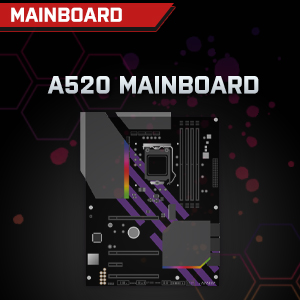

Image: Individual component representations for CPU, RAM, Graphics, Storage, Mainboard, and Power Supply.
Garansi sareng Rojongan
SYSTEMTREFF is committed to providing excellent customer service.
- Garansi Pabrikan: Your SYSTEMTREFF PC comes with a 36-month (3-year) manufacturer's warranty. This warranty covers defects in materials and workmanship under normal use.
- Kontrol kualitas: All individually assembled PCs undergo a quality control check before shipment.
- Wangsul: In case of issues, SYSTEMTREFF offers free returns.
- Kontak Rojongan: For technical assistance, warranty claims, or any other inquiries, please contact SYSTEMTREFF customer support. Contact details can typically be found on the manufacturer's official websitus atanapi dokuméntasi anu kalebet dina pameseran anjeun.

Image: Information regarding warranty, ease of setup, and customer support availability.


