Bubuka
Welcome and thank you for choosing the Umax Webcam W5. This manual provides essential information for setting up, operating, maintaining, and troubleshooting your webcam. Please read it carefully before use to ensure proper functionality and longevity of your device.
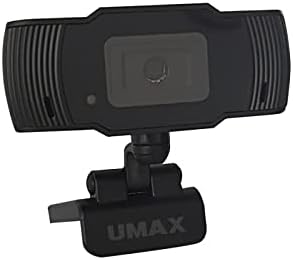
Gambar: Hareupeun view of the Umax W5 Webcam. This image displays the main unit of the webcam, highlighting its lens and overall design.
1. Setélan
1.1 Eusi pakét
- Umax W5 Webkaméra
- Eunteung
1.2 Sarat Sistim
The Umax W5 Webcam is compatible with most operating systems that support standard USB webcams, including Windows, macOS, and Linux distributions.
1.3 Nyambungkeun ka Webkaméra
- Ngabongkar webcam's integrated clip/stand.
- Tempatna webcam securely on top of your monitor, laptop screen, or a flat surface.
- Sambungkeun kabel USB ti webcam ka port USB sadia dina komputer Anjeun.
- The webcam should be automatically recognized by your operating system. No additional drivers are typically required for basic functionality.
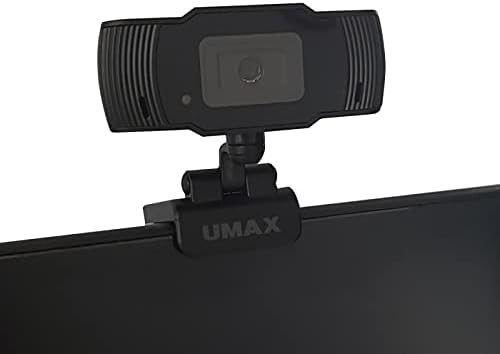
Image: Umax W5 Webcam mounted on top of a computer monitor. This image shows the webcam securely positioned on the upper edge of a computer monitor, demonstrating its typical mounting configuration.
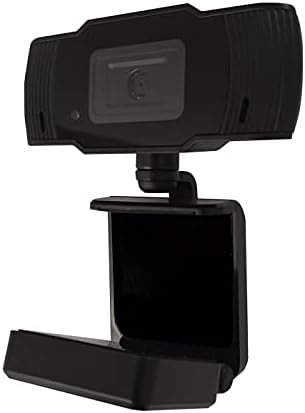
Image: Umax W5 Webcam with its adjustable clip/stand unfolded. This image displays the webcam with its integrated clip fully extended, illustrating how it can be adjusted to fit various monitor thicknesses or stand independently on a flat surface.
2. Operasi anu Webkaméra
2.1 Fungsi Dasar
Once connected, the Umax W5 Webcam is ready for use with various video conferencing applications, streaming software, and other programs that utilize a webkaméra.
2.2 Using with Applications
- Open your desired application (e.g., Zoom, Skype, OBS Studio).
- Navigate to the application's settings or preferences menu.
- Select "Umax W5 Webcam" as your primary video input device.
- Adjust video settings such as resolution or frame rate within the application if these options are available.
2.3 Manual Focus
The Umax W5 Webcam features manual focus. To adjust the focus, gently rotate the lens ring located around the camera lens until the image displayed on your screen appears clear and sharp.
3. Pangropéa
3.1 Ngabersihan Lensa
To ensure optimal image quality, periodically clean the weblénsa cam.
- Anggo lawon anu lemes sareng henteu buluan anu dirancang khusus pikeun permukaan optik.
- Avoid abrasive materials or harsh chemical cleaners, as these can damage the lens coating.
- Gently usap lensa dina gerakan sirkular pikeun miceun lebu atawa smudges.
3.2 Panyimpenan
Nalika henteu dianggo, simpen webcam in a clean, dry place away from extreme temperatures, high humidity, and direct sunlight to prevent damage.
4. Cara ngungkulan
4.1 Webcam Not Detected
- Pastikeun kabel USB disambungkeun aman ka duanana webcam jeung port USB aktip dina komputer Anjeun.
- Coba sambungkeun webcam ka port USB béda dina komputer Anjeun.
- Balikan deui komputer anjeun.
- Check your operating system's Device Manager (Windows) or System Information (macOS) to see if the webcam didaptarkeun.
4.2 Kualitas Gambar Miskin
- Adjust the manual focus ring on the webcam nepi ka gambar jelas.
- Ensure adequate lighting in your environment. Poor lighting can significantly affect image quality.
- Ngabersihan weblensa kaméra sakumaha anu dijelaskeun dina bagian Pangropéa.
- Check the video settings within your application (e.g., resolution, frame rate) to ensure they are set appropriately.
5. Spésifikasi
| Fitur | Rincian |
|---|---|
| merek | Umax |
| Ngaran modél | W5 |
| Nomer Modél Item | W5 |
| Warna | Hideung |
| Ukuran Paket | 6.18 x 3.43 x 1.89 inci |
| Item Beurat | 5.6 ons |
| Tipe Lénsa | Zum |
| Tipe Fokus | Fokus Manual |
| Stabilisasi Gambar | No |
| Batré | 2 batré AA diperlukeun. (kaasup) |
| Komponén Kaasup | Eunteung |
| Tanggal Kahiji Sadia | 14 Séptémber 2020 |
| Produsén | Umax |
6. Garansi jeung Rojongan
For warranty information and technical support, please refer to the official Umax websitus atanapi ngahubungi layanan palangganna sacara langsung. Disarankeun pikeun nyimpen resi pameseran anjeun salaku bukti pameseran pikeun klaim garansi naon waé.
Pabrikan: Umax
Titimangsa munggaran sadia: 14 Séptémber 2020


