1. Bubuka
The i-tec USB-C Quattro Docking Station is designed to expand the connectivity of your USB-C enabled laptop or tablet, allowing for connection of up to four external displays, multiple USB peripherals, Gigabit Ethernet, and audio devices. It also provides up to 85W Power Delivery to charge your host device. This manual provides detailed instructions for setting up, operating, and maintaining your docking station.
2. Eusi Paket
Punten parios yén sadaya barang anu didaptarkeun di handap aya dina pakét anjeun:
- i-tec USB-C Quattro Docking Station
- Adaptor kakuatan
- Kabel Daya
- USB-C ka USB-C Cable
- Gancang Mimitian Guide

Gambar 2.1: Package Contents. The image displays the docking station, its power adapter, a power cable, and a quick setup guide.
3. Produk Langkungview
Familiarize yourself with the ports and indicators on your i-tec USB-C Quattro Docking Station.
3.1 Panel payun

Gambar 3.1: Front Panel. This image shows the front of the docking station with a power button, microphone input jack, headphone output jack, one USB-C data port, and one USB 3.0 port.
- Tombol Daya: Pikeun nganonaktipkeun / mareuman stasiun docking.
- Microphone Jack (3.5mm): Sambungkeun mikropon.
- Jack Headphone (3.5mm): Sambungkeun headphone atanapi speaker.
- Port Data USB-C: Pikeun nyambungkeun periferal USB-C.
- Palabuhan USB 3.0: For connecting USB 3.0/2.0 peripherals.
3.2 Panel tukang

Gambar 3.2: Rear Panel. This image displays the rear of the docking station, featuring the DC 20V power input, USB-C PD host connection, two DisplayPort outputs, two HDMI outputs, a Gigabit Ethernet (LAN) port, and four additional USB 3.0 ports.
- Input Daya DC 20V: Sambungkeun adaptor kakuatan anu kalebet.
- USB-C PD Host Port: Connect to your laptop/tablet for data, video, and power delivery.
- 2x DisplayPort: Connect external monitors via DisplayPort cables.
- 2 x HDMI: Connect external monitors via HDMI cables.
- GLAN (RJ-45) Port: Nyambung ka jaringan kabel.
- 4 x USB 3.0 palabuhan: Connect USB 3.0/2.0 peripherals.
4. Parentah Setup
Follow these steps to set up your i-tec USB-C Quattro Docking Station:
- Sambungkeun Kakuatan: Connect the power adapter to the DC 20V input on the rear of the docking station, then plug the power cable into a wall outlet.
- Nyambung ka Alat Host: Use the provided USB-C to USB-C cable to connect the docking station's USB-C PD Host Port to your laptop's USB-C port. Ensure your laptop's USB-C port supports DisplayPort Alternate Mode and Power Delivery for full functionality.
- Sambungkeun tampilan éksternal: Connect your monitors to the DisplayPort and/or HDMI ports on the rear of the docking station. You can connect up to four displays simultaneously.
- Sambungkeun Periferal: Plug your USB devices (keyboard, mouse, external drives) into the available USB 3.0 or USB-C data ports. Connect an Ethernet cable to the GLAN port for wired network access. Connect headphones/speakers and a microphone to the respective audio jacks on the front panel.
- Daya Hurung: Press the power button on the front of the docking station. Your operating system should automatically detect the connected devices.
- Pamasangan supir (upami perlu): For optimal performance or specific features, visit www.i-tec.cz/setup to download and install any required drivers for your operating system.
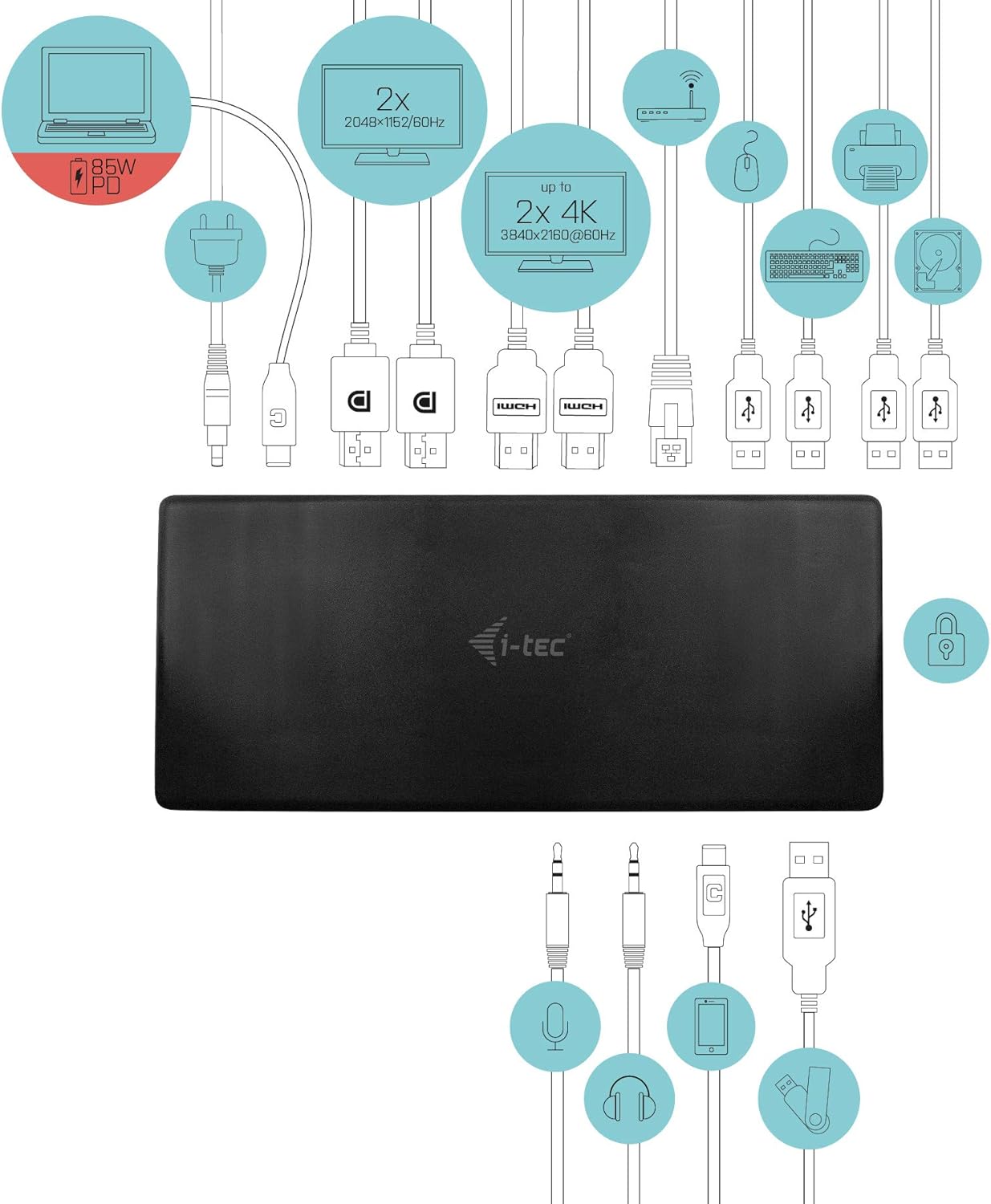
Gambar 4.1: Connection Diagram. This diagram shows the various connections to the docking station, including power, host laptop, multiple monitors (DisplayPort and HDMI), Ethernet, and USB peripherals like a mouse, keyboard, and external storage.
5. Parentah Operasi
Once set up, your docking station provides enhanced functionality for your workspace.
5.1 Multi-Display Configuration
The docking station supports up to four external displays. You can configure these displays in various modes (extended, mirrored) through your operating system's display settings.
- Resolusi: Supports up to 2x 2048x1152@60Hz and 2x 4K/60Hz, depending on your host device's capabilities and display connections.
- Windows: Right-click on the desktop, select 'Display settings' to arrange and configure your monitors.
- macOS: Go to 'System Preferences' > 'Displays' to adjust settings.

Gambar 5.1: Four-Display Setup Example. This image illustrates a workstation with a laptop connected to the docking station, driving four external monitors simultaneously, showcasing a multi-tasking environment.
5.2 Pangiriman kakuatan
The USB-C PD Host Port provides up to 85W of power to charge your connected laptop or tablet, eliminating the need for a separate power adapter for your host device.
5.3 Konektipitas USB
Utilize the 5x USB 3.0 ports and 1x USB-C data port for connecting various peripherals such as external hard drives, USB flash drives, keyboards, mice, and printers. USB 3.0 ports offer high-speed data transfer.
5.4 Gigabit Ethernet
The GLAN RJ-45 port provides a stable and high-speed wired internet connection (10/100/1000 Mbps), which is often more reliable than Wi-Fi.
5.5 Fungsi Audio
Connect your headphones, speakers, or microphone to the 3.5mm audio jacks on the front panel for integrated audio input and output.

Gambar 5.2: Productivity Setup. This image shows a professional desk environment where the docking station facilitates a multi-monitor setup for enhanced productivity, displaying various applications and data across four screens.
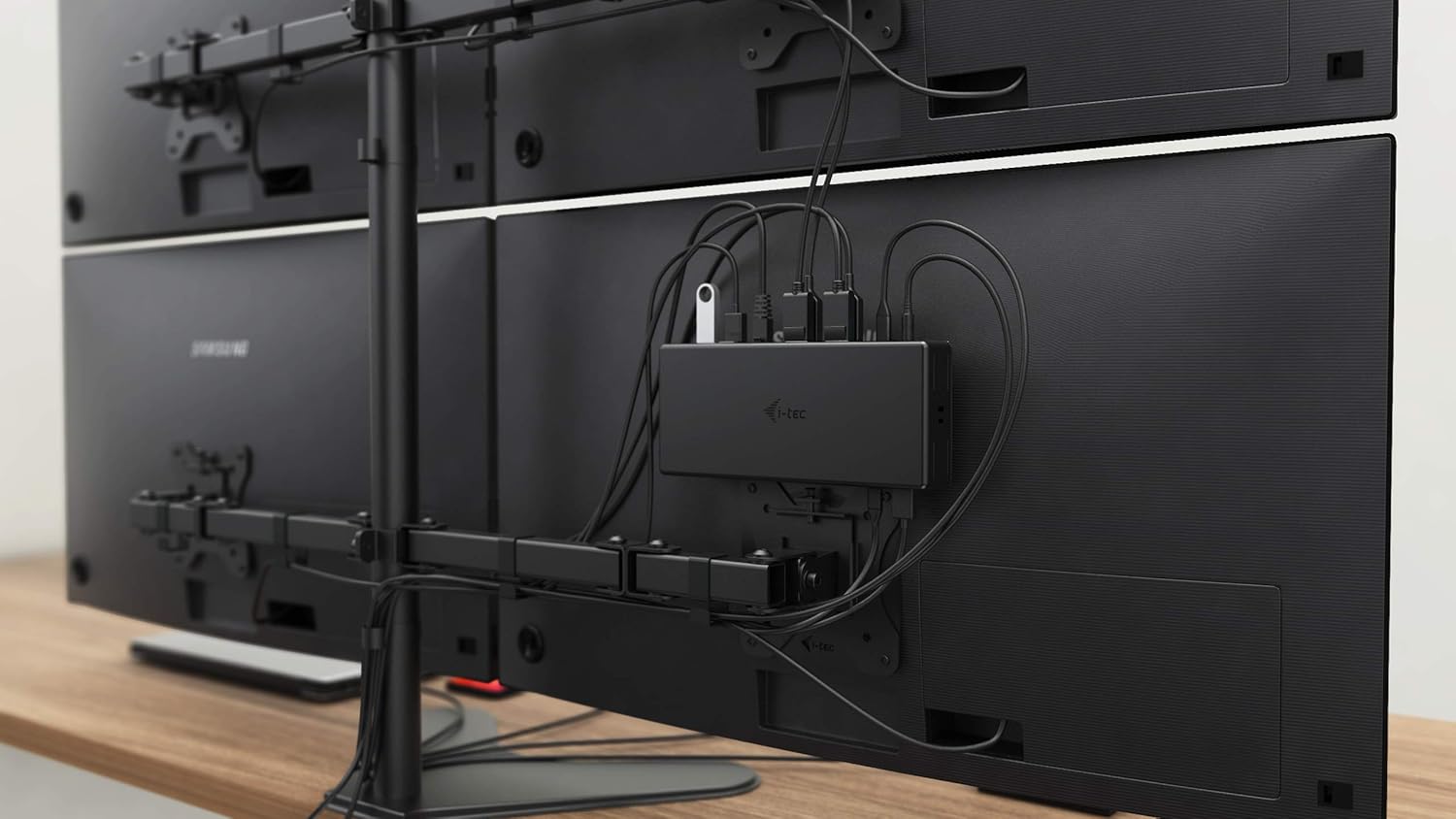
Gambar 5.3: VESA Mounting. The docking station is shown mounted vertically on the back of a VESA-compatible monitor, demonstrating its space-saving installation capability and organized cable routing.

Gambar 5.4: Connected Workstation. This image provides a close-up of the docking station on a desk, connected to a laptop via USB-C, and featuring various peripherals plugged into its front ports, including a USB drive and audio devices.
6. Pangropéa
Pikeun mastikeun umur panjang sareng kinerja optimal stasiun docking anjeun, turutan tungtunan pangropéa ieu:
- beberesih: Use a soft, dry cloth to clean the exterior of the docking station. Do not use liquid cleaners or aerosols.
- Ventilasi: Pastikeun stasiun dok disimpen di tempat anu ventilasina saé pikeun nyegah panas teuing. Ulah ngahalangan liang ventilasi naon waé.
- Penanganan: Avoid dropping or subjecting the docking station to strong impacts.
- Lingkungan: Jauhkeun alat tina suhu ekstrim, kalembaban, sareng sinar panonpoé langsung.
- Manajemén Kabel: Ensure cables are not excessively bent or strained to prevent damage to ports and cables.
7. Cara ngungkulan
Upami anjeun mendakan masalah sareng stasiun docking anjeun, tingal masalah sareng solusi umum ieu:
7.1 Taya Kaluaran Témbongkeun
- Pariksa sambungan: Pastikeun sadaya kabel tampilan (HDMI/DisplayPort) disambungkeun kalayan pageuh kana stasiun dok sareng monitor.
- Sambungan Host: Verify the USB-C cable from the docking station is firmly connected to your laptop's USB-C port.
- kakuatan: Confirm the docking station is powered on and receiving power from the adapter.
- Kasaluyuan Laptop: Pastikeun port USB-C laptop anjeun ngadukung Modeu Alternatif DisplayPort.
- Supir: Install the latest drivers from www.i-tec.cz/setup.
- Setélan tampilan: Adjust your operating system's display settings to detect and extend/mirror displays.
7.2 USB Devices Not Working
- Sambung deui: Disconnect and reconnect the USB device to a different port on the docking station.
- kakuatan: Pastikeun stasiun docking diaktipkeun.
- Sambungan Host: Verify the USB-C connection to your laptop.
- Konsumsi Daya: If connecting high-power USB devices, ensure the docking station's power adapter is correctly connected and providing sufficient power.
7.3 No Network Connection (GLAN)
- Cék kabel: Pastikeun kabel Ethernet disambungkeun aman ka duanana stasiun docking sarta router / modem Anjeun.
- Router/Modem: Pastikeun router / modem anjeun berpungsi leres.
- Supir: Ensure the latest network drivers are installed for the docking station.
7.4 Laptop Not Charging (Power Delivery)
- adaptor kakuatan: Confirm the docking station's power adapter is correctly connected and functioning.
- Kabel USB-C: Ensure the USB-C cable connecting the dock to your laptop supports Power Delivery.
- Kasaluyuan Laptop: Verify your laptop's USB-C port supports Power Delivery input.
8. Spésifikasi
| Fitur | Rincian |
|---|---|
| Nomer modél | C31QUATTRODOCKPDUK |
| merek | abdi-tec |
| Dimensi produk | 10 x 2 x 2.7 inci (25.4 x 5.08 x 6.86 cm) |
| Item Beurat | 10.2 ons (0.29 kg) |
| Panganteur Hardware | DisplayPort, Ethernet, HDMI, USB, USB 3.0, USB Type C |
| Alat nu cocog | Laptop, Monitor, Tablet with USB-C (DisplayPort Alt Mode & Power Delivery support recommended) |
| Total palabuhan USB | 6 (5x USB 3.0, 1x USB-C Data) |
| Total palabuhan HDMI | 2 |
| DisplayPort Total | 2 |
| Ethernet | Gigabit Ethernet (RJ-45) |
| Audio Jacks | 1x Microphone (3.5mm), 1x Headphone (3.5mm) |
| Pangiriman kakuatan | Up to 85W to host device |
| Warna | Hideung |
| Sistem Operasi | Windows 10, macOS, Android, Linux |
9. Émbaran jaminan
The i-tec USB-C Quattro Docking Station is covered by a manufacturer's warranty. Please refer to the warranty card included in your package or visit the official i-tec websitus pikeun istilah jeung kaayaan jaminan lengkep. Simpen bukti pameseran anjeun pikeun klaim garansi.
10. Rojongan Palanggan
For further assistance, technical support, or to download the latest drivers and firmware, please visit the official i-tec support websitus:
You may also find helpful resources and FAQs on the product's dedicated setup page: www.i-tec.cz/setup


