Bubuka
The Logitech M720 Triathlon Wireless Mouse is designed for productivity across multiple devices. Featuring Easy-Switch technology, it allows seamless switching between up to three computers. This mouse offers both Bluetooth and USB Unifying Receiver connectivity, hyper-fast scrolling, and a durable design for extended use. This manual provides instructions for setup, operation, maintenance, and troubleshooting to ensure optimal performance.

Gambar: Top view of the Logitech M720 Triathlon Wireless Mouse, showcasing its ergonomic design and primary buttons.
Disetél
1. Pamasangan batré
The M720 mouse operates on a single AA battery. To install:
- Panggihan kompartemen batré dina underside beurit.
- Buka panutup kompartemen.
- Selapkeun hiji batré AA, mastikeun polaritasna bener (+/-).
- Tutup panutup kompartemen batré.
2. Connecting via USB Unifying Receiver
For a stable 2.4 GHz wireless connection:
- Remove the USB Unifying Receiver from its storage slot within the battery compartment.
- Colokkeun panarima ka port USB nu sadia dina komputer Anjeun.
- Hurungkeun beurit nganggo saklar daya di handapeun.
- The mouse should automatically connect. If not, press the Easy-Switch button (labeled 1, 2, or 3) to select an available channel.
3. Nyambungkeun via Bluetooth
To connect your M720 mouse via Bluetooth:
- Hurungkeun beurit nganggo saklar daya.
- Press and hold one of the Easy-Switch buttons (1, 2, or 3) for three seconds until the LED light next to the number starts blinking rapidly. This indicates pairing mode.
- Dina komputer anjeun, buka setélan Bluetooth teras milarian alat énggal.
- Select "Logitech M720" from the list of available devices to complete the pairing process.

Image: The Logitech M720 mouse positioned next to a laptop and keyboard, illustrating its wireless connectivity options via Bluetooth or the included USB Unifying Receiver.
4. Logitech Options Software
For full customization of buttons and features, download and install the Logitech Options software from the official Logitech websitus. Parangkat lunak ieu ngamungkinkeun anjeun pikeun:
- Tetapkan fungsi khusus untuk tombol-tombol tersebut.
- Atur kecepatan pointer sareng paripolah ngagulung.
- Manage Easy-Switch devices.
Parentah Operasi
1. Easy-Switch Technology
The M720 mouse can be paired with up to three devices. Use the Easy-Switch buttons (1, 2, 3) on the side of the mouse to switch between connected computers. A quick press of the button will switch the connection, indicated by the corresponding LED lighting up.

Image: A close-up of the Logitech M720 mouse, emphasizing the '1', '2', '3' Easy-Switch buttons on its side, used for switching between multiple connected devices.
2. Ngagulung Hiper-Gancang
The scroll wheel features two modes:
- Ngagulung Hiper-Gancang: Spin the scroll wheel freely to glide through long documents and web kaca gancang.
- Click-to-Click Scrolling: Press the button directly below the scroll wheel to switch to a precise, ratcheted scrolling mode for detailed navigation.
3. Tombol customizable
The M720 mouse includes several programmable buttons. Utilize the Logitech Options software to assign specific functions, shortcuts, or gestures to these buttons, enhancing your workflow and productivity.

Gambar: A luhur-handap view of the Logitech M720 mouse, highlighting its various buttons and scroll wheel, indicating areas for custom shortcuts and enhanced productivity.
Pangropéa
1. Ngagantian batré
The M720 mouse is designed for long battery life (up to 24 months on a single AA battery). When the battery is low, the LED indicator on the mouse may flash. Replace the AA battery as described in the Setup section.
2. beberesih
Pikeun ngajaga kinerja sareng kabersihan anu optimal:
- Make kaen nu lemes, teu aya lint rada dampened with water or isopropyl alcohol to clean the exterior of the mouse.
- Hindarkeun ngagunakeun bahan kimia anu kasar atanapi bahan abrasive.
- Do not allow liquids to enter the mouse's openings.
- Clean the optical sensor on the underside periodically with a dry cotton swab to ensure accurate tracking.

Gambar: A sisi profile of the Logitech M720 mouse, highlighting its soft, durable rubber surface designed for comfortable grip and longevity.
Pamérésan masalah
Beurit Teu Ngabales
- Pariksa batré: Pastikeun batré AA dipasang leres sareng gaduh muatan anu cekap. Ganti lamun perlu.
- Saklar kakuatan: Verify the mouse is turned on.
- Konektipitas:
- Panarima USB: Ensure the Unifying Receiver is securely plugged into a working USB port. Try a different USB port.
- Bluetooth: Confirm Bluetooth is enabled on your computer. Re-pair the mouse if the connection is lost (refer to Setup section).
- Easy-Switch Channel: Make sure you have selected the correct Easy-Switch channel (1, 2, or 3) for the device you are trying to control.
Erratic Cursor Movement or Tracking Issues
- Beungeut: Anggo beurit dina permukaan anu bersih, henteu reflektif, sareng seragam. Hindarkeun kaca atanapi permukaan anu réfléktif pisan.
- Sénsor optik: Clean the optical sensor on the underside of the mouse with a dry cotton swab.
Scroll Wheel Not Working Correctly
- Pindah mode: Ensure the scroll wheel is in the desired mode (hyper-fast or click-to-click). Press the button below the scroll wheel to toggle modes.
- Parangkat lunak: If using Logitech Options, check scroll settings for any conflicts.
Custom Buttons Not Functioning
- Logitech Options: Ensure the Logitech Options software is installed and running. Verify that button assignments are correctly configured within the software.
spésifikasi
| Fitur | Rincian |
|---|---|
| Modél | M720 Triathlon |
| Konektipitas | Bluetooth Smart, 2.4 GHz Wireless (Logitech Unifying Receiver) |
| Detéksi Gerakan | Optik |
| Jenis Batré | 1 x batré AA |
| Kahirupan batré | Nepi ka 24 bulan (bisa rupa-rupa gumantung kana panggunaan) |
| Dimensi produk | 4.5 x 2.9 x 0.1 inci (114.3 x 73.66 x 2.54 mm) |
| Item Beurat | 6.4 ons (181.44 gram) |
| Button Durability | Nepi ka 10 juta klik |
| Warna | Hideung |
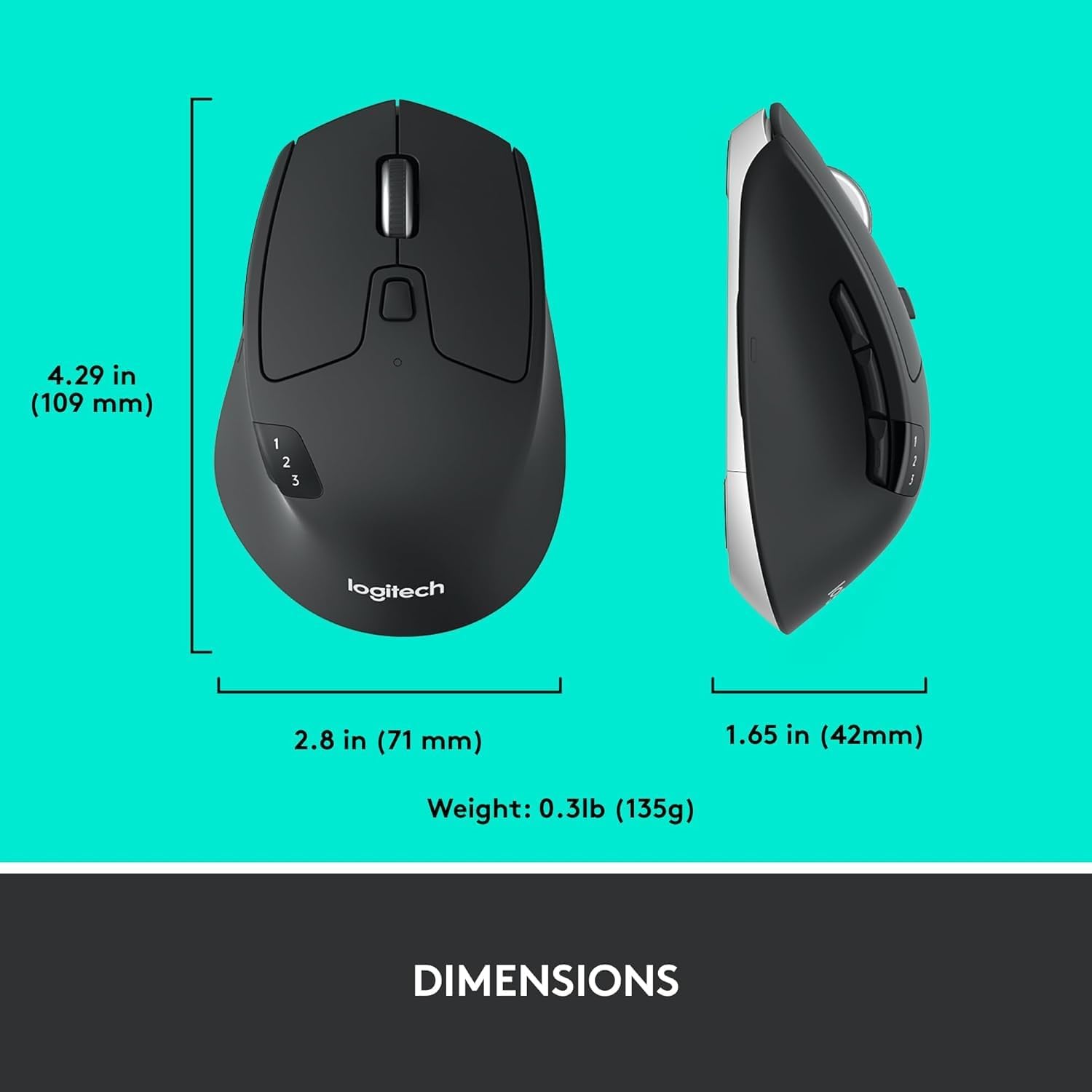
Image: The Logitech M720 mouse shown with its key dimensions (length, width, height) and weight indicated for reference.
Garansi sareng Rojongan
Kanggo inpormasi garansi anu lengkep, dukungan téknis, sareng sumber daya tambahan, mangga buka dukungan Logitech resmi. websitus. Anjeun tiasa mendakan FAQ, unduh supir, sareng inpormasi kontak pikeun layanan palanggan.
Rojongan Logitech Websitus: support.logi.com


