1. Bubuka
This manual provides comprehensive instructions for the setup, operation, and maintenance of your LG 27UK670-B 27-inch UHD (3840 x 2160) IPS Display. This monitor is designed to deliver a high-quality visual experience with its sRGB 99% Color Gamut, HDR10 support, and a 3-Side Virtually Borderless Design. It also offers flexible connectivity including USB Type-C with 40W Power Delivery and an adjustable stand for ergonomic comfort.

Gambar 1: Hareupeun view of the LG 27UK670-B monitor.
2. Eusi Paket
Pastikeun sadaya barang aya dina bungkusan sateuacan neraskeun setelan.
- Monitor Display Panel
- Stand Monitor (Dasar sareng Beuheung)
- Kabel listrik
- Kabel Tipe-C USB
- Kabel HDMI
- Kabel DisplayPort
- Manual pangguna (dokumén ieu)
3. Setélan
3.1 Ngarakit Stand
- Sacara ati-ati tempatkeun panel tampilan monitor nyanghareup ka handap dina permukaan anu lemes sareng bersih pikeun nyegah goresan.
- Pasang beuheung nangtung ka tukangeun panel monitor. Pastikeun éta ngaklik aman kana tempatna.
- Sambungkeun dasar nangtung kana beuheung nangtung. Tighten screw di handapeun dasarna pikeun ngamankeun eta.
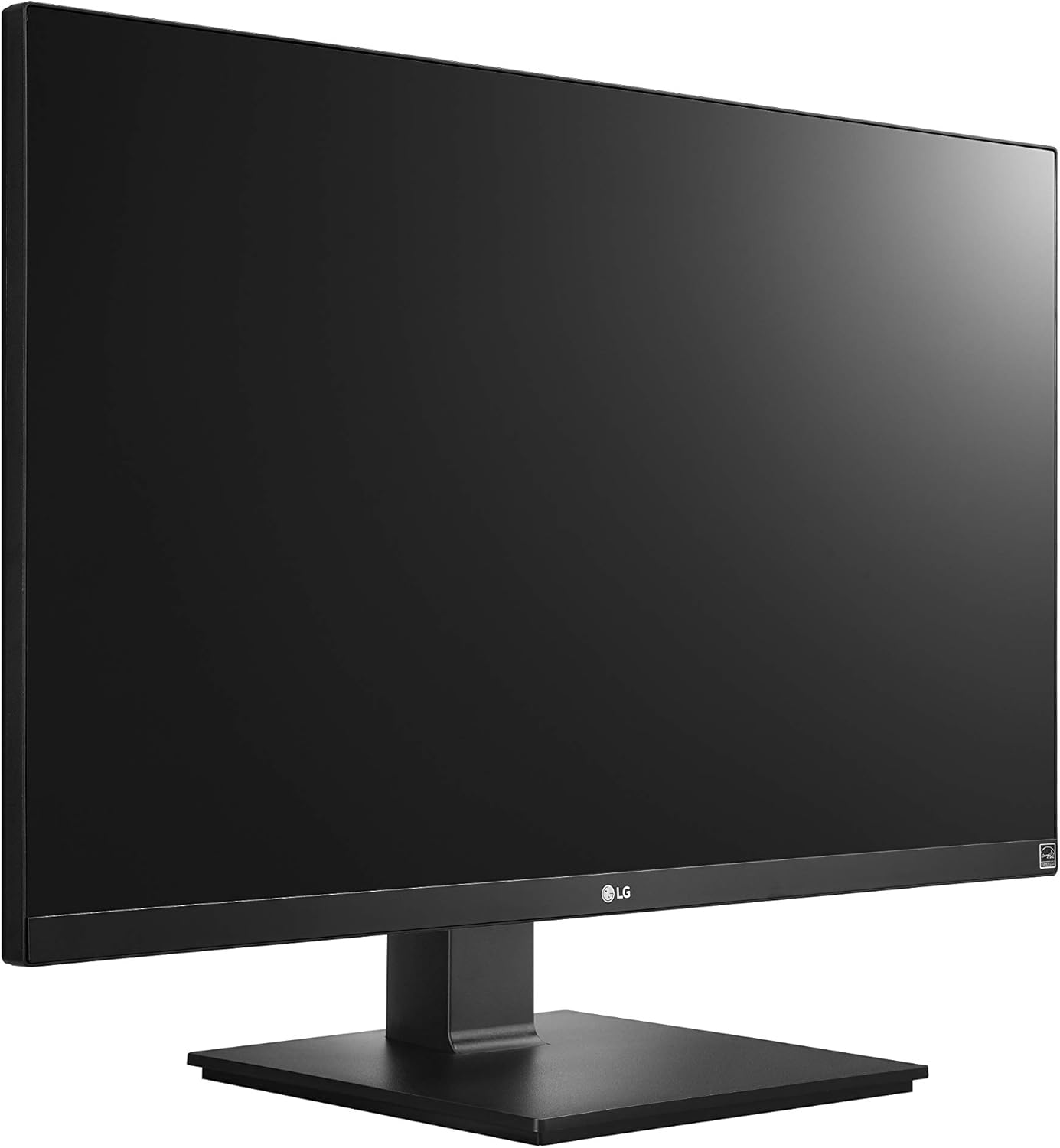
Figure 2: Assembled LG 27UK670-B monitor.
3.2 Nyambung kana Komputer
The LG 27UK670-B monitor offers multiple connectivity options.
- Sambungan USB Tipe-C: Connect one end of the USB Type-C cable to the USB-C port on the monitor and the other end to your computer's USB-C port. This connection supports video, data transfer, and power delivery (up to 40W) to your connected device.
- Sambungan HDMI: Use an HDMI cable to connect the monitor to your computer's HDMI output.
- Sambungan DisplayPort: Use a DisplayPort cable to connect the monitor to your computer's DisplayPort output.
- Sambungan Daya: Sambungkeun kabel daya kana input daya monitor teras kana stop kontak di témbok.

Gambar 3: Tukangeun view tina monitor kalawan sambungan port.
3.3 Nyaluyukeun Stand
Stand monitor ngamungkinkeun pikeun sababaraha panyesuaian ergonomis:
- Penyesuaian Jangkungna: Gently push or pull the monitor up or down to achieve your desired viewjangkungna.
- Penyesuaian Dengdekkeun: Tilt the monitor screen forward or backward to optimize your viewsudut ing.
- Penyesuaian pangsi: Puterkeun monitor 90 derajat pikeun pindah antara orientasi lanskap sareng potret.
- Penyesuaian puteran: Rotate the monitor left or right on its base to share your screen or adjust your viewdina posisi.
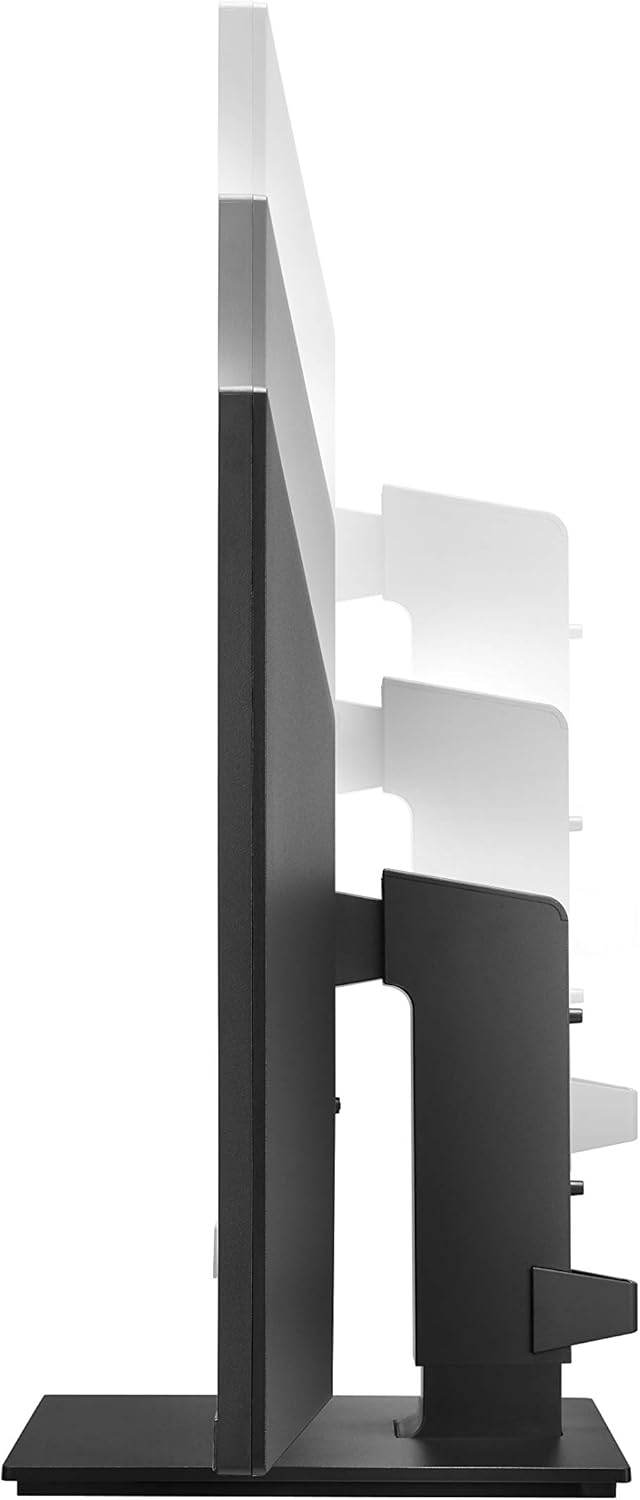
Gambar 4: Pangaluyuan jangkungna monitor.

Figure 5: Monitor in portrait orientation (pivot feature).
4. Ngoperasikeun Monitor
4.1 Daya Hurung/Pareuman
Press the power button, usually located on the bottom center or rear of the monitor, to turn the display on or off.
4.2 Menu dina layar (OSD).
The OSD menu allows you to adjust various display settings. Access it by pressing the joystick button (often located on the bottom center of the monitor). Navigate through the menu using the joystick to control brightness, contrast, color modes, input selection, and other advanced features.
4.3 Fitur konci
- UHD (3840 x 2160) Resolution: Provides sharp, detailed images.
- Layar IPS: Nawarkeun lega viewsudut sareng réproduksi warna anu konsisten.
- sRGB 99% Warna Gamut: Ensures accurate and vibrant colors, suitable for creative professionals.
- HDR10: Enhances dynamic range for brighter whites and deeper blacks.
- Téknologi AMD FreeSync: Reduces screen tearing and stuttering for smoother gaming and video playback.
5. Pangropéa
5.1 Ngabersihan Monitor
- Salawasna pareumkeun monitor sareng cabut kabel listrik sateuacan beberesih.
- Make kaen nu lemes, teu aya lint rada dampdilengkepan ku cai atanapi pembersih layar khusus.
- Ulah menyemprot cleaner langsung kana layar. Larapkeun heula kana lawon.
- Avoid using abrasive cleaners, waxes, or solvents as they can damage the screen surface.
5.2 Perawatan Umum
- Jauhkeun monitor tina sinar panonpoé langsung, sumber panas, sareng lebu kaleuleuwihan.
- Mastikeun ventilasi ditangtoskeun sabudeureun monitor pikeun nyegah overheating.
- Hindarkeun nempatkeun barang beurat dina monitor atanapi kabelna.
6. Cara ngungkulan
Upami anjeun mendakan masalah sareng monitor anjeun, tingal masalah sareng solusi umum ieu:
- Henteu aya kakuatan:
- Ensure the power cord is securely connected to both the monitor and a working electrical outlet.
- Check if the power button on the monitor is pressed.
- Henteu aya Sinyal / Layar Kosong:
- Verify that the video cable (USB-C, HDMI, or DisplayPort) is securely connected to both the monitor and your computer.
- Ensure the correct input source is selected on the monitor's OSD menu.
- Pariksa naha komputer anjeun hurung sareng henteu dina modeu sare.
- Masalah Kualitas Gambar (contona, burem, distorsi):
- Saluyukeun setélan résolusi dina komputer anjeun supados cocog sareng résolusi asli monitor (3840 x 2160).
- Reset the monitor's display settings to factory defaults via the OSD menu.
- Pastikeun kabel vidéo teu ruksak.
For further assistance, please consult the official LG support websitus atanapi ngahubungan layanan palanggan.
7. Spésifikasi
| Fitur | Rincian |
|---|---|
| merek | LG |
| Nomer modél | 27UK670-B |
| Ukuran layar | 27 inci |
| Resolusi | UHD (3840 x 2160) |
| Tipe Panel | IPS |
| Warna Gamut | sRGB 99% |
| Rojongan HDR | HDR10 |
| Konektipitas | USB Type-C (with 40W PD), 2x HDMI, DisplayPort, 2x USB 3.0, 3x USB 2.0 |
| Tetep pangaluyuan | Tilt, Height, Pivot, Swivel |
| Item Beurat | 15.4 pon |
| Ukuran produk (L x W x H) | 24.1 x 9.9 x 20.4 inci |
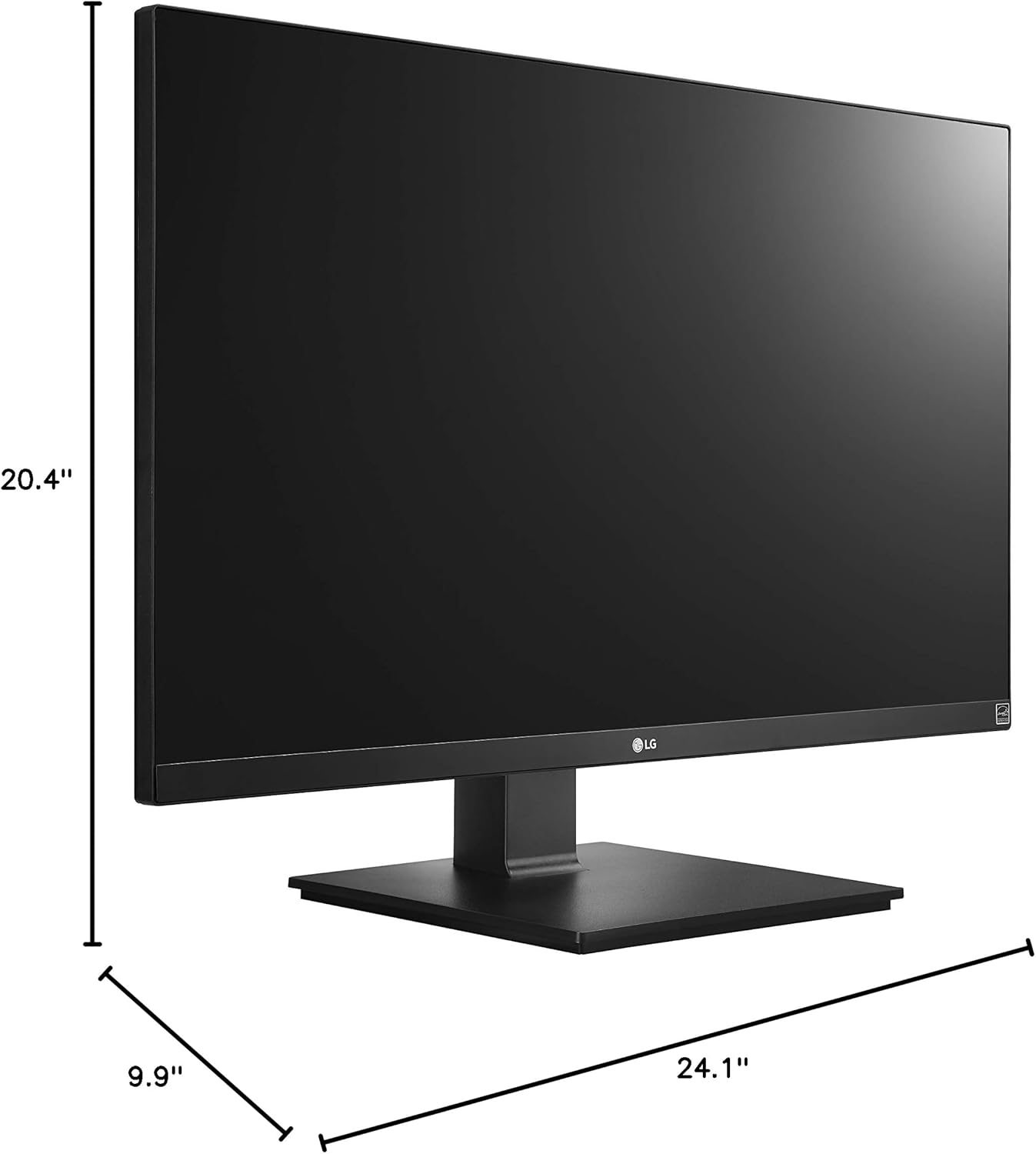
Gambar 6: Diménsi monitor.
8. Garansi jeung Rojongan
Your LG 27UK670-B monitor is covered by a manufacturer's warranty. For detailed information regarding warranty terms, conditions, and registration, please refer to the warranty card included in your product packaging or visit the official LG Electronics websitus.
For technical support, service inquiries, or to download the latest drivers and software, please visit the LG support portal or contact LG customer service directly.
Dukungan Online: www.lg.com/us/support