1. Bubuka
This manual provides essential instructions for setting up, operating, maintaining, and troubleshooting your EPSON EcoTank M3140 A4 4-in-1 Monochrome Printer. Please read this manual thoroughly before using the product to ensure correct and safe operation.
2. Produk Langkungview
The EPSON EcoTank M3140 is a versatile 4-in-1 monochrome printer designed for efficient document printing. It features an integrated ink tank system, Wi-Fi connectivity, an LCD screen, and an Automatic Document Feeder (ADF) for enhanced productivity.
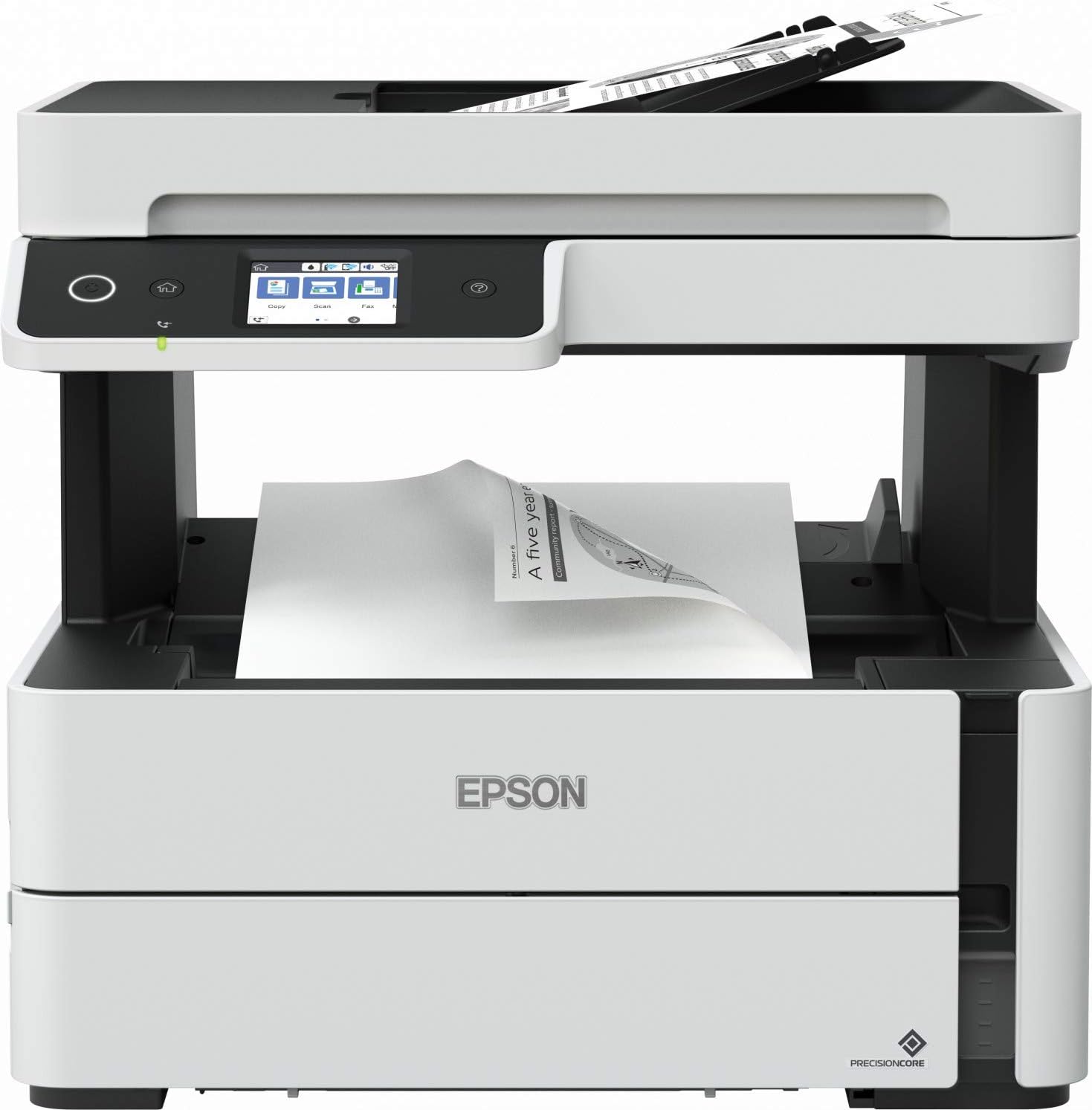
Gambar 2.1: Hareupeun view of the EPSON EcoTank M3140 printer, showing the control panel, ADF, and paper output tray.
3. Setélan
3.1 Ngabongkar bungkusan
- Cabut printer tina bungkusan na.
- Cabut sadaya kasét pelindung sareng bahan bungkusan tina luar sareng jero printer.
- Tempatkeun printer dina permukaan anu rata sareng stabil.
3.2 Sambungan Daya
- Sambungkeun kabel daya kana input daya printer.
- Colokkeun tungtung kabel listrik anu sanés kana stop kontak listrik anu dibumikeun.
- Pencét tombol daya pikeun ngaktipkeun printer.
3.3 Ink Filling
EcoTank M3140 nganggo sistem tangki tinta anu terintegrasi. Turutan léngkah-léngkah ieu pikeun ngeusian tangki tinta:
- Buka panutup tangki tinta dina printer.
- Buka tutup botol tinta hideungna.
- Insert the ink bottle into the corresponding ink tank opening. The ink will automatically fill the tank.
- Once the tank is full, remove the bottle and recap it. Close the ink tank cover.

Gambar 3.1: Illustration of the ink refilling process for the EcoTank system.
3.4 Pamasangan parangkat lunak
- Insert the software CD-ROM into your computer's drive, or download the latest drivers and utilities from the official Epson support websitus.
- Turutan pitunjuk dina layar pikeun masang panggerak printer sareng parangkat lunak utiliti.
3.5 Sambungan Jaringan (Wi-Fi)
- Dina layar LCD printer, buka menu setelan Wi-Fi.
- Pilih jaringan nirkabel anjeun (SSID) tina daptar.
- Lebetkeun kecap akses jaringan anjeun (konci WPA/WPA2) nganggo kibor di layar.
- Confirm the connection. The Wi-Fi indicator on the printer should illuminate steadily once connected.
4. Parentah Operasi
4.1 Loading Paper
The printer supports various paper sizes, including A4. To load paper:
- Tarik kaluar kasét kertas ti hareup printer.
- Atur pituduh kertas supados cocog sareng lébar kertas anjeun.
- Load the paper stack print-side down into the cassette. Do not overload.
- Gently push the paper cassette back into the printer until it clicks into place.

Gambar 4.1: Proper loading of paper into the printer's paper cassette.
4.2 Nyitak Dasar
- Pastikeun printer diaktipkeun tur disambungkeun ka komputer atawa jaringan Anjeun.
- Buka dokumén anu anjeun hoyong nyitak dina komputer anjeun.
- Pilih 'Cetak' tina menu aplikasi.
- Choose the EPSON M3140 as your printer and adjust settings (e.g., paper size, number of copies).
- Klik 'Cetak'.
4.3 Nyalin
The M3140 can copy documents using either the flatbed scanner or the Automatic Document Feeder (ADF).
- Ngagunakeun Flatbed: Simpen dokumen ngadep ka handap dina kaca pamindai, sajajarkeun sareng tanda juru.
- Ngagunakeun ADF: Load multiple pages face-up into the ADF input tray.
- On the printer's LCD screen, select 'Copy'.
- Adjust copy settings such as number of copies, paper type, and quality.
- Pencét tombol 'Mimitian' pikeun ngamimitian nyalin.

Gambar 4.2: The printer's LCD control panel, used for selecting functions like Copy, Scan, and Fax.
4.4 Nyeken
- Teundeun dokumén anjeun dina kaca scanner atawa dina ADF.
- On the printer's LCD screen, select 'Scan'.
- Choose your scan destination (e.g., computer, cloud service) and adjust scan settings.
- Press the 'Start' button to begin scanning.
4.5 Faxing
- Load the document(s) into the ADF or place a single document on the scanner glass.
- On the printer's LCD screen, select 'Fax'.
- Asupkeun nomer fax panarima.
- Press the 'Start' button to send the fax.
4.6 Percetakan duplex
The M3140 supports automatic double-sided printing. To use this feature, select the duplex printing option in your printer driver settings before sending a print job.
5. Pangropéa
5.1 ngeusian Tinta
When the ink level is low, the printer will notify you. Refer to Section 3.3 for detailed ink refilling instructions. Use only genuine EPSON ink bottles for optimal performance and to prevent damage.
5.2 Ngabersihan Print Head
If print quality declines (e.g., missing lines, streaking), perform a print head cleaning:
- Tina panel kontrol printer, buka 'Pangropéa' atanapi 'Setélan'.
- Select 'Print Head Cleaning' or 'Nozzle Check'.
- Follow the on-screen prompts. You may need to perform this process multiple times.
5.3 Ngabersihkeun Kaca Scanner
Dust or smudges on the scanner glass can affect scan and copy quality. Wipe the scanner glass and the ADF glass strip with a soft, lint-free cloth dampdilengkepan ku pembersih kaca hampang. Ulah menyemprot cleaner langsung kana kaca.
5.4 Résolusi Kertas Macét
If a paper jam occurs, the printer's LCD screen will display an error message. Carefully open the printer covers and remove any jammed paper, pulling it gently in the direction of the paper path. Ensure no torn pieces of paper remain inside the printer.
6. Cara ngungkulan
This section addresses common issues you might encounter with your EPSON EcoTank M3140.
6.1 Printer Teu Ngabales
- Check if the printer is powered on and properly connected to the computer or network.
- Pariksa yén printer anu leres parantos dipilih dina dialog citak aplikasi anjeun.
- Balikan deui printer sareng komputer anjeun.
6.2 Kualitas Print Miskin
- Pariksa tingkat tinta jeung eusian deui lamun perlu.
- Perform a print head cleaning and nozzle check (refer to Section 5.2).
- Ensure you are using appropriate paper settings for your print job.
6.3 Masalah Konektipitas Wi-Fi
- Ensure your Wi-Fi router is functioning correctly.
- Re-enter your Wi-Fi password on the printer's control panel.
- Move the printer closer to the wireless router to improve signal strength.
For more detailed troubleshooting, refer to the comprehensive online support resources available on the official Epson websitus.
7. Spésifikasi
| Fitur | Spésifikasi |
|---|---|
| Média citak | Kertas (polos) |
| Jenis scanner | Ranjang datar |
| Kapasitas Lambaran Maksimum | 100 |
| Alat nu cocog | Smartphone (Android, iOS) |
| Ukuran Kertas | A4 |
| Maksimum Hideung Bodas Resolusi Print | 200 dpi (implied from context, often higher for actual print) |
| Percetakan dua sisi | Sumuhun (Dupleks Otomatis) |
| Dimensi produk | 41 x 41 x 43.2 cm |
| Item Beurat | 9.13 kg |
| Téhnologi konektipitas | Wifi |
| Téhnologi printer | mangsi tank |
| Fitur husus | Auto-Duplex, ADF, LCD Screen |
| Kaluaran printer | Monokrom |
8. Garansi jeung Rojongan
8.1 Émbaran jaminan
The EPSON EcoTank M3140 comes with a one-year or 100,000-page warranty, whichever comes first. Please retain your proof of purchase for warranty claims. The warranty covers defects in materials and workmanship under normal use.
8.2 Rojongan Palanggan
For technical assistance, product registration, or to find authorized service centers, please visit the official Epson support website or contact Epson customer service in your region. Support resources often include FAQs, driver downloads, and troubleshooting guides.


