1. Bubuka
This manual provides detailed instructions for the installation, operation, and maintenance of your GIGABYTE Z590 AORUS Master motherboard. Designed for 11th and 10th Generation Intel Core Series Processors, this motherboard offers advanced features and robust performance for high-end computing systems. Please read this manual thoroughly before proceeding with installation to ensure proper setup and functionality.

Image 1.1: GIGABYTE Z590 AORUS Master Motherboard and Retail Box. This image shows the motherboard alongside its packaging, providing a visual reference for the product as received.
2. Fitur konci
The GIGABYTE Z590 AORUS Master motherboard incorporates several advanced technologies and design elements:
- Supports 11th and 10th Generation Intel Core Series Processors.
- Dual Channel Non-ECC Unbuffered DDR4 memory, with 4 DIMM slots.
- 18+1 Phases Digital VRM Solution with 90A Smart Power Stage and Tantalum Polymer Capacitors Array for stable power delivery.
- Advanced Thermal Solution featuring Fins-Array II, Direct Touch Heatpipe II, and NanoCarbon Baseplate for efficient heat dissipation.
- Onboard Intel Wi-Fi 6E 802.11ax 2T2R & BT 5 with AORUS Antenna for high-speed wireless connectivity.
- AQUANTIA 10GbE BASE-T LAN with cFosSpeed for ultra-fast wired networking.
- Triple Ultra-Fast NVMe PCIe 4.0*/3.0 x4 M.2 slots with Thermal Guards II for high-performance storage.
- RGB FUSION 2.0 with Multi-Zone Addressable LED Light Show Design.
- Q-Flash Plus for BIOS updates without CPU, memory, or graphics card installation.
3. Layout motherboard
Familiarize diri jeung rupa komponén tur panyambungna dina motherboard nu.

Image 3.1: GIGABYTE Z590 AORUS Master Motherboard Overview. This image displays the full top-down view of the motherboard, highlighting the CPU socket, DIMM slots, PCIe slots, and M.2 heatsinks.
3.1. Socket CPU (LGA 1200)
The central LGA 1200 socket is designed for Intel 10th and 11th Generation Core processors. Ensure correct CPU orientation before installation.
3.2. Memory Slots (DIMM)
Four DDR4 DIMM slots support dual-channel memory configurations. Refer to the motherboard's qualified vendor list (QVL) for compatible memory modules.
3.3. Expansion Slots (PCIe)
Multiple PCIe slots are available for graphics cards and other expansion cards. The primary PCIe x16 slot is reinforced for heavy graphics cards.
3.4. M.2 Panyambungna
Three M.2 slots are provided for NVMe SSDs, each covered by a Thermal Guard II heatsink for optimal performance.
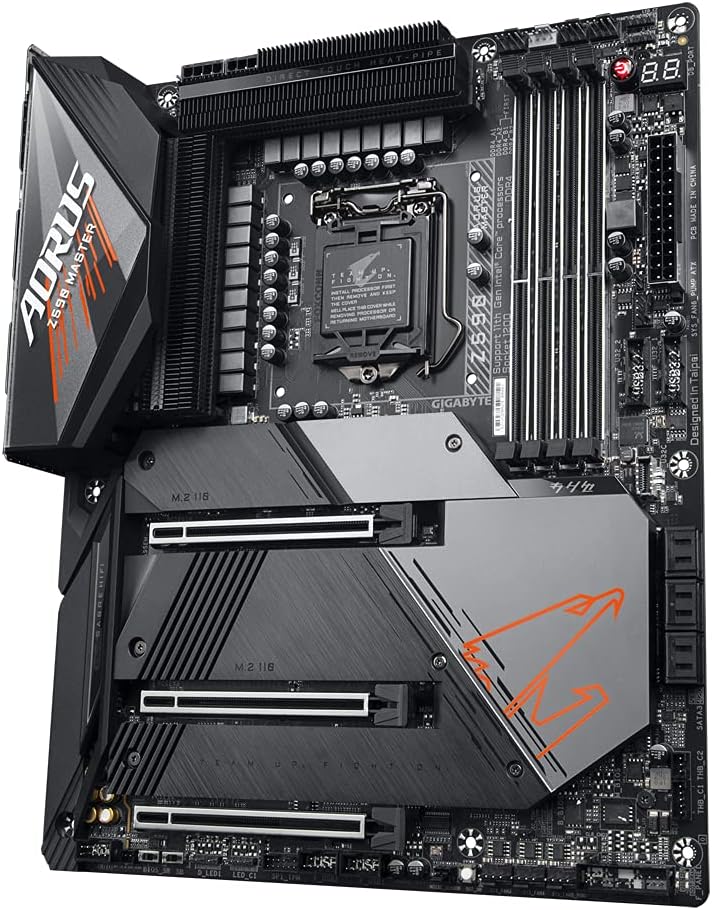
Image 3.2: M.2 Slots with Thermal Guards. This angled view emphasizes the three M.2 slots, each equipped with a heatsink to manage SSD temperatures.
3.5. Panel I/O pungkur
The rear panel provides various ports for external devices.
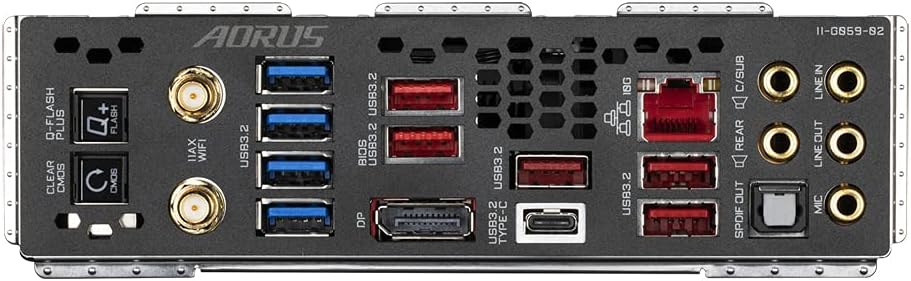
Image 3.3: Rear I/O Panel. This image shows the array of ports on the back of the motherboard, including USB, Ethernet, audio jacks, and Wi-Fi antenna connectors.
- Port USB: Multiple USB 3.2 Gen 2x2 Type-C, USB 3.2 Gen 2 Type-A, and USB 3.2 Gen 1 Type-A ports.
- Jaringan: AQUANTIA 10GbE LAN port.
- Audio: Optical S/PDIF Out, Line In, Line Out, Mic In, Rear Speaker Out, Center/Subwoofer Speaker Out.
- tampilan: DisplayPort.
- Nirkabel: Wi-Fi 6E antenna connectors.
- Tombol: Q-Flash Plus button, Clear CMOS button.
4. Pitunjuk Instalasi
Turutan léngkah-léngkah ieu sacara saksama pikeun masang motherboard sareng komponenana.
4.1. Pamasangan CPU
- Buka uas stop kontak CPU.
- Taliti align CPU jeung stop kontak, mastikeun tanda triangular on CPU cocog jeung tanda dina stop kontak nu.
- Gently nempatkeun CPU kana stop kontak tanpa maksa eta.
- Tutup uas stop kontak CPU pikeun ngamankeun CPU.
4.2. Pamasangan mémori (RAM).
- Buka klip dina kadua tungtung slot DIMM.
- Align kiyeu dina modul memori DDR4 jeung konci dina slot DIMM.
- Insert the memory module firmly until the clips snap into place.
- For dual-channel operation, install modules in matching color slots (e.g., DDR4_A2 and DDR4_B2 first).
4.3. Pamasangan Alat Panyimpenan
4.3.1. M.2 Instalasi SSD
- Unscrew and remove the M.2 Thermal Guard II heatsink from the desired M.2 slot.
- Selapkeun M.2 SSD kana slot dina sudut 30-gelar.
- Pencét SSD lalaunan ka handap teras amankeun nganggo sekrup M.2 anu disayogikeun.
- Reattach the Thermal Guard II heatsink and secure it with screws.
4.3.2. Pamasangan SATA Drive
Connect SATA data cables from your SATA drives (HDDs/SSDs) to the SATA ports on the motherboard. Connect SATA power cables from your power supply to the drives.
4.4. Expansion Card Installation (e.g., Graphics Card)
- Align your PCIe expansion card with the desired PCIe slot.
- Pencét pageuh nepi ka kartu geus seated bener jeung klip ingetan aktip.
- Ngamankeun kartu kana chassis kalawan screw a.
4.5. Nyambungkeun périferal
Connect front panel headers (power button, reset button, USB, audio) using the G-Connector for easier installation. Connect USB devices, audio devices, and network cables to the rear I/O panel.
4.6. Sambungan Suplai Daya
Connect the 24-pin ATX main power connector and the 8-pin + 4-pin CPU power connectors from your power supply to the corresponding ports on the motherboard.
5. Initial Setup and BIOS
5.1. Boot munggaran
After assembling all components, connect your monitor, keyboard, and mouse. Power on your system. The system should display the GIGABYTE splash screen.
5.2. Ngaksés BIOS/UEFI
Salila ngamimitian, pencét tombol sababaraha kali DEL key to enter the BIOS Setup Utility. Here you can configure system settings, boot order, and enable features like XMP for memory overclocking.
5.3. Q-Flash Ditambah
The Q-Flash Plus feature allows you to update the BIOS without installing the CPU, memory, or graphics card. Simply download the latest BIOS file ti GIGABYTE website, rename it to GIGABYTE.bin, save it to a USB flash drive, and insert it into the designated Q-Flash Plus USB port on the rear I/O panel. Press the Q-Flash Plus button to initiate the update.
6. Pamasangan supir sareng parangkat lunak
6.1. Pamasangan Sistem Operasi
Install your preferred operating system (e.g., Windows 10/11) from a bootable USB drive or optical disc.
6.2. Pamasangan supir
After OS installation, install the necessary drivers for the chipset, LAN, audio, Wi-Fi, and other components. These can be found on the GIGABYTE support websitus pikeun model motherboard husus Anjeun.
6.3. Utility Software
GIGABYTE provides various utility software to enhance your experience, including:
- RGB FUSION 2.0: For customizing RGB lighting effects.
- Kipas pinter 6: For advanced fan control and monitoring.
- Pusat APLIKASI: A central hub for GIGABYTE utilities and drivers.
7. Pangropéa sarta perawatan
7.1. beberesih
Regularly clean your system to prevent dust buildup, which can lead to overheating. Use compressed air to remove dust from heatsinks, fans, and other components. Ensure the system is powered off and unplugged before cleaning.
7.2. Apdet BIOS sareng Supir
Keep your BIOS and drivers updated to ensure optimal performance, stability, and compatibility with new hardware or software. Check the GIGABYTE website periodically for the latest versions.
8. Cara ngungkulan
Upami anjeun mendakan masalah, tingal léngkah-léngkah ngungkulan umum di handap ieu.
8.1. Taya Daya / Henteu Boot
- Verify all power cables (24-pin ATX, 8-pin CPU, 4-pin CPU) are securely connected.
- Pastikeun catu daya dihurungkeun.
- Check front panel power switch connection.
8.2. Taya Témbongkeun
- Ensure the monitor is connected to the graphics card (if dedicated) or the motherboard (if using integrated graphics).
- Pasang deui kartu grafik sareng modul mémori.
- Try booting with a single RAM stick.
8.3. CMOS anu jelas
If the system becomes unstable or fails to boot after BIOS changes, clear the CMOS settings. This can be done by:
- Powering off the system and unplugging the power cord.
- Pressing the Clear CMOS button on the rear I/O panel.
- Alternatively, removing the CMOS battery for 1-5 minutes and then reinstalling it.
9. Spésifikasi produk
| Fitur | Spésifikasi |
|---|---|
| merek | GIGABYTE |
| Ngaran modél | Z590 AORUS MASTER |
| CPU Socket | LGA 1200 |
| Prosesor cocog | 11th Generation Intel Core, 10th Generation Intel Core |
| Tipe Chipset | Intel Z590 |
| Téhnologi Mémori RAM | DDR4 |
| Laju mémori | 3200 MHz (nepi ka 5400MHz + OC) |
| liang RAM | 4 x DDR4 DIMM, Dual Channel, Non-ECC Unbuffered |
| Tipe Wireless | 802.11ax (Wi-Fi 6E), Bluetooth 5 |
| LAN | AQUANTIA 10GbE BASE-T LAN |
| M.2 liang | 3 x NVMe PCIe 4.0*/3.0 x4 M.2 with Thermal Guards II |
| USB 2.0 palabuhan | 2 (judul internal) |
| Dimensi produk | 12.01 x 9.61 x 1.57 inci (Faktor Bentuk ATX) |
| Item Beurat | 4.11 pon |
| Platform | Windows |
*Actual PCIe 4.0 support may vary by CPU.
10. Garansi sarta Émbaran Rojongan
For warranty details, technical support, and further assistance, please visit the official GIGABYTE websitus atanapi ngahubungan layanan palanggan maranéhna. Simpen bukti pameseran anjeun pikeun klaim garansi.
GIGABYTE Resmi Websitus: www.gigabyte.com


