1. Bubuka
This manual provides detailed instructions for the installation, setup, operation, and maintenance of your GENBOLT GB213X 4K 8MP Dual-Band WiFi Security Camera. Please read this manual thoroughly before using the product to ensure proper functionality and safety. Keep this manual for future reference.
The GENBOLT GB213X is an outdoor security camera featuring 4K 8MP resolution, dual-band 2.4/5GHz Wi-Fi connectivity, color night vision with floodlights, pan/tilt functionality, auto-tracking, and human/vehicle detection. It supports both DC power and Power over Ethernet (PoE) for flexible installation.
2. Eusi Paket
Verify that all items listed below are included in your package. If any items are missing or damaged, please contact GENBOLT customer support.
- GENBOLT GB213X Security Camera
- Adaptor Daya (12V/2A)
- Network Cable (1 meter / 3.3ft)
- Kit waterproof
- Screw Bag (for mounting)
- Manual pamaké

Image: Contents of the GENBOLT GB213X package, including the camera, power adapter, network cable, waterproof kit, screws, and user manual.
3. Produk Langkungview
Familiarize yourself with the components and interfaces of your GENBOLT GB213X camera.
Image: Detailed diagram showing the camera's components: Antenna, Bracket (Ceiling/Wall Installation), ABS Plastic Shell, IR/White LEDs, HD Lens, IR Sensor, Speaker, MicroCard Slot, RESET button, PoE Port, and Power input.
- anteneu: For Wi-Fi signal reception.
- kurung: Used for mounting the camera on a wall or ceiling.
- Cangkang Plastik ABS: Wadah awét kanggo dianggo di luar ruangan.
- IR/White LEDs: Nyayogikeun katerangan pikeun visi wengi warna sareng visi wengi infra red.
- HD Lénsa: Captures 4K 8MP video.
- Sensor IR: Ngadeteksi cahaya sakuriling pikeun aktivasi visi peuting otomatis.
- Speaker: For two-way audio communication and siren alerts.
- MicroCard Slot: For inserting a microSD card for local storage.
- Tombol RESET: Dipaké pikeun mulangkeun setélan pabrik.
- Palabuhan Poe: Connects to a PoE switch or injector for both power and data.
- Input kakuatan: Connects to the included 12V/2A power adapter.
4. Pamasangan
The GENBOLT GB213X camera supports both wall and ceiling installations. Choose a location that provides optimal coverage and a stable Wi-Fi signal.
4.1 Mounting Location Considerations
- Ensure the camera has a clear line of sight to the area you wish to monitor.
- Avoid placing the camera directly facing strong light sources, which can affect image quality.
- For Wi-Fi connectivity, ensure the camera is within range of your router.
- Consider power access (DC or PoE) for your chosen location.
4.2 Léngkah-léngkah Instalasi
- Nyiapkeun Surface Mounting: Use the included mounting template (if provided) or the camera base to mark the drill holes on the wall or ceiling.
- liang bor: Drill pilot holes at the marked positions. Insert the wall anchors if mounting on masonry or drywall.
- Amankeun kaméra: Align the camera's bracket with the drilled holes and secure it using the provided screws.
- Connect Power and Network:
- Kakuatan DC: Connect the power adapter to the camera's power input and plug it into an outdoor-rated power outlet.
- Poe: Connect a network cable from a PoE switch or injector to the camera's PoE port.
- Saluyukeun Sudut: Loosen the adjustment screws on the camera body to set the desired pan and tilt angle, then tighten them to secure the position.

Image: Illustration of the two primary installation methods for the GENBOLT GB213X camera: ceiling installation and wall installation, showing the camera mounted in both orientations on a house exterior.
5. Setélan
Follow these steps to connect your camera to your network and set it up using the GENBOLT CAM app.
5.1 Unduh Aplikasi sareng Pendaptaran Akun
- Download the "GENBOLT CAM" app from your smartphone's app store (iOS App Store or Google Play Store).
- Open the app and register for a new account if you don't have one, or log in with your existing credentials.
5.2 Initial Network Connection (Wired Setup Recommended)
For the first-time setup, a wired connection to your router is recommended for stability.
- Connect the camera to your router using the provided network cable.
- Ensure your smartphone is connected to the same Wi-Fi network as your router.
- In the GENBOLT CAM app, tap the "+" icon to add a new device.
- Select "Search Camera From LAN" or a similar option to find the camera on your local network.
- Once the camera is detected, follow the on-screen prompts to add it to your account.
5.3 Wi-Fi Configuration (2.4GHz & 5GHz Dual-Band)
After initial wired setup, you can configure the camera for wireless operation.
- In the GENBOLT CAM app, go to the camera's settings.
- Find the "Wi-Fi Setting" or "Network Setting" option.
- Select your desired 2.4GHz or 5GHz Wi-Fi network from the list. The camera supports both bands for flexible connectivity.
- Enter the Wi-Fi password accurately.
- Confirm the settings. The camera will attempt to connect to the Wi-Fi network. Once connected, you can disconnect the Ethernet cable.
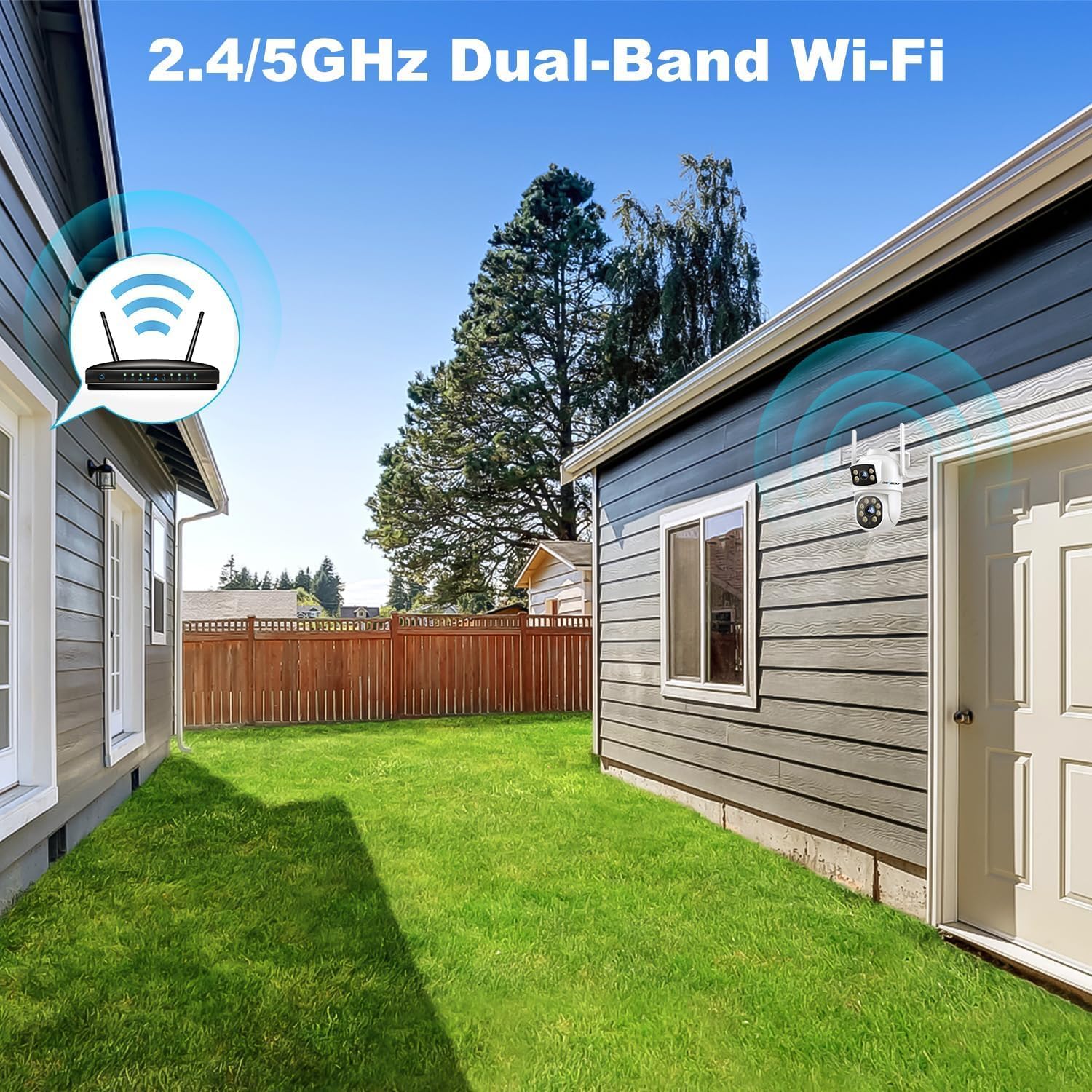
Image: A GENBOLT GB213X camera wirelessly connected to a dual-band 2.4/5GHz Wi-Fi router, illustrating its flexible network connectivity.
6. Parentah Operasi
This section details the various functions and features of your GENBOLT GB213X camera.
6.1 Pan, Tilt, sareng Digital Zoom
Ngontrol kaméra viewing angle directly from the GENBOLT CAM app.
- Roti: Puterkeun kaméra sacara horisontal nepi ka 355°.
- Dengdekkeun: Adjust the camera vertically up to 90°.
- Ngazum Digital: Use pinch-to-zoom gestures in the app to digitally zoom in on specific areas of the video feed (4x digital zoom).
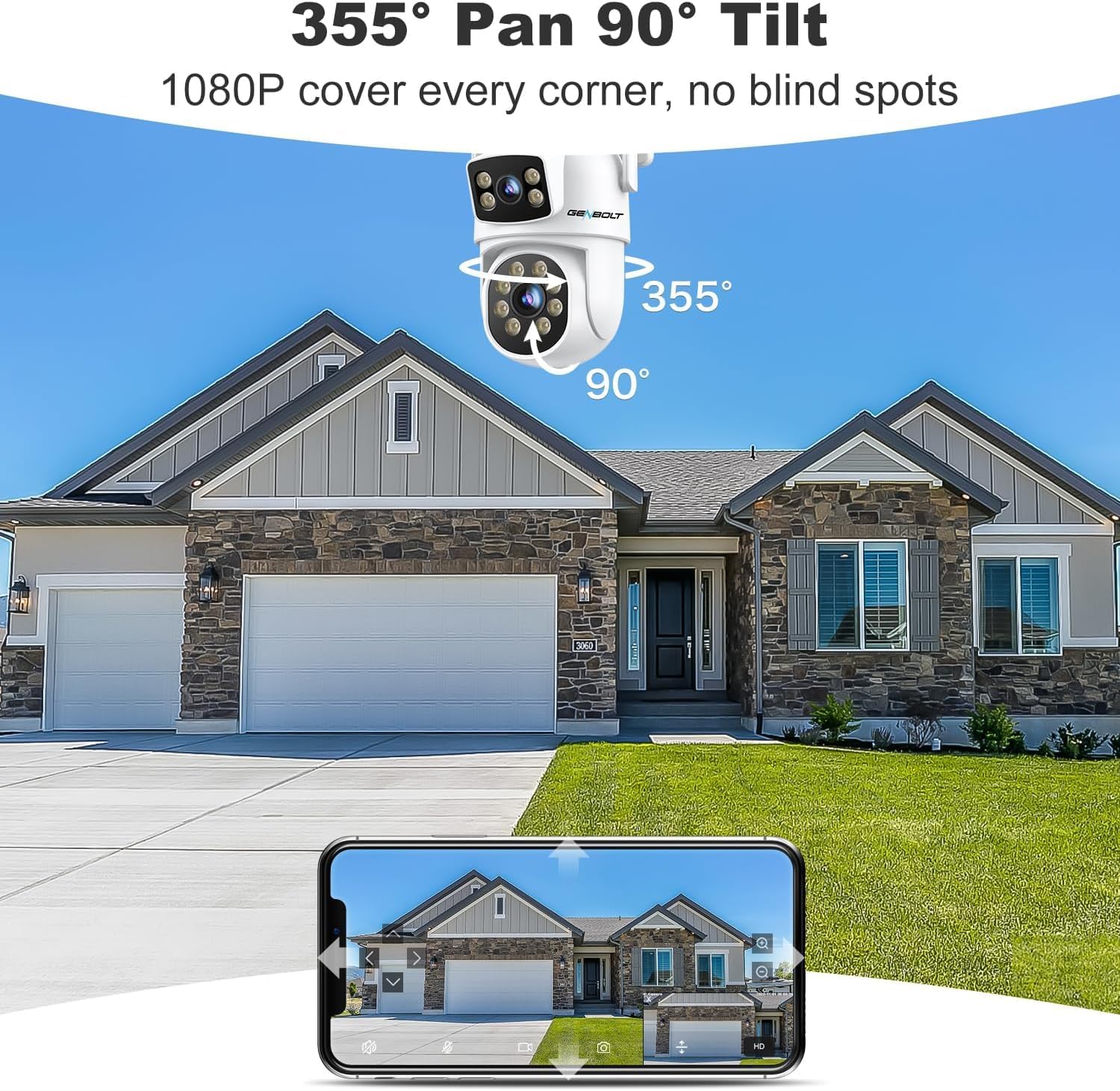
Image: A GENBOLT GB213X camera demonstrating its 355° horizontal pan and 90° vertical tilt range, providing comprehensive coverage.
6.2 Otomatis nyukcruk
The camera can automatically track moving subjects within its field of view.
- Enable "Auto Tracking" in the camera settings within the app.
- When a human or vehicle is detected, the camera will automatically adjust its pan/tilt to follow the movement.
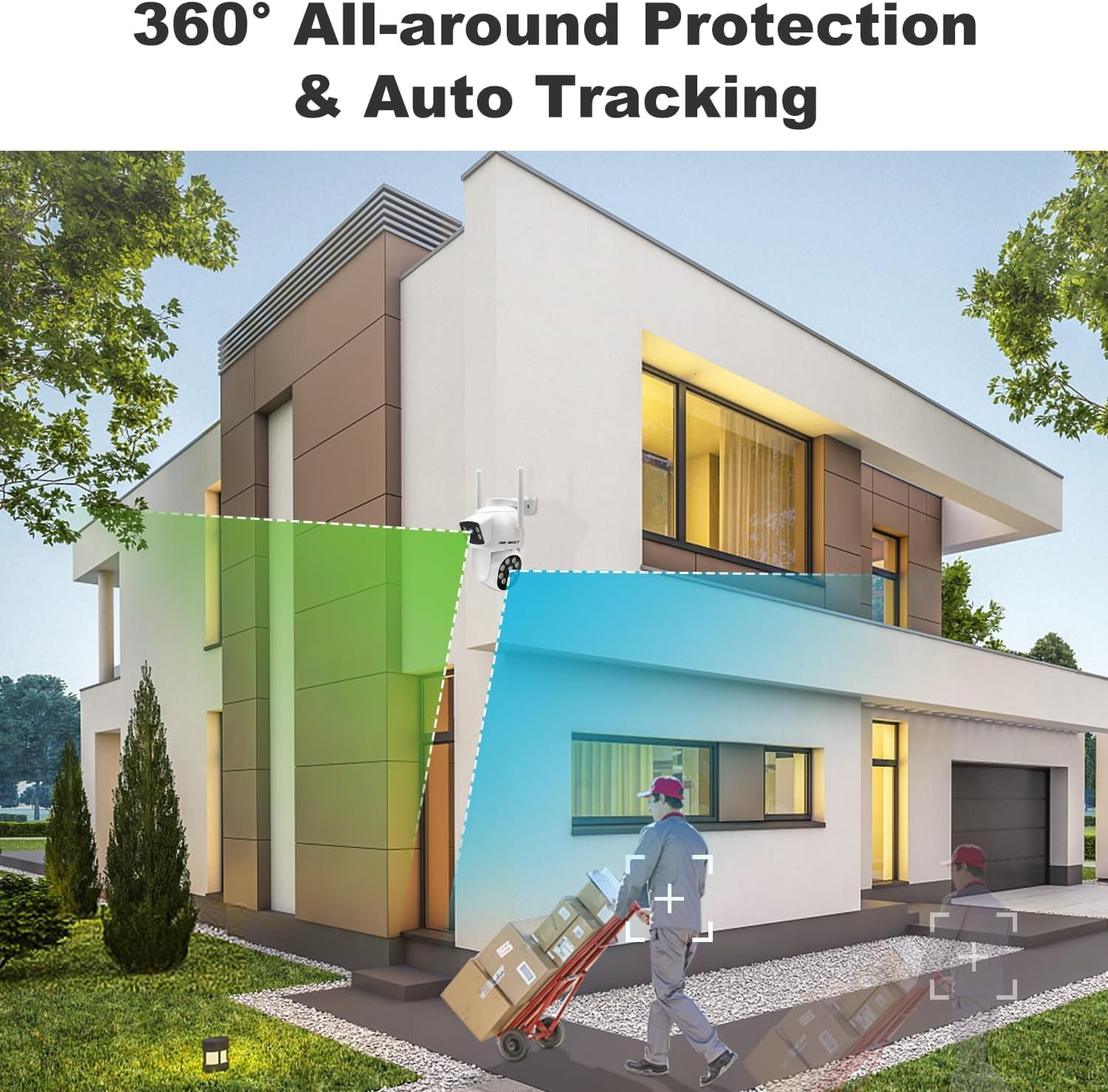
Image: A GENBOLT GB213X camera actively tracking a person walking, highlighting its 360° all-around protection and auto-tracking capabilities.
6.3 Day & Color Night Vision
The camera provides clear video day and night, with advanced color night vision.
- Daytime Vision: Full-color video in well-lit conditions.
- Warna Night Vision: Utilizes built-in floodlights to provide full-color video even in low-light or complete darkness, up to 150 feet (40 meters).
- Infrabeureum Night Vision: When floodlights are off, the camera switches to infrared mode for black and white video in darkness.
- You can configure night vision modes (Normal, Color, Auto) in the app settings.
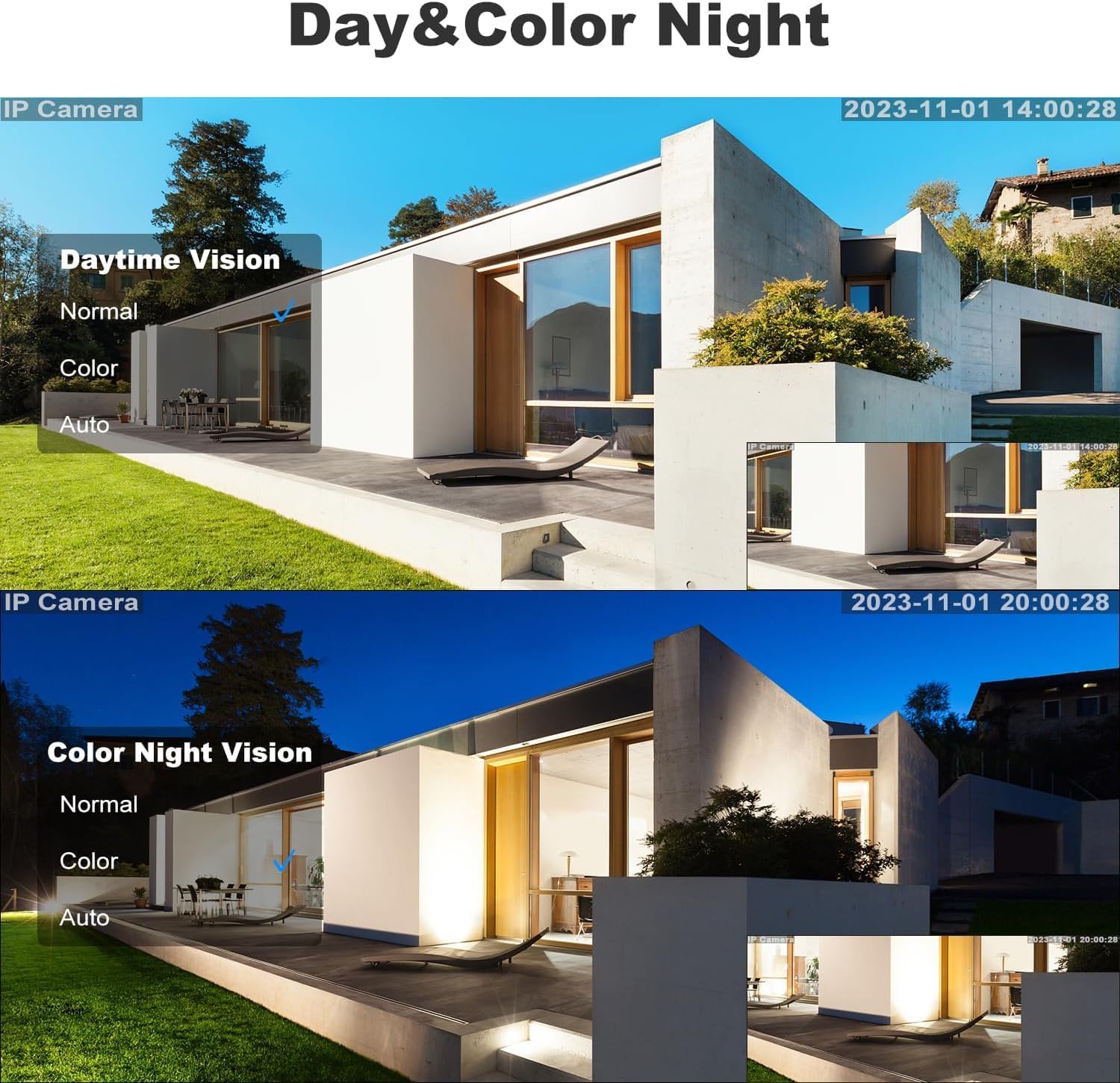
Gambar: A pamisah view demonstrating the camera's performance in daytime and color night vision modes, showing clear, vibrant images even in darkness.
6.4 Audio Dua Arah
Communicate with visitors or deter intruders using the camera's built-in microphone and speaker.
- Dina hirup view interface of the app, tap the microphone icon to speak through the camera's speaker.
- The camera's microphone will capture audio from the monitored area.
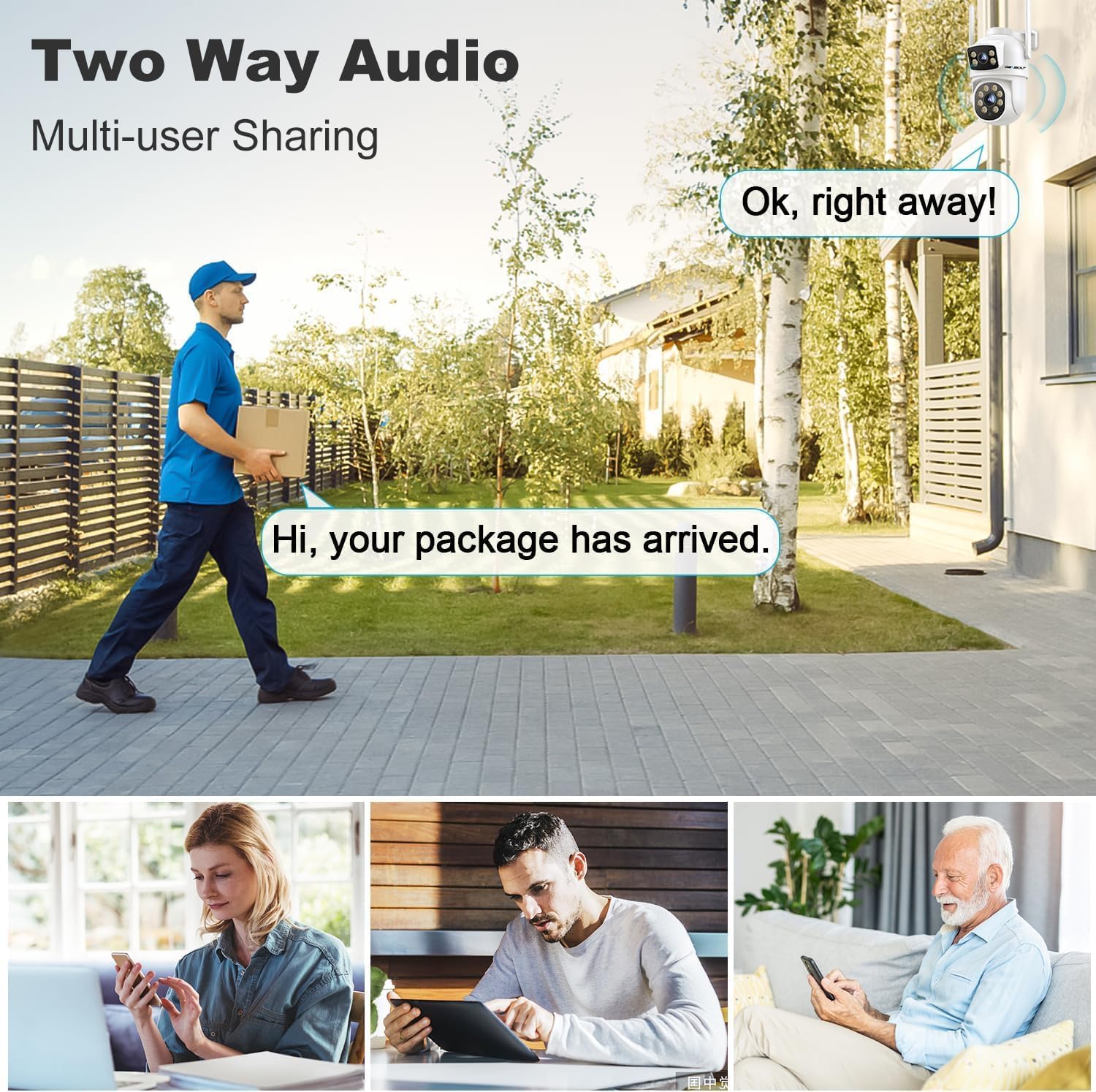
Image: A GENBOLT GB213X camera facilitating two-way audio communication, showing a delivery person speaking to someone inside the house via the camera.
6.5 Humanoid & Vehicle Detection
The camera uses advanced AI to distinguish between humans, vehicles, and other moving objects, reducing false alarms.
- Konpigurasikeun zona deteksi sareng setélan sensitivitas dina aplikasi.
- Receive real-time alerts only when a human or vehicle is detected in the specified zones.
6.6 Active Siren & Light Defense
Enhance security with audible and visual deterrents.
- When motion is detected, the camera's floodlights can automatically turn on.
- A customizable siren sound can be triggered to scare off intruders.
- These features can be enabled and configured in the app's alarm settings.
6.7 Bullet & Dome Integrated Linkage
This feature allows the camera to monitor two positions simultaneously, combining a fixed view with a pan/tilt view.
- The camera can maintain a fixed monitoring area while also using its pan/tilt capabilities to track movement in another area.
- This provides broader surveillance coverage from a single device.

Image: An illustration showing how the GENBOLT GB213X camera can monitor two distinct areas simultaneously, one with a fixed lens view and another with a pan/tilt lens view, effectively integrating bullet and dome camera functionalities.
7. Pangropéa
Pangropéa rutin ngajamin kinerja optimal sareng umur panjang kaméra anjeun.
- beberesih: Usap lénsa jeung wadah kaméra sacara lalaunan ku kaén nu lemes,amp lawon. Ulah make bahan kimia kasar atawa cleaners abrasive.
- Pembaruan firmware: Check the GENBOLT CAM app regularly for firmware updates. Keeping your camera's firmware up-to-date ensures the latest features and security patches.
- Pamariksaan kabel: Periodically inspect power and network cables for any signs of wear or damage. Ensure waterproof connections are secure.
- Panyimpenan: If using a microSD card, ensure it is functioning correctly and has sufficient space. Format the card periodically if needed (this will erase all data).
8. Cara ngungkulan
Tingal bagian ieu pikeun solusi masalah umum.
8.1 Camera Offline / Cannot Connect to Wi-Fi
- Pariksa kakuatan: Ensure the camera is properly powered on.
- Sinyal Wi-Fi: Verify that the camera is within range of your Wi-Fi router and the signal is strong.
- Setélan Router: Ensure your router is broadcasting a 2.4GHz or 5GHz network (depending on what you selected) and that the Wi-Fi password is correct.
- Reboot: Try restarting both the camera and your router.
- Reset: If issues persist, press and hold the RESET button on the camera for 5-10 seconds to restore factory settings, then reconfigure.
8.2 Kualitas Gambar Miskin
- Lensa bersih: Ensure the camera lens is clean and free from dirt or smudges.
- Pencahayaan: Check for strong backlighting or insufficient lighting in the monitored area. Adjust camera position or add external lighting if necessary.
- Bandwidth jaringan: Ensure your internet connection has sufficient upload bandwidth for high-resolution streaming.
8.3 False Alarms / Motion Detection Issues
- Zona deteksi: Adjust the motion detection zones in the app to exclude areas with irrelevant movement (e.g., trees swaying, busy roads).
- Sensitipitas: Lower the motion detection sensitivity in the app settings.
- Deteksi Manusa/Kandaraan: Ensure Humanoid & Vehicle Detection is enabled if you only want alerts for these specific types of movement.
8.4 SD Card Not Recording
- Selapkeun kartu: Ensure the microSD card is inserted correctly into the slot.
- Kartu Format: Format the microSD card through the camera settings in the app.
- Kasaluyuan kartu: Use a high-quality, compatible microSD card (Class 10 or higher, up to supported capacity).
- Jadwal Ngarekam: Check the recording schedule settings in the app to ensure it's configured to record.
9. Spésifikasi
Key technical specifications for the GENBOLT GB213X camera.
| Fitur | Spésifikasi |
|---|---|
| Ngaran modél | GB213X |
| merek | GENBOLT |
| Pamakéan jero rohangan / outdoor | Luar |
| Téhnologi konektipitas | Nirkabel (Wi-Fi) |
| Frékuénsi Wi-Fi | Dual-Band 2.4GHz & 5GHz |
| Resolusi Video Éféktif | 8MP (4K) |
| pan Range | 355° |
| Rentang Dengdekkeun | 90° |
| Zum Digital | 4x |
| Visi Peuting | Color Night Vision (with Floodlights), Infrared Night Vision |
| Fitur deteksi | Humanoid & Vehicle Detection, Motion Detection |
| Audio | 2-Jalur Audio |
| Sumber Daya | Corded Electric (12V/2A) or Power over Ethernet (PoE) |
| Tipe Pamasangan | Dinding Gunung, siling Gunung |
| Peunteun Protection Internasional | IP66 |
| Dimensi produk | 5 x 6 x 6 inci |
| Item Beurat | 1.96 pon |
10. Garansi jeung Rojongan
For warranty information and technical support, please refer to the official GENBOLT websitus atanapi ngahubungan layanan palanggan maranéhanana langsung. Simpen resi pameseran anjeun salaku bukti pameseran.
GENBOLT Customer Support: Mangga didatangan www.genbolt.com/support pikeun FAQ, pituduh ngungkulan, sareng inpormasi kontak.


