1. Bubuka
This manual provides detailed instructions for the installation, operation, and maintenance of your ZKTeco K40 Network Fingerprint Time Clock with Access Control. Please read this manual thoroughly before using the device to ensure proper functionality and to prevent damage.
2. Produk Langkungview
The ZKTeco K40 is a versatile time attendance and access control terminal featuring fingerprint recognition. It is designed for efficient employee management and secure access control in various environments.
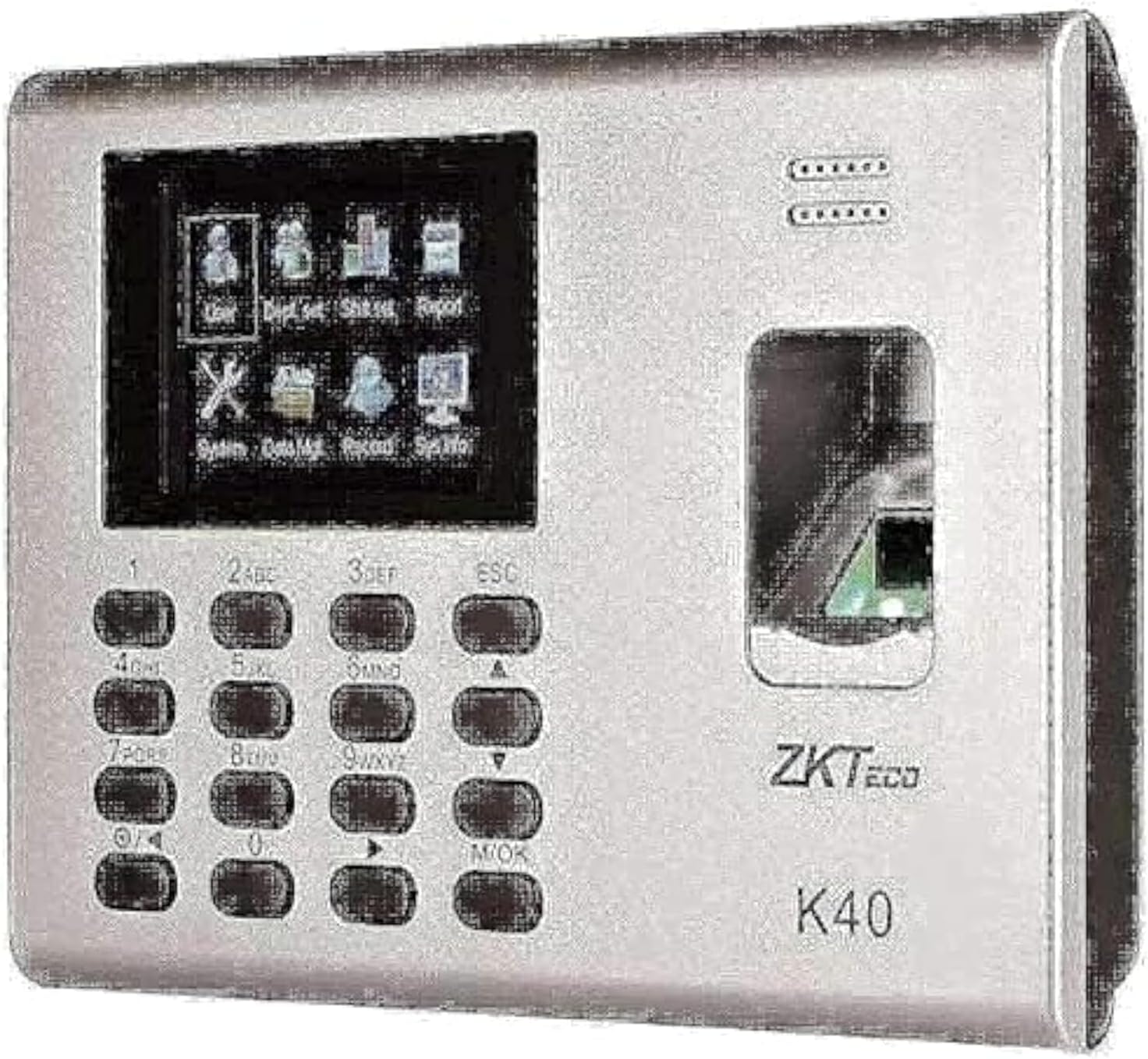
Gambar 1: ZKTeco K40 Device Front View. This image displays the front of the ZKTeco K40 device, highlighting its integrated screen, numerical keypad, and fingerprint scanner. The ZKTeco logo and K40 model number are visible on the right side.
2.1 Komponén konci
- Layar tampilan: For menu navigation, user information, and status updates.
- Papan tombol: Used for data entry, menu navigation, and function selection.
- Sensor sidik: For biometric authentication.
- Palabuhan Komunikasi: For network connectivity (TCP/IP) and data transfer.
- Batré Diwangun-di: Provides backup power.
3. Setup jeung Instalasi
3.1 Ngabongkar bungkusan
Carefully unpack the device and verify that all components are present:
- ZKTeco K40 Device
- Adaptor kakuatan
- Pemasangan Plate sareng Screws
- Pituduh Mimitian Gancang (upami kalebet)
3.2 Pasang Alat
- Choose a suitable location for installation, ensuring it is away from direct sunlight, water, and extreme temperatures.
- Ngamankeun plat ningkatna kana témbok ngagunakeun screws disadiakeun.
- Attach the K40 device to the mounting plate.
3.3 Sambungan Daya
Sambungkeun adaptor daya kana port input daya alat teras colokkeun kana stop kontak listrik standar. Alat bakal hurung sacara otomatis.
3.4 Sambungan Jaringan
For network functionality, connect an Ethernet cable from your network router/switch to the device's LAN port. Configure network settings via the device menu (refer to Section 4.2).
4. Parentah Operasi
4.1 Initial Setup and Administrator Registration
- Upon first power-on, the device may prompt for initial setup.
- Register at least one administrator fingerprint or password. This administrator will have full access to the device's menu and settings.
- To register an administrator: Press M / OKÉ, arahkeun ka Manajemén pamaké > Pamaké anyar. Enter User ID, then register fingerprint and set user role as Administrator.
4.2 Navigasi Menu
Use the keypad for navigation:
- M/OK: Enter menu, confirm selection.
- ESC: Exit current menu, cancel operation.
- Arrow Keys (Up/Down): Napigasi ngaliwatan pilihan ménu.
- Konci Nomer: Input numerical data (e.g., User ID, password).
4.3 Pendaptaran pamaké
To register new users for time attendance or access control:
- Pencét M / OKÉ pikeun asup ka ménu utama.
- Arahkeun ka Manajemén pamaké jeung pencét M / OKÉ.
- Pilih Pamaké anyar jeung pencét M / OKÉ.
- Enter a unique User ID (e.g., 001, 002).
- Register the user's fingerprint by placing their finger on the sensor three times as prompted.
- Optionally, register a password or RFID card (if supported).
- Set the user role (e.g., User, Administrator).
- Pencét ESC pikeun nyimpen jeung kaluar.
4.4 Time Attendance (Clocking In/Out)
Users can clock in or out using their registered fingerprint:
- Ensure the device is in standby mode.
- Teundeun ramo nu kadaptar dina sénsor sidik.
- A confirmation message will appear on the screen upon successful verification.
4.5 Kontrol aksés
If configured for access control, the device will unlock a connected door upon successful fingerprint verification. Ensure proper wiring to the door lock system.
5. Pangropéa
5.1 Ngabersihan Alat
- Regularly clean the fingerprint sensor and screen with a soft, dry, lint-free cloth.
- Ulah nganggo pembersih abrasif, pangleyur, atanapi nyemprotkeun langsung kana alat.
5.2 Nyadangkeun Data
Periodically back up attendance records and user data to prevent loss. This can typically be done via USB drive or network software.
5.3 Apdet firmware
Pariksa resmi ZKTeco website for any available firmware updates to ensure optimal performance and security. Follow the provided instructions carefully during updates.
6. Cara ngungkulan
| Masalah | Mungkin Cukang lantaranana | Solusi |
|---|---|---|
| Alat teu hurung. | Teu aya catu daya; adaptorna rusak. | Check power connection; ensure adapter is working; check power outlet. |
| Sidik teu dikenal. | Finger wet/dirty; sensor dirty; fingerprint not registered correctly. | Ensure finger and sensor are clean and dry; re-register fingerprint if necessary. |
| Kagagalan sambungan jaringan. | Loose cable; incorrect IP settings; network issue. | Check Ethernet cable connection; verify IP address, subnet mask, and gateway settings; consult network administrator. |
| Access control not working. | Incorrect wiring; door lock issue; access permissions not set. | Verify wiring to door lock; check door lock functionality; ensure user has appropriate access permissions. |
7. Spésifikasi
| Fitur | Rincian |
|---|---|
| merek | ZKTeco |
| Modél | K40 |
| Tipe | Time Attendance System with Access Control |
| Produsén Bagian Jumlah | 2724646601367 |
| Warna | pérak |
| Item Beurat | 852 g |
| Ukuran Paket | 30 x 21.2 x 7.6 cm |
| Konektipitas | Network (TCP/IP) |
| Sumber Daya | External Power Adapter, Built-in Battery |
8. Garansi jeung Rojongan
Kanggo inpormasi garansi sareng dukungan téknis, mangga tingali dokuméntasi anu disayogikeun sareng pameseran anjeun atanapi kunjungi situs resmi ZKTeco. websitus. Simpen resi pameseran anjeun salaku bukti pameseran.
- Sumberdaya Online: Pariksa resmi ZKTeco website for FAQs, software downloads, and additional support materials.
- Palayanan palanggan: Contact ZKTeco customer service for assistance with product issues or warranty claims.


