1. Bubuka
The Milestone MPT-II is a compact and portable 58mm thermal printer designed for various business applications, including retail, restaurants, and mobile logistics. It offers high-speed, clear printing and features Bluetooth connectivity for seamless integration with Android and iOS devices. Its lightweight design and long-lasting battery make it ideal for on-the-go printing needs.

2. Fitur konci
- Percetakan Bluetooth: Supports Android and iOS devices for wireless printing.
- Portability: Light and compact design allows for printing anywhere, anytime.
- Low Operating Cost: Direct thermal printing eliminates the need for ink ribbons or cartridges, requiring only thermal paper.
- Hirup batré anu panjang: Built-in 7.4V/2500mAh rechargeable lithium battery provides up to 4 hours of continuous printing.
- Versatile Interface: Equipped with both USB and Bluetooth connectivity.
- ESC/POS Compatible: Supports standard ESC/POS print commands for broad software compatibility.

3. Setup Awal
3.1 Unboxing jeung Eusi
Carefully unpack the printer and verify all components are present:
- 1 x Milestone MPT-II Thermal Printer
- 1 x Kabel USB
- 1 x USB Adaptor
- 1 x Gulungan Kertas
- 1 x Manual Pamaké (dokumén ieu)
3.2 Ngecas Printer
- Connect the USB cable to the printer's charging port.
- Plug the USB adaptor into a standard power outlet.
- The charging indicator light will illuminate. Charge the printer fully before first use (approximately 2.5-3 hours for continuous printing).
3.3 Ngamuat Thermal Paper
- Open the paper compartment cover by gently pushing the latch.
- Insert the thermal paper roll with the printing side facing outwards (as shown in Figure 2). Ensure the roll is seated correctly.
- Tarik panjang leutik kertas kaluar saluareun ujung motong.
- Tutup panutup kompartemen kertas pageuh nepi ka klik kana tempatna.
4. Parentah Operasi
4.1 Powering on / Pareum
- Pikeun ngahurungkeun: Pencét terus tahan tombol daya dugi ka lampu indikator hurung.
- Pikeun mareuman: Pencét terus tahan tombol daya dugi ka lampu indikator pareum.
4.2 Sambungan Bluetooth
The MPT-II printer supports Bluetooth connectivity for mobile devices.
- Ensure the printer is powered on and within range of your mobile device.
- On your mobile device (Android/iOS), go to Bluetooth settings and turn Bluetooth on.
- Milarian pikeun available devices. The printer will appear as "MPT-II".
- Select "MPT-II" to pair. If prompted for a password, enter 1234 or 0000.
- Once paired, the printer is ready for use with compatible applications.
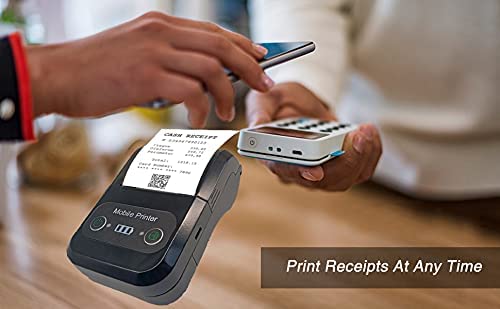
4.3 Using with Applications
For mobile printing, you will need a compatible application. Milestone recommends downloading RAWBT Printer App or MYXPrint App from the Google Play Store. For iOS, search for compatible thermal printer apps in the App Store.
- Buka aplikasi percetakan anu anjeun pilih.
- Navigate to the printer settings within the app.
- Select the "MPT-II" printer from the list of available Bluetooth devices.
- You can now send print commands from the application.
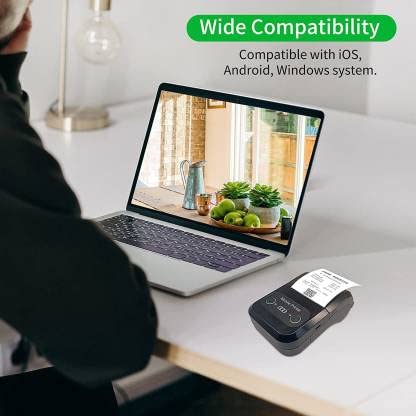

4.4 USB Connection (for PC)
The printer can also be connected to a PC via USB. You may need to install a printer driver, which is typically available from the manufacturer's website or included on a CD with the product (if applicable).
5. Pangropéa
5.1 Ngabersihan Printer
To ensure optimal performance and print quality, regularly clean the printer:
- Kepala Cetak: Ngagunakeun kapas hampang dampdibasahi ku alkohol isopropil pikeun ngusap sirah cetak termal sacara lembut. Keunkeun nepi ka garing sapinuhna sateuacan dianggo.
- Jalur Kertas: Use a soft, dry cloth or a small brush to remove any paper dust or debris from the paper path.
- Luar: Ngusap bagian luar printer ku lemes, damp lawon. Hindarkeun ngagunakeun bahan kimia anu kasar atanapi pembersih abrasive.
5.2 Perawatan Batré
- Ngeusi batre sapinuhnya sateuacan dianggo heula.
- Hindarkeun sering-sering ngosongkeun batré.
- If storing the printer for an extended period, charge it to about 50% and recharge every few months to prevent battery degradation.
6. Cara ngungkulan
| Masalah | Mungkin Cukang lantaranana | Solusi |
|---|---|---|
| Printer teu hurung. | Batré lemah atawa béak. | Charge the printer using the provided USB cable and adaptor. |
| Teu bisa nyambung via Bluetooth. | Bluetooth is off on device; incorrect pairing password; printer not discoverable. | Ensure Bluetooth is enabled on your device. Re-attempt pairing with password 1234 or 0000. Restart both printer and device. |
| No print output or blank paper. | Paper loaded incorrectly; out of paper; print head dirty. | Check paper orientation (printing side out). Replace paper roll if empty. Clean the thermal print head (refer to Maintenance section). |
| Poor print quality (faded, lines). | Print head dirty; low battery; poor quality thermal paper. | Clean the print head. Charge the printer fully. Use high-quality thermal paper. |
| Printer beeps continuously. | Paper alarm (out of paper or paper jam); low battery reminder. | Check and replace paper roll or clear jam. Charge the printer. |
7. Spésifikasi Téknis
| Fitur | Spésifikasi |
|---|---|
| Métode nyitak | Percetakan garis termal |
| Nyitak Lebar | Paper width 58mm, effective width 58mm |
| Kapadetan citak | 576 titik / garis |
| Resolusi | 8 dots/mm, 203 DPI |
| Laju nyitak | 70mm/s (Max Print speed Monochrome: 50 ppm) |
| Printer Core Life | 50KM (25% print density or less than 100 million pulses) |
| Printable Content | English, numbers, symbols, characters, pictures, 1D/2D barcode, multi-languages |
| Antarbeungeut Komunikasi Data | USB / Bluetooth |
| Sasayogian tanaga | Machine charging 9V-1.5A |
| Batré | Built-in rechargeable 2600mAh lithium-ion battery (7.4V/2500mAh) |
| Continuous Printing Time | 2.5-3 jam |
| Set instruksi | ESC / POS cocog |
| Pamotongan kertas | Manually tear |
| Kasaluyuan System Operasi | Android, ios, Windows |
| Dimensi produk | 15D x 12W x 6H Sentimeter |
| Item Beurat | 310 gram |
| Komponén Kaasup | 1 x Thermal Printer, 1 x USB Cable, 1 x USB Adaptor, 1 x Paper Roll, 1 x User Manual |
8. Garansi jeung Rojongan
This product comes with a 10-day warranty as per the purchase terms. For any technical assistance, troubleshooting beyond this manual, or warranty claims, please contact your retailer or the manufacturer's customer support. Refer to your purchase documentation for specific contact details.
Pabrikan: Milestone
Importir: SB RETAILS, SECTOR 28, PRADHIKARAN, PUNE-44, +918888881631


