1. Bubuka
The Logitech Tap Scheduler is a dedicated scheduling panel designed to simplify meeting room management. It provides an intuitive interface to view meeting details, reserve rooms for ad-hoc or future meetings, and quickly identify room availability. Its purpose-built design integrates seamlessly with leading room scheduling solutions, helping users efficiently find and claim the right space for their needs.

Gambar 1.1: Hareupeun view of the Logitech Tap Scheduler, showing its display with meeting information and room availability.
2. Naon dina Box
Upon unboxing your Logitech Tap Scheduler, please ensure all the following components are present:
- Logitech Tap Scheduler device
- Multi-surface mount (suitable for glass/drywall installations)
- Corner mount accessory
- Mullion gunung
- Documentation (Quick Start Guide, Safety and Warranty information)
3. Setélan
3.1 Instalasi fisik
The Tap Scheduler offers flexible mounting options to suit various environments. Choose the appropriate mount (multi-surface, corner, or mullion) based on your installation needs. Ensure the mounting surface is stable and can support the device's weight.
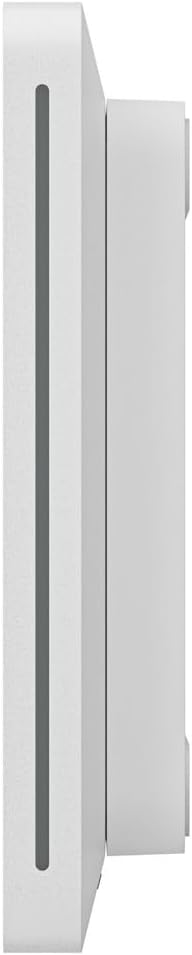
Gambar 3.1: Sisi profile of the Logitech Tap Scheduler, illustrating its slim design for flush mounting.
For detailed instructions on using each mount, refer to the specific mounting guide included with your accessory. The design facilitates clean cabling for a professional setup.
3.2 Daya Awal Hurung sareng Konfigurasi
After physical installation, connect the power adapter to the device and a power outlet. The Tap Scheduler will automatically power on. Connect the device to your network via Ethernet for optimal performance and access to scheduling services. Follow the on-screen prompts to complete the initial setup, which typically includes network configuration and linking to your chosen room scheduling software (e.g., Microsoft Teams, Zoom Rooms, Google Meet, etc.).

Gambar 3.2: Tukangeun view of the Logitech Tap Scheduler, highlighting the various ports for power and network connectivity, along with regulatory information.
4. Operating the Tap Scheduler
4.1 Ngartos Tampilan
The Tap Scheduler's display provides real-time information about room availability and upcoming meetings. The colored LED lights on the side of the device also indicate room status from a distance:
- héjo: Room is available.
- Red/Amber: Room is currently occupied or reserved.

Figure 4.1: The Tap Scheduler display indicating room availability with a prominent "Available" status and green background.
4.2 Reserving a Room
To reserve a room, interact directly with the touch display:
- If the room is available, tap the "Book Room" or "Reserve" button on the screen.
- Select the desired duration for your meeting.
- Confirm your reservation. The room status will update to occupied.
- For future reservations, navigate through the calendar interface to select a specific date and time.

Figure 4.2: The Tap Scheduler displaying a detailed schedule of upcoming meetings for a specific room.
The device integrates with your organization's calendar system, ensuring all reservations are synchronized.
5. Pangropéa
To ensure the longevity and optimal performance of your Logitech Tap Scheduler, follow these maintenance guidelines:
- beberesih: Make kaen nu lemes, teu aya lint rada dampened with water or a non-abrasive screen cleaner to wipe the display and exterior. Avoid harsh chemicals, abrasive cleaners, or aerosol sprays directly on the device.
- Apdet parangkat lunak: The Tap Scheduler receives automatic software updates to improve functionality, security, and compatibility. Ensure the device remains connected to the network to receive these updates. Do not power off the device during an update process.
- Kaayaan Lingkungan: Operate the device within recommended temperature and humidity ranges to prevent damage. Avoid exposing it to extreme temperatures, direct sunlight, or excessive moisture.
6. Cara ngungkulan
This section addresses common issues you might encounter with your Logitech Tap Scheduler. If you experience a problem not listed here, please refer to the customer support section.
| Masalah | Mungkin Cukang lantaranana | Solusi |
|---|---|---|
| Alat henteu hurung. | kabel kakuatan dipegatkeun; masalah stop kontak listrik. | Check power cable connection to device and outlet. Try a different outlet. |
| Layar kosong atanapi teu ngaréspon. | Device in sleep mode; software glitch; power issue. | Tap the screen to wake. Restart the device by unplugging and re-plugging the power. |
| Teu bisa nyambung ka jaringan. | Ethernet cable issue; network configuration error. | Ensure Ethernet cable is securely connected. Verify network settings in device menu. Consult IT administrator. |
| Room availability not updating. | No connection to scheduling service; service outage. | Check network connection. Verify integration with your scheduling platform. Contact IT support. |
7. Spésifikasi Téknis
Below are the key technical specifications for the Logitech Tap Scheduler (Model: 952-000094):
- Ukuran produk: 1.1 x 9.7 x 6.5 inci
- Beurat barang: 1.54 pon (kira-kira 0.7 kg)
- Diagonal layar katempo: 4 inci / 11 cm
- Bahan: Logam, Plastik
- warna: Bodas
- Pabrikan: Logitech
- Sadia munggaran: 22 Nopémber 2021
Catetan: Spésifikasi tiasa robih tanpa aya bewara.
8. Émbaran jaminan
Logitech products are designed for reliability and performance. The Logitech Tap Scheduler comes with a limited hardware warranty. For specific warranty terms, conditions, and duration applicable to your region, please refer to the warranty documentation included with your product or visit the official Logitech support websitus. Simpen bukti pameseran anjeun pikeun klaim garansi.
9. Rojongan Palanggan
Kanggo bantosan salajengna, dukungan téknis, atanapi kanggo ngaksés sumber daya tambahan, mangga buka dukungan Logitech resmi. websitus:
You may also find helpful FAQs, software downloads, and community forums on their websitus.


