1. Bubuka
This manual provides essential information for the proper use and maintenance of your Gateway 15.6-inch FHD Ultra Slim Laptop, Model GTW15G. This device is equipped with an AMD Ryzen 5 3450U Mobile Processor, 8GB of DDR4 RAM, and a 256GB Solid State Drive (SSD). It features a 15.6-inch Full HD (1920x1080) IPS display, a built-in fingerprint scanner, and runs on Windows 10, with an available free upgrade to Windows 11.
Please read this manual thoroughly before operating your laptop to ensure optimal performance and longevity.
2. Setélan
2.1 Ngabongkar bungkusan sareng Inspeksi Awal
Carefully remove the laptop and all accessories from the packaging. Verify that all components are present and undamaged. The package should include the laptop, power adapter, and this user manual.
2.2 Nyambungkeun Adaptor Daya
Before first use, connect the power adapter to the laptop's charging port and then to a power outlet. Allow the battery to charge for at least 30 minutes before powering on for the first time.

Figure 2.1: Gateway 15.6-inch Ultra Slim Laptop overview.
2.3 First Power On and Windows Setup
Press the power button located on the keyboard. The laptop will boot up and guide you through the Windows 10 initial setup process. Follow the on-screen instructions to configure your region, language, network connection, and user account.
2.4 Fingerprint Scanner Setup (Windows Hello)
During or after the initial Windows setup, you can configure the built-in fingerprint scanner for secure login using Windows Hello. Navigate to Setelan > Akun > Pilihan asup and follow the prompts to set up your fingerprint.
3. Parentah Operasi
3.1 Daya Hurung / Pareum sareng Modeu Saré
- Daya Hurung: Pencét tombol daya.
- Pareuman: Pencét éta Mimitian tombol, lajeng Power > Shut down.
- Modeu Bobo: Close the lid or click the Mimitian tombol, lajeng Daya > Saré.
3.2 Using the Precision Touchpad
The laptop features a precision touchpad for navigation. It supports multi-touch gestures for scrolling, zooming, and other functions. Refer to Windows settings for customizing touchpad gestures.
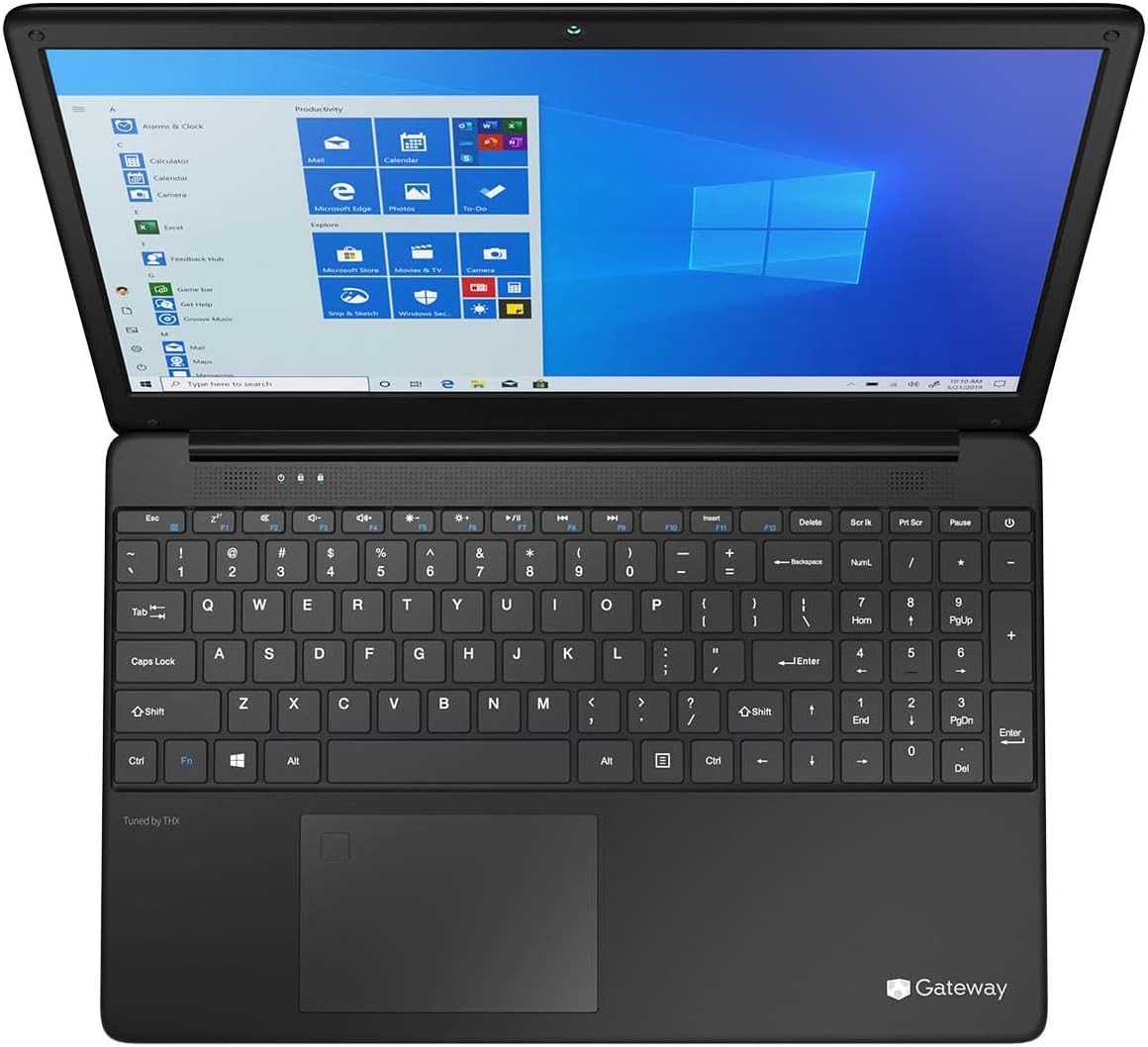
Figure 3.1: Keyboard and Precision Touchpad layout.
3.3 Nyambungkeun Alat éksternal
The laptop provides various ports for connecting peripherals:
- Port USB 3.0 (x2): Pikeun nyambungkeun alat USB sapertos hard drive éksternal, mouse, atanapi kibor.
- Port USB Tipe-C (x1): Supports both charging and data transfer.
- Kaluaran HDMI (x1): Sambungkeun ka monitor éksternal atanapi TV.
- Slot Micro SD (x1): Ngarojong kartu Micro SD nepi ka 512 GB pikeun panyimpenan anu dilegaan.
- Kensington Lock: Pikeun kaamanan fisik.
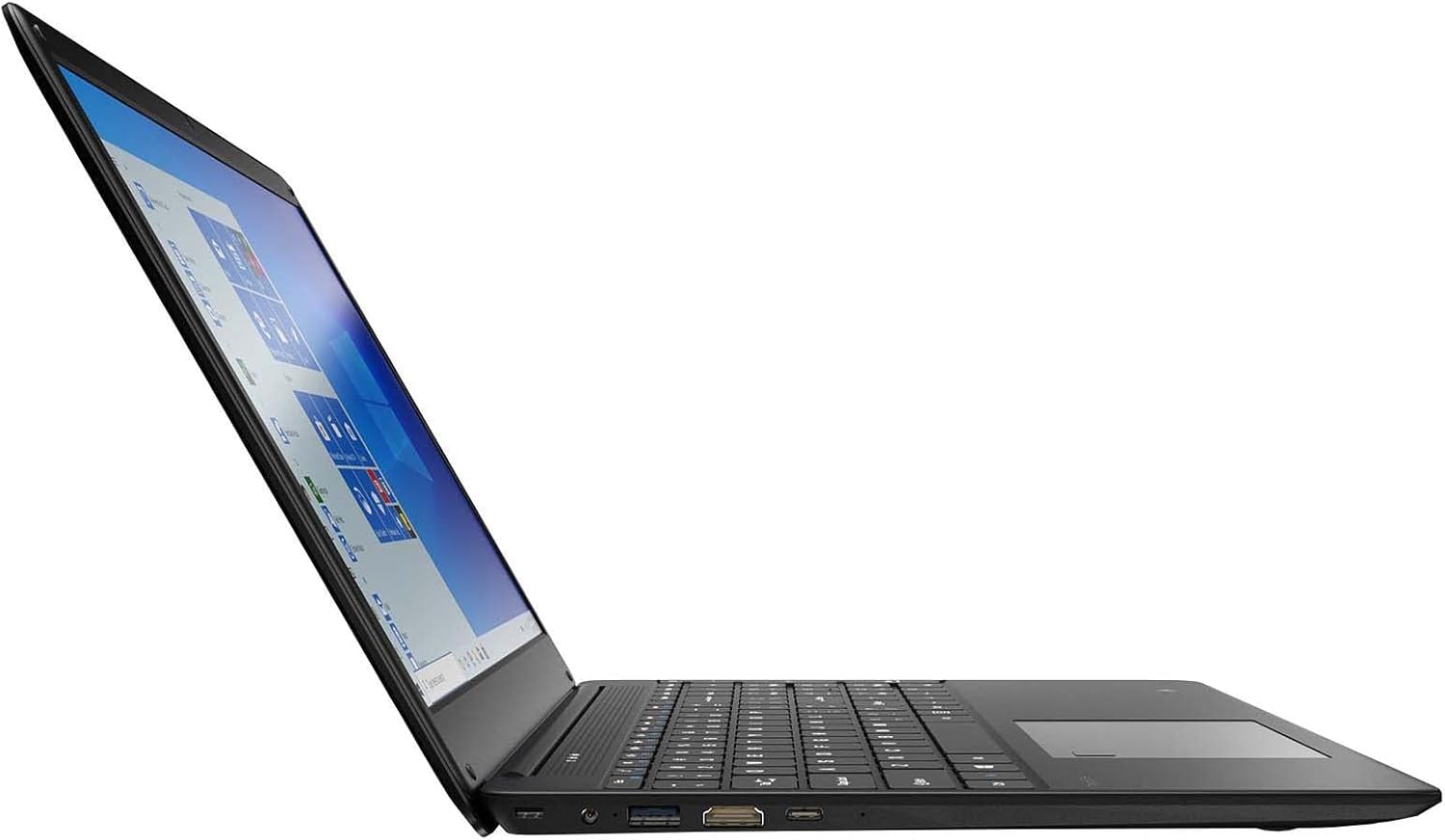
Figure 3.2: Left side ports (USB, HDMI, USB Type-C).
3.4 Konéktipitas Wireless
The laptop supports Wi-Fi and Bluetooth 5.1 for wireless connections. Access network settings via the Windows taskbar or Setélan> Jaringan & Internét to connect to Wi-Fi networks or pair Bluetooth devices.
3.5 Fitur Audio
The built-in stereo speakers are tuned by THX Audio, providing enhanced sound quality. Adjust volume using the function keys on the keyboard or through Windows sound settings.
4. Pangropéa
4.1 Ngabersihan Laptop
- layar: Make kaen nu lemes, teu aya lint rada dampDieusian ku cai atanapi pembersih layar. Ulah nyemprot cairan langsung kana layar.
- Casis sareng Kibor: Paké lawon lemes, garing. Pikeun kokotor nekad, a rada damp lawon bisa dipaké. Ulah make bahan kimia anu kasar.
- ventilasi: Periodically clean the ventilation openings with compressed air to prevent dust buildup, which can affect cooling.
4.2 Perawatan Batré
Pikeun maksimalkeun umur batre sareng umur panjang:
- Ulah sering ngosongkeun batréna sagemblengna.
- Ulah ngalaan laptop ka suhu ekstrim.
- Upami nyimpen laptop kanggo waktos anu lami, pastikeun batréna dicas sakitar 50-70%.
- Optimize power settings in Windows to conserve battery power.
4.3 Apdet parangkat lunak
Regularly check for and install Windows updates to ensure your system has the latest security patches and performance improvements. Navigate to Setélan> Update & Kaamanan> Windows Update.
4.4 Nyadangkeun Data
Cadangkeun data penting anjeun sacara rutin ka drive éksternal atanapi panyimpenan awan pikeun nyegah leungitna data.
5. Cara ngungkulan
Bagian ieu ngabahas masalah umum anu anjeun tiasa pendak sareng laptop anjeun.
5.1 Laptop Teu Dihurungkeun
- Pastikeun adaptor kakuatan disambungkeun sacara aman ka laptop sareng stopkontak listrik anu tiasa dianggo.
- Pastikeun stop kontak listrik berpungsi ku cara nyolokkeun alat sejen.
- Allow the laptop to charge for some time before attempting to power it on again.
5.2 Masalah Konektipitas Wi-Fi
- Pariksa naha Wi-Fi diaktipkeun dina setélan Windows.
- Balikan deui router sareng modem anjeun.
- Pastikeun anjeun aya dina jangkauan jaringan Wi-Fi sareng parantos ngalebetkeun kecap konci anu leres.
- Jalankeun Windows Network Troubleshooter (Settings > Network & Internet > Status > Network troubleshooter).
5.3 Performance slow
- Tutup aplikasi anu teu perlu jalan di latar tukang.
- Pariksa sareng pasang apdet Windows anu ditangguhkeun.
- Ensure there is sufficient free space on your SSD.
- Nyeken malware atawa virus.
5.4 Overheating
If the laptop feels excessively warm, ensure that the ventilation vents are not blocked. Operate the laptop on a hard, flat surface to allow for proper airflow. Avoid using it on soft surfaces like beds or couches that can obstruct vents.
5.5 Isu séjén
For issues not covered here, refer to the Windows help documentation or contact Gateway customer support.
6. Spésifikasi
| Fitur | Spésifikasi |
|---|---|
| Ngaran modél | Gateway GWTN156 (GTW15G) |
| Ukuran tampilan | 15.6 inci |
| Resolusi layar | 1920 x 1080 piksel (FHD) |
| Prosesor | AMD Ryzen 5 3450U (2.1 GHz, Nepi ka 3.50 GHz) |
| Ram | 8 GB DDR4 |
| Panyimpenan | 256 GB SSD |
| Grafik Coprocessor | AMD Radeon Vega 8 grafik |
| Sistem operasi | Windows 10 (Free Upgrade to Windows 11) |
| Tipe Wireless | Wi-Fi, Bluetooth 5.1 |
| Palabuhan | 1x HDMI, 1x USB Type-C (Charge + Data), 2x USB 3.0, 1x Micro SD Slot (Up to 512 GB) |
| Fitur husus | Built-in Fingerprint Scanner (Windows Hello), Stereo Speakers Tuned by THX Audio, HD Webkaméra |
| Item Beurat | 5.5 pon |
| Ukuran Paket | 16.65 x 11.73 x 2.8 inci |
7. Garansi jeung Rojongan
For warranty information and technical support, please refer to the official Gateway website or contact Gateway customer service directly. Keep your proof of purchase for warranty claims.
This product may be eligible for separate protection plans. Details regarding these plans are available from your retailer at the time of purchase.


