1. Bubuka
This manual provides instructions for the Gamrombo 2.4GHz Wireless Controller, designed for use with Xbox 360, Xbox 360 Slim consoles, and Windows 7/8/10/11 personal computers. Please read this manual thoroughly before using the product to ensure proper operation and to prevent damage.

Image 1.1: Gamrombo Wireless Controller for Xbox 360 and PC. This image displays the front view of the black wireless controller, highlighting its buttons and ergonomic shape.
2. Eusi Paket
Mangga parios eusi pakét nalika unboxing:
- 1 x Gamrombo Wireless Controller
- 1 x 2.4GHz USB Panarima
- 1 x Manual Instruksi
- Note: AA batteries are required for controller operation and are not included.
3. Fitur Produk
- Kasaluyuan Multi-Platform: Compatible with Xbox 360, Xbox 360 Slim consoles, and Windows 7/8/10/11 PCs. (Note: Not compatible with Xbox One, Xbox One X, Xbox One S, or Xbox Series X consoles.)
- Téknologi Wireless 2.4GHz: Provides a stable connection up to 32 feet (approximately 10 meters). Supports up to four controllers simultaneously on one console.
- Eupan Balik Geter: Built-in dual motors offer a realistic gaming experience through vibration effects.
- Desain ergonomis: Streamlined and compact design for comfortable extended gameplay sessions.
- Sensitipitas luhur: Enhanced responsiveness to minimize input lag, providing accurate and sensitive control.
- Kontrol anu tepat: Features an 8-way D-pad, precise thumbsticks, and pressure-point triggers for accurate input.

Image 3.1: Controller with internal dual motors. This image illustrates the controller with a transparent overlay highlighting the location of the dual vibration motors inside the grips.

Gambar 3.2: Sisi view of the controller demonstrating its ergonomic shape. The image shows the contoured grips designed for comfortable handling.
4. Setup jeung Connection
Follow these steps to connect your Gamrombo Wireless Controller to your Xbox 360 console or PC:
- Selapkeun Batré: Open the battery compartment on the back of the controller and insert two (2) AA batteries, ensuring correct polarity.
- Sambungkeun Panarima USB: Insert the 2.4GHz USB receiver into an available USB port on your Xbox 360 console or PC.
- Receiver Identification: After the USB receiver is inserted, its indicator light will turn on, signifying successful identification. Short press the button on the USB receiver; the indicator light will flash, entering pairing mode.
- Pamasangan Controller: With the controller powered off, long press the "Home" button (the central Xbox Guide button) on the wireless controller for 3 seconds. The four LED lights around the Guide button will flash rapidly, indicating the controller is in pairing mode.
- Konfirmasi sambungan: Once the connection is successful, the corresponding channel light on the controller will remain solid, and the receiver's indicator light will also remain solid.

Image 4.1: Connection steps for the wireless controller. This image illustrates the process of inserting the USB dongle into an Xbox 360 or PC and then pairing the controller by pressing the Home button.
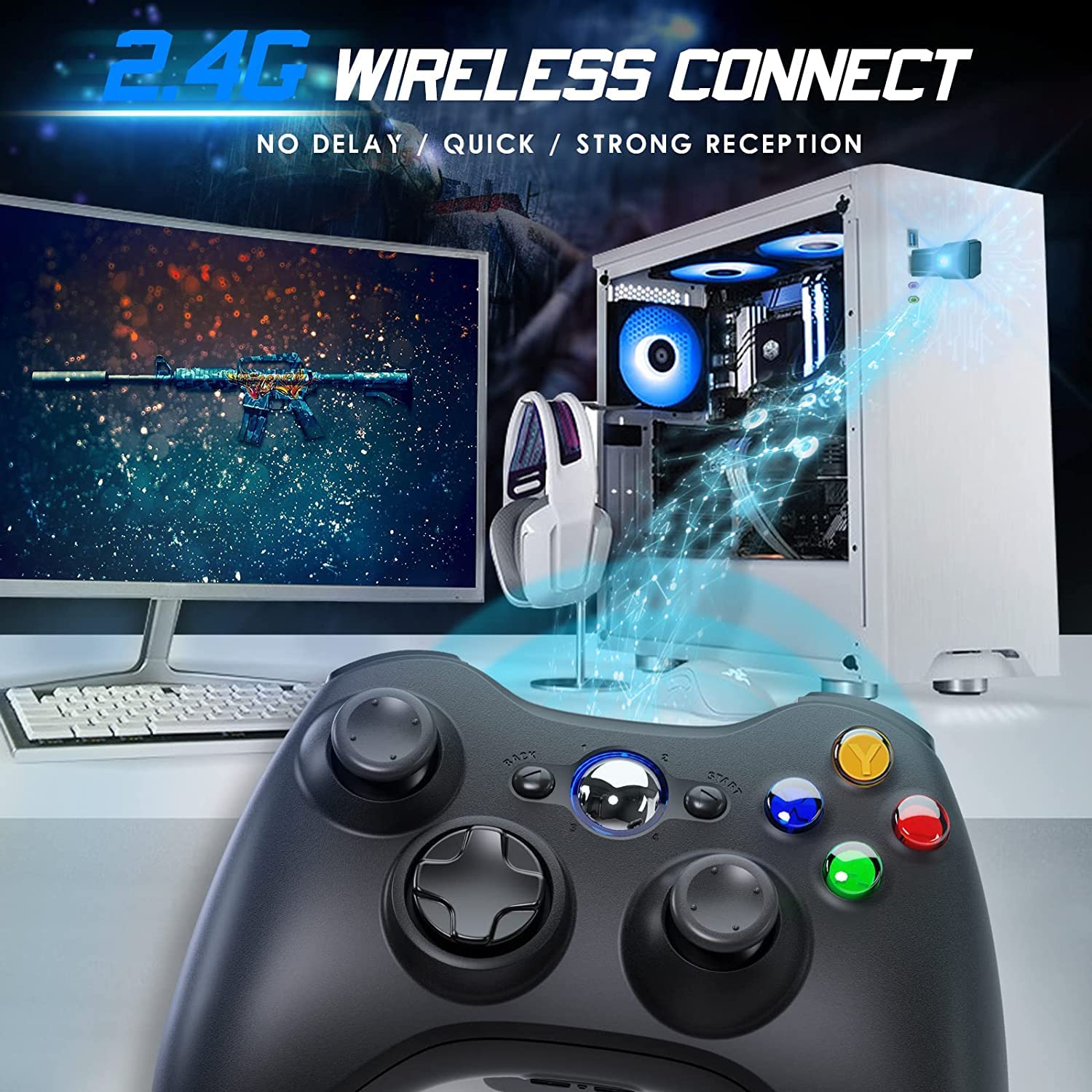
Image 4.2: Wireless controller in use with a PC. This image shows the controller on a desk in front of a computer monitor, with a visual representation of the 2.4GHz wireless connection.
5. Parentah Operasi
- Hurungkeun/Pareuman: Press and hold the "Home" button for 3 seconds to power on or power off the controller.
- Tombol pituduh: The central "Home" button (Guide button) allows access to the Xbox Guide on Xbox 360, or specific game menus on PC, depending on the game and system configuration. It can also be used to power on or off the console.
- Sababaraha Controllers: Up to four wireless controllers can be connected to a single console or PC simultaneously. Each controller will be assigned a quadrant light around the Guide button (1, 2, 3, or 4) to indicate its player number.
- Indikator batré: The controller's LED lights may flash to indicate low battery power. Replace batteries when this occurs.
6. Pangropéa
- beberesih: Anggo lawon anu lemes sareng garing pikeun ngabersihkeun controller. Entong nganggo pembersih cair atanapi pelarut.
- Panyimpenan: Store the controller in a dry place away from extreme temperatures and direct sunlight. If storing for an extended period, remove the batteries to prevent leakage.
- Hindarkeun tetes: Nangtayungan controller tina tetes jeung dampak, nu bisa ngaruksak komponén internal.
7. Cara ngungkulan
- Controller Teu Nyambung:
- Ensure the USB receiver is securely plugged into the console or PC.
- Verify that the controller has fresh AA batteries installed correctly.
- Repeat the pairing process (Section 4, steps 3 and 4).
- Coba colokkeun panarima USB kana port USB anu béda.
- If using with PC, ensure necessary drivers are installed (Windows typically installs these automatically).
- Tombol atanapi Joystick Teu Ngarespon:
- Pariksa tingkat batré sareng gentos upami lemah.
- Ensure the controller is within the 32-foot wireless range of the receiver.
- Restart the console/PC and re-pair the controller.
- Geter Teu Gawé:
- Pastikeun kaulinan ngarojong eupan balik geter.
- Pariksa setélan kaulinan pikeun mastikeun geter diaktipkeun.
- Verify battery levels.
8. Spésifikasi
| Nomer modél | XBOX 360 |
| merek | Gamrombo |
| Konektipitas | 2.4GHz Wireless |
| Range nirkabel | Nepi ka 32 suku (kira-kira 10 méter) |
| Kasaluyuan | Xbox 360, Xbox 360 Slim, Windows 7/8/10/11 |
| Sumber Daya | 2 x Batré AA (teu kalebet) |
| Dimensi produk | 6.1 x 4.4 x 2.4 inci |
| Item Beurat | 9.6 ons |
9. Émbaran Kasalametan
- Ulah nyobian ngabongkar atawa ngaropéa controller.
- Keep the controller away from water and other liquids.
- Avoid exposing the controller to extreme heat or cold.
- Buang batré nurutkeun peraturan lokal.
- Upami produkna ruksak, lirén pamakean langsung.
10. Garansi jeung Rojongan
For warranty information or technical support, please refer to the documentation included with your purchase or contact Gamrombo customer service directly. Contact details are typically available on the manufacturer's official websitus.


