1. Bubuka
This manual provides comprehensive instructions for the setup, operation, and maintenance of your Epson EcoTank L8180 Multifunction A3+ Photo Printer. Please read this manual thoroughly to ensure proper use and to maximize the performance and longevity of your device. Keep this manual for future reference.
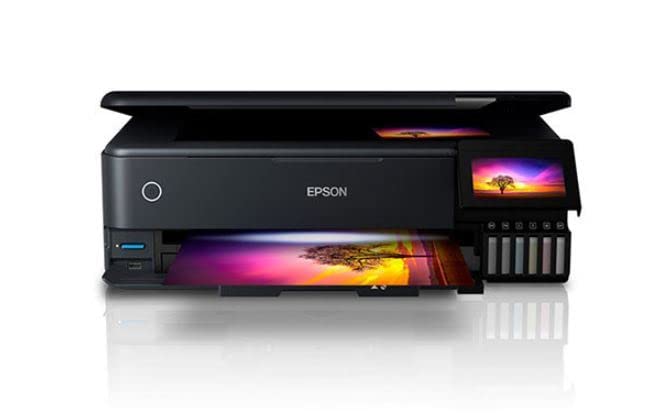
Figure 1: Epson EcoTank L8180 Printer. This image shows the front view of the Epson EcoTank L8180 printer, highlighting its compact design and front-loading paper tray.
2. Eusi Paket
Pastikeun yén sadaya item kalebet dina pakét:
- Printer Epson EcoTank L8180
- Kabel Daya
- Initial Ink Bottle Set (Cyan, Magenta, Yellow, Black, Light Cyan, Light Magenta)
- Guide Setup
- Software CD-ROM (for Windows/macOS)
- Kabel USB
3. Setélan
3.1 Ngabongkar sareng Nempatkeun
- Remove the printer from its box and remove all protective materials, tapes, and films.
- Teundeun printer dina datar, permukaan stabil jeung spasi nyukupan sabudeureun eta pikeun ventilasi jeung operasi.
3.2 Ngeusian Tangki Tinta
The EcoTank L8180 uses a cartridge-free ink tank system. Follow these steps to fill the ink tanks:
- Buka panutup unit tangki tinta.
- Uncap the ink bottle for the corresponding color. Each bottle has a unique key to prevent incorrect filling.
- Insert the ink bottle into the filling port. The ink will automatically start flowing into the tank. Do not squeeze the bottle.
- Sakali tangki pinuh, aliran tinta bakal eureun. Kaluarkeun botol teras tutup deui.
- Repeat for all six ink colors (Cyan, Magenta, Yellow, Black, Light Cyan, Light Magenta).
- Tutup panutup unit tanki tinta.
3.3 Sambungan Daya jeung Setup Awal
- Connect the power cable to the printer and then to an electrical outlet.
- Pencét tombol daya pikeun ngaktipkeun printer.
- Follow the on-screen instructions on the 10.9cm color touchscreen to select your language, date, and time.
- The printer will then initiate the ink charging process. This may take several minutes. Do not turn off the printer during this process.
- Once ink charging is complete, the printer is ready for software installation.

Figure 2: Printer Touchscreen Interface. This image displays a close-up of the printer's 10.9cm color touchscreen, showing a user interacting with the interface.
3.4 Pamasangan Software sareng Konéktipitas
Install the printer software on your computer or mobile device to enable full functionality.
- For Computer (Windows/macOS): Insert the provided Software CD-ROM or download the latest drivers and utilities from the official Epson support websitus. Turutan parentah dina-layar pikeun pamasangan.
- Pilihan konektipitas:
- Sambungan USB: Sambungkeun printer ka komputer Anjeun nganggo kabel USB.
- Sambungan Wi-Fi: On the printer's touchscreen, navigate to the Wi-Fi setup menu and follow the instructions to connect to your wireless network.
- Sambungan Ethernet: Sambungkeun kabel Ethernet tina printer ka router atanapi hub jaringan anjeun.
- Pikeun Alat Mobile: Download the Epson Smart Panel app from your device's app store. Follow the in-app instructions to connect your mobile device to the printer via Wi-Fi.

Figure 3: Wireless Printing from Mobile. This image illustrates the Epson EcoTank L8180 printer receiving a print job wirelessly from a smartphone, demonstrating its Wi-Fi connectivity.
4. Parentah Operasi
4.1 Loading Paper
The printer supports various paper types and sizes, up to A3+.
- Buka pangrojong kertas jeung tarik kaluar baki kaluaran.
- Adjust the edge guides to the width of your paper.
- Load paper into the rear paper feed or front paper cassette, depending on the paper type and size. Ensure the print side is facing the correct direction.
- For photo paper, use the dedicated photo paper tray.
4.2 Nyitak Dokumén sareng Poto
- Open the document or photo you wish to print on your computer or mobile device.
- Pilih Nyitak tina menu aplikasi.
- Choose the Epson L8180 as your printer.
- Adjust print settings such as paper size (e.g., A3+, A4), media type (e.g., Glossy Photo Paper), print quality, and color options.
- Pencét Nyitak.
4.3 Nyeken Dokumén
The L8180 features a flatbed scanner for scanning documents and photos.
- Angkat tutup scanner.
- Teundeun dokumen atawa poto nyanghareupan-handap dina kaca scanner, aligned jeung tanda sudut.
- Tutup tutup panyeken lalaunan.
- From your computer, open the Epson Scan software or use the scan function on the printer's control panel.
- Select scan settings (e.g., resolution, color mode, destination folder) and initiate the scan.
4.4 Nyalin Dokumén
Use the printer's control panel to make copies.
- Place the document on the scanner glass as described in Section 4.3.
- Dina layar rampa printer, pilih nyalin pilihan.
- Adjust settings such as number of copies, paper size, and quality.
- Pencét éta Mimitian tombol pikeun ngamimitian nyalin.
4.5 Direct Printing (Memory Card/USB)
The L8180 allows direct printing from memory cards and USB drives.
- Insert a memory card into the card slot or a USB flash drive into the USB port.
- Dina layar rampa printer, pilih Kartu mémori or USB pilihan.
- Browse and select the photos or documents you wish to print.
- Adjust print settings and press Nyitak.
4.6 CD/DVD Printing
The printer supports direct printing onto printable CDs/DVDs.
- Open the CD/DVD tray cover on the printer.
- Place a printable CD or DVD onto the CD/DVD tray, ensuring it is correctly seated.
- Insert the CD/DVD tray into the printer's dedicated slot.
- Use the Epson Print CD software on your computer to design and print onto the disc.

Figure 4: CD/DVD Printing Function. This image shows a printable CD being loaded into the Epson EcoTank L8180 printer's dedicated tray for direct disc printing.
5. Pangropéa
5.1 ngeusian Tinta
When an ink tank level is low, refill it using genuine Epson ink bottles. Refer to Section 3.2 for detailed ink filling instructions.
penting: Use only genuine Epson Claria ET Premium Ink to ensure optimal print quality and prevent damage to the printer.
5.2 Print Kepala beberesih
Lamun kualitas citak turun (misalna garis leungit, sidik luntur), laksanakeun beberesih print head.
- On the printer's touchscreen, navigate to Pangropéa or Disetél.
- Pilih Print Kepala beberesih.
- Turutan pituduh dina layar. Prosés ieu ngagunakeun jumlah leutik tinta.
- After cleaning, print a nozzle check pattern to verify improvement. If print quality is still poor, repeat the cleaning process up to three times.
5.3 Pamariksaan Nozzle
Perform a nozzle check to diagnose print quality issues before cleaning.
- On the printer's touchscreen, navigate to Pangropéa or Disetél.
- Pilih Nozzle Cék.
- The printer will print a pattern. Examine the pattern for any gaps or missing segments.
5.4 Printer Cleaning
Rutin ngabersihan jaba printer ku lemes, damp, lawon bébas lint. Ulah make cleaners abrasive atawa pangleyur.
6. Cara ngungkulan
6.1 Isu umum jeung Solusi
- Printer teu ngabales:
- Ensure the printer is powered on and connected securely (USB, Wi-Fi, Ethernet).
- Check for error messages on the printer's touchscreen.
- Balikan deui printer sareng komputer / router anjeun.
- Pariksa yén printer anu leres parantos dipilih dina dialog citak aplikasi anjeun.
- Kualitas cetak goréng:
- Perform a nozzle check (Section 5.3) and print head cleaning (Section 5.2).
- Pastikeun tangki tinta dieusi kalayan cekap.
- Use genuine Epson ink and appropriate paper types for your print job.
- Check print settings in your application to ensure they match the paper type and desired quality.
- Kertas macét:
- Pareuman printer teras ati-ati cabut kertas anu macét tina baki kertas atanapi di jero printer.
- Pastikeun kertas dimuat leres tur teu kusut atawa curled.
- Do not overload the paper trays.
- Masalah Sambungan Wi-Fi:
- Pastikeun panyitak aya dina jangkauan router nirkabel anjeun.
- Pariksa deui kecap akses Wi-Fi anu diasupkeun téh leres.
- Restart your wireless router and the printer.
- Check for any network interference.
6.2 Kode Kasalahan
If an error code appears on the printer's screen, refer to the on-screen instructions or the Epson support website for specific solutions related to that code.
7. Spésifikasi
| Fitur | Rincian |
|---|---|
| Ngaran modél | L8180 |
| Ukuran produk (D x W x H) | 37.9 x 52.3 x 16.9 cm |
| Item Beurat | 14.6 kg |
| Ukuran Média Maksimum | A3+ |
| Téhnologi percetakan | Ink Tank (6-colour Epson Claria ET Premium Ink) |
| Warna Tinta | Cyan, Magenta, Yellow, Black, Light Cyan, Light Magenta |
| Résolusi Citak Maksimum (Warna/Hideung jeung Beureum) | 5760 x 1440 dpi |
| Maximum Print Speed (Color/B&W) | 32 ppm |
| Jenis scanner | Ranjang datar |
| Maximum Copy Speed (Black and White) | 32 ppm |
| Percetakan duplex | Otomatis |
| Max Input Lambaran Kamampuh | 120 lembar |
| Métode kontrol | Touch (10.9cm color touchscreen) |
| Téhnologi konektipitas | Wi-Fi, Ethernet, USB |
| Alat nu cocog | Laptop, PC, Tablet |
| Kasaluyuan System Operasi | Windows XP and later, macOS |
| Wattage | 17 Watt Jam |
| Fitur husus | A3+ Borderless Photo Printing, Direct printing via memory card slot, USB port, Ethernet, CD/DVD printing |

Figure 5: Printer Dimensions. This image provides a diagram showing the physical dimensions (width, depth, height) of the Epson EcoTank L8180 printer in millimeters.
8. Garansi jeung Rojongan
8.1 Émbaran jaminan
Printer Epson EcoTank L8180 hadir kalawan a Garansi kawates. For specific terms and conditions, including warranty duration and coverage details, please refer to the warranty card included with your product or visit the official Epson support websitus.
8.2 Rojongan Palanggan
For technical assistance, troubleshooting, or service inquiries, please contact Epson customer support:
- Dukungan Online: Nganjang ka rojongan Epson resmi websitus pikeun FAQ, supir, manual, sareng inpormasi kontak.
- Rojongan Telepon: Refer to your product documentation or the Epson websitus pikeun nomer rojongan lokal.
Nalika ngahubungi dukungan, mangga siapkeun modél printer anjeun (L8180) sareng nomer seri.


