Produk Leuwihview
The typecase Touch Keyboard Case is designed to enhance the functionality and protection of your iPad Air. It features a full-size keyboard with a multi-gesture trackpad, offering a laptop-like experience. The case boasts a 360° rotatable hinge, allowing for multiple viewing angles and usage modes. An adjustable 11-color RGB LED backlight provides comfortable typing in various lighting conditions. Integrated smart features like auto sleep/wake help conserve battery life, and a dedicated holder keeps your Apple Pencil secure.
Fitur konci:
- Kasaluyuan: Specifically designed for iPad Air 11-inch (M3 2025 / M2 2024), iPad Air 5th Gen (2022, 10.9"), and iPad Air 4th Gen (2020, 10.9").
- Trackpad Terpadu: Supports multi-gesture controls for precise navigation.
- Kibor Lampu tukang: 11 adjustable RGB backlight colors with laser-etched keys and a full row of iPadOS shortcuts.
- Versatile Use Modes: 360° rotatable hinge for 7 different viewing modes (Laptop, Stand, Tent, Tablet, Corner, Share, Protect).
- Perlindungan Smart: Premium hardshell design protects all sides of your iPad, with auto sleep/wake function.
- Tempat Pensil: Conveniently stores your Apple Pencil.
Eusi pakét
Punten parios yén sadaya barang aya dina pakét:
- 1 x typecase Touch Keyboard Case for iPad Air 5th/4th Gen (10.9 inch)
- 1 x Kabel Ngecas USB-C
- 1 x Manual Pamaké
Guide Setup
1. Charging the Keyboard Case
Before initial use, fully charge the keyboard case. Connect the provided USB-C charging cable to the charging port on the keyboard and to a USB power adapter (not included).
Charging indicator: The LED indicator will show charging status. Refer to the keyboard's specific LED behavior for full charge indication.
2. Inserting Your iPad into the Case
Carefully align your iPad with the protective shell of the keyboard case. Gently press the iPad into place, ensuring all corners are securely seated. The case is designed to protect all sides of your iPad.
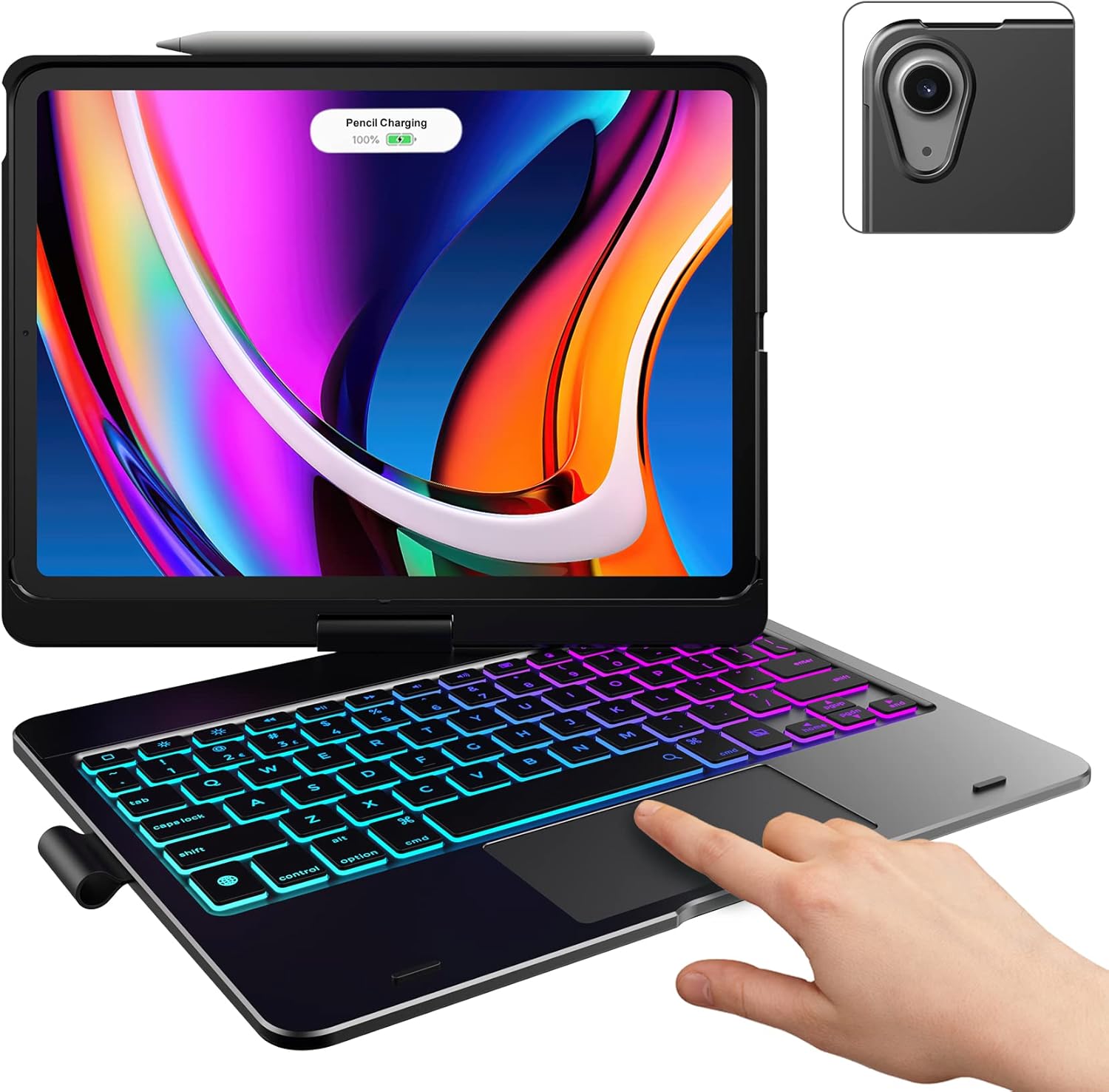
Image: The typecase keyboard case with an iPad securely inserted, ready for use. Note the integrated trackpad and backlit keys.

Image: Visual representation of the 7 versatile modes supported by the 360° rotatable hinge, including Laptop, Stand, and Tablet modes.
3. Pairing with Your iPad (Bluetooth)
- Hurungkeun keyboard ku cara ngageser saklar daya ka posisi ON.
- Pencét éta Nyambung button (or a similar Bluetooth pairing button, usually indicated by a Bluetooth icon) on the keyboard. The Bluetooth indicator light will start blinking.
- Dina iPad anjeun, buka Setélan > Bluetooth.
- Pastikeun Bluetooth dihurungkeun On.
- Locate "typecase Keyboard" or a similar name in the "Other Devices" list and tap on it to pair.
- Once paired, the Bluetooth indicator light on the keyboard will stop blinking and remain solid, or turn off.
Note: The keyboard will automatically enter sleep mode after a period of inactivity to conserve battery. Press any key to wake it up.
Parentah Operasi
Fungsi keyboard
The keyboard features a standard layout with 78 comfortably spaced keys and a dedicated row of iPadOS shortcut keys.

Gambar: Detil view of the backlit keyboard, highlighting the iPadOS shortcut keys and the vibrant 11-color RGB backlight.
Tombol Pintasan iPadOS:
| Ikon Konci | Fungsi |
|---|---|
| Imah | Mulang deui ka Layar Utama. |
| Caang Turun | Ngurangan kacaangan layar. |
| Caang Up | Ningkatkeun kacaangan layar. |
| Keyboard Hide/Show | Toggles the on-screen keyboard. |
| neangan | Activates iPad search. |
| Lagu saméméhna | Skips to the previous media track. |
| Play / Reureuh | Plays or pauses media. |
| Lagu salajengna | Luncat ka lagu média salajengna. |
| Ngajempékeun | Mutes atanapi unmutes audio. |
| Volume Turun | Ngurangan polumeu audio. |
| Volume Up | Ngaronjatkeun volume audio. |
| Layar konci | Locks the iPad screen. |
Panggunaan Trackpad
The integrated multi-gesture trackpad allows for precise control and navigation of your iPad. Ensure the trackpad is enabled in your iPad's settings if you experience issues.
Common Trackpad Gestures:
- Ketok Jari Tunggal: Click/Select.
- Gulung Dua Jari: Gulung ka luhur atanapi ka handap.
- Ciwit pikeun ngazum: Ngazum gede atawa leutik eusi.
- Gesek Tilu Ramo ka Luhur: Pindah ka Layar utama.
- Gesek Tilu Ramo ka Kenca/Katuhu: Ganti antar aplikasi kabuka.

Image: A hand demonstrating the use of the multi-touch trackpad for precise cursor control on the iPad screen.
Nyaluyukeun Lampu Latar
The keyboard features 11 adjustable RGB backlight colors and 3 levels of brightness. Use the dedicated backlight keys on the keyboard to cycle through colors and adjust brightness levels.
Video: This video demonstrates the 360-degree rotation feature of the typecase Touch Keyboard Case, showcasing its versatility in different viewdina modeu.
Video: This video provides a step-by-step guide on how to properly install and remove your iPad from the typecase Touch Keyboard Case, ensuring a secure fit and preventing damage.
Pangropéa sareng Perawatan
- beberesih: Ngagunakeun lemes, damp cloth to clean the exterior of the case and keyboard. Avoid harsh chemicals or abrasive materials.
- Panyimpenan: When not in use for extended periods, store the keyboard case in a cool, dry place. Ensure the iPad is removed if storing for very long durations.
- Kahirupan batré: To maximize battery life, turn off the keyboard when not in use. The auto sleep/wake function helps conserve power.
- Hindarkeun Cairan: Do not expose the keyboard case to excessive moisture or liquids.
- Nanganan kalayan ati-ati: While durable, avoid dropping the case or applying excessive force to the hinge or keyboard.
Pamérésan masalah
If you encounter any issues with your typecase Touch Keyboard Case, please refer to the following common solutions:
Keyboard Not Connecting/Typing:
- Ensure the keyboard is turned ON and fully charged.
- Check your iPad's Bluetooth settings to confirm the keyboard is paired and connected. If not, try re-pairing.
- Pareuman terus hurungkeun deui iPad sareng kibor anjeun.
- Pastikeun teu aya alat Bluetooth séjén anu ngaganggu sambungan.
Trackpad Teu Ngarespon:
- Verify the keyboard is connected via Bluetooth.
- Check iPad settings: Setélan > Aksesibilitas > Toél > AssistiveTouch. Ensure "Mouse Keys" is off if it's causing interference.
- Clean the trackpad surface to remove any debris.
Lampu tukang teu jalan:
- Pastikeun keyboard tos dieusi cekap.
- Press the backlight adjustment keys to cycle through brightness levels and colors.
iPad Not Entering Sleep/Wake Mode:
- Ensure the iPad is correctly seated in the case.
- Check iPad settings: Setélan > Pintonan & Caang > Konci/Buka konci. Ensure this feature is enabled.
If problems persist, please contact typecase customer support for further assistance.
spésifikasi
| Fitur | Rincian |
|---|---|
| Modél | B09WVRD5JD |
| Kasaluyuan | iPad Air 11-inch (M3 2025 / M2 2024), iPad Air 5th Gen (2022, 10.9"), iPad Air 4th Gen (2020, 10.9") |
| Konektipitas | Bluetooth |
| Tata perenah kibor | 78-key standard with iPadOS shortcuts |
| Lampu tukang | 11-color RGB, 3 brightness levels |
| Trackpad | Multi-functional, multi-gesture |
| Hinge Rotation | 360° (20,000-cycle stress tested) |
| Sumber Daya | Batré Powered (1 batré Litium Polimér kaasup) |
| Item Beurat | 1.52 pon |
| Ukuran produk (L x W x H) | 11.02 x 8.66 x 0.79 inci |
| Bahan | Premium hardshell design |
Garansi sareng Rojongan
typecase offers a comprehensive warranty and support for your product:
- Service ngagantian 1 taun: Enjoy worry-free after-sales support with a 1-year replacement service for manufacturing defects.
- 30-Day Refund: If you are not satisfied with your purchase, you may be eligible for a refund within 30 days of purchase.
- Rojongan Palanggan: For any questions, technical assistance, or warranty claims, please contact typecase customer service. Refer to the contact information provided in the product packaging or on the official typecase websitus.

Gambar: Leuwihview of typecase's customer support and warranty policy, including 1-year replacement and 30-day refund.


