1. Bubuka
This manual provides detailed instructions for the setup, operation, maintenance, and troubleshooting of your FMOUSE Slim White Wireless Bluetooth Mouse M113. Please read this manual thoroughly before using the product to ensure optimal performance and longevity.

Image 1: FMOUSE M113 Slim White Wireless Bluetooth Mouse
2. Eusi Paket
Saatos muka pakét anjeun, mangga pariksa yén sadaya item di handap ieu kalebet:
- 1 x FMOUSE M113 Wireless Mouse
- 1 x USB Charging Cable (Type-C, 80cm/31.5in)
- 1 x USB Receiver (2.4GHz)
- 1 x Manual Instruksi

Image 2: Package contents of the FMOUSE M113 mouse
3. Setélan
3.1 Ngecas Mouse
Before initial use, fully charge the mouse using the provided Type-C USB cable. The charging port is located at the front of the mouse.
- Ngecas: The scroll wheel light will display red.
- Ngecas Réngsé: The scroll wheel light will turn off.
- Batré lemah: The scroll wheel light will flash red.

Image 3: Type-C charging port and battery indicators
3.2 Nyambungkeun Mouse (Dual Mode)
The FMOUSE M113 supports two connection modes: 2.4GHz Wireless (via USB receiver) and Bluetooth 5.1. You can switch between modes using the selector switch on the bottom of the mouse.

Image 4: Dual connection options for the mouse
3.2.1 2.4GHz Wireless Connection (USB Receiver)
- Locate the USB receiver stored in the magnetic slot on the bottom of the mouse.
- Colokkeun panarima USB ka port USB nu sadia dina komputer Anjeun.
- Slide the switch on the bottom of the mouse to the 2.4G position (indicated by a USB icon).
- Beurit kedah otomatis nyambung ka alat anjeun.
3.2.2 Bluetooth 5.1 Sambungan
- Slide the switch on the bottom of the mouse to the Bluetooth posisi (ditunjukkeun ku ikon Bluetooth).
- The scroll wheel light will flash, indicating it is in pairing mode.
- On your device (e.g., MacBook, iPad, Laptop), navigate to the Bluetooth settings.
- Milarian pikeun available devices and select "FMOUSE M113" (or similar) to pair.
- Once paired, the scroll wheel light will stop flashing and remain solid.
Video 1: Leuwihview of FMOUSE M113 features and connectivity
4. Ngoperasikeun Mouse
4.1 Fungsi Dasar
- Klik Kénca: Seleksi sareng aktivasi primér.
- Klik katuhu: Aksés ménu kontekstual.
- Gulung kabayang: Ngagulung eusi sacara vertikal.
4.2 DPI adjustment
The mouse features 4 adjustable DPI levels (800/1200/1600/2400) to customize cursor sensitivity. Press the Tombol DPI (located near the scroll wheel) to cycle through the settings. The scroll wheel light color indicates the current DPI level.
- 800 DPI: (Specific color may vary, refer to image)
- 1200 DPI: (Specific color may vary, refer to image)
- 1600 DPI: (Specific color may vary, refer to image)
- 2400 DPI: (Specific color may vary, refer to image)
To turn the scroll wheel light on or off, long-press the DPI button for 2 seconds.

Image 5: 4 Adjustable DPI levels and corresponding light indicators
4.3 Desktop Return Button
The mouse includes a dedicated Desktop Return button. Pressing this button will instantly minimize all open windows and return you to your computer's desktop. This feature is useful for quick privacy or task switching.

Image 6: Function of the Desktop Return button
4.4 Mute/Volume Control Button
The Tombol jempé provides quick audio control:
- Pers Tunggal: Mutes or unmutes your computer's audio.
- Long Press (2 seconds) and Scroll: After a long press, you can adjust the computer's volume by scrolling the wheel up or down.

Image 7: Mute and volume adjustment functions
4.5 Fitur Klik Jempe
The FMOUSE M113 is designed with silent click buttons, reducing noise during use. This makes it suitable for quiet environments such as libraries, offices, or late-night work.
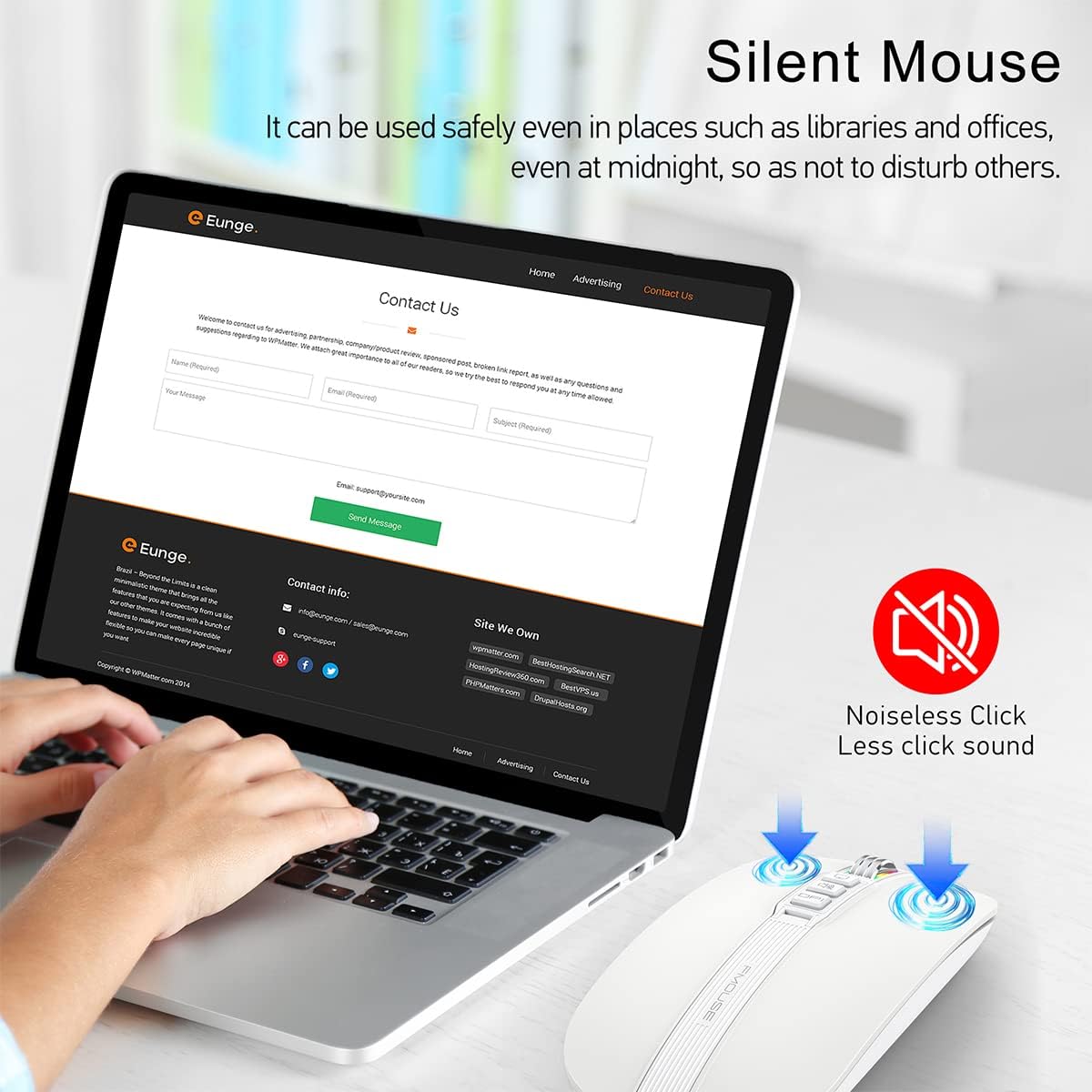
Image 8: Silent click feature of the mouse
5. Pangropéa
5.1 beberesih
- Disconnect the mouse from your device before cleaning.
- Paké lawon lemes, garing, lint-haratis pikeun ngusap beungeut beurit.
- Keur kokotor bandel, enteng dampBilas lawon ku cai atanapi pembersih éléktronik anu hampang. Hindarkeun kalembaban anu kaleuleuwihi.
- Ulah make bahan kimia kasar, cleaners abrasive, atawa pangleyur.
5.2 Perawatan Batré
- Ngecas beurit rutin pikeun ngajaga kaséhatan batré.
- Hindarkeun sering-sering ngeusi batre.
- Ulah ngalaan beurit ka suhu anu ekstrim, sabab ieu tiasa mangaruhan umur batre.
5.3 Panyimpenan
- Lamun teu dipaké pikeun période nambahan, nyimpen mouse dina tiis, tempat garing.
- Ensure the mouse is turned off to conserve battery life.
- The USB receiver can be stored in its magnetic slot on the bottom of the mouse to prevent loss.
6. Cara ngungkulan
6.1 Masalah Sambungan
- Mouse not connecting via 2.4GHz USB receiver:
- Ensure the USB receiver is securely plugged into a working USB port.
- Verify the switch on the bottom of the mouse is set to the 2.4G position.
- Try plugging the receiver into a different USB port. - Mouse teu nyambung via Bluetooth:
- Ensure the switch on the bottom of the mouse is set to the Bluetooth position.
- Check that Bluetooth is enabled on your device.
- Remove any previous pairings of the mouse from your device's Bluetooth settings and attempt to pair again.
- Ensure the mouse is sufficiently charged.
6.2 DPI Light Behavior
- DPI light not changing color: Press the DPI button to cycle through settings. If it still doesn't change, ensure the mouse is powered on and charged.
- DPI light is off: Long-press the DPI button for 2 seconds to toggle the light on/off.
6.3 Masalah Ngecas
- Mouse teu ngecas:
- Ensure the Type-C charging cable is securely connected to both the mouse and a power source.
- Try using a different USB port or power adapter.
- Check if the charging cable is damaged. - Scroll wheel light flashing red: This indicates a low battery. Connect the mouse to a power source for charging.
6.4 Cursor Movement
- Erratic or no cursor movement:
- Ensure the mouse is properly connected (2.4GHz or Bluetooth).
- Check the battery level and charge if necessary.
- Clean the optical sensor on the bottom of the mouse.
- Ensure the mouse is used on a suitable surface (not highly reflective or transparent).
7. Spésifikasi
| Fitur | Spésifikasi |
|---|---|
| Dimensi produk | 4.45 x 2.24 x 0.98 inci (113 x 57 x 25 mm) |
| Item Beurat | 2.4 ons (68 gram) |
| Téhnologi konektipitas | Bluetooth 5.1, 2.4GHz Wireless (USB) |
| Téhnologi Deteksi Gerakan | Optik |
| Tingkat DPI | 800 / 1200 / 1600 / 2400 |
| Jenis Batré | 1 batré Litium Ion (kaasup) |
| Port ngecas | Tipe-C |
| Fitur husus | One-click DPI adjustment, One-click access to desktop, One-click muting, Three shortcut keys |

Image 9: Dimensions of the FMOUSE M113 mouse
8. Garansi jeung Rojongan
8.1 Émbaran jaminan
FMOUSE products are designed and manufactured to the highest quality standards. For specific warranty details, please refer to the warranty card included in your product packaging or visit the official FMOUSE websitus. Simpen resi pameseran anjeun salaku bukti pameseran pikeun klaim garansi.
8.2 Rojongan Palanggan
If you encounter any issues or have questions regarding your FMOUSE M113 mouse that are not covered in this manual, please contact FMOUSE customer support through the following channels:
- Resmi Websitus: Visit the FMOUSE Store on Amazon
- Surélék: Tingali kana bungkusan produk atanapi resmi websitus pikeun email kontak.


