Bubuka
This manual provides comprehensive instructions for the installation, operation, and maintenance of your Kensington SD4839P USB-C Triple Video Dock. Please read this manual thoroughly before using the product to ensure proper functionality and to prevent damage.
Émbaran Kasalametan
- Ulah ngalaan alat ka cai atawa kalembaban kaleuleuwihan.
- Ulah nyobian ngabongkar atanapi ngarobih alat. Ieu bakal ngabatalkeun garansi sareng tiasa nyababkeun karusakan.
- Use only the power adapter supplied with the dock.
- Pastikeun ventilasi anu leres di sabudeureun darmaga pikeun nyegah overheating.
- Jauhkeun tina jangkauan barudak.
Eusi pakét
Pastikeun yén sadaya item aya dina bungkusan:
- Kensington SD4839P USB-C Triple Video Dock
- USB-C ka USB-C Cable
- Adaptor kakuatan
- Pituduh Mimitian Gancang (henteu kalebet dina manual digital ieu)
Produk Leuwihview
The Kensington SD4839P is a USB-C triple video docking station designed to expand the connectivity of your laptop. It provides multiple video outputs, USB ports, and power delivery through a single USB-C connection.
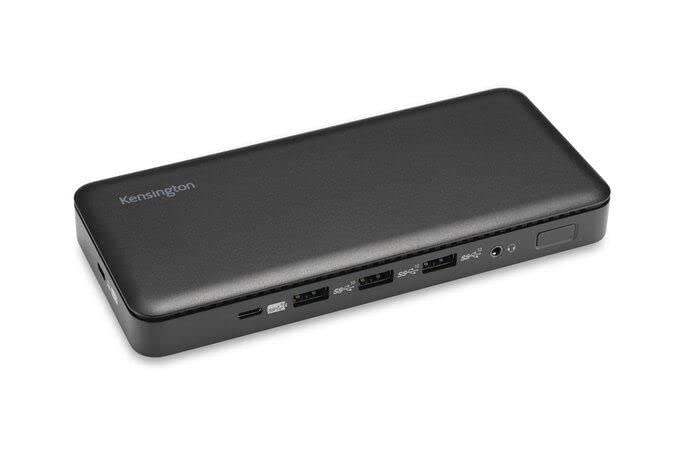
Gambar 1: Hareupeun view of the Kensington SD4839P USB-C Triple Video Dock. This image displays the compact design of the docking station, highlighting its various ports for connecting peripherals and displays.
Layout Port:
- Hareup: USB-A ports, USB-C data port.
- Tukangeun: Power input, USB-C host port (with power delivery), DisplayPort outputs, HDMI output, USB-A ports, Ethernet port, Audio jack.
Disetél
- Sambungkeun Kakuatan: Connect the included power adapter to the DC-in port on the back of the dock, then plug the adapter into a power outlet.
- Nyambung ka Alat Host: Connect one end of the supplied USB-C to USB-C cable to the USB-C host port on the back of the dock and the other end to a compatible USB-C port on your laptop. Ensure your laptop's USB-C port supports DisplayPort Alternate Mode and Power Delivery for full functionality.
- Sambungkeun Pintonan:
- Connect your monitors to the available DisplayPort and/or HDMI ports on the dock using appropriate cables.
- The dock supports up to three external displays, depending on your host device's capabilities and operating system.
- Sambungkeun Periferal: Connect your USB devices (keyboard, mouse, external drives, etc.) to the USB-A and USB-C data ports on the dock.
- Sambungkeun Jaringan (Opsional): For a wired network connection, connect an Ethernet cable from your router or network switch to the Ethernet port on the dock.
Ngoperasikeun
Sambungan awal:
Upon initial connection, your operating system (Windows, macOS, Chrome OS) should automatically detect the dock and connected devices. The SD4839P is designed to be driverless for most basic functions.
Konfigurasi Tampilan:
- Windows: Right-click on the desktop and select "Display settings" to arrange your monitors, change resolution, and set display modes (extend, duplicate, second screen only).
- macOS: Pindah ka Setélan Sistim (atawa Préferénsi System) > Nembongkeun to configure your external monitors.
Pangiriman kakuatan:
The dock provides power delivery to your connected laptop through the USB-C host cable, charging it while you work. The wattage provided is listed in the specifications section.
Pangropéa
- beberesih: Disconnect the dock from power and all devices before cleaning. Use a soft, dry, lint-free cloth to wipe the exterior. Do not use liquid cleaners or aerosols.
- Panyimpenan: Store the dock in a cool, dry place away from direct sunlight and extreme temperatures when not in use for extended periods.
- Manajemén Kabel: Ulah aya belokan anu seukeut atanapi bengkok dina kabel pikeun nyegah karusakan.
Pamérésan masalah
| Masalah | Solusi anu mungkin |
|---|---|
| No power to the dock or laptop. |
|
| No display on external monitors. |
|
| Alat USB teu dikenal. |
|
| Masalah sambungan jaringan. |
|
spésifikasi
- Jumlah modél: K33480 EU
- Ukuran produk: 19.69 x 19.69 x 11.02 inci
- Beurat barang: 2.29 pon (1.04 Kilogram)
- merek: Kensington
- Antarmuka Hardware: USB Tipe C
- Total palabuhan USB: 3 (plus 1 USB-C data port)
- Jumlah Palabuhan: 5 (referring to primary functional ports)
- Total palabuhan HDMI: 1
- DisplayPort Outputs: 2 (for triple video output capability)
- Wattage (Power Delivery): 85 watt
- Alat anu cocog: Dell Precision 5510, Google Pixelbook, HP EliteBook Folio 9470m, MacBook Air, MacBook Pro, Microsoft Surface series, iPad, iPhone series, iPod series (See product page for full list)
Garansi sareng Rojongan
Kensington products are designed for reliability and performance. For warranty information, technical support, or to register your product, please visit the official Kensington websitus atanapi ngahubungan rojongan customer maranéhanana langsung. Simpen bukti pameseran anjeun pikeun klaim garansi.
Kensington Resmi Websitus: www.kensington.com


