Bubuka
This manual provides essential information for setting up, operating, maintaining, and troubleshooting your HP 15 Laptop. Please read this guide thoroughly to ensure proper use and to maximize the performance and longevity of your device.
Ngamimitian: Setup
1. Unboxing Your Laptop
Carefully remove the laptop and all accessories from the packaging. Ensure all components are present: the HP 15 Laptop, AC power adapter, and any included documentation.
2. Nyambungkeun ka Daya
Connect the AC power adapter to the laptop's power port and then plug it into a wall outlet. It is recommended to fully charge the battery before the first use.
3. Boot Awal sareng Setelan Windows
Press the power button located on the keyboard deck. The laptop will power on, and you will be guided through the Windows 11 Home setup process. Follow the on-screen instructions to configure your language, region, network, and user account.
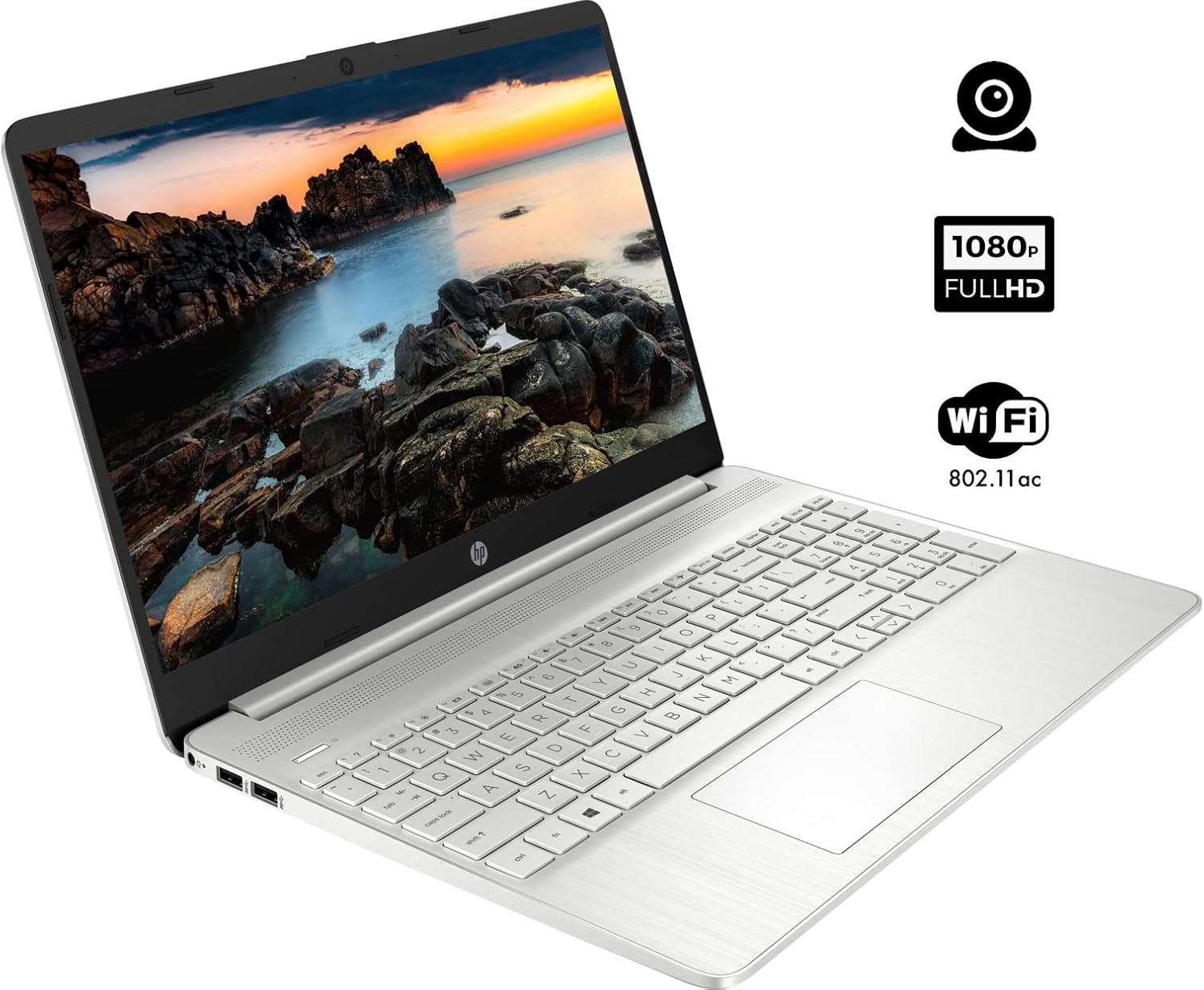
The HP 15 Laptop, ready for initial setup. Ensure the power adapter is connected before first use.
Ngoperasikeun Laptop Anjeun
1. Daya Hurung / Pareum
- Daya Hurung: Pencét tombol daya.
- Pareum listrik: Click the Windows Start button, then select Power > Shut down. Avoid forced shutdowns by holding the power button unless necessary.
2. Kibor sareng Touchpad Pamakéan
- kibor: Use the integrated keyboard for typing. Function keys (F1-F12) often have secondary actions (e.g., volume, brightness) accessible by pressing the Fn konci sakaligus.
- Touchpad: The touchpad functions as a mouse. Tap to click, use two fingers to scroll, and pinch to zoom.
3. Nyambungkeun périferal
Your HP 15 Laptop features various ports for connecting external devices:
- Port USB Tipe-A: Pikeun nyambungkeun alat USB standar sapertos beurit, kibor, atanapi drive éksternal.
- Port USB Tipe-C: A versatile port for data transfer.
- Port HDMI: Sambungkeun ka layar éksternal atanapi proyéktor.
- Soket Kombinasi Headphone/Mikropon: Pikeun kaluaran audio ka headphone atanapi input tina mikropon.
- Pamaca Kartu SD: Insert an SD card for data transfer.

This diagram illustrates the various ports available on your HP 15 Laptop, including USB-C, USB-A, HDMI, audio jack, SD card reader, and the power input.
4. Nyambungkeun ka Wi-Fi
Pikeun nyambung ka jaringan nirkabel:
- Klik ikon Wi-Fi dina taskbar.
- Pilih jaringan anu dipikahoyong tina daptar.
- Enter the network password if prompted, then click Nyambung.
5. Nyambungkeun Alat Bluetooth
Pikeun masangkeun alat Bluetooth:
- Pindah ka Setelan > Bluetooth & alat.
- Pastikeun Bluetooth dihurungkeun On.
- Pilih Tambahkeun alat and follow the on-screen instructions to pair your device.

The HP 15 Laptop features an integrated webcam for video calls and supports Wi-Fi 802.11ac for wireless internet connectivity.
Pangropéa
1. Ngabersihan Laptop Anjeun
- layar: Anggo kaén anu lemes sareng teu aya serat anu hampang dampdikumbah ku cai atawa pembersih layar. Hindarkeun bahan kimia anu kasar.
- Keyboard sareng Chassis: Anggo lawon lemes pikeun ngusap permukaan. Udara anu dikomprés tiasa miceun lebu tina sela-sela konci.
2. Apdet parangkat lunak
Regularly update your operating system and drivers to ensure optimal performance and security. Windows Update typically handles this automatically, but you can manually check via Setélan > Windows Update.
3. Kaperawatan batré
- Ulah sering ngosongkeun batréna sagemblengna.
- If storing the laptop for an extended period, charge the battery to about 50% and store it in a cool, dry place.
Pamérésan masalah
Bagian ieu ngabahas masalah umum anu anjeun tingali.
Taya Daya
- Pastikeun adaptor AC disambungkeun sacara aman ka laptop sareng stop kontak listrik anu tiasa dianggo.
- Pariksa naha stop kontak listrik berpungsi ku cara nyolokkeun alat sejen.
- Upami batre tos rengse lemes, beunang ngeusi batre sababaraha menit samemeh nyobian hurungkeun.
Masalah tampilan
- If the screen is blank, try adjusting the brightness using the function keys (e.g., F2/F3).
- Connect an external monitor via the HDMI port to check if the issue is with the laptop's display or graphics output.
- Mastikeun supir grafik up to date.
Masalah Konektipitas Wi-Fi
- Pariksa yén Wi-Fi diaktipkeun dina setélan Windows.
- Balikan deui router sareng modem anjeun.
- Pastikeun anjeun aya dina jangkauan jaringan Wi-Fi.
- Check for updated network drivers.
Performance Lalaunan
- Tutup aplikasi anu teu perlu jalan di latar tukang.
- Ensure your operating system and drivers are updated.
- Check for sufficient free space on your storage drive.
- Run a scan for malware or viruses.
spésifikasi
Below are the technical specifications for the HP 15 Laptop (Model 15):
| Fitur | Rincian |
|---|---|
| Ukuran Layar Ngadeg | 15.6 inci |
| Resolusi layar | 1920 x 1080 piksel (FHD) |
| Prosesor | AMD Ryzen 5 5500U (6 Cores, 12 Threads, nepi ka 4.0 GHz) |
| Ram | 12 GB DDR4 |
| Hard Drive | SSD M.2 PCIe NVMe 1 TB |
| Grafik Coprocessor | Grafis Terpadu AMD Radeon |
| Sistem operasi | Windows 11 Imah |
| USB 3.0 palabuhan | 3 (2x Type-A, 1x Type-C) |
| Port HDMI | 1 (HDMI 1.4b) |
| Konektipitas | Wi-Fi 802.11ac, Bluetooth |
| Webkaméra | terpadu Webkaméra kalawan mikropon |
| Item Beurat | 3.74 pon |
| Dimensi produk | 14.11 x 9.53 x 0.7 inci |
| Warna | pérak |

The HP 15 Laptop in its closed state, highlighting its sleek silver design and the HP branding.
Émbaran jaminan
Your HP 15 Laptop comes with a standard manufacturer's warranty. For detailed information regarding warranty terms, conditions, and duration, please refer to the warranty card included with your product or visit the official HP support websitus.
Ngarojong
For further assistance, technical support, or to download updated drivers and software, please visit the official HP support websitus. Anjeun ogé tiasa mendakan FAQ sareng forum komunitas di dinya pikeun bantosan tambahan.
Rojongan HP Websitus: support.hp.com