1. Bubuka
This manual provides detailed instructions for the operation and maintenance of your FLAMMA FX200 Multi Effects Guitar Processor. Please read this manual thoroughly to ensure proper usage and to maximize the potential of your device.
The FLAMMA FX200 is a versatile multi-effects processor designed for guitarists, featuring a 5-inch LCD touch screen, extensive input/output options, and a wide array of effects, amplifier models, and cabinet simulations.
2. Pancegahan Kasalametan
- Ulah ngalaan unit ka hujan, Uap, atawa suhu ekstrim.
- Hindarkeun nempatkeun unit caket sumber panas atanapi dina sinar panonpoé langsung.
- Anggo ngan ukur adaptor kakuatan anu ditangtukeun.
- Entong nyobian ngabongkar atanapi ngarobih unit. Rujuk sadayana jasa ka tanaga anu mumpuni.
- Jauhkeun tina jangkauan barudak.
3. Eusi Paket
Pastikeun yén sadaya item aya dina bungkusan:
- FLAMMA FX200 Multi Effects Guitar Processor
- Adaptor kakuatan
- Kabel USB-C
- Manual pangguna (dokumén ieu)

Figure 3.1: Contents of the FLAMMA FX200 package.
4. Alat Leuwihview
4.1 Panel payun
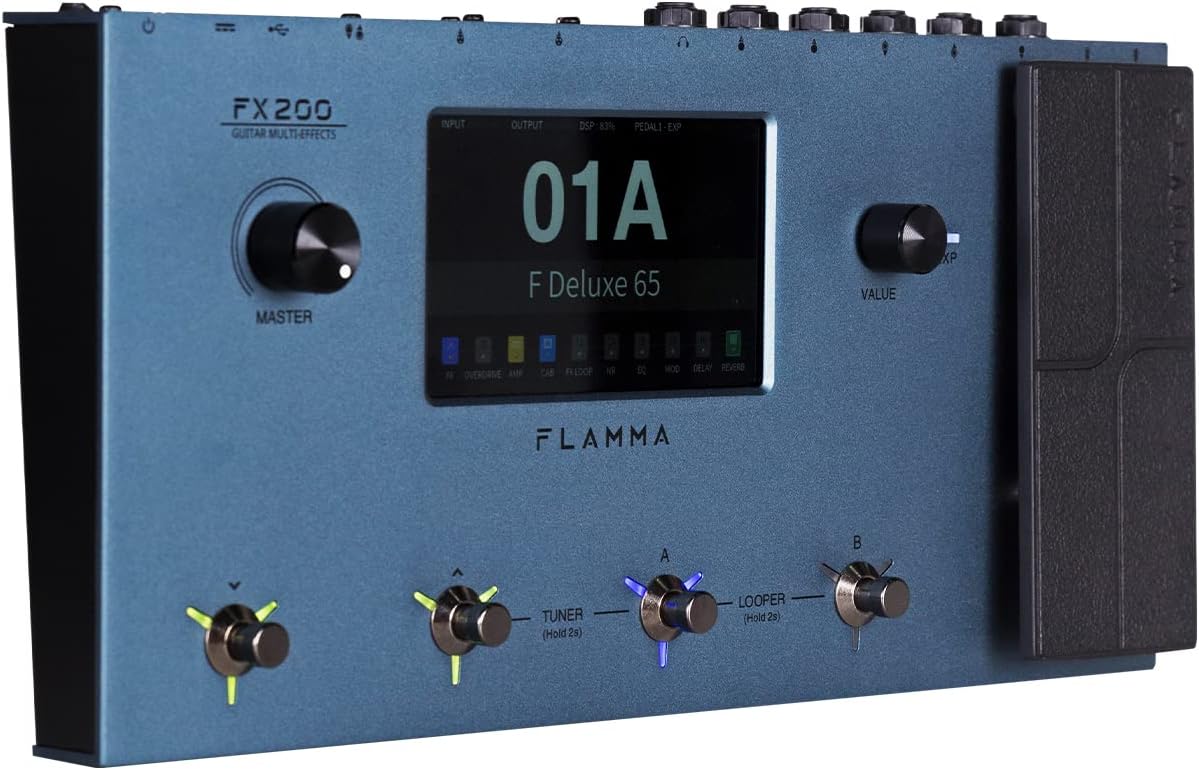
Figure 4.1: Front Panel Layout of the FX200.
- Master kenop: Saluyukeun volume kaluaran sakabéh.
- Layar Toél LCD: 5-inch display for navigation, parameter editing, and preset management.
- Kenop Nilai: Used for data entry and parameter adjustments.
- Saklar suku (A, B, C, D): Control presets, effects, looper, and tuner functions.
- Pedal éksprési: Assignable for real-time control of various effects parameters.
4.2 Rear Panel (I/O)

Figure 4.2: Rear Panel Input/Output Connections.
- AUX IN: Input stereo 3.5mm pikeun alat audio éksternal.
- EXP2: External expression pedal input.
- input: 1/4-inch mono input for guitar.
- SEND/RETURN: Stereo FX Loop for integrating external effects pedals.
- OUTPUT (L/MONO, R): 1/4-inch stereo outputs to amplifier atanapi mixer.
- TELEPON: 3.5mm kaluaran headphone stereo.
- GND/LIFT: Saklar angkat taneuh pikeun ngaleungitkeun dengung.
- XLR OUT (L, R): Balanced XLR stereo outputs for direct connection to PA systems or audio interfaces.
- MIDI LEBET/KALUAR: 5-pin MIDI connectors for external MIDI control.
- USB DC IN: USB-C port for power and connection to a computer.
- Saklar kakuatan: Hurungkeun unit / pareum.
5. Setélan
5.1 Mimiti Power-Up
- Connect the provided power adapter to the USB DC IN port on the rear panel.
- Colokkeun adaptor kakuatan kana stop kontak AC anu cocog.
- Flip the Power Switch to the ON position. The unit will power on and display the startup screen.
5.2 Connecting Your Guitar and Amppangagung
- Sambungkeun gitar anjeun ka INPUT jack maké kabel instrumen 1/4 inci baku.
- Nyambungkeun KALUARAN L/MONO jack kana gitar Anjeun amplifier's input using a 1/4-inch instrument cable. For stereo output, connect the OUTPUT Sunda jack ka detik ampinput lififier atanapi mixer.
- Alternatively, for direct recording or PA system connection, use XLR cables from the XLR OUT L jeung XLR OUT R ports to your audio interface or mixer.
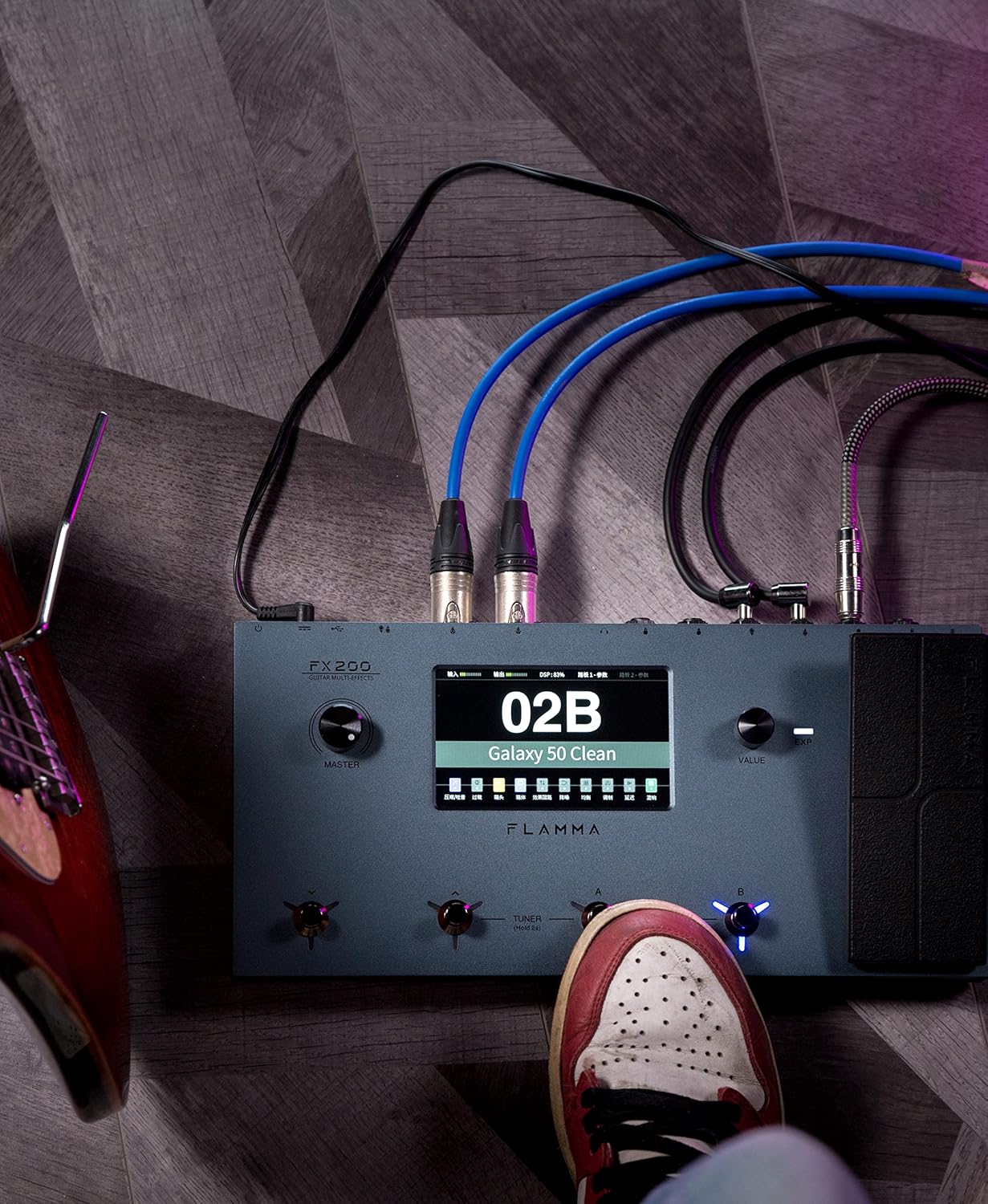
Figure 5.1: Typical connection setup for the FX200.
5.3 Nyambung kana Komputer
The FX200 can be connected to a computer for editing presets, firmware updates, and USB audio recording.
- Download the specialized editing software from the official FLAMMA websitus.
- Connect the FX200 to your computer using the provided USB-C cable.
- Launch the editing software. The software will detect the FX200, allowing you to manage presets, effects, and perform firmware updates.

Figure 5.2: FX200 connected to a computer for software editing.
6. Parentah Operasi
6.1 Navigasi Layar Toél
The 5-inch LCD touch screen is the primary interface for controlling the FX200. Tap icons and parameters to select them, and use the Value Knob to adjust values.

Figure 6.1: Interacting with the touch screen interface.
6.2 Manajemén prasetél
The FX200 features 200 editable user preset slots. Presets can be selected using the footswitches or by navigating the touch screen.
- Milih prasetél: In Play mode, press footswitches A or B to cycle through presets within a bank. Press footswitches C or D to change banks.
- Ngédit prasetél: Tap on an effect module icon on the touch screen to access its parameters. Adjust settings using the Value Knob.
- Nyimpen prasetél: After editing, tap the 'Save' icon on the touch screen and follow the prompts to store your changes to a user preset slot.
6.3 Effect Modules and Chain
The FX200 includes 10 effect modules with over 160 different effect types, 58 preamp models, and 30 cabinet simulations. The effects chain can be customized.
- Module Order: Drag and drop effect module icons on the touch screen to change their order in the signal chain.
- Activating/Deactivating Modules: Tap an effect module icon to toggle it on or off within a preset.
- Third-Party IRs: The unit supports third-party impulse response files (up to 1024 sampling points) with 50 empty slots for custom cabinet simulations. Use the editing software to load IRs.

Figure 6.2: Customizable effects chain on the FX200.
6.4 Looper jeung Drum Mesin
The FX200 includes an integrated 52-second looper and 80 drum machine variations with 10 metronome styles.
- Looper: Access the looper function via a dedicated footswitch or the touch screen. Record, overdub, play, and stop loops.
- Mesin Drum: Select drum patterns and metronome styles from the touch screen interface. Adjust tempo and volume.
6.5 USB Audio Recording
The FX200 supports USB audio recording, allowing you to record directly to your computer.
- Connect the FX200 to your computer via USB-C.
- Select the FX200 as your audio input device in your Digital Audio Workstation (DAW) software.
- Adjust input levels on both the FX200 and your DAW for optimal recording.
7. Pangropéa
- beberesih: Anggo lawon anu lemes sareng garing pikeun ngabersihkeun unit ieu. Entong nganggo pembersih atanapi pelarut anu abrasif.
- Panyimpenan: When not in use for extended periods, store the unit in a dry, cool place away from direct sunlight.
- Pembaruan firmware: Regularly check the FLAMMA website for firmware updates to ensure optimal performance and access to new features. Updates are performed via the USB-C connection and editing software.
8. Cara ngungkulan
| Masalah | Mungkin Cukang lantaranana | Solusi |
|---|---|---|
| Taya kakuatan | Power adapter not connected or faulty; Power switch off. | Ensure power adapter is securely connected and plugged into a working outlet. Check power switch. |
| Taya kaluaran sora | Incorrect cable connections; Master volume too low; Amplifier off; Effect module bypassed. | Verify all audio cables are correctly connected. Increase Master volume. Check amplifier power. Ensure desired effect modules are active. |
| Humming atawa noise | Ground loop; Faulty cables; Interference. | Engage the GND/LIFT switch. Try different cables. Ensure power supply is stable and away from other electronics. |
| Layar rampa teu ngaréspon | glitch software samentara. | Restart the unit by cycling the power switch. If the issue persists, contact customer support. |
| Teu bisa nyambung ka komputer | USB-C cable issue; Driver not installed; Software not running. | Ensure USB-C cable is functional. Install necessary drivers. Launch the FLAMMA editing software. |
9. Spésifikasi
| Fitur | Rincian |
|---|---|
| tampilan | Layar Toél LCD 5 inci |
| Pangaruh Modul | 10 modules, 160+ effect types |
| Praamp Modél | 58 |
| Cabinet Simulations | 30 (IR-based, 1024pts), 50 user IR slots |
| Pratetepan Pamaké | 200 editable slots |
| Looper | 52 detik |
| Mesin Kendang | 80 variations, 10 metronome styles |
| Konektipitas | AUX IN, EXP2, INPUT, SEND/RETURN, OUTPUT (L/MONO, R), PHONES, XLR OUT (L, R), MIDI IN/OUT, USB-C |
| USB Audio Recording | Dirojong |
| Ukuran (L x W x H) | 13.5 x 6.6 x 2 inci (34.3 x 16.8 x 5.1 cm) |
| Beurat | 3.9 pon (1.77 kg) |
| Sasayogian tanaga | 9V DC (via USB-C) |
| Bahan Awak | logam |
10. Garansi jeung Rojongan
FLAMMA products are covered by a limited warranty. For detailed warranty information, product registration, and technical support, please visit the official FLAMMA websitus atanapi ngahubungan layanan palanggan maranéhna.
Official FLAMMA Websitus: www.flamma.com
For any issues not covered in this manual, please refer to the online resources or contact FLAMMA customer support directly.


