Bubuka
Thank you for choosing the Vandlion 64GB Voice Recorder. This compact and professional digital audio recorder is designed for high-quality sound capture in various settings, including classes, meetings, interviews, and lectures. With its large storage capacity and user-friendly features, it provides a reliable solution for all your recording needs. Please read this manual carefully to ensure proper operation and maintenance of your device.
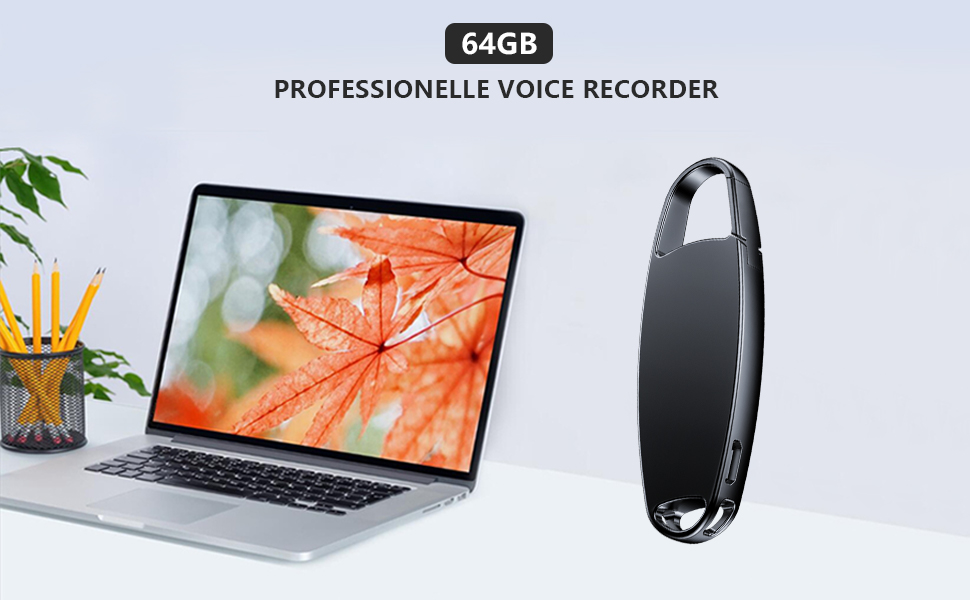
Image: The Vandlion 64GB Voice Recorder, a sleek black device, positioned on a desk alongside a laptop, illustrating its professional use.
Naon dina Box
Your Vandlion Voice Recorder package includes the following items:
- Vandlion 64GB Voice Recorder
- Kabel USB
- Manual pamaké
- Earphones (if included with your specific model)
- Remote control accessory (if included with your specific model)

Image: An illustration showing the voice recorder, USB cable, earphones, and user manual, representing the package contents.
Produk Leuwihview
The Vandlion Voice Recorder is designed for portability and ease of use. Its compact size and lightweight construction make it ideal for discreet recording.

Image: A diagram showing the Vandlion Voice Recorder with its approximate dimensions (7.3cm length, 2.3cm width, 0.8cm thickness) and weight (34g), highlighting its compact and lightweight design.
The device features a simple ON/OFF switch for recording, a Type-C port for charging and data transfer, and a built-in microphone. Its durable metal casing ensures longevity.

Image: The Vandlion Voice Recorder, with its integrated carabiner, clipped onto a belt loop of blue jeans, demonstrating its portability and ease of carrying.
Disetél
1. Ngecas Alat
Before first use, fully charge the voice recorder. Connect the device to a USB power adapter or a computer's USB port using the provided USB cable. The indicator light will show charging status. A full charge typically takes about 2 hours and provides 20-25 hours of continuous recording time.

Image: The voice recorder plugged into a wall charger, with an icon sequence showing battery level decreasing to 1% and then saving the recording, illustrating the low battery auto-save feature.
2. Daya Awal Hurung
To power on the device, slide the ON/OFF switch to the 'ON' position. The device will be ready for recording.
Parentah Operasi
1. One-Button Recording
To start recording, simply slide the ON/OFF switch to the 'ON' position. The device will begin recording automatically. To save the recording and stop, slide the switch to the 'OFF' position. The recording will be saved automatically.

Image: A hand sliding the switch on the voice recorder, with an audio waveform indicating recording activity, demonstrating the one-button recording function.
2. Voice Activated Recording (VOR)
The voice activation feature allows the recorder to start recording only when it detects sound and pause when there is silence, conserving memory and battery. By default, VOR is disabled. Please refer to the detailed instructions in the included user manual for steps on how to enable or disable this feature.
3. Earphone Playback and Navigation
To listen to your recordings, ensure the recorder is powered off and the recording file is saved. Plug the earphones into the device. You can then play back your recording files. During playback, short press the play button (on the remote control if applicable) to pause. Long press the previous/next song button to fast forward or rewind through the audio.

Image: The voice recorder with its ON/OFF switch, connected to a remote control and earphones, illustrating the one-touch recording and earphone playback features.
4. Automatic Save and Timestamp
The device automatically saves your recording files, especially when the battery is low, preventing data loss. Recording files are named with a timestamp (date and time), making it easy to organize and locate specific recordings.

Image: A smartphone screen displaying a list of recording files, with one file highlighted to show its name format including month, day, year, and time, demonstrating the timestamp fitur.
File Manajemén
You can easily manage your recording files by connecting the device to a computer or compatible Android phone.
1. Connecting to a Computer (Windows/Mac)
Connect the voice recorder to your Windows or Mac computer using the provided USB cable. The device will appear as a removable disk. You can then drag and drop files to transfer them, or delete unwanted recordings. The device is compatible with standard file penjelajah.
2. Connecting to an Android Phone (OTG)
For Android phones that support OTG (On-The-Go) functionality, you can directly connect the voice recorder using an appropriate OTG adapter (not always included). This allows you to play, delete, or transfer recordings directly from your phone. Note: This feature is not compatible with iOS/iPhone devices.

Image: The voice recorder connected via USB to a laptop and via OTG adapter to an Android phone, illustrating compatibility with Windows, Mac, and Android for file manajemén.
Pangropéa
- beberesih: Anggo lawon anu lemes sareng garing pikeun ngabersihkeun alat. Hindarkeun nganggo pembersih cair atanapi pangleyur.
- Panyimpenan: Store the recorder in a cool, dry place away from direct sunlight, extreme temperatures, and humidity.
- Perawatan batré: Pikeun manjangkeun umur batre, ulah miceun batre pinuh. Ngeusi batre alat sacara rutin, sanajan henteu dianggo kanggo waktos anu lami.
- Ngahindarkeun Dampak: While durable, avoid dropping or subjecting the device to strong impacts.
Pamérésan masalah
If you encounter issues with your Vandlion Voice Recorder, please refer to the following common solutions:
- Device not turning on or charging:
Ensure the device is fully charged. Connect it to a power source for at least 2 hours. If the issue persists, try a different USB cable or power adapter. A full reset might be necessary (see below).
- Alat teu dikenal ku komputer:
Ensure the USB cable is securely connected to both the recorder and the computer. Try a different USB port or cable. Restart your computer. Verify that the device is powered on when connecting. A full reset might resolve this.
- Poor recording quality or excessive background noise:
Ensure the microphone is not obstructed. Record in a quiet environment. Check the device's settings (if accessible via configuration file) for recording quality adjustments. Ensure the device is placed on a stable surface during recording.
- Files corrupted or cannot be played:
Ensure the device was properly powered off to save the recording. Do not disconnect the device during recording or file transfer. If files are corrupted, they may be unrecoverable. Ensure your media player supports WAV format.
- Full Device Reset Procedure:
If the device is unresponsive or not functioning correctly, a full reset may help. This procedure is based on common troubleshooting steps for similar devices:
- Ensure the device is fully charged (charge for 2 hours, then unplug).
- If your model includes a remote control accessory, insert the remote control into the recorder.
- Hurungkeun switch kakuatan ka ON posisi.
- Press and hold the Volume "+" symbol on the remote control switch for more than 15 seconds.
- Check if the indicator light on the recorder responds. If it lights up, unplug the remote control and attempt to record again.
If you still cannot resolve the issue after trying these methods, please contact customer service.
spésifikasi
| merek | Vandlion |
| Nomer modél | V13-64GB |
| Kapasitas Panyimpenan Mémori | 64 GB |
| Dimensi produk | 7.59 x 2.59 x 7.59 cm |
| Item Beurat | 37 gram |
| Batré | 1 batré Litium Ion diperlukeun (kaasup) |
| Panganteur Hardware | USB 2.0 |
| Faktor Bentuk Mikropon | Diwangun-Di |
| Formatna | WAV |
| Jack headphone | 3.5 milimeter |
| Alat nu cocog | Windows/MAC/Android |
Garansi sareng Rojongan
Vandlion products are manufactured to high-quality standards. For any questions, issues, or support needs regarding your voice recorder, please contact Vandlion customer service. We are committed to providing prompt assistance and resolving any concerns you may have.
Please refer to the contact information provided in your product packaging or on the official Vandlion websitus pikeun saluran rojongan paling up-to-date.


