Bubuka
Thank you for choosing the Admiral 50-inch Ultra HD LED Smart TV, model ADL50UWOSAC. This manual provides essential information for setting up, operating, maintaining, and troubleshooting your new television. Please read these instructions carefully before using the product to ensure proper operation and to maximize your viewpangalaman.
This television features a 4K LED display, Dolby Sound System, WebOS, built-in Chromecast, Bluetooth, and Wi-Fi connectivity, offering a wide range of entertainment options.
1. Setélan
1.1 Ngabongkar bungkusan
Carefully remove the TV from its packaging. Ensure all accessories are present, including the remote control, power cable, and stand components. Retain the packaging for future transport or service needs.
1.2 Pamasangan nangtung
Pikeun masang stand TV:
- Teundeun layar TV ka handap dina tempat nu datar tur lemes pikeun nyegah karuksakan.
- Sejajarkeun dasar nangtung sareng slot anu aya di handapeun TV.
- Ngamankeun nangtung ngagunakeun screws disadiakeun. Pastikeun aranjeunna tightened pageuh.
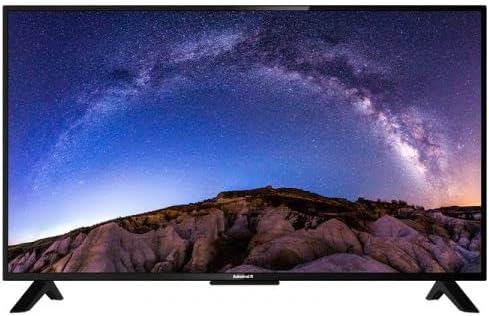
Gambar: Hareupeun view of the Admiral 50-inch Smart TV with its stand properly installed. This shows the display and the two support feet at the bottom.
1.3 Nyambungkeun Alat
Before connecting any devices, ensure the TV is unplugged from the power outlet.
- Kakuatan Kabel: Sambungkeun kabel kakuatan ka input kakuatan TV lajeng ka stop kontak témbok.
- Alat HDMI: Use HDMI cables to connect external devices such as Blu-ray players, gaming consoles, or set-top boxes to the HDMI ports on the TV.
- Alat USB: Insert USB drives for media playback into the USB ports.
- Antena/Kabel: Connect an antenna or cable TV source to the RF input.

Gambar: Tukangeun view of the Admiral 50-inch Smart TV, highlighting the location of various input ports including HDMI, USB, and power input.
1.4 Kakuatan Awal sareng Wizard Setup
After connecting all necessary cables, plug the TV into a power outlet. Press the power button on the remote control or on the TV itself. The TV will guide you through the initial setup wizard, which includes:
- Pilihan basa.
- Sambungan jaringan (Wi-Fi atanapi Ethernet).
- Panyeken saluran.
- Setélan zona waktu.
2. Parentah Operasi
2.1 Fungsi Remote Control
The provided remote control allows you to navigate the TV's features. Key functions include:
- Tombol Daya: Ngahurungkeun atawa mareuman TV.
- Input/Sumber: Selects the input source (HDMI 1, USB, TV, etc.).
- Volume Kaluhur/Turun: Nyaluyukeun tingkat sora.
- Saluran luhur/handap: Robah saluran TV.
- Tombol Navigasi (Konci Panah, OK): Navigates ménu jeung confirms selections.
- Tombol imah: Accesses the Smart TV home screen (WebOS).
- Tombol potong kompas aplikasi: Direct access to popular streaming services like Netflix, YouTube, and Prime Video.
2.2 Fitur Smart TV (WebOS)
Your Admiral Smart TV runs on WebOS, providing an intuitive user interface for accessing various applications and content.
- Dasbor Imah: Press the Home button to access the main dashboard, where you can find installed apps, input sources, and settings.
- App Store: Unduh sareng pasang aplikasi tambahan tina toko aplikasi terpadu.
- Chromecast Diwangun-di: Cast content from compatible mobile devices or computers directly to your TV. Ensure your device and TV are on the same Wi-Fi network.
- Konektipitas Bluetooth: Connect Bluetooth-enabled devices such as headphones or soundbars wirelessly to the TV. Access Bluetooth settings in the TV menu.
- Konektipitas Wi-Fi: Connect to your home wireless network for internet access and smart features. Manage Wi-Fi settings in the TV's network menu.
2.3 Pilihan Sumber Input
To switch between connected devices or TV channels, press the "Input" or "Source" button on your remote control. A menu will appear, allowing you to select the desired input (e.g., HDMI 1, HDMI 2, USB, TV).
3. Pangropéa
3.1 Ngabersihan TV
- layar: Lembut usap layar nganggo lawon anu lemes sareng teu aya serat. Pikeun tanda nekad, rada dampen lawon jeung cai atawa cleaner layar husus. Ulah nyemprot cairan langsung kana layar.
- awak: Anggo lawon anu lemes sareng garing pikeun ngabersihkeun TVasing. Ulah make cleaners abrasive atawa pangleyur.
- Sok cabut TV samemeh beberesih.
3.2 Apdet parangkat lunak
Periodically check for software updates through the TV's settings menu. Updates can improve performance, add new features, and enhance security. Ensure the TV is connected to the internet during the update process.
4. Cara ngungkulan
Upami anjeun ngalaman masalah sareng TV anjeun, tingali solusi umum di handap ieu sateuacan ngahubungi dukungan.
| Masalah | Solusi anu mungkin |
|---|---|
| Taya kakuatan |
|
| Taya gambar atawa sora |
|
| Kadali jauh teu jalan |
|
| Teu bisa nyambung ka Wi-Fi |
|
5. Spésifikasi
| Fitur | Rincian |
|---|---|
| merek | Laksamana |
| Nomer modél | ADL50UWOSAC |
| Ukuran layar | 50 inci |
| Téknologi tampilan | LED |
| Resolusi | 4K Ultra HD |
| Refresh Laju | 60 Hz |
| Sistem operasi | WebOS |
| Fitur husus | Built-In Speaker, Dolby Sound System, Chromecast Built-in |
| Téhnologi konektipitas | HDMI, USB, Wi-Fi, Bluetooth |
| Rasio Aspék | 16:9 |
| Ukuran produk (D x W x H) | 14D x 121W x 74H séntiméter |
| Item Beurat | 11.16 kg |
| Produsén | ADMIRAL TV |
6. Émbaran jaminan
This Admiral 50-inch Smart TV (Model ADL50UWOSAC) comes with a garansi 2 taun from the date of purchase. This warranty covers manufacturing defects and ensures peace of mind. Please retain your proof of purchase for warranty claims. For specific terms and conditions, refer to the warranty card included with your product or contact Admiral customer support.
7. Rojongan Palanggan
If you require further assistance, have questions not covered in this manual, or need to report a technical issue, please contact Admiral customer support. Refer to the contact information provided on the product packaging or the official Admiral websitus pikeun detil rojongan paling up-to-date.
When contacting support, please have your TV model number (ADL50UWOSAC) and serial number ready.


