1. Bubuka
Hatur nuhun pikeun meuliasing the Admiral 50 Inch 4K Smart LED TV, model ADL50UMSACN. This manual provides essential information for the safe and efficient use of your new television. Please read this manual thoroughly before operating the TV and retain it for future reference.
This television features a 50-inch 4K UHD display, integrated Google Android TV for smart functionality, Dolby Sound System, built-in Chromecast, Bluetooth, and Wi-Fi connectivity, offering a comprehensive home entertainment experience.
2. Émbaran Kasalametan
Pitunjuk Kasalametan Penting:
- Baca sadaya parentah sateuacan ngajalankeun TV.
- Keep the TV away from heat sources, direct sunlight, and water.
- Pastikeun ventilasi anu pas di sabudeureun TV pikeun nyegah overheating. Ulah meungpeuk bukaan ventilasi.
- Anggo ngan ukur kabel daya anu disayogikeun sareng TV. Ulah ngaleuwihan kapasitas stop kontak.
- Nangtayungan kabel kakuatan tina keur leumpang dina atawa pinched.
- Cabut colokan TV nalika badai kilat atanapi nalika henteu dianggo kanggo waktos anu lami.
- Ulah nyobian ngalayanan TV sorangan. Rujuk sadayana jasa ka tanaga jasa anu mumpuni.
- Jauhkeun bagian leutik sareng batré jauh tina jangkauan barudak.
3. Eusi Paket
Punten parios yén sadaya barang aya sareng dina kaayaan anu saé:
- Admiral 50 Inch 4K Smart LED TV
- Stand TV (2 buah)
- Kadali jauh
- Kabel Daya
- Manual pangguna (dokumén ieu)
- Screws pikeun Instalasi Stand
4. Setélan
4.1 Ngabongkar bungkusan TV
Carefully remove the TV from its packaging. It is recommended to have two people for this process due to the size and weight of the television. Place the TV screen-down on a soft, flat surface (like a blanket or foam) to prevent damage during stand installation.
4.2 Masang TV Stand
To attach the included stand:
- Identipikasi potongan nangtung kénca jeung katuhu.
- Sejajarkeun unggal potongan nangtung sareng slot anu cocog dina handapeun TV.
- Secure each stand piece using the provided screws. Ensure they are tightened firmly but do not overtighten.
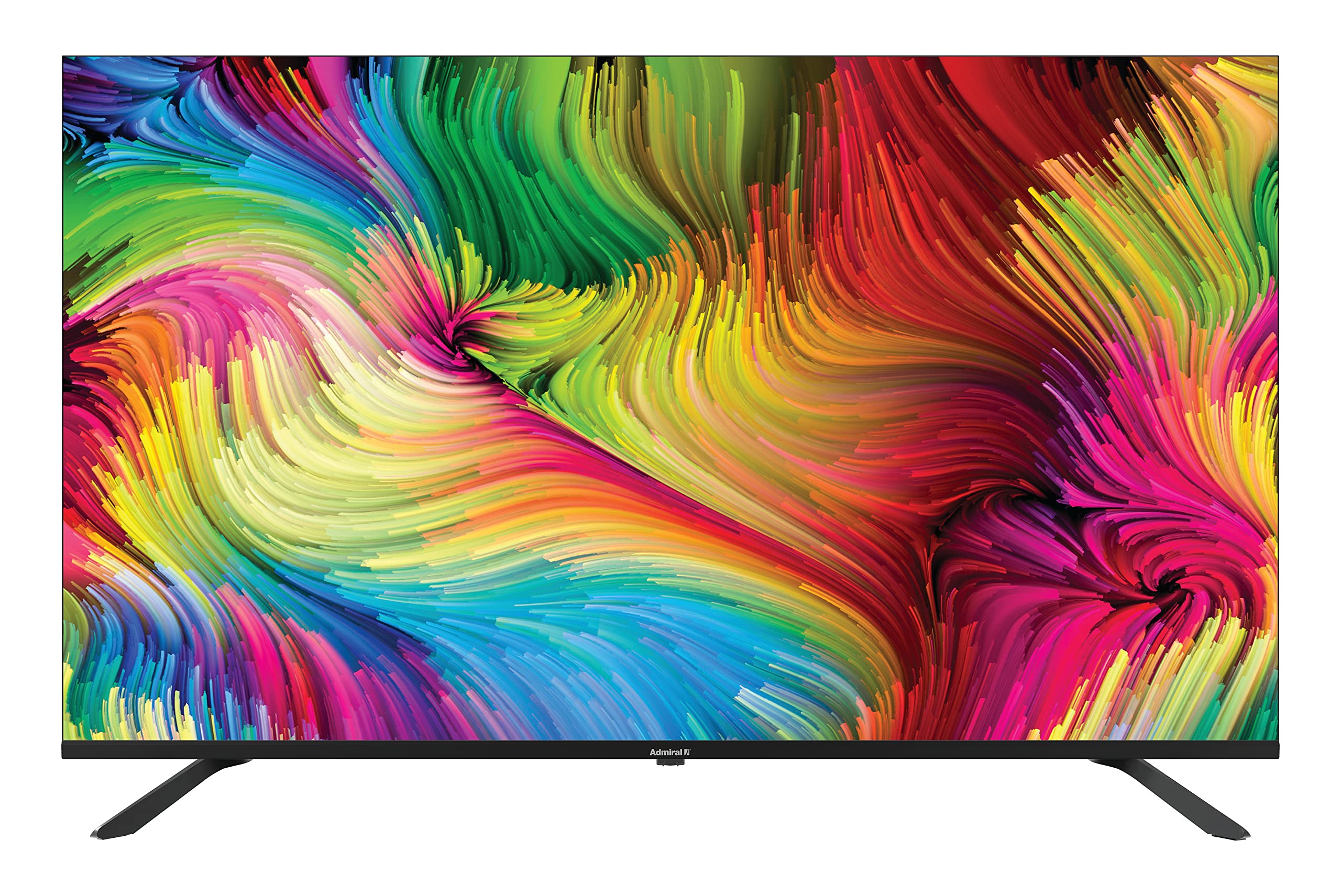
Image: Admiral 50 Inch 4K Smart LED TV with its stand attached, viewed ti hiji sudut.
4.3 Pamasangan Tembok (Pilihan)
If you choose to wall mount your TV, please consult a professional installer. The TV uses a VESA compatible mounting pattern. Ensure the wall mount can support the weight of the TV (approximately 9.3 kg) and is installed securely.
4.4 Nyambungkeun Alat
Connect your external devices (e.g., cable box, Blu-ray player, gaming console) to the appropriate ports on the back or side of the TV. Common connections include HDMI for high-definition video and audio.

Gambar: Sisi view of the Admiral 50 Inch 4K Smart LED TV, illustrating the slim profile sareng lokasi poténsial pikeun palabuhan konektipitas.
4.5 Nyambungkeun Power jeung Setup Awal
After connecting all devices, plug the power cable into the TV and then into a wall outlet. Press the power button on the TV or remote control. The TV will guide you through the initial setup process, including language selection, network connection (Wi-Fi), and channel scanning.
5. Parentah Operasi
5.1 Fungsi Remote Control
The remote control allows you to access all TV functions. Familiarize yourself with the buttons for power, volume, channel selection, input source, and smart TV navigation.

Image: A person comfortably seated, operating the Admiral 50 Inch 4K Smart LED TV with a remote control.
5.2 Smart TV Features (Google Android TV)
Your Admiral TV runs on Google Android TV, providing access to a wide range of applications and services:
- Aksés Aplikasi: Navigate to the home screen to find pre-installed apps like Netflix, YouTube, and Amazon Instant Video. You can download more apps from the Google Play Store.
- Chromecast Diwangun-di: Stream content (videos, music, photos) directly from your compatible smartphone, tablet, or computer to the TV screen.
- Konektipitas Wi-Fi: Sambungkeun ka jaringan nirkabel bumi anjeun pikeun aksés internét sareng fitur pinter.
- Bluetooth: Pair Bluetooth-enabled devices such as headphones or game controllers for enhanced audio or gaming experiences.
- Kontrol sora: Use the voice assistant feature (if available on your remote) to search for content, control playback, and more.
5.3 Fungsi TV Dasar
- Hurungkeun/Pareuman: Pencét tombol daya dina rémot atawa TV.
- Kontrol volume: Paké tombol Volume Up/Turun.
- Pilihan Saluran: Anggo tombol Saluran Kaluhur/Turun atanapi pad angka.
- Sumber Input: Press the 'Input' or 'Source' button to switch between HDMI, AV, TV, etc.
- Menu Setélan: Access picture, sound, network, and system settings via the 'Settings' button on your remote.
6. Pangropéa
6.1 Ngabersihan Layar
Pikeun ngabersihkeun layar, usap lembut nganggo kaen anu lemes sareng teu aya serat. Pikeun tanda pengkuh, enteng dampen lawon jeung cai atawa cleaner layar husus. Do not use harsh chemicals, abrasive cleaners, or alcohol-based solutions as they can damage the screen surface.
6.2 Cleaning the TV Cabinet
Wipe the TV cabinet with a soft, dry cloth. If necessary, a slightly damp lawon bisa dipaké, dituturkeun ku lawon garing. Pastikeun euweuh cairan anu asup kana liang ventilasi.
6.3 Panyimpenan
If you need to store the TV for an extended period, unplug it from the power outlet, remove batteries from the remote, and cover it to protect against dust. Store in a cool, dry place.
7. Cara ngungkulan
Sateuacan ngahubungi dukungan palanggan, mangga tingal masalah sareng solusi umum ieu:
- Henteu aya kakuatan: Pastikeun kabel daya dipasang pageuh kana TV sareng stop kontak anu tiasa dianggo. Cobi colokkeun alat sanés kana stop kontak anu sami pikeun mastikeun yén éta gaduh daya.
- Henteu aya gambar atanapi sora:
- Check that the correct input source is selected (e.g., HDMI 1, AV).
- Pastikeun sadaya kabel parantos disambungkeun kalayan pageuh.
- Ningkatkeun tingkat polumeu.
- Remote Control Teu Gawé:
- Ganti batréna ku nu anyar.
- Pastikeun teu aya halangan antara jauh sareng sénsor IR TV.
- Smart Features/Internet Not Working:
- Check your Wi-Fi connection in the TV's network settings.
- Balikan deui router / modem asal anjeun.
- Balikan deui TV ku cara cabut colokan tina stop kontak sababaraha menit, teras colokkeun deui.
- Kualitas Gambar goréng:
- Pariksa setélan résolusi alat anjeun anu nyambung.
- Saluyukeun setelan gambar (kacaangan, kontras, seukeutna gambar) dina menu TV.
- Ensure the signal source (antenna, cable, streaming) is strong and clear.
8. Spésifikasi
| Fitur | Spésifikasi |
|---|---|
| merek | Laksamana |
| Nomer modél | ADL50UMSACN |
| Ukuran layar | 50 inci |
| Téknologi tampilan | LED |
| Resolusi | 4K UHD (3840 x 2160) |
| Refresh Laju | 60 Hz |
| Sistem operasi | Google Android TV |
| Téhnologi konektipitas | Wi-Fi, Bluetooth |
| Fitur husus | Browser, Chromecast Built-in |
| Dirojong jasa Internét | Pidéo Instan Amazon, Netflix, YouTube |
| Ukuran produk (kalayan stand) | 111 x 31 x 69.7 cm |
| Item Beurat | 9.3 kg |
| Komponén Kaasup | Nangtung, TV |
9. Garansi jeung Rojongan
Your Admiral 50 Inch 4K Smart LED TV ADL50UMSACN comes with a garansi 2 taun. Punten tahan bukti pameseran anjeun pikeun klaim garansi.
For technical assistance, troubleshooting beyond this manual, or warranty service, please contact Admiral customer support. Refer to the contact information provided with your purchase documentation or visit the official Admiral websitus pikeun detil rojongan.


