1. Bubuka
Thank you for choosing the typecase Touch iPad Keyboard Case. This manual provides detailed instructions for setting up, operating, and maintaining your keyboard case to ensure optimal performance and longevity. Please read this manual thoroughly before use.
2. Kasaluyuan
This keyboard case is designed for specific iPad models. Please verify your iPad model number to ensure compatibility.
- iPad 10th Generation (10.9-inch, 2022): Modél A2696, A2757, A2777
- iPad A16 (11th Generation, 2025): Modél A3354, A3355, A3356
To verify your iPad model:
- Métode 1: Check the back of your iPad for the model number (e.g., A2696).
- Métode 2: Go to iPad Settings > General > About > Model Number. Tap the model number to display the A-number.
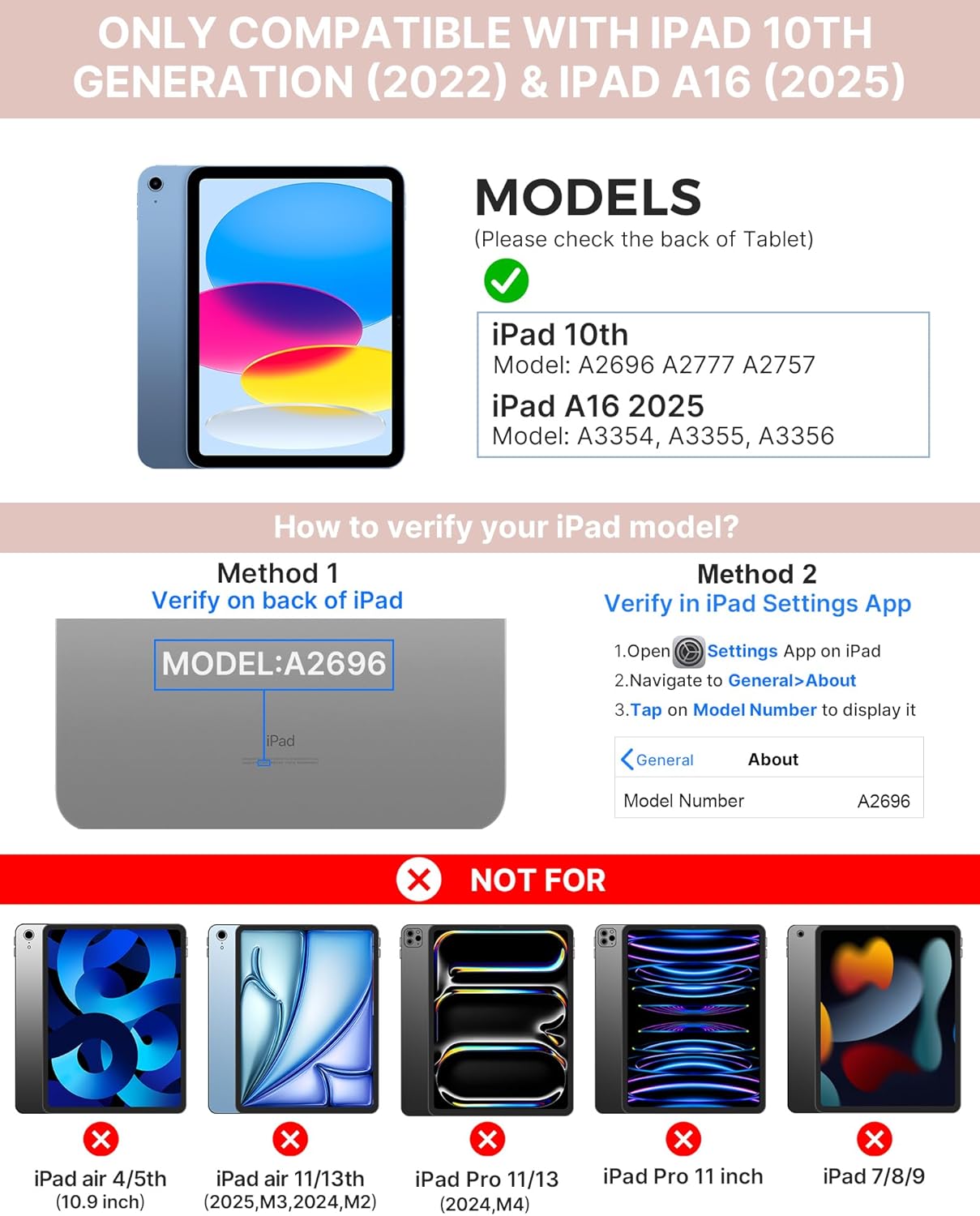
Image: Visual guide for identifying compatible iPad models and verifying the model number on the device or through settings.
3. Eusi Paket
pakét ngawengku:
- 1 x typecase Touch iPad Keyboard Case
- 1 x Kabel Ngecas USB-C
- 1 x Manual Pamaké
4. Parentah Setup
4.1 Ngecas kibor
Sateuacan dianggo mimiti, eusian heula keyboard sacara pinuh. Sambungkeun kabel ngecas USB-C anu disayogikeun kana port ngecas keyboard sareng sumber daya. Lampu indikator ngecas bakal nunjukkeun status ngecas.
- Antosan: Nepi ka 1 Taun
- Daytime use (2 hours/day with backlight off): Nepi ka 3 Bulan
- Nighttime use (2 hours/day with backlight on): Nepi ka 2 Minggu

Image: Close-up of the keyboard's USB-C charging port and battery life specifications.
4.2 Ngapasangkeun sareng iPad
- Pastikeun keyboard dieusi.
- Turn on the keyboard by pressing the power button. The Bluetooth indicator light will flash.
- Dina iPad anjeun, buka Setelan > Bluetooth.
- Hurungkeun Bluetooth. iPad anjeun bakal milarian alat anu sayogi.
- Select "typecase Keyboard" from the list of devices.
- Turutan ajakan dina layar pikeun ngarengsekeun prosés papasangan. Lampu indikator Bluetooth dina kibor bakal padet nalika hasil dipasangkeun.
5. Parentah Operasi
5.1 Masang iPad Anjeun
Gently insert your iPad into the case, ensuring all edges are securely seated. The case provides full protection for your device.
5.2 Fungsi kibor
The keyboard features a standard 78-key layout with a dedicated row of iPadOS shortcut keys for enhanced productivity.

Gambar: Overhead view of the keyboard layout, highlighting the 78-key design and iPadOS shortcuts.
Tombol Backlit
The keyboard features 11-color RGB LED backlighting with adjustable brightness levels. This allows for comfortable typing in various lighting conditions.
- Pencét éta konci bohlam lampu pikeun muterkeun warna lampu latar.
- Pencét Fn + light bulb key pikeun nyaluyukeun kacaangan lampu latar.
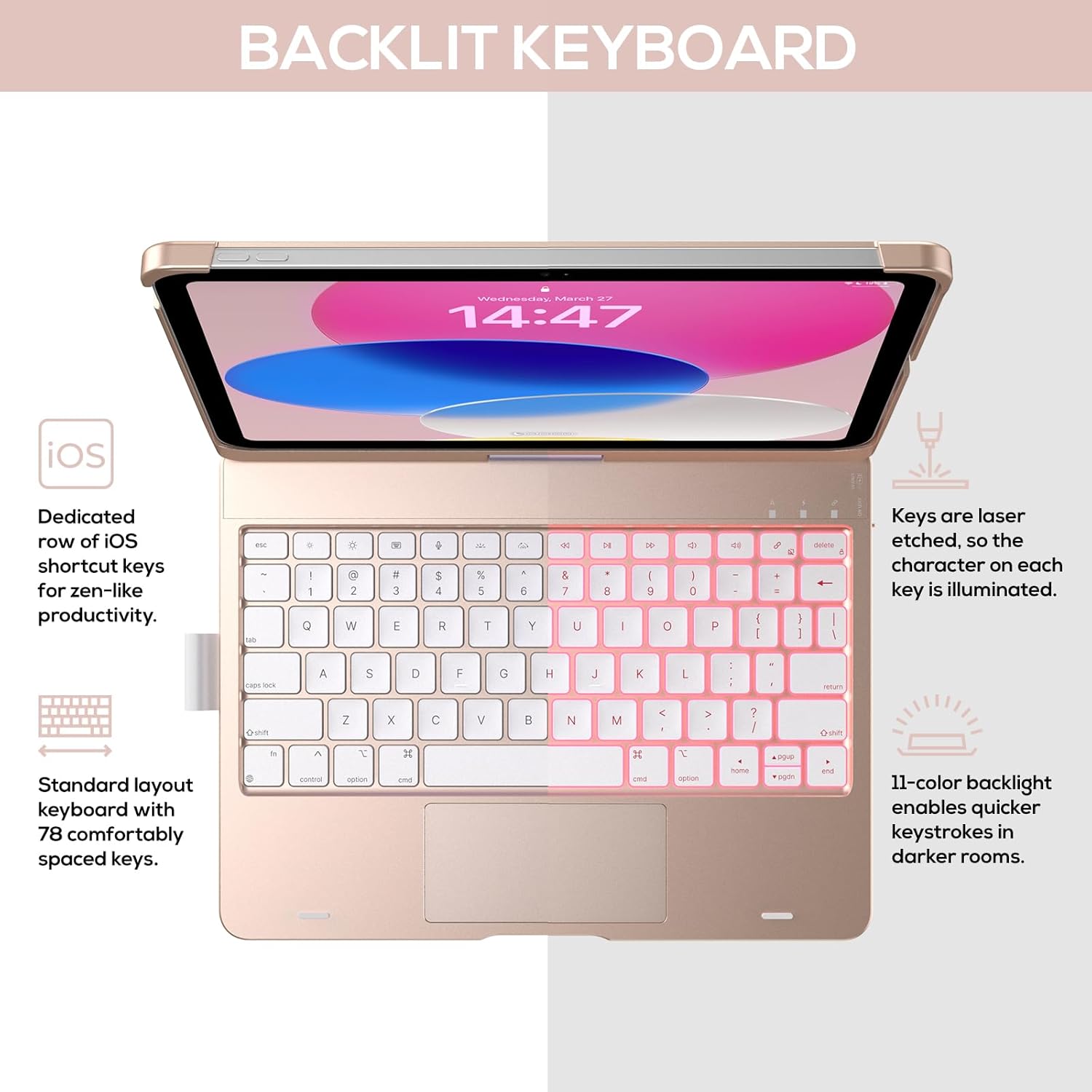
Image: The keyboard with illuminated keys, demonstrating the 11-color backlight and dedicated iOS shortcut keys.
5.3 Trackpad Multi-Toél
The integrated precision trackpad supports multi-gesture controls, enhancing productivity for tasks like document editing, web browsing, and presentation building.
- Ketok hiji jari: Klik/Pilih
- Gulungan dua jari: Gulung ka luhur/handap atawa ka kenca/katuhu
- Ciwit pikeun zum: Zum in/out
- Gesek tilu ramo ka luhur: Buka App Switcher
- Gesek tilu ramo ka handap: Balik deui ka Layar Utama

Image: Diagram showing common multi-touch gestures for the trackpad, including managing files, web browsing, and app switching.
5.4 360° Rotatable Hinge and Use Modes
The patented 360° hinge allows for versatile use of your iPad in 7 unique modes, adapting to various tasks from typing to viewing.
- Modeu Laptop: Traditional laptop setup for typing.
- Mode nangtung: Idéal pikeun vieweusi.
- Mode tenda: Stable for touch interaction or presentations.
- Modeu tablet: Fold the keyboard behind the iPad for tablet use. Keys are protected in this mode.
- Corner Mode: Angled for comfortable drawing or writing.
- Modeu Bagikeun: Rotate the screen to share content with others.
- Protect Mode: Close the case to fully protect the iPad.
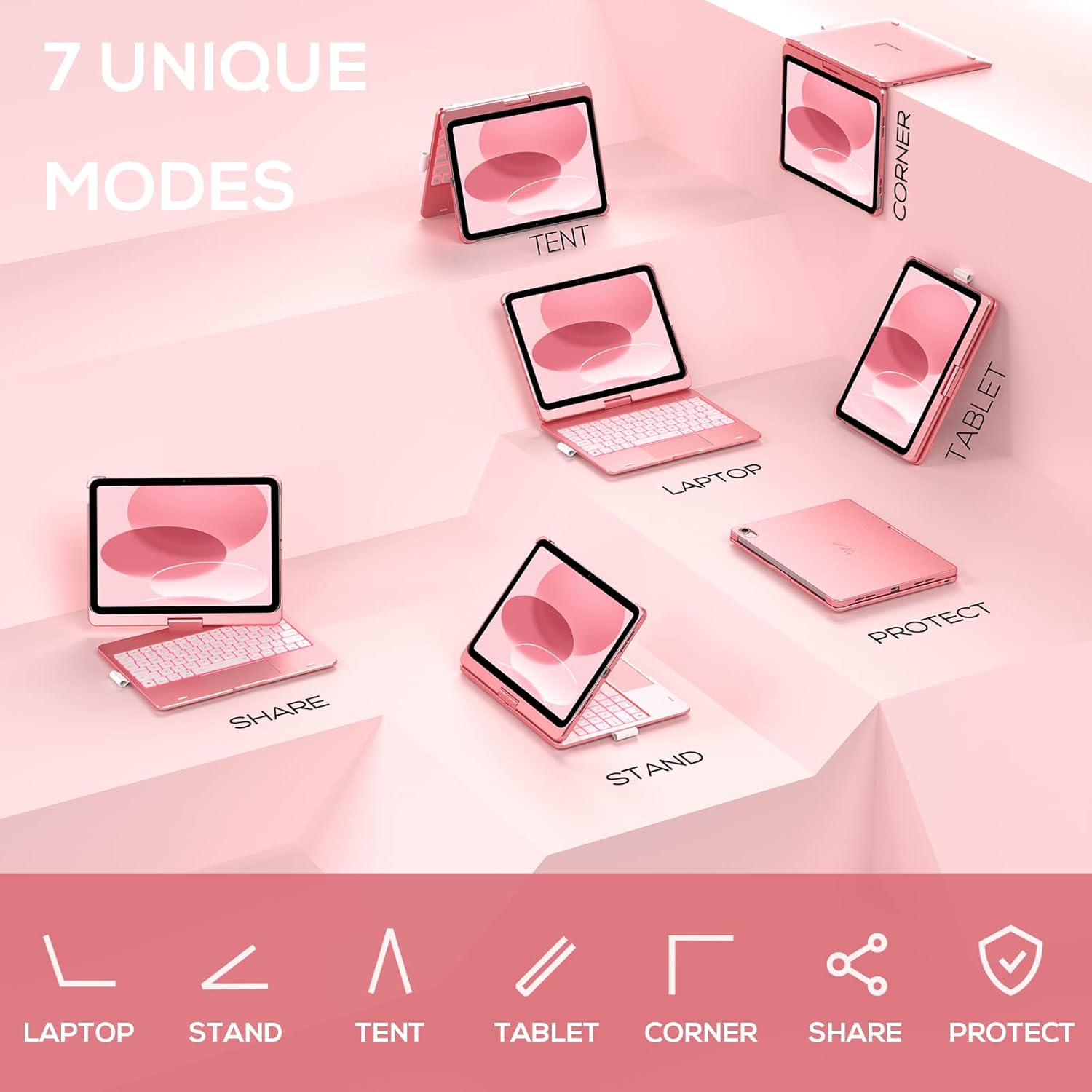
Image: A visual representation of the seven different configurations the keyboard case can be used in, including laptop, stand, and tablet modes.
5.5 Fungsi Saré/Hudang Otomatis
The case features an auto sleep/wake function. Opening the case will wake your iPad, and closing it will put your iPad to sleep, helping to conserve battery life for both the iPad and the keyboard.

Image: A user's hand on the trackpad, illustrating the built-in trackpad and the auto sleep/wake feature that activates when the case is opened or closed.
5.6 Apple Pencil Holder
An integrated holder is provided for your Apple Pencil, ensuring it is securely stored and easily accessible.
6. Pangropéa
6.1 beberesih
Pikeun ngabersihkeun wadah kibor, pake lemes, damp cloth. Avoid using harsh chemicals or abrasive materials, as these may damage the surface. Ensure the charging port is dry before charging.
6.2 Panyimpenan
When not in use for extended periods, store the keyboard case in a cool, dry place. It is recommended to fully charge the keyboard before long-term storage to maintain battery health.
7. Cara ngungkulan
7.1 Kibor Teu Nyambung
- Pastikeun kibor diaktipkeun sareng dicas.
- Check that Bluetooth is enabled on your iPad.
- Poho alat dina setélan Bluetooth iPad anjeun sareng cobian pasangkeun deui.
- Pareuman terus hurungkeun deui iPad sareng kibor anjeun.
7.2 Kenop Teu Ngabales
- Pastikeun kibor disambungkeun kalayan leres via Bluetooth.
- Pariksa tingkat batré keyboard urang.
- Bersihkeun kokotor-kokotor anu aya di sabudeureun konci.
7.3 Trackpad Teu Jalan
- Pastikeun keyboard disambungkeun.
- Check iPad settings for trackpad functionality (Settings > General > Trackpad).
- Balikan deui kibor sareng iPad.
7.4 Lampu tukang Teu Gawé
- Pastikeun keyboard diaktipkeun.
- Press the backlight control keys (light bulb key, Fn + light bulb key) to activate or adjust.
- Check battery level; low battery may disable backlighting.
8. Spésifikasi
| Nomer modél | KB201T-100 |
| Dimensi produk | 11 x 8.6 x 1.5 inci (11" L x 8.6" W x 1.5 "H) |
| Item Beurat | 1.43 pon |
| Téhnologi konektipitas | Bluetooth |
| Katerangan kibor | Flexible, 78-key layout with iPadOS shortcuts |
| Fitur husus | 360° Rotatable, 11-Color Backlit, Ergonomic, Lightweight, Multi-Touch Trackpad, Auto Sleep/Wake, Apple Pencil Holder |
| Lampu tukang kibor | RGB (11 kelir) |
| Jenis Batré | 1 batré Litium Polimér (kaasup) |
9. Garansi jeung Rojongan
typecase is committed to product quality and customer satisfaction. This product comes with the following support:
- Service ngagantian: Within 1 year of purchase.
- Kawijakan ngabalikeun duit: Dina 30 poé pameseran.
For any issues or inquiries, please contact typecase customer support for quick feedback and assistance.

Image: Information on typecase's after-sales service, including replacement, refund, and customer support.


