1. Bubuka
This manual provides detailed instructions for the setup, operation, and maintenance of your VYSER F2 Projector. Please read this manual thoroughly before using the projector to ensure proper functionality and to maximize your viewing experience. The VYSER F2 Projector is a versatile device designed for various entertainment and presentation needs, offering high-definition projection with multiple connectivity options.
2. Naon dina Box
Upon unboxing your VYSER F2 Projector, please verify that all the following items are included:
- VYSER F2 Projector
- Kadali jauh
- Manual pangguna (dokumén ieu)
- Kabel HDMI
- Kabel Daya
3. Produk Langkungview
Familiarize yourself with the components and ports of your VYSER F2 Projector.

Figure 3.1: VYSER F2 Projector with key features highlighted.
3.1 Hareup View
- Lensa fokus: Nyaluyukeun kajelasan gambar anu diproyeksikan.
- Panarima IR: Nampi sinyal tina kadali jauh.
3.2 Side and Rear Views (Palabuhan sareng Kontrol)
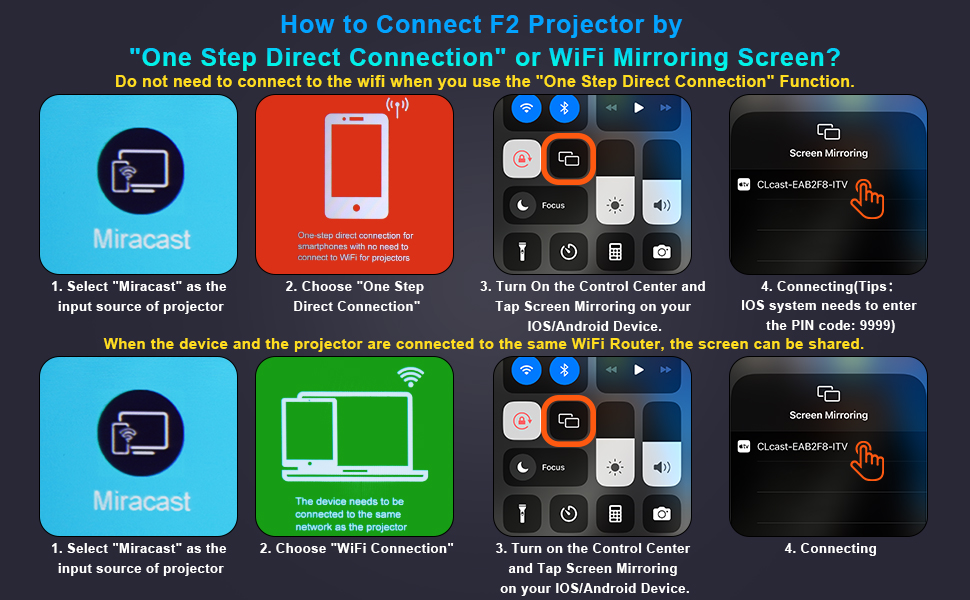
Figure 3.2: Multiple connection options on the VYSER F2 Projector.
- Port HDMI (x2): Connect to devices like laptops, TV sticks, gaming consoles (e.g., PS5/Xbox).
- Port USB (x2): Sambungkeun drive USB pikeun playback média.
- Port AV: Sambungkeun ka alat anu langkung lami nganggo kabel AV.
- Kaluaran Audio 3.5mm: Sambungkeun speaker éksternal atawa headphone.
- Input kakuatan: Sambungkeun kabel kakuatan.
- Cooling Windows: Pastikeun ventilasi ditangtoskeun pikeun dissipation panas.
- On-board Controls: Buttons for power, menu, input source, and navigation.
3.3 360 Degree View tina Projector
Video 3.1: A comprehensive 360-degree view of the VYSER F2 Projector, showcasing its design and various ports from all angles.
4. Setélan
Follow these steps to set up your VYSER F2 Projector for the first time.
4.1 Nempatkeun
Place the projector on a stable, flat surface. Ensure there is adequate ventilation around the projector to prevent overheating. The projection distance can range from 5-15 feet, allowing for an adjustable screen size of 50-300 inches.
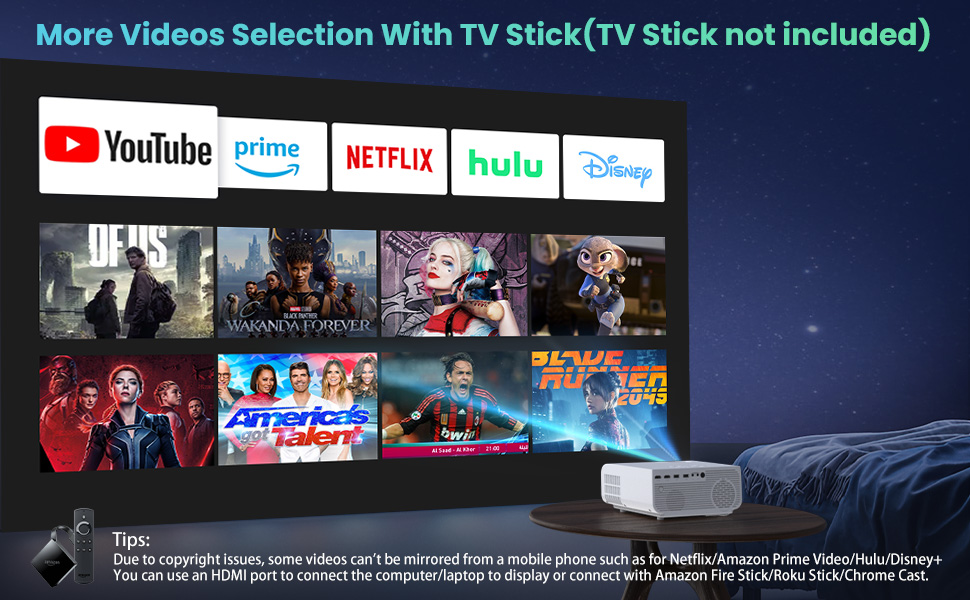
Figure 4.1: Adjustable display size from 50 to 300 inches.
The projector can be placed on a table, mounted on a tripod, or ceiling-mounted. Use the adjustable foot at the bottom of the projector to fine-tune the projection angle if needed.
4.2 Sambungan Daya
- Sambungkeun kabel daya ka port Input Daya dina proyéktor.
- Colokkeun tungtung kabel daya anu sanés ka stopkontak.
- Press the Power button on the projector or remote control to turn it on.
4.3 Fokus jeung Koreksi Keystone
- Penyesuaian fokus: Rotate the focus lens ring on the front of the projector until the image appears clear and sharp.
- Koreksi Keystone: Use the keystone correction dial (usually on top or side) to adjust the image shape if it appears trapezoidal. The projector supports ±15° keystone correction.
5. Parentah Operasi
Learn how to connect your devices and utilize the various features of your projector.
5.1 Nyambungkeun Alat
The VYSER F2 Projector offers multiple ways to connect your devices:
- HDMI: For high-definition video and audio from laptops, gaming consoles, TV boxes, etc.
- USB: Pikeun média maén files langsung ti USB flash drive.
- OF: Pikeun nyambungkeun alat anu langkung lami nganggo kaluaran AV.
5.2 Wireless Connectivity (Screen Mirroring)
The projector supports 5G/2.4G WiFi for seamless screen mirroring from your smartphone or tablet.
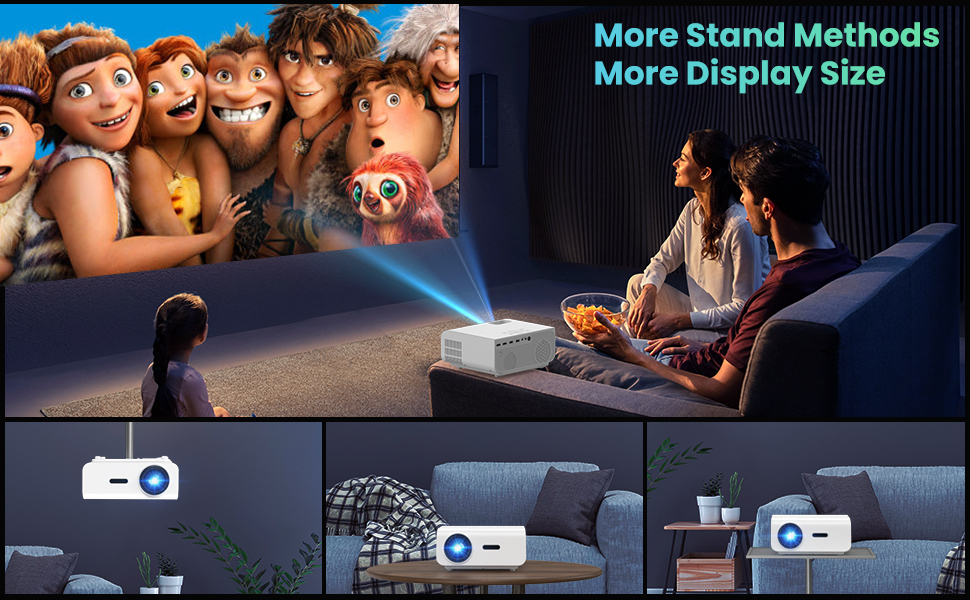
Figure 5.1: 5G/2.4G WiFi Screen Mirroring for various devices.
One-Step Direct Connection: This feature allows direct connection to your phone without needing a WiFi network. Ideal for outdoor use or when a router is unavailable.
Video 5.1: Demonstration of the F2 Projector's One-Step Direct Connection with WiFi and Bluetooth, showing quick setup for phone mirroring.
For detailed steps on screen mirroring, refer to the on-screen instructions by selecting "Miracast" from the input source menu.
Note: Due to copyright restrictions, some streaming services (e.g., Netflix, Amazon Prime Video, Hulu, Disney+) may block screen mirroring. For these services, it is recommended to use an HDMI connection with a compatible device like a Fire TV Stick, Roku Stick, or laptop.
5.3 Sambungan Bluetooth
The projector features Bluetooth 5.1 for connecting to external Bluetooth speakers or headphones, enhancing your audio experience.

Figure 5.2: Bluetooth connection for external audio devices.
To connect: Navigate to the Bluetooth settings on the projector, enable Bluetooth, and select your desired audio device from the list of available devices. (Note: The projector connects to Bluetooth speakers, not directly to smartphones/tablets via Bluetooth for audio input).
5.4 Navigasi Menu
Use the remote control or the on-board buttons to navigate the projector's menu. Options typically include input source selection, picture settings (brightness, contrast, color), sound settings, and system settings.
6. Pangropéa
Pangropéa anu leres mastikeun umur panjang sareng kinerja optimal proyektor anjeun.
- Ngabersihan lensa: Anggo lawon anu lemes sareng henteu lint anu dirancang khusus pikeun lénsa optik pikeun ngabersihan lénsa proyektor sacara lembut. Hindarkeun bahan abrasive atanapi bahan kimia kasar.
- Ngaleungitkeun lebu: Regularly clean the cooling vents to prevent dust buildup, which can affect performance and lifespan. Use a soft brush or compressed air.
- Panyimpenan: Lamun teu dipaké pikeun période nambahan, nyimpen projector dina tiis, tempat garing, idéal dina bungkusan aslina atawa wadah pelindung.
- Pareuman leres: Pareuman heula proyéktor nganggo tombol daya teras antepkeun tiis heula sateuacan nyabut atanapi mindahkeunana.
7. Cara ngungkulan
Upami anjeun mendakan masalah sareng proyektor anjeun, tingal léngkah-léngkah ngungkulan umum ieu:
| Masalah | Mungkin Cukang lantaranana / Solusi |
|---|---|
| Teu aya gambar atanapi pesen "Teu aya Sinyal" |
|
| Gambar kabur |
|
| Gambar trapesium |
|
| Teu aya sora atanapi sora rendah |
|
| Screen mirroring issues (e.g., Netflix not working) |
|
| Projector overheating or shutting down |
|
8. Spésifikasi
Key technical specifications for the VYSER F2 Projector:
| Fitur | Rincian |
|---|---|
| merek | VYSER |
| Modél | F2 Projector |
| Resolusi pribumi | 1920 x 1080 (Asli 1080P) |
| Caang | 12000 Lux (350 ANSI Lumens) |
| Babandingan Kontras | 10000:1 (implied from image comparison) |
| Ukuran proyéksi | 50-300 inci |
| Jarak proyéksi | 5-15 suku |
| Téhnologi konektipitas | Wireless (5G/2.4G WiFi), Bluetooth 5.1, HDMI (x2), USB (x2), AV, 3.5mm Audio Out |
| Koréksi Keystone | ± 15 ° Manual |
| Item Beurat | 4.11 pon |
| Warna | White-White |
9. Garansi jeung Rojongan
VYSER is committed to providing excellent customer service and technical support for your projector.
- Service Palanggan Hirupna: Enjoy lifetime customer service and technical support for your VYSER F2 Projector.
- For any inquiries, technical assistance, or warranty claims, please contact VYSER customer support through the platform where you purchased the product or refer to the official VYSER websitus pikeun inpo kontak.


